Background6
Background is used as a transparent project-size container rather than a visible color fill.
- Width: 3840
- Height: 2160
- UseFrameFormatSettings: enabled
- TopLeftAlpha: 0
- GlobalOut: 239
Node referenceBackground6
FUSION WORKFLOW / 04
Level: Basic workflowFit an Image to the Project Frame in Fusion
A PNG, logo or still image is merged over a transparent Background at the project resolution, producing a correctly sized output frame.
Understand the task
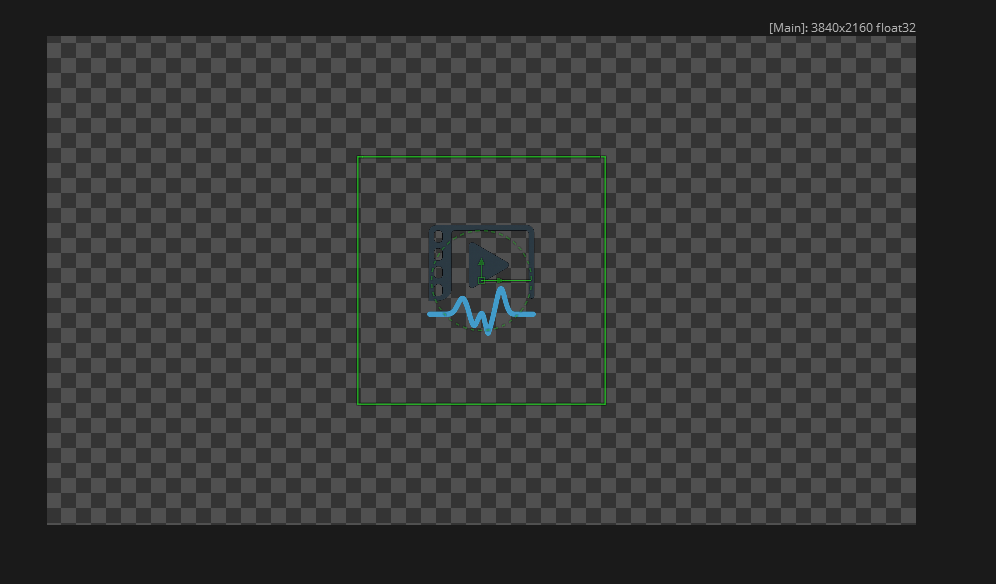
This workflow solves a common Fusion issue: a source graphic can have its own resolution, for example 1024×1024, while the composition is 3840×2160. Used directly, the image keeps its original canvas. The fix is to create a transparent Background at the project resolution and connect the image to the Merge Foreground. From that point on, the chain receives a full-size project frame while preserving the PNG alpha.
The setup is intentionally minimal. Background defines frame dimensions and transparency; Merge places the PNG or logo inside that frame. This is more predictable than blindly scaling MediaIn because the canvas size is controlled by a dedicated node. It is especially useful before Transform, Glow, Blur, particles, masks or export operations that depend on correct frame dimensions.
Node graph
Zoom into a branch, select a node and inspect its incoming connections.
Select a node to inspect its connections. Drag to pan; Ctrl/Cmd + wheel or + / − to zoom. Arrow keys move the view; Home fits the graph.On a touch screen, enable Move to pan and pinch the graph.
| From | To | Input |
|---|---|---|
| Foreground | ||
| Background |
Assembly order
Connect the source PNG to Merge Foreground. This is the object that needs to live inside the project frame: a logo, icon, render or other alpha graphic.
Background6 creates a transparent frame at the required dimensions. In this example it is 3840×2160 with Alpha 0, so it defines canvas size without adding a visible background.
After Merge, the image already has the project frame size and can be transformed, animated, blurred, masked or sent to MediaOut without the small-source-canvas problem.
Node parameters
The values below belong to this example. Use the descriptions to understand what each setting controls when adapting the graph to your footage.
Background is used as a transparent project-size container rather than a visible color fill.
Merge combines the transparent project frame and PNG. Background goes to the yellow Background input; Logo goes to the green Foreground input. Size can be adjusted without modifying the original media.
Logo is a project PNG resource rather than a universal Fusion node, so the diagram treats it as a static asset rather than an encyclopedia link.
Troubleshooting
Do not feed a small PNG deep into a graph if later effects need a full project-size frame.
Do not make Background opaque when it is meant to act only as a transparent container; use Alpha 0.
Do not swap Merge inputs: the transparent frame is Background and the graphic is Foreground.
Do not rely on Transform alone to solve the canvas problem. Transform changes scale and position but does not define a new full-frame canvas by itself.
Do not treat a project-specific MediaIn asset as an encyclopedia node link.
Check the composition
Tick each item after checking it in your own composition.
These references explain the tools and connections used in the graph.
Working in the Node Editor: Merge inputs and output-image resolution.