← All Fusion workflows
Beginner workflowText+FastNoisePlanar TrackerCorner Pin

Reveal Text on a Tracked Surface with FastNoise and PlanarTracker

In this workflow, Text+ is first styled as a finished title with the required font, size and line breaks. FastNoise is connected to Text+ as an Effect Mask and controls only the reveal. PlanarTracker then receives the source video as its background, accepts Text1 as the Corner Pin image and places the title into the perspective of a real tracked surface.

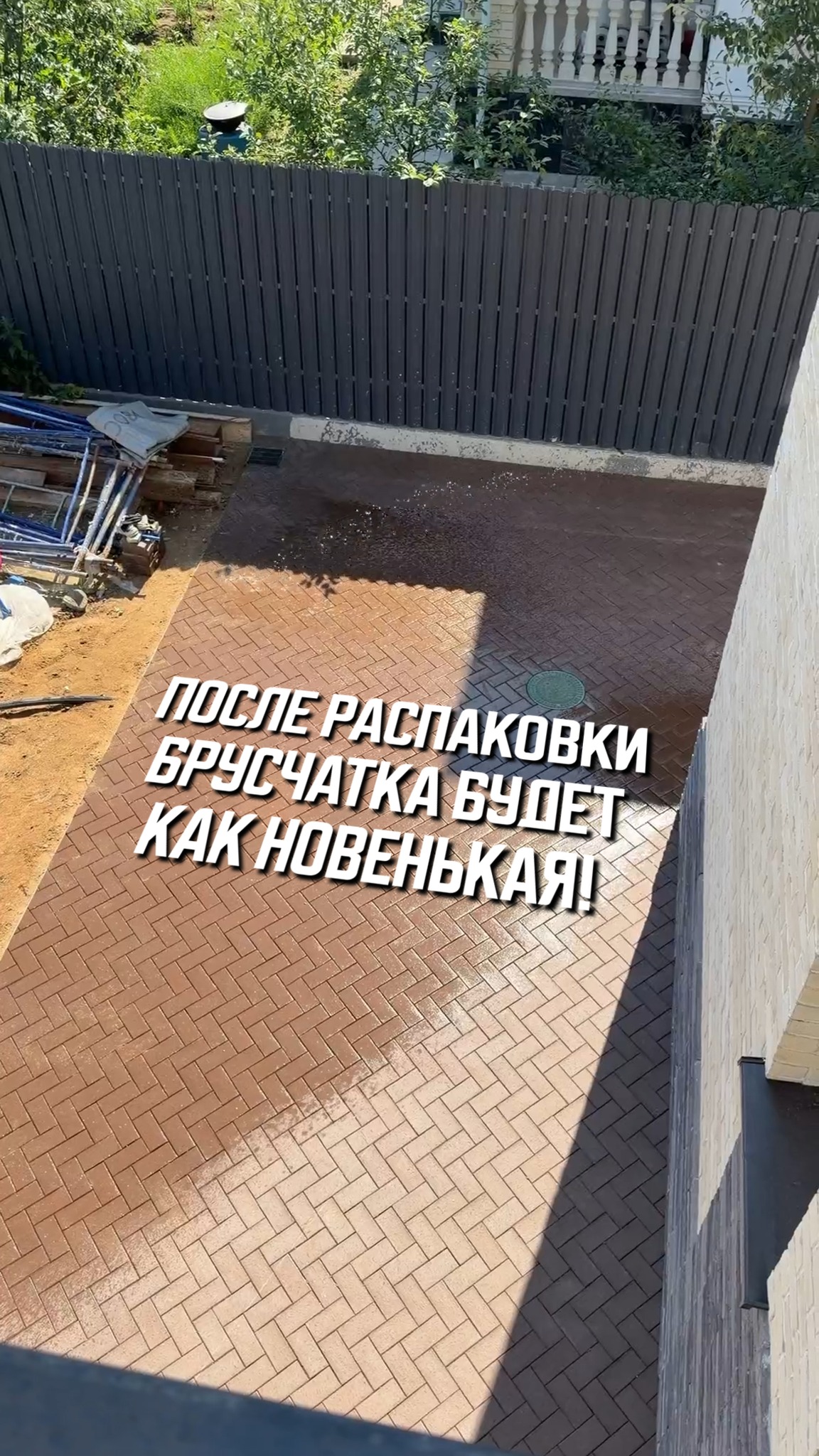
Final result: Reveal Text on a Tracked Surface with FastNoise and PlanarTracker

Why this graph is built this way

Workflow logic

The graph deliberately avoids extra Merge and Background nodes. PlanarTracker can already take the source image as Background, accept the inserted graphic through Corner Pin and output the composited result directly to MediaOut. Keeping the chain short makes the setup easier to read and reduces the number of places where alpha, frame size or perspective can be broken.

Node tree

Connection diagram

The cable colors follow Fusion conventions: blue is an Effect Mask, neutral lines carry images, and colored ports indicate specific node inputs. Node-page links are intentionally disabled on the English diagram until the matching Fusion Encyclopedia pages are translated.

Node order

How to read the chain

1

MediaIn1 → PlanarTracker1

Connect the source clip directly to the PlanarTracker Background input. The tracker analyzes the real surface in the shot and also becomes the node that assembles the final composite.

2

FastNoise1 → Text1

Feed FastNoise into the Text+ Effect Mask rather than into a global Merge. This makes the mask reveal only the letters instead of cutting the entire tracked result.

3

Text1 → PlanarTracker1

Send Text1 to CornerPin Image. At this point the title is already designed; PlanarTracker only deforms it to match the four corners and perspective of the plane.

4

PlanarTracker1 → MediaOut1

MediaOut receives the complete result: the source video, plane tracking, perspective placement and animated text reveal.

Result

What the shot looks like

The title feels embedded in the shot rather than pasted on top: it follows the perspective of the tracked plane while an animated FastNoise gradient controls the reveal across the letters.

When to use it

Where it works

  • Titles placed on floors, walls, roads, tables or other trackable planes.
  • Advertising labels that should feel physically integrated into the shot instead of floating as an overlay.
  • Reels, Shorts and vertical edits where a title needs a more cinematic reveal.
  • Any shot that combines planar tracking with a controlled text reveal.

Node parameters

What changes from the defaults

FastNoise1

FastNoise acts as a reveal mask, not as decorative noise over the image. Its Offset is animated so the bright region travels across the title and progressively exposes the letters.

  • Color → Type: Gradient
  • Gradient Type: Radial
  • Start: X 0.556994 / Y 0.439218
  • End: X 0.790155 / Y 0.575253
  • Gradient: bright region around 0.492537
  • Offset: animated; final value 5.0
  • Repeat: Once

Text1

Text+ contains the title, font, size and line breaks. FastNoise is connected specifically to its Effect Mask so the reveal remains confined to the text before perspective deformation.

  • StyledText: original Russian title from the source project
  • Font: Buyan Bold
  • Size: 0.189
  • Horizontal / Vertical Justification: Center
  • Effect Mask: FastNoise1.Output

PlanarTracker1

PlanarTracker works as the perspective insertion node. It takes the video as Background and Text1 as CornerPin Image, so a separate Merge is unnecessary.

  • Operation: Corner Pin
  • Tracker Type: Hybrid
  • CornerPin Image: Text1.Output
  • TopLeft: 0.314815 / 0.692888
  • TopRight: 0.831948 / 0.668188
  • BottomLeft: -0.164123 / 0.141407
  • BottomRight: 0.793972 / 0.053401

Common mistakes

What not to break

  • Do not insert an unnecessary Merge between Text1 and PlanarTracker when the graphic is being inserted through CornerPin Image.
  • Do not place FastNoise after PlanarTracker or the mask will start cutting the entire composite instead of only the title.
  • Do not ignore the Text+ frame size. A mismatched canvas can make Corner Pin stretch the title unpredictably.
  • Avoid an excessively hard mask when the reveal is meant to feel soft and natural.