FAIRLIGHT / DIALOGUE / 07.01
Noise Reduction
Reduce the noise. Keep the words.
The noise profile, its update behavior and the final balance are separate decisions. Explore Auto Speech and Manual, every parameter group and the removed signal before applying settings across a recording.
- 01Choose a suitable sample
- 02Distinguish Ratio from compression
- 03Listen to what is removed
Move the target region and compare the source and illustrative result.
Noise and speech can share frequencies.↗
The spectrum helps orientation but does not reveal the meaning of words. Start with the defect and source.
Check: a denoiser is justified by the observed problem.Change the controls to explore the diagram. No audio playback, native DSP or connection to Resolve.
Sources and scope · 7 October 2026
Reviewed 7 October 2026 against the official Fairlight overview and the Noise Reduction section of the Resolve 21 manual reproduced by independent mirror iMaster. The manual illustration was inspected; this is not an installed-build test or a listening assessment of your files. Ranges refer to the illustrated window. The site’s original PNG path is retained, but the file is absent from the supplied ZIP and was not visually reinspected.
Read the source notes ↓On this page
01 / UNDERSTAND & APPLY
Identify the noise before choosing settings
Noise Reduction is a repair effect for reducing unwanted noise. It does not choose the best lavalier, fix sync or replace editing a poor transition. Compare De-Hummer for tonal hum and De-Esser for excessive sibilance.
Start with a test copy and a short passage containing noise, quiet speech and consonant attacks. After a room, microphone or recorder change, treat the old settings as candidates for a new review, not a finished solution.
Reference: Blackmagic Design — Fairlight / clip editing, cleanup and repair
02 / UNDERSTAND & APPLY
The window: what it shows and what it cannot prove
The inspected illustration shows a spectral plot with a purple profile, Input / Output meters, Auto Speech Mode / Manual, Learn, Listen to Noise Only and three lower control groups. The graph is not a transcript, and a meter difference is not a measure of safely removed noise.
The open menu shows De-Hiss, De-Rumble, De-Rumble and Hiss, plus Reset Noise Profile. The first three are starting presets; the last is a profile-reset action. Do not treat it as another sound preset.
A/B helps compare parameter variants. After saving a preset or project, separately check profile recall and the same passage. A preset name does not prove that every part of the state transferred unchanged.

Noise Reduction
Manual is selected. The menu includes three noise presets and a separate Reset Noise Profile action. Displayed values are examples, not recommended settings.
Image source ↗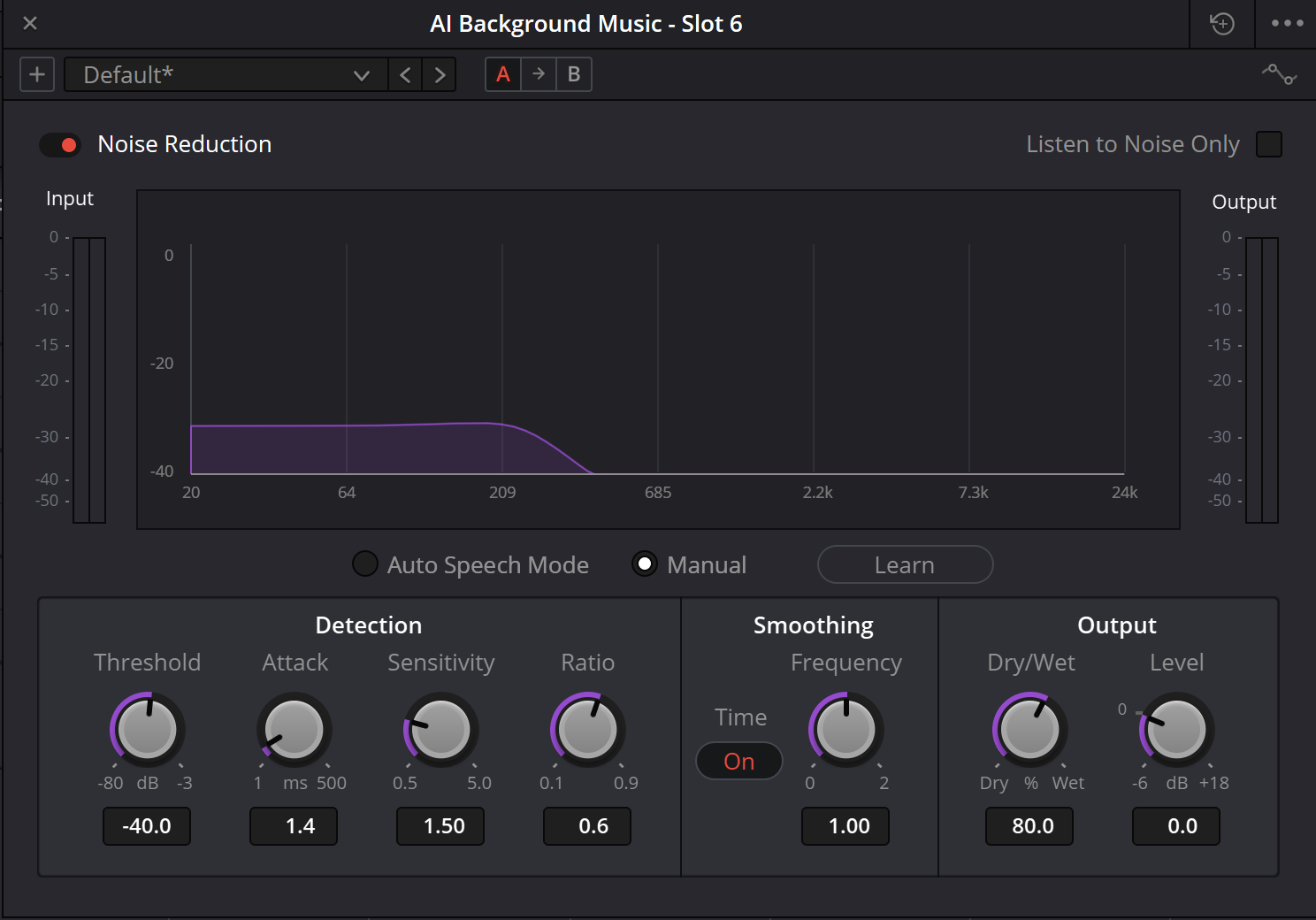
Original page illustration
Path retained from the supplied project. The PNG is absent from the archive and was not reinspected here. Its filename does not establish the current build. A separately inspected manual illustration is available below.
Reference: Blackmagic — Resolve 21 manual, ch. 181 / Noise Reduction (iMaster mirror) · Blackmagic manual — Noise Reduction window (iMaster mirror) · Blackmagic Design — official Fairlight cleanup illustration
03 / UNDERSTAND & APPLY
Auto Speech and Manual / Learn are different routes
Bound the task
Open the effect on the target clip or a consistent track. Choose background plus adjacent speech and retain the unprocessed version.
Manual: locate a sample
Audition representative background without words, breaths, clicks or unrelated events. A speaker’s pause does not guarantee a useful sample: a door may slam in it.
Learn, then stop learning
In Manual, enable Learn and play only the selected noise. End learning before replaying speech. Check the button and profile state so it is not being relearned from the words.
Auto Speech: compare without a manual sample
Select the automatic mode and audition several representative lines. Attack affects the profile update rate. Selecting Auto alone cannot establish an improvement.
Check adjacent passages
Compare a quiet ending, a strong attack and the next pause. If the background changes, revisit scope or the profile rather than indefinitely increasing reduction.
Reference: Blackmagic Design — Fairlight / clip editing, cleanup and repair · Blackmagic — Resolve 21 manual, ch. 181 / Noise Reduction (iMaster mirror) · Blackmagic manual — Noise Reduction window (iMaster mirror)
04 / UNDERSTAND & APPLY
Detection: four distinct decisions
| Control / illustrated scale | Meaning | Practical check |
|---|---|---|
| Threshold · −80…−3 dB | Relates to signal-to-noise estimation. The manual associates a higher threshold with more reduction for a noisy recording. It is not an output target. | Check quiet words and the removed signal; do not transfer the number to another microphone. |
| Attack · 1…500 ms | Primarily in Auto Speech: the duration of noise-profile detection/update. Lower values update faster; higher values update more slowly. | Compare with background variability. Do not describe it as an ordinary compressor attack. |
| Sensitivity · 0.5…5.0 | Emphasizes the detected profile. Increasing it may remove more noise while affecting useful speech. | Check consonants and breaths in Noise Only, then the normal output. |
| Ratio · 0.1…0.9 | Relates signal-profile attack time to noise-profile attack time. The manual describes a trade-off between preserving transients and speech-profile accuracy. | Do not interpret it as a Compressor ratio such as 4:1 or a percentage of removed noise. The value alone does not establish quality. |
Reference: Blackmagic — Resolve 21 manual, ch. 181 / Noise Reduction (iMaster mirror) · Blackmagic manual — Noise Reduction window (iMaster mirror)
05 / UNDERSTAND & APPLY
Smoothing: address artifacts, not missing words
Frequency Smoothing smooths the result across frequency to reduce harmonic ringing after noise extraction. The illustration shows a 0…2 scale. It is not a cutoff frequency in hertz or a separate equalizer.
Time Smoothing is a switchable smoothing process over time. Compare its states on the same line: a smoother background must not substitute for consonant clarity. Do not expect smoothing to restore speech that has already been suppressed.
Reference: Blackmagic — Resolve 21 manual, ch. 181 / Noise Reduction (iMaster mirror) · Blackmagic manual — Noise Reduction window (iMaster mirror)
06 / UNDERSTAND & APPLY
Noise Only, Dry/Wet and Level
Listen to Noise Only temporarily monitors the removed component. Intelligible words, consonants or important breaths in it are reasons to reduce the intervention and recheck the profile. Return to normal output afterward: the removed component alone cannot establish the result’s tone.
Dry/Wet blends original and processed signals: 0% is original, 100% is processed. Adding original signal brings back both its naturalness and its noise. The illustrated 80% is not a universal setting.
Level is shown from −6 to +18 dB. The manual places its gain just before the dry/processed mix. We therefore do not describe it as a guaranteed independent post-mix fader, nor promise that Dry/Wet=0 always equals Bypass at any Level. Test that combination in the application.
Meters
Compare levels without treating reduced overall energy as proof that the speech survived.
A/B
Use the same passage, comparable loudness and normal output. Note changes in quiet passages.
Reference: Blackmagic — Resolve 21 manual, ch. 181 / Noise Reduction (iMaster mirror) · Blackmagic manual — Noise Reduction window (iMaster mirror)
07 / UNDERSTAND & APPLY
Clip, track and recalled profile
The effect can be placed on a clip or mixer channel. For multiple locations, do not apply the first pause’s profile across the whole track without testing. Begin with consistent material and inspect exceptions individually.
Inspect the processing before and after Noise Reduction. Substantial tonal or level changes ahead of it change what is analyzed. Check cached or rendered versions separately; they may not represent a newly changed setting.
After reopening the project, inspect mode, profile, Noise Only, Dry/Wet and Level on a known test passage. Assess recall through playback, not just the selected preset name.
Reference: Blackmagic Design — Fairlight / clip editing, cleanup and repair
08 / UNDERSTAND & APPLY
Check the Learn sample boundaries
The teaching scene lasts 12 seconds, with speech marked as [2, 5) and [7, 10). Enter a proposed noise sample. The panel computes overlap with those annotations; it does not recognize audio. Touching interval endpoints does not count as overlap, but a real word’s tail must still be auditioned.
Switch to Auto Speech to retain sample values for a later return to Manual without presenting them as a Learn command. Changing boundaries or mode resets listening observations. Neither clean geometry nor positive observations automatically approve the audio.
Noise sample boundaries
Teaching panel. No audio is uploaded or analyzed and Resolve is not connected. Input lasts only while this page is open.
0–12 s, up to three decimal places. These are teaching-scene bounds, not plugin limits.
Some listening observations are still unverified.
Duration1250 ms
Overlap with speech0 ms
USER-REPORTED / NOT VERIFIED BY THE SITE
09 / UNDERSTAND & APPLY
When noise drops but speech gets worse
| Symptom | Check | Do not automatically |
|---|---|---|
| Watery endings | Profile, Sensitivity, Threshold and removed signal. | Add another denoiser. |
| Noise swells around each word | Mode, profile updates and surrounding background. | Mute every pause. |
| Consonants disappear | Whether speech entered the learned profile; compare Ratio and reduction decisions. | Compensate everything with output gain. |
| Only noise is audible | Listen to Noise Only before assuming a routing fault. | Export before restoring normal monitoring. |
| Settings fail on the next scene | A different microphone, location, recording mode and profile. | Copy the settings to remaining scenes without checking. |
Reference: Blackmagic Design — Fairlight / clip editing, cleanup and repair · Blackmagic — Resolve 21 manual, ch. 181 / Noise Reduction (iMaster mirror)
PRACTICE / NO AUTOPILOT
A small task. A checkable result.
Work in a test copy, listen before and after, and write down what you actually observed. The checklist contains no pre-approved results.
Keep the source test
Use one scene, one objective and a defined scope. Describe the defect without choosing a magic preset.
Choose the mode
Use Manual with an auditioned sample or a separate Auto Speech test. Record why.
Check profile and controls
Change one parameter at a time. Listen to onsets, quiet lines and pauses, not only loud words.
Audition the removed component
Briefly enable Noise Only, then disable it. Compare normal output at comparable loudness.
Save and recheck
Reopen the project and create a short export. Record unresolved issues and any altered words.
FAQ / BEFORE THE NEXT MOVE
Questions that matter in practice
Is Ratio the same as a compressor ratio?
No. The manual describes relative signal- and noise-profile response. A value of 0.6 does not mean 60% removal or a 6:1 ratio.
Reference: Blackmagic — Resolve 21 manual, ch. 181 / Noise Reduction (iMaster mirror)
Does Attack mean suppressing the start of a word?
Its description primarily concerns profile detection and updates in Auto Speech. Judge preserved attacks by listening to the result.
Reference: Blackmagic — Resolve 21 manual, ch. 181 / Noise Reduction (iMaster mirror)
Can a breath be used as a noise sample?
Do not automatically consider it noise-only background. When the breath must survive, do not include it in learning without a deliberate test.
Is Dry/Wet 0% identical to Bypass?
It selects the original part of the mix, but the text places Level before mixing. Full equivalence across every state needs a native-path test.
Reference: Blackmagic — Resolve 21 manual, ch. 181 / Noise Reduction (iMaster mirror)
What does the purple area indicate?
The targeted noise profile in the spectral plot. It does not certify that every affected event can safely be removed.
Reference: Blackmagic — Resolve 21 manual, ch. 181 / Noise Reduction (iMaster mirror)
Does the Learn panel analyze a recording?
No. It calculates intervals in a teaching scene from your numbers. It does not assess a recording, its noise or the real plugin.
REFERENCES / 2026-10-07
What this guide is based on
Reviewed 7 October 2026 against the official Fairlight overview and the Noise Reduction section of the Resolve 21 manual reproduced by independent mirror iMaster. The manual illustration was inspected; this is not an installed-build test or a listening assessment of your files. Ranges refer to the illustrated window. The site’s original PNG path is retained, but the file is absent from the supplied ZIP and was not visually reinspected.
Blackmagic Design — Fairlight / clip editing, cleanup and repair ↗
Reviewed 7 October 2026: clip volume, fades, clip/channel FX and Learn. Does not assess an individual recording.
Blackmagic — Resolve 21 manual, ch. 181 / Noise Reduction (iMaster mirror) ↗
Primary manual text read on third-party hosting: Noise Reduction, printed pp. 4121–4122, and Track FX edition labels. Ratio concerns profile response, Attack profile updates; Level is described before mixing. Not a full official-PDF or native-algorithm test.
Blackmagic manual — Noise Reduction window (iMaster mirror) ↗
Illustration inspected: Manual, Learn, open menu with three presets and Reset Noise Profile, Detection / Smoothing / Output scales. Loads only on request. Values are not a universal preset.
Blackmagic Design — official Fairlight cleanup illustration ↗
Official illustration inspected: Manual / Learn, Detection, Smoothing and Output. A product-page illustration does not establish an installed build; image not bundled.
Videomontazher — retained Noise Reduction image ↗
Original path retained. Bytes absent from the supplied ZIP; the new image request failed. Original not viewed here; this is not an established live-site 404.