FAIRLIGHT / SIBILANCE / 07.02
De-Esser
Soften the s. Keep the word.
A sharp consonant is not a reason to remove all vocal brightness. Locate the event, target the processing and compare whole words. This guide covers the separate De-Esser, not the compact Dialogue Processor section.
- 01Understand all three Range modes
- 02Keep Amount separate from dB
- 03Compare without losing consonants
Move the target region and compare the source and illustrative result.
Target the event, not a recipe.↗
Compare several words. A setting for one microphone is not automatically a preset for another.
Check: identify a particular consonant.Change the controls to explore the diagram. No audio playback, native DSP or connection to Resolve.
Sources and scope · 7 October 2026
Purposes were checked against Blackmagic’s official page; controls against the primary Resolve 21 manual text and illustrations on the independent iMaster mirror. Text and images are distinguished: a missing button is not drawn in. The teaching records are an authored review method, not the plug-in algorithm. Listening tests and verification of a particular installed build were not performed.
Read the source notes ↓On this page
01 / UNDERSTAND & APPLY
When the separate De-Esser is the right tool
Excessive sibilance is a short consonant sound that stands out disproportionately. De-essing should reduce the sharpness without making speech indistinct. Compare a troublesome word, an ordinary sentence and a quiet ending. A local clip adjustment may be simpler than an insert for a one-off problem.
Do not confuse the separate Fairlight FX De-Esser with De-Ess inside Dialogue Processor. Their controls differ. Hiss between words is not automatically sibilance either; identify the noise first.
Sibilance, hum or noise?
Choose an investigation direction from the observed event.
↗Dialogue Processor
A different processor with a compact De-Ess section.
Reference: Blackmagic Design — Resolve 21 Reference Manual · Fairlight FX, pp. 4101–4102 (iMaster mirror)
02 / UNDERSTAND & APPLY
The window: distinguish text from the illustration
Apply the effect to the intended clip or Mixer channel and inspect the instance title. The manual image shows the graph, Reduction and Output, Frequency/Range, Amount and three Reaction Time choices. Its 7k, 50 and Medium values are an example state, not a recommended preset.
There is a discrepancy: the manual text describes Listen to Ess Only at the upper right, but the illustration lacks that checkbox. The mode is explained from the text; verify its presence and location in your build. The image has not been supplemented with a drawn control, nor is its absence declared proof that the feature was removed.

De-Esser
The 7k / 50 / Medium values are an example, not a voice preset. The manual describes Listen to Ess Only, but this illustration does not show it.
Image source ↗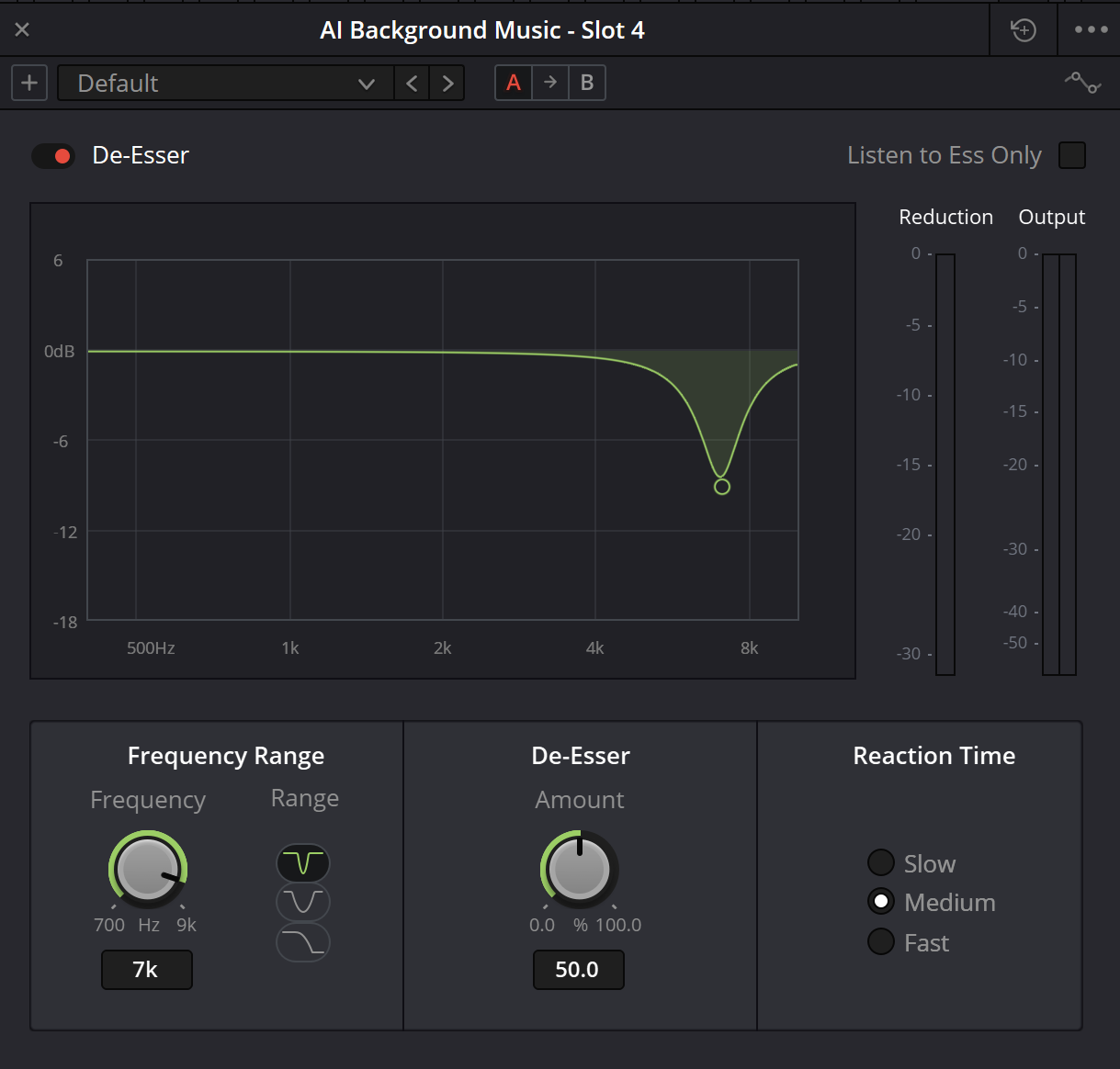
Existing site capture
Original image path preserved. Its bytes are missing from the ZIP baseline and reinspection failed in this pass. The resolve21 filename does not establish an exact build. An inspected manual illustration is available below for the control reference.
Reference: Blackmagic Design — Resolve 21 Reference Manual · Fairlight FX, pp. 4101–4102 (iMaster mirror) · Blackmagic manual illustration — De-Esser (independent hosting) · Videomontazher — original De-Esser capture / preserved path
03 / UNDERSTAND & APPLY
Frequency, Amount and meters
Frequency selects the sibilant region. The illustration labels the control from 700 Hz to 9 kHz. That is its displayed range, not evidence that all sibilance occurs at one frequency. Work from a particular phrase and listen to the adjustment without unnecessarily raising the monitoring level.
Amount adjusts the strength of de-essing, with a 0–100% scale in the image. It is neither a dBFS threshold nor a ratio, and does not promise removal of that percentage of energy. Assess reduction using the meter and listening. Output indicates level, not speech intelligibility.
| Control | Purpose | Do not infer |
|---|---|---|
| Frequency | Select the target frequency | Every voice needs 7 kHz |
| Amount | De-essing strength | 50% means −6 dB or half the speech |
| Reduction | Observe attenuation | Maximum reduction is best |
| Output | Observe processed output level | The reading certifies delivery |
| Graph | The region targeted by the settings | This is a measured source spectrum |
Reference: Blackmagic Design — Resolve 21 Reference Manual · Fairlight FX, pp. 4101–4102 (iMaster mirror) · Blackmagic manual illustration — De-Esser (independent hosting)
04 / UNDERSTAND & APPLY
Range: all three documented modes
The manual names the options from top to bottom as Narrow Band, Wide Band and All High Frequency. The image uses three curve icons without text labels. The names below come from documentation, not guesses based on the icons.
Compare a narrow region first and widen it for an audible reason. Wide Band is this plug-in’s mode name; do not relabel it as whole-signal broadband compression without evidence. This description does not specify exact bandwidths, Q values or internal filter equations.
| Position | Range | How to evaluate |
|---|---|---|
| Top button | Narrow Band | Does it catch the harsh event without harming nearby sounds? |
| Middle button | Wide Band | Does the broader region help without dulling the phrase? |
| Bottom button | All High Frequency | Processes frequencies above the selected point; inspect all useful high-frequency detail. |
Reference: Blackmagic Design — Resolve 21 Reference Manual · Fairlight FX, pp. 4101–4102 (iMaster mirror)
05 / UNDERSTAND & APPLY
Reaction Time: Slow, Medium, Fast
The modes change how abruptly processing takes effect: slower, medium and faster. The manual relates them to attack speed without specifying milliseconds. Do not present them as numerically known Attack/Release values or substitute controls from a neighbouring compressor.
Check both short and sustained sibilants. A late reaction may leave a sharp onset; conspicuous processing may disturb the consonant shape. Listen to the word and following vowel, not only the part that moves the meter. When comparing Reaction modes, keep Range unchanged.
Reference: Blackmagic Design — Resolve 21 Reference Manual · Fairlight FX, pp. 4101–4102 (iMaster mirror)
06 / UNDERSTAND & APPLY
Listen to Ess Only, bypass and A/B are different comparisons
The manual describes Listen to Ess Only as monitoring the removed sibilant component. That is more specific than calling it merely frequencies detected by the processor. It helps reveal useful sound caught by the processing, but cannot alone establish a successful result.
Turn Listen Only off for normal comparison. Bypass compares processing against untreated input, whereas A/B holds two sets of settings for the effect. Copying A to B transfers settings rather than creating an audio file. Confirm the active version before listening; a quieter or louder version is not necessarily better.
Reference: Blackmagic Design — Resolve 21 Reference Manual · Fairlight FX, pp. 4101–4102 (iMaster mirror)
07 / UNDERSTAND & APPLY
A practical pass: one voice, one checkable task
Choose a troublesome word, a normal sentence and a quiet ending. Identify the insert scope. Set Frequency and compare Range with restrained Amount, then evaluate Reaction. For another microphone or actor, listen again instead of copying settings automatically.
Recheck after a high-frequency EQ boost or compression. Avoid a tug-of-war in which one processor dulls speech and another continually restores brightness. If only two words are troublesome, consider a local edit rather than stronger treatment of the entire track. Preserve A before the next experiment.
Equalizer
Continuous tone shaping and band comparison.
↗Compressor
Dynamics, detection and level-aware comparison.
Reference: Blackmagic Design — Resolve 21 Reference Manual · Fairlight FX, pp. 4101–4102 (iMaster mirror)
08 / UNDERSTAND & APPLY
A/B record: settings separate from listening
Enter the settings being tested in Resolve. The record displays changes from saved A without calculating native attenuation from Amount. A Range name is not converted into an invented response curve. Saving A leaves the current record intact; forgetting A does not alter B.
Record sibilance improvement, articulation preservation and the mix check. Changing a parameter clears current B assessments. Changing the source or scope also clears A to prevent cross-context comparisons. Listen Only blocks a positive conclusion even when the assessments are filled in.
DE-ESSER / SETTINGS · A/B
Two settings. Three listening checks.
Enter settings tested in Resolve. This page does not process sound, calculate gain reduction or recreate native curves. The initial numbers are editable examples, not a voice preset. Nothing is saved automatically.
These are record fields, not commands. Listen Only availability and location must be checked in your installed build.
Correct the fields: target (1–160 characters)
09 / UNDERSTAND & APPLY
Common mistakes, presets and reopening
Name a saved preset for its task and source rather than promising a perfect voice. On another recording, check Frequency, Range and diagnostic monitoring. Reopening should preserve the intended instance and scope, not merely display the preset name.
| Problem | What to check |
|---|---|
| Speech has become lispy | Reduce Amount and compare Range before compensating with an EQ boost. |
| Meter moves but harshness remains | Target frequency, event and instance, then later processing. |
| The whole phrase lost brightness | All High Frequency, Amount and processing on a shared bus. |
| Only sibilants are audible | Listen to Ess Only; restore normal output. |
| Hum and noise remain in pauses | Reconsider the task: De-Esser is not a general denoiser. |
| A/B sounds identical | Check identical copied settings, the test passage and bypass. |
Reference: Blackmagic Design — Resolve 21 Reference Manual · Fairlight FX, pp. 4101–4102 (iMaster mirror)
PRACTICE / NO AUTOPILOT
A small task. A checkable result.
Work in a test copy, listen before and after, and write down what you actually observed. The checklist contains no pre-approved results.
Save a comparison passage
In a project copy choose three phrases from one source. Identify the exact clip or track and untreated reference.
Find Frequency and Range
Compare modes one at a time. Record why you chose one; 7 kHz in an illustration is not an instruction.
Evaluate Amount and Reaction
Compare short and sustained consonants. Return to a gentler option when articulation suffers.
Save A and change one parameter
Compare normal output on the same phrases. Separately inspect the removed component, then turn Listen Only off.
Check reopening and the result
Record your conclusion and unresolved issues. Reopen the project and inspect settings, scope and a rendered passage.
FAQ / BEFORE THE NEXT MOVE
Questions that matter in practice
What are the three Range buttons called?
The manual lists Narrow Band, Wide Band and All High Frequency from top to bottom. The last mode processes frequencies above the selected point. Exact numerical widths of the first two bands are not given.
Reference: Blackmagic Design — Resolve 21 Reference Manual · Fairlight FX, pp. 4101–4102 (iMaster mirror)
Should Frequency always be 7 kHz?
No. That is an illustration value. Choose from the particular voice and event, then verify other words from the same source.
Reference: Blackmagic manual illustration — De-Esser (independent hosting)
Does Amount 50% mean half the level?
No such mapping is documented. Amount sets de-essing strength; actual attenuation depends on the input and other settings.
Reference: Blackmagic Design — Resolve 21 Reference Manual · Fairlight FX, pp. 4101–4102 (iMaster mirror)
How many milliseconds is Fast?
The reviewed description does not specify milliseconds. Compare modes on words rather than inventing an Attack/Release table.
Reference: Blackmagic Design — Resolve 21 Reference Manual · Fairlight FX, pp. 4101–4102 (iMaster mirror)
Why does the illustration lack Listen to Ess Only?
The manual text and image differ. The text describes the mode, but the image does not establish its location. Check your build; no control was drawn into the illustration.
Reference: Blackmagic Design — Resolve 21 Reference Manual · Fairlight FX, pp. 4101–4102 (iMaster mirror) · Blackmagic manual illustration — De-Esser (independent hosting)
Can the downloaded JSON be imported as a preset?
No. It records settings and your observations. It is not a native preset, does not analyse speech and does not run De-Esser.
REFERENCES / 2026-10-07
What this guide is based on
Purposes were checked against Blackmagic’s official page; controls against the primary Resolve 21 manual text and illustrations on the independent iMaster mirror. Text and images are distinguished: a missing button is not drawn in. The teaching records are an authored review method, not the plug-in algorithm. Listening tests and verification of a particular installed build were not performed.
Blackmagic Design — Fairlight / Clean Up and Repair Sound ↗
Primary source for the purposes of De-Esser, De-Hummer and Noise Reduction and clip/channel placement. Read 7 October 2026; not a test of an installed build.
Blackmagic Design — Resolve 21 Reference Manual · Fairlight FX, pp. 4101–4102 (iMaster mirror) ↗
Primary Blackmagic text on an independent mirror; De-Esser, De-Hummer and Common Controls read. Range names, Reaction and removed-signal monitoring checked. The Listen to Ess Only text/image discrepancy is explicitly noted.
Blackmagic manual illustration — De-Esser (independent hosting) ↗
Inspected: 700 Hz–9 kHz, Amount 0–100%, three Range icons and Slow/Medium/Fast. This illustration lacks the Listen to Ess Only checkbox. 7k/50/Medium is an example, not a recommendation.
Videomontazher — original De-Esser capture / preserved path ↗
Original path preserved from the baseline. Bytes are missing from the ZIP; reinspection failed on 7 October 2026. Not used as fresh visual evidence or confirmation of an exact build.