FAIRLIGHT / VOICE / 06.04
Dialogue Processor
Six modules. Not six mandatory steps.
Address rumble, plosives, sibilants, dynamics and brightness in spoken lines. Choose only the sections you need and protect words, pauses and vocal character while judging the repair.
- 01Match a module to a problem
- 02Keep Amount separate from Ratio
- 03Check words, tails and pauses
Move the target region and compare the source and illustrative result.
Find the event before choosing the module.↗
Locate a specific pop, harsh consonant or level change. “Make the voice better” is not a module choice.
Check: a short passage clearly exposes the problem.Change the controls to explore the diagram. No audio playback, native DSP or connection to Resolve.
Sources and limits · 7 October 2026
Reviewed on 7 October 2026 against Blackmagic’s Fairlight overview and the reproduced primary Resolve 21 manual chapter on the independent iMaster mirror. The two manual illustrations were visually inspected. Source contradictions are explicit; native DSP, precise Reaction timing, preset restoration and listening were not tested. Original site PNGs remain an installation dependency.
Read the source notes ↓On this page
01 / UNDERSTAND & APPLY
Choose a defect that actually exists
Dialogue Processor groups De-Rumble, De-Pop, De-Ess, Compressor, Expander and Excite in one insert. It is not Dialogue Leveler, Dialogue Separator or Voice Isolation: similar names do not mean identical processing.
Choose a line with one recognisable event and a nearby reference. Write down what is distracting. A bus insert also affects other routed sources, which may be too broad a scope for one local pop.
Rumble or vibration
Compare unwanted low end with useful vocal weight instead of applying one automatic cut.
Plosive or sibilant
Locate the word and listen to it in full after adjustment, not merely to the disappearance of the defect.
Level and character
Level variation, pause noise and brightness are different tasks. One Amount cannot describe them all.
Reference: Blackmagic — Resolve 21 manual, ch. 181 / Vocal Channel & Dialogue Processor (iMaster mirror) · Blackmagic Design — Fairlight / plug-ins and mixer
02 / UNDERSTAND & APPLY
Six section switches and two overall meters
The manual illustration shows Dialogue Processor in DIALOGUE — Slot 1. Each of the six columns has an enable switch; Input and Output sit at the edges. Internal indicators show activity, not a measurement of intelligibility.
Check the window title and processing scope. Overall bypass and bypass of one section are different comparisons. Female/Male in Excite names processing profiles, not a compulsory classification of the performer.
| Element | How to read it |
|---|---|
| Six switches | Enable a section deliberately. A disabled module does not prove there is no similar treatment elsewhere in the path. |
| Input / Output | Compare on the same passage. A higher output meter does not mean a better voice. |
| Amount / Range indicators | Watch activity while listening rather than aiming to fill the scale. |
| A/B / Preset / Reset | Preserve the starting state before loading a preset, then recheck all sections and parameters. |

Dialogue Processor
The image labels De-Pop up to 250 Hz and Expander −70…−30 dB, unlike the adjacent text. Values are examples, not a recommended voice preset.
Image source ↗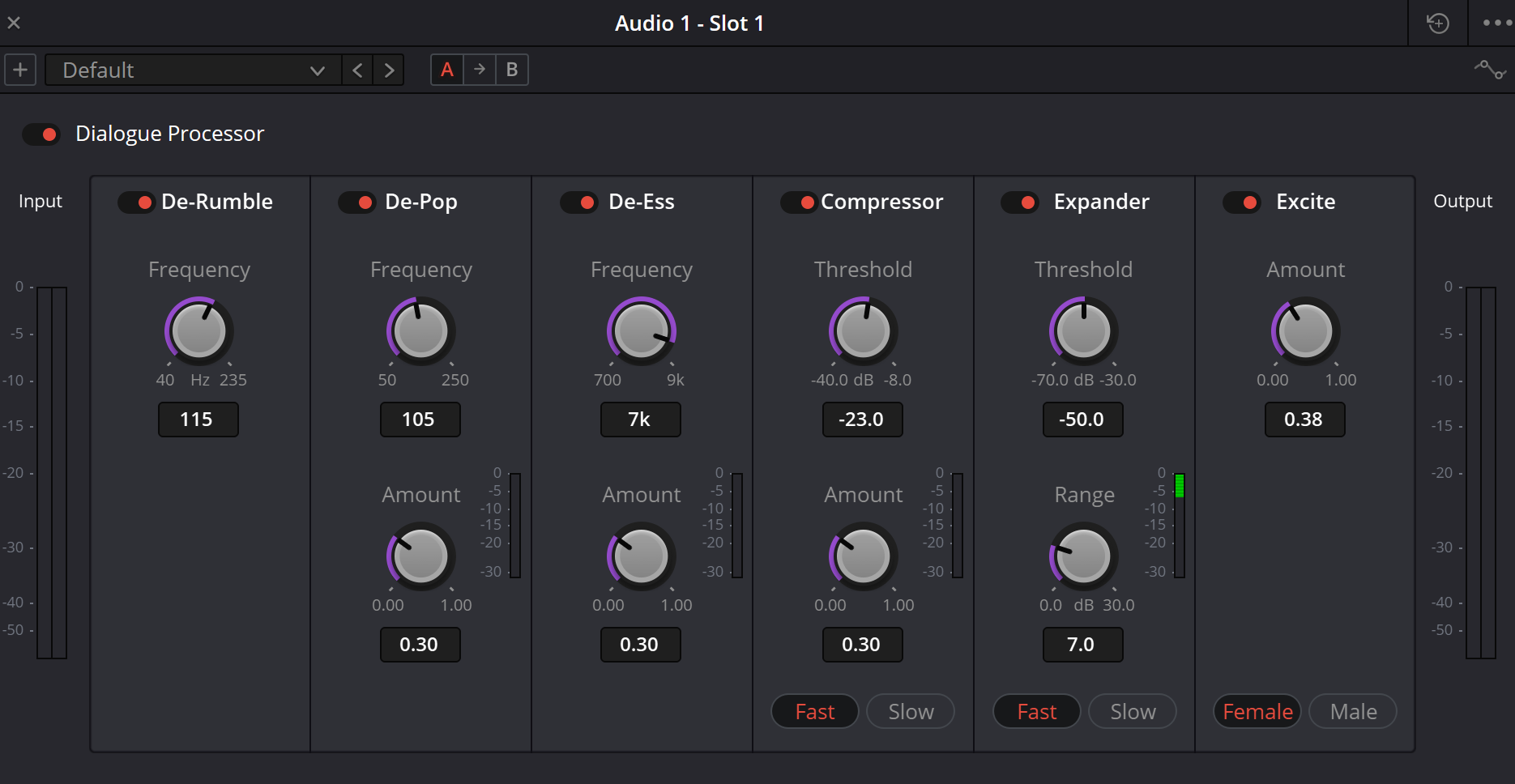
Original site capture: Dialogue Processor
The existing URL is preserved. Its bytes are absent from the supplied ZIP and the original could not be reloaded in this pass. The separately identified manual illustration supports the control table; neither is presented as our live test.
Reference: Blackmagic — Resolve 21 manual, ch. 181 / Vocal Channel & Dialogue Processor (iMaster mirror) · Blackmagic manual illustration — Dialogue Processor (iMaster mirror)
03 / UNDERSTAND & APPLY
Three modules for specific interference
De-Rumble addresses the low region, De-Pop targets plosive-style events, and De-Ess addresses excessive sibilance. Begin by finding the event and relevant frequency region, not by maximising Amount.
Listen to the whole word after every change. Removing its consonant together with the unwanted transient is not a successful repair. For an isolated defect, compare against a local level edit while preserving the original.
| Module · visible controls | What to check |
|---|---|
| De-Rumble · Frequency 40–235 Hz | Unwanted low end is reduced without hollowing vowels. The example 115 Hz is not a required setting. |
| De-Pop · Frequency 50–250 Hz in the illustration; Amount 0…1 | Listen to the plosive and following syllable. Amount does not automatically translate into decibels. |
| De-Ess · Frequency 700 Hz–9 kHz; Amount 0…1 | Find the harsh consonant, then check ordinary sibilants and endings for damaged diction. |
Reference: Blackmagic — Resolve 21 manual, ch. 181 / Vocal Channel & Dialogue Processor (iMaster mirror) · Blackmagic manual illustration — Dialogue Processor (iMaster mirror)
04 / UNDERSTAND & APPLY
Compressor and Expander are different decisions
Compressor restrains level variation in prominent material. Here it exposes Threshold, Amount and Fast/Slow rather than the complete channel Dynamics controls. Amount cannot be substituted for Vocal Channel Ratio or translated into a fixed ratio without documentation.
Expander lowers quiet material relative to louder material. It may quiet a pause without removing interference during words. Check line entries, breathing and final syllables: these can be lost when settings are too aggressive.
| Control | Meaning and limitation |
|---|---|
| Compressor Threshold · −40…−8 dB | Select the operating region and compare lines with different input levels. |
| Compressor Amount · 0…1 | Processing amount, with no established linear Amount-to-Ratio equation. |
| Fast / Slow | Two response choices. Nominal milliseconds are not provided; compare full phrases. |
| Expander Threshold · −70…−30 dB in the illustration | Do not copy the compressor threshold. Judge quiet endings against the actual background. |
| Expander Range · 0…30 dB | Depth of attenuation of low-level material. More range does not necessarily sound more natural. |
Reference: Blackmagic — Resolve 21 manual, ch. 181 / Vocal Channel & Dialogue Processor (iMaster mirror) · Blackmagic manual illustration — Dialogue Processor (iMaster mirror)
05 / UNDERSTAND & APPLY
Excite adds character, not recovered information
Excite adds high-frequency content, which differs from simply raising an existing EQ band. Amount controls the degree of effect; Female and Male are the two profile labels visible in the reviewed window.
Compare profiles on the recording instead of selecting by the person automatically. Recheck sibilance after adding brightness: the previous De-Ess setting may need revision. Leave Excite off when the voice already has enough presence.
Do not disguise a recording problem
Brightness does not reconstruct a clipped consonant or fix the wrong microphone choice.
Listen in the mix
An exciting solo voice may become tiring alongside music and other speakers.
Keep algorithm claims limited
The full harmonic-generation law and exact profile differences are not disclosed in the reviewed material.
Reference: Blackmagic — Resolve 21 manual, ch. 181 / Vocal Channel & Dialogue Processor (iMaster mirror) · Blackmagic manual illustration — Dialogue Processor (iMaster mirror)
06 / UNDERSTAND & APPLY
Keep a six-module listening record
Choose the scope, identify a test passage and record a reason and observation for each enabled section. Selecting a tab only opens its record; it does not solo a module.
Changing a module’s task clears its verdict. Changing the passage or scope clears all verdicts. Positive answers remain your own report: the site has not heard the recording. Zero active modules is a valid baseline, not proof that no treatment is needed.
DIALOGUE / LISTENING RECORD
Give every active section a reason
Teaching tool only. No audio files are read, played or measured; no Resolve connection or automatic storage. JSON is a learning record, not a plugin preset. Changes disappear when you leave the page.
De-Rumble
0 / 600
07 / UNDERSTAND & APPLY
A workable pass for an interview
Preserve the original
Record microphone, channel and passage. Check for similar processing on the clip or bus.
Address specific interference
Compare De-Rumble, De-Pop and De-Ess separately on relevant events. Do not enable all three merely to follow a sequence.
Judge level variation
Compare line levels first, then decide whether Compressor and Expander are needed.
Add character only if useful
Try Excite after basic correction and recheck it together with De-Ess. Keep a neutral version available.
Compare the whole result
Listen to a quiet ending, pause, loud word and the complete passage in context. Individual module checks do not replace this.
Reference: Blackmagic — Resolve 21 manual, ch. 181 / Vocal Channel & Dialogue Processor (iMaster mirror) · Blackmagic Design — Fairlight / plug-ins and mixer
08 / UNDERSTAND & APPLY
When the processing becomes the distraction
| Observation | Check |
|---|---|
| Pauses are quiet but noise remains during words | Do not keep increasing Range. Separate expansion from restoration during speech. |
| Word endings disappear | Bypass Expander, then compare threshold, Range and Fast/Slow individually. |
| Sibilants sound lispy | Revisit De-Ess frequency and Amount on several different words. |
| Excite brought harshness back | Compare Excite and De-Ess together. Less Amount may be better than another processing layer. |
| Sections sound fine alone but poor together | Bypass one at a time and inspect other inserts on the clip, track and bus. |
| The preset worked on a different interview | Compare microphone, distance, input level and room. A preset name does not guarantee a transferable result. |
Reference: Blackmagic — Resolve 21 manual, ch. 181 / Vocal Channel & Dialogue Processor (iMaster mirror)
09 / UNDERSTAND & APPLY
Hand over an understandable result
Save the preset name together with the test passage, active modules and purpose of the settings. For a complex project, include other inserts on the voice path so that a colleague can trace the result.
On another system, check the effect and listen to the passage instead of merely finding a preset name. At delivery, verify the chosen output source and actual file. The site’s record organises observations but does not transfer settings to Resolve.
Reference: Blackmagic — Resolve 21 manual, ch. 181 / Vocal Channel & Dialogue Processor (iMaster mirror) · Blackmagic Design — Fairlight / plug-ins and mixer
PRACTICE / NO AUTOPILOT
A small task. A checkable result.
Work in a test copy, listen before and after, and write down what you actually observed. The checklist contains no pre-approved results.
Choose a test
Record track, slot, passage and audible defect; preserve the original.
Compare one section
Enable the relevant module and compare both the problem and neighbouring normal speech.
Add only what is needed
Judge dynamics and Excite separately. Record a reason for every active section.
Return to words and pauses
Check quiet endings, breathing, sibilants and the full mix at comparable loudness.
Check repeatability
Reopen the saved project and note the actual result and remaining questions. Do not pre-fill successful outcomes.
FAQ / BEFORE THE NEXT MOVE
Questions that matter in practice
Are Dialogue Processor and Dialogue Leveler the same?
No. One is a six-module insert; Leveler has a different interface and dialogue-leveling task.
Reference: Blackmagic — Resolve 21 manual, ch. 181 / Vocal Channel & Dialogue Processor (iMaster mirror)
Does Amount 0.5 mean a 2:1 ratio?
No such correspondence is documented in the material reviewed. Amount remains this module’s own control.
Reference: Blackmagic — Resolve 21 manual, ch. 181 / Vocal Channel & Dialogue Processor (iMaster mirror)
Why does the Expander range differ from the manual sentence?
The source contradicts itself: the text repeats the compressor range while the image shows −70…−30 dB. Both are noted; check your window.
Reference: Blackmagic — Resolve 21 manual, ch. 181 / Vocal Channel & Dialogue Processor (iMaster mirror) · Blackmagic manual illustration — Dialogue Processor (iMaster mirror)
Must Female/Male follow the performer?
These are Excite profile labels, not a mandatory assignment. Compare the result on the actual recording.
Reference: Blackmagic manual illustration — Dialogue Processor (iMaster mirror)
Does a quiet pause prove the recording is clean?
No. Check interference during words, as well as line entries and endings. Expansion does not establish complete restoration.
Reference: Blackmagic — Resolve 21 manual, ch. 181 / Vocal Channel & Dialogue Processor (iMaster mirror)
Do all-positive answers approve the result?
No. They are your self-report. The site has not listened or inspected the project; the JSON is neither a preset nor a certificate.
REFERENCES / 2026-10-07
What this guide is based on
Reviewed on 7 October 2026 against Blackmagic’s Fairlight overview and the reproduced primary Resolve 21 manual chapter on the independent iMaster mirror. The two manual illustrations were visually inspected. Source contradictions are explicit; native DSP, precise Reaction timing, preset restoration and listening were not tested. Original site PNGs remain an installation dependency.
Blackmagic Design — Fairlight / plug-ins and mixer ↗
Reviewed 7 October 2026 for processing scope, inserts and mixer context; not the exact compact-plugin scales.
Blackmagic — Resolve 21 manual, ch. 181 / Vocal Channel & Dialogue Processor (iMaster mirror) ↗
Primary text on third-party hosting read. De-Pop, Expander and Vocal Channel Threshold discrepancies are explicit. Not a full official-PDF or installed-build verification.
Blackmagic manual illustration — Dialogue Processor (iMaster mirror) ↗
Visually inspected: six sections; De-Pop 50–250 Hz and Expander −70…−30 dB conflict with the adjacent text. Female/Male label Excite profiles. Values are not recommendations.