FAIRLIGHT / TONE / 06.1
EQ & Dynamics
Tone and dynamics are different decisions.
One take sounds boomy, another sits too low, and music masks the dialogue. Those are not three reasons to enable every processor. Identify the problem and its scope, choose a tool, then check what actually changed.
- 01Choose clip, track or bus scope
- 02Separate tone, level and dynamics
- 03Compare without a loudness advantage
Threshold and ratio change the static curve, not just the caption.
Where does the problem live?↗
A single problematic take and consistent channel treatment need different locations in the project.
One local correction does not reshape the entire music mix.Change the controls to explore the diagram. No audio playback, native DSP or connection to Resolve.
Sources & limits · 7 October 2026
Native features were checked against Blackmagic’s current Fairlight description and its published EQ illustration. The original Equalizer PNG is missing from the supplied archive and could not be re-fetched; retain it on the server. The full Fairlight 20 training PDF exceeded the retrieval limit and was not treated as read. This is not a live Resolve test or a certified list of every closed menu in every build. The site’s mathematical models are explicitly separate from the native processors.
Read the source notes ↓On this page
01 / UNDERSTAND & APPLY
Choose the processing scope first
The EQ and Dynamics areas in a Mixer strip belong to that channel, not to whichever clip rectangle happens to be selected.
Clip
Correct a single take or source when the surrounding material already sounds right. Selecting a clip and selecting a Mixer channel are separate actions.
Track
Use a track for a consistent microphone character or repeated level behaviour. New material placed on that track will encounter the same processing.
Bus
A group receives the sum of its assigned signals. A bus compressor responds to that sum, rather than levelling each voice independently.
Reference: Blackmagic Design — Fairlight: EQ and Dynamics / Clip Adjustments
02 / UNDERSTAND & APPLY
EQ changes frequency balance, not quality by definition
Double-click the EQ area in the Mixer to open the six-band parametric equalizer. This built-in processing is separate from additional inserts.
Blackmagic’s current Fairlight description also specifies six-band clip EQ. Matching band counts do not make clip and track processing the same scope: one follows the clip, the other processes its channel. This article does not claim an unverified release-by-release migration history.
Low-frequency interference, a narrow resonance and poor intelligibility call for different decisions. Do not assign a high-pass cutoff from the speaker’s gender or microphone brand. Confirm that useful body remains when the unwanted low end is reduced.
An EQ curve is a transfer response. It is not the recorded waveform and does not certify an ideal output spectrum. The dedicated Equalizer article explains the band controls and filter shapes in more detail.
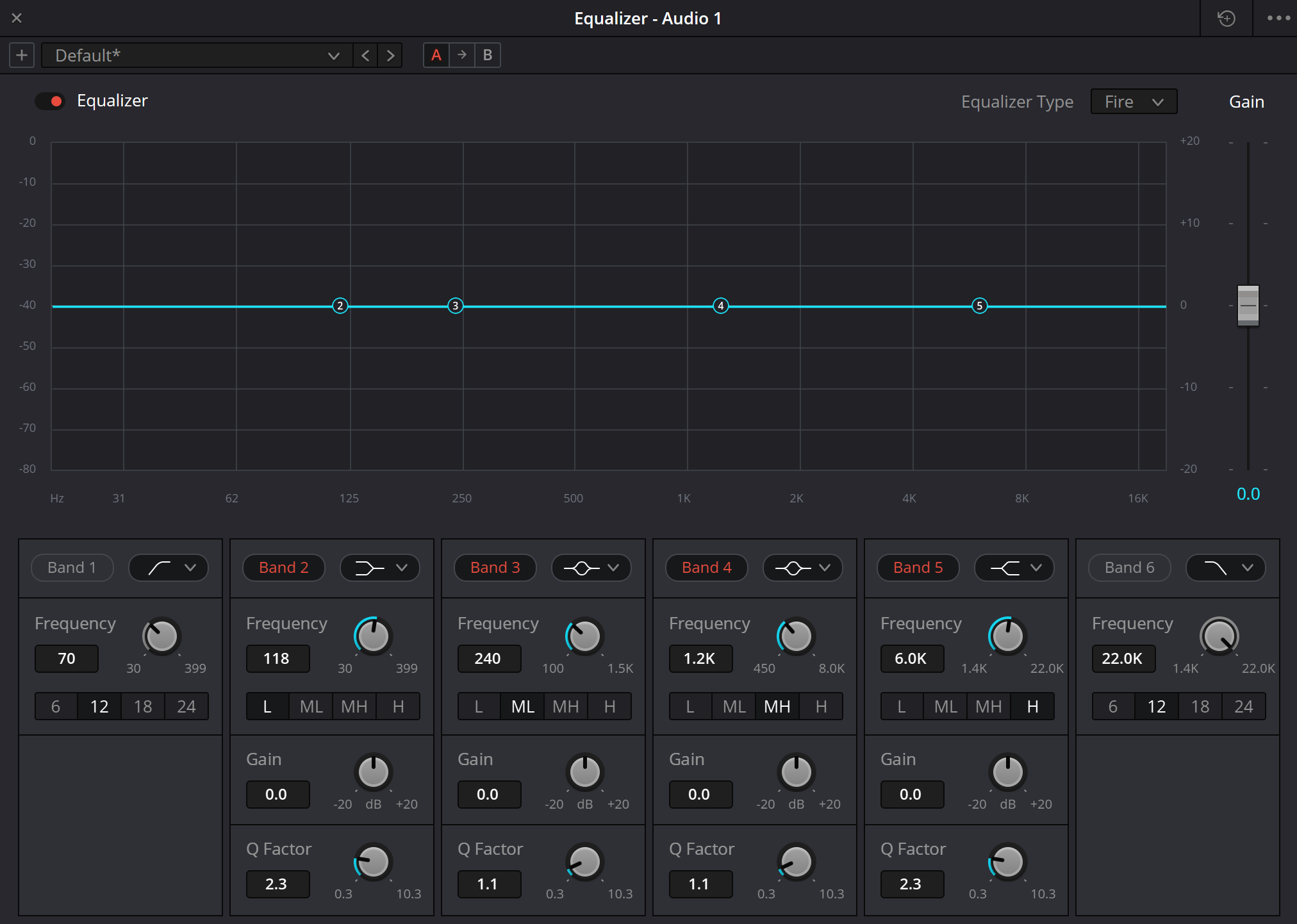
Original Equalizer capture
The existing URL is retained. Its filename contains “resolve21”, but the filename alone does not establish the exact build. This pass could not inspect the original pixels; the separate Blackmagic illustration supports the controls discussed below, not the state of this capture.
Reference: Blackmagic Design — Fairlight: EQ and Dynamics / Clip Adjustments
03 / UNDERSTAND & APPLY
Three dynamics blocks, three different purposes
Double-clicking Dynamics opens Expander/Gate, Compressor and Limiter processing. Sharing a window is not a reason to enable all three.
| Block | Useful purpose | What it does not promise |
|---|---|---|
| Expander / Gate | Attenuate quiet passages according to a detector; manage the sound of pauses. | Does not separate dialogue from noise while both are present. Aggressive settings can remove word endings. |
| Compressor | Reduce level changes above a threshold according to a ratio and temporal response. | Does not repair recorded clipping or necessarily increase level without compensation. |
| Limiter | Manage stronger excursions as a separate processing stage. | The name alone does not establish brickwall behaviour, a true-peak ceiling or delivery compliance. Measure and inspect the file. |
Reference: Blackmagic Design — Fairlight: EQ and Dynamics / Clip Adjustments
04 / UNDERSTAND & APPLY
Dynamics controls: what to listen for
The exact controls depend on the selected block and application version. These are parameter meanings, not a claim that the teaching calculator reproduces native ranges.
| Control | Meaning | Check after adjustment |
|---|---|---|
| Threshold | The reference level for the detector. Compression above a threshold differs from expansion or gating below it. | Which words and pauses actually trigger reduction? |
| Ratio | The relationship between level changes in the operating region, not a percentage of overall volume. | Does stronger control flatten the performance unnecessarily? |
| Range | A limit on attenuation in an expander/gate when provided. | Does room tone switch unnaturally into absolute silence? |
| Attack | The response time to a detector change, not a delay before playback starts. | Are consonants and percussive attacks being lost just to steady the meter? |
| Hold | An interval that retains a state before recovery, where available. | Check brief gaps between syllables and words. |
| Release | How quickly gain returns after triggering. | Fast recovery can create audible modulation; slow recovery can suppress the next phrase. |
| Knee | The transition around the threshold, when the control is available. | A softer transition is not simply less reduction at every level. |
| Make Up / output gain | Level compensation after dynamics processing. | Compare at similar perceived loudness and inspect peak headroom separately. |
Reference: Blackmagic Design — Fairlight: EQ and Dynamics / Clip Adjustments
05 / UNDERSTAND & APPLY
Detector, sidechain and meters
The signal controlling gain reduction is not necessarily the signal you hear at the output.
With ordinary self-keying, the processor responds to the treated material. An external sidechain lets another source control a channel. Verify support and actual assignment in the installed version, rather than assuming a label establishes a complete route.
The dedicated Ducker is a separate tool for lowering music under dialogue. Its controls and source selection must not be silently substituted for those of a normal compressor. It has its own article.
Gain Reduction indicates attenuation, not the current audio level or Integrated LUFS. When it does not move, check bypass, threshold, detector and the signal path. Raising Make Up merely to provoke a reduction meter is not a useful diagnostic.
Reference: Blackmagic Design — Fairlight: EQ and Dynamics / Clip Adjustments
06 / UNDERSTAND & APPLY
Processing order and duplicate EQ
The same cut may exist in Clip EQ, the Mixer and another effects chain. One open window does not show the whole signal path.
Trace the actual signal through clip, channel, inserts and buses. Do not assume the order of blocks in this website’s drawing is the real order in every Fairlight configuration.
EQ before a compressor can change what drives its detector. EQ after it cannot undo reduction that has already occurred. This is a reason to compare two orders on a copy, not a rule that EQ must always come first.
Several sources on a bus drive a shared detector. If bass-heavy music causes dialogue to dip, investigate routing and the reason for group compression instead of automatically boosting the voice output.
Bypass one stage
Find the contribution of one processor. Bypassing an entire chain does not identify the block responsible for a problem.
Repeat the same passage
Use a passage with quiet, ordinary and loud words. Different lines make an unreliable A/B comparison.
Reference: Blackmagic Design — Fairlight: EQ and Dynamics / Clip Adjustments
07 / UNDERSTAND & APPLY
Threshold and ratio at one sustained level
The teaching model is static: no attack, hold, release, soft knee or audio analysis.
For an input x above threshold T, it uses y = T + (x − T) / R. Below threshold the input is unchanged; Make Up is added afterwards. With x = −12 dB, T = −24 dB and R = 4:1, the pre-compensation output is −21 dB: 9 dB of reduction.
A real phrase depends on detector and timing behaviour. This calculator cannot predict the final file’s peaks, emulate a particular Fairlight Compressor or certify a limiter.
COMPRESSOR / STATIC LAB
Threshold, ratio and compensation
A memoryless hard-knee model. No attack, hold, release, sidechain, soft knee or true-peak prediction.
Limits belong to this lesson, not to Resolve. Decimal dot or comma; no blank values or exponent notation.
Static output. Reduction before Make Up: 9 dB.
No files, audio, microphone access or Resolve connection. No automatic saving. JSON is a teaching model, not a native preset or evidence of delivery quality. Edits are lost when leaving this page.
Reference: Blackmagic Design — Fairlight: EQ and Dynamics / Clip Adjustments
08 / UNDERSTAND & APPLY
From an observation to a saved version
Choose a short scene with varied delivery and a pause. Do not begin with a list of supposedly universal voice settings.
Prepare a copy
Preserve the initial version. Record the selected clip, track or bus and which blocks were bypassed.
Name the problem
For example, a ringing resonance or occasional loud words. Avoid a vague goal such as “make it more professional”.
Change one cause
Make one modest tonal correction or configure one dynamics stage. Check what useful detail it affects.
Match the comparison
Bypass the treatment, account for perceived loudness and listen in the mix. Revisit pauses and quiet endings.
Save and verify recall
Name the version clearly and test recall on a copy. Check the rendered media separately: preset state is not file acceptance.
Reference: Blackmagic Design — Fairlight: EQ and Dynamics / Clip Adjustments
09 / UNDERSTAND & APPLY
Common problems and the next check
Establish what changed before adding another processor.
| Observation | Check | Do not automatically |
|---|---|---|
| Louder but not clearer | Output compensation and a fair bypass comparison. | Add more gain and brightness. |
| Word endings disappear | Gate/expander threshold, depth and timing on quiet syllables. | Make the pauses even quieter. |
| Background breathes | Which block changes gain and when it recovers. | Treat all modulation with EQ. |
| EQ has no audible effect | Channel identity, routing, global bypass and band enable. | Push gain to its limit. |
| Processing introduced peaks | Make Up, overall gain, subsequent processors and the bus sum. | Assume a Limiter guarantees any delivery specification. |
Reference: Blackmagic Design — Fairlight: EQ and Dynamics / Clip Adjustments
PRACTICE / NO AUTOPILOT
A small task. A checkable result.
Work in a test copy, listen before and after, and write down what you actually observed. The checklist contains no pre-approved results.
Choose three passages
A quiet line, ordinary speech and a loud word, plus a pause. Preserve the starting state.
Record the scope
Write down the channel and active processors. Check for duplicate clip and channel EQ.
Solve one problem
Adjust EQ or one dynamics stage. Record the audible change and the settings.
Check for losses
Compare consonants, endings, room tone and peaks at similar loudness.
Record the outcome
Describe observations and unresolved problems. Success means solving the task without an unacceptable loss, not merely enabling a button.
FAQ / BEFORE THE NEXT MOVE
Questions that matter in practice
Should every Dynamics block be enabled?
No. Enable a stage for a defined task. Unnecessary gating or limiting can damage material that did not need it.
Reference: Blackmagic Design — Fairlight: EQ and Dynamics / Clip Adjustments
Is a compressor automatic loudness matching?
It controls gain from a detector and timing settings. That is not the same as matching perceived loudness between all lines or meeting a LUFS target.
Reference: Blackmagic Design — Fairlight: EQ and Dynamics / Clip Adjustments
Why did compression make the sound quieter?
It attenuates part of the signal. Compensation is separate; first establish whether the compression helps without a loudness advantage.
Reference: Blackmagic Design — Fairlight: EQ and Dynamics / Clip Adjustments
Can EQ restore clipped audio?
Tonal correction does not recover the original lost waveform. Prefer a clean recording; restoration is a separate task with separate verification.
Reference: Blackmagic Design — Fairlight: EQ and Dynamics / Clip Adjustments
Does Limiter guarantee the required true peak?
Not from its name alone. Establish the processor’s mode and measure the resulting file with an appropriate meter.
Reference: Blackmagic Design — Fairlight: EQ and Dynamics / Clip Adjustments
Does the calculator show my project’s behaviour?
No. It is a static formula for one entered level; no media, detector history, timing or project routing is inspected.
Reference: Blackmagic Design — Fairlight: EQ and Dynamics / Clip Adjustments
REFERENCES / 2026-10-07
What this guide is based on
Native features were checked against Blackmagic’s current Fairlight description and its published EQ illustration. The original Equalizer PNG is missing from the supplied archive and could not be re-fetched; retain it on the server. The full Fairlight 20 training PDF exceeded the retrieval limit and was not treated as read. This is not a live Resolve test or a certified list of every closed menu in every build. The site’s mathematical models are explicitly separate from the native processors.
Blackmagic Design — Fairlight: EQ and Dynamics / Clip Adjustments ↗
Checked 7 October 2026: six-band clip and channel EQ, double-click access, Expander/Gate, Compressor, Limiter and separate inserts. Not a complete closed-menu reference, true-peak measurement or live listening test.
Blackmagic Design — official Fairlight Equalizer illustration ↗
Illustration inspected: six bands, response over a spectral display, overall Gain, Frequency, middle-band Gain/Q, 6/12/18/24 edge choices and Fire selected. Menus are closed and exact build is unspecified. External image loads only on request.
Videomontazher — original Equalizer screenshot URL ↗
Original URL retained. Bytes are absent from the supplied ZIP and network retrieval failed. The original was NOT visually reinspected in F06-P01; this is not an established live-site 404.
W3C — Audio EQ Cookbook / RBJ peaking EQ ↗
Primary source for the single teaching bell section’s coefficients. Fixed 48 kHz and relative response; no audio playback. Not a source for native Fairlight EQ-type algorithms or the compressor equation.