FAIRLIGHT / 02 / TRACK → BUS → OUTPUT
Fairlight Mixer and Routing
Get the signal there. Once.
A track meter moves but you hear nothing. Or the voice changes after adding a bus. In either case, following the route is more useful than turning random controls. Learn the channel strips, outputs and sends, then verify two separate destinations: listening and the rendered file.
- 01Read track and bus channel strips
- 02Avoid duplicating a source through direct and group outputs
- 03Separate monitoring from the export source
Switch the path and change each source in the teaching diagram.
Clips play through their track↗
An A-track plays and processes its clips. Its Input field concerns incoming recording signals, not the assignment of an already imported media file.
Check: the intended source plays, with Mute and Solo accounted for.Change the controls to explore the diagram. No audio playback, native DSP or connection to Resolve.
Reference scope · reviewed 6 October 2026
Checked against the public Blackmagic Design Fairlight page and the encyclopedia’s existing interface captures on 6 October 2026. The images were inspected again; a resolve21 filename does not establish the exact build. The full current Reference Manual was unavailable in this pass; unverified menus have not been invented. The examples are teaching procedures, not a live Resolve test report. English interface names are retained; the placement and availability of individual controls depend on version, edition and selection context.
Read the source notes ↓On this page
01 / UNDERSTAND & APPLY
Read a Mixer channel strip without guessing
A track strip represents that track’s audio path. A bus strip collects signals routed to it. A similar appearance does not make the bus another track holding clips.
| Control | Purpose | Common mistake |
|---|---|---|
| A1 / A2 and Bus 1 | Identify tracks and a separate bus. | Treating Bus 1 as another source-media track. |
| Input / No Input | Input for recording and input monitoring. | Looking here for Media Pool clip mapping. No Input alone does not prevent timeline-clip playback. |
| Track FX / Effects | Built-in processing blocks and inserts. | Assuming all AI blocks exist in every edition. |
| Order / Dynamics / EQ | Order of the displayed blocks and their settings. | Treating a teaching diagram as an immutable internal DSP order. |
| Fader and numeric value | Track or bus level adjustment. | Confusing 0.0 dB gain with a 0 dBFS signal peak. |
| M / S / R | Mute, Solo and record arm where available. | Leaving Solo/Mute active or arming recording to troubleshoot playback. |
| Bus Sends and output assignments | Parallel paths and primary routing destinations. | Assuming a newly created bus automatically receives the intended tracks. |
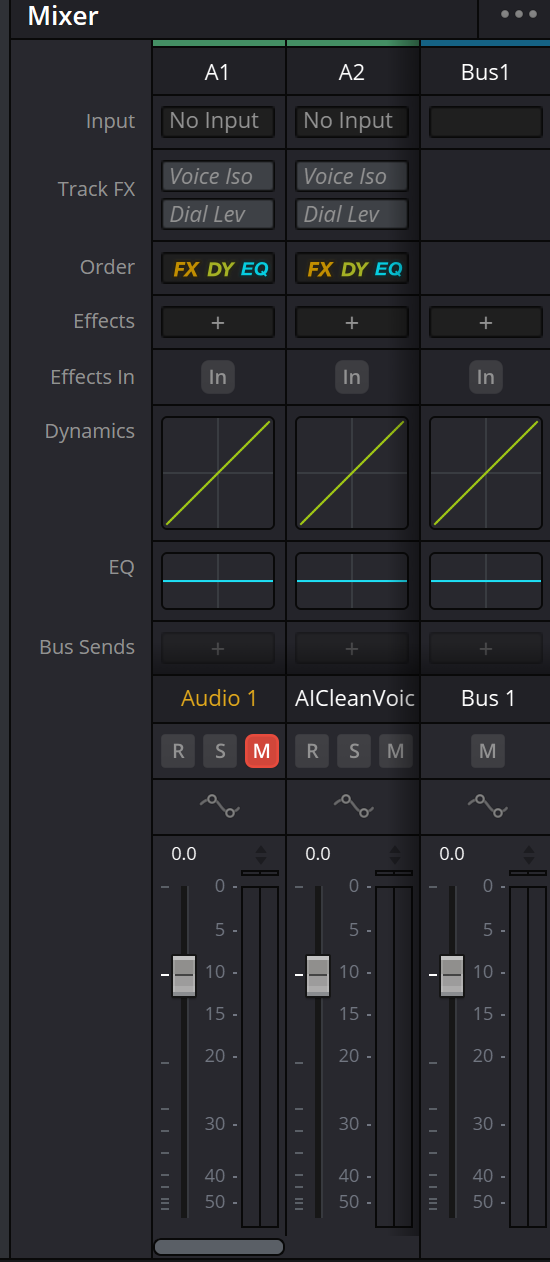
Mixer: A1, A2 and a separate Bus 1 strip
Existing FlexBus capture showing No Input, Order, Effects, Dynamics, EQ, Bus Sends and the red M on A1. Reusing the image here does not change the FlexBus page.
Reference: Videomontazher — Mixer tracks and Bus 1 capture · Blackmagic Design — Fairlight
02 / UNDERSTAND & APPLY
Clip to bus: establish the main path first
For edited material, use the conceptual path source → clip → track → assigned bus. Microphone recording introduces a different input branch: device → input patch → track. Do not repatch a microphone input to “repair” an ordinary timeline WAV.
A wrong source, disabled clip, Mute, forgotten Solo or unintended assignment can change the observation. Play a short known passage on a test copy and check one scope at a time. Meter position in the chain matters too: one strip does not establish the state of every downstream stage.
Source check
The intended Embedded Channel is selected, the clip is present and enabled, and the chosen passage contains audio.
Track check
Check track format, clips, M/S state, processing and level automation. Do not confuse the recording input with clip playback.
Destination check
Identify which bus receives the track output and where it goes next. Naming a bus Main does not by itself select it as the export source.
Reference: Blackmagic Design — Fairlight · Videomontazher — Mixer tracks and Bus 1 capture · Videomontazher — Bus Assign / Send and Out capture
03 / UNDERSTAND & APPLY
Build a simple Dialogue group
Use a group to control several voice tracks together. Creating a bus and assigning its signal are separate steps.
Create a clear destination
In a test copy, prepare a bus through Fairlight → Bus Format, name it Dialogue and choose the required channel format. Leave the existing main output intact initially.
Assign the track outputs
Using Bus Assign or the available output assignments, send the selected voice tracks to Dialogue Out. Do not choose Send out of habit: this step builds the primary path through a group.
Route the group to the intended Main
Verify that Dialogue has an output to the chosen final bus. FlexBus supports cascaded routing; check the controls in the installed version.
Remove an unintended duplicate route
After checking the group path, inspect the tracks’ previous direct output to Main. Track → Main together with Track → Dialogue → Main creates two paths for the same source. Retain both only deliberately.
Check without hidden states
Move the Dialogue fader within a safe range and confirm which voices move together. Restore the intended level, clear temporary Solo and check the full mix. This does not change the source file.
Reference: Blackmagic Design — Fairlight · Videomontazher — Bus Assign / Send and Out capture
04 / UNDERSTAND & APPLY
Out and Send: serial grouping versus a parallel effect
The primary output defines the track’s route to a chosen bus. A Send adds a branch for another purpose, such as feeding several voices into a shared reverb. Check the FX return path into the final mix as well as the send.
In the example, the main voice goes through Dialogue to Main. The parallel Voice → FX → Main branch returns only wet signal. If the effect also passes dry audio, duplicate-path analysis changes. Do not assume any reverb preset guarantees a wet-only return.
Pre-fader and post-fader identify a tap relative to the fader, not two kinds of reverb. Where a choice is available, check it with a test passage: does the send follow fader movement? Verify Mute, Solo and other processing separately; one pre/post flag does not describe the entire path.
| Capture notation | Meaning | What it does not prove |
|---|---|---|
| B1o | An Out assignment to Bus 1. | That Bus 1 is selected for both monitoring and Deliver. |
| B1s / B2s | A Send to Bus 1 / Bus 2. | The send level or audibility of its return. |
| B2s.B1o | A Send to Bus 2 alongside an Out to Bus 1. | That Bus 2 has a reverb, the intended wet/dry mix, and a route to Main. |
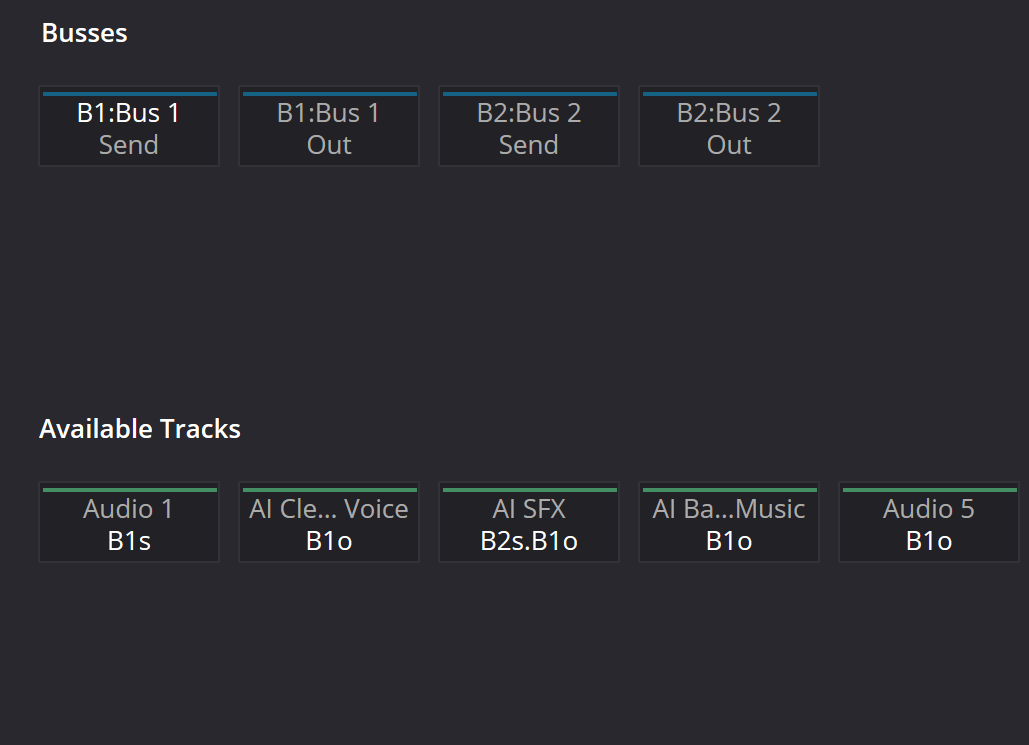
Bus Assign: separate Send and Out destinations
AI SFX shows B2s.B1o: a Send to Bus 2 alongside an Out to Bus 1. The image does not show send level, effect wet/dry or a completed return to Main.
Reference: Videomontazher — Bus Assign / Send and Out capture · Blackmagic Design — Fairlight
05 / UNDERSTAND & APPLY
Count the paths rather than guessing the level
Toggle connections to compare a group, parallel FX, a duplicate dry route and an incomplete return. All selected links are active in the model; levels are not calculated.
Follow one example voice to Main. Each selected connection is assumed active; no mute, gain, pan, channel layout or device is simulated. FX is assumed to return only processed (wet) sound.
PATHS REACHING MAIN
- Voice → Dialogue → Main
Reachability is not proof of audible playback or correct export. Verify the real session and the chosen render bus separately.
Local teaching model only. No connection to Resolve, audio, server submission or automatic saving. The JSON is not a routing preset. Full FlexBus layouts, send levels, pre/post switching and hardware monitoring are outside this model.
Reference: Blackmagic Design — Fairlight
06 / UNDERSTAND & APPLY
Bus, monitoring and Deliver: three checks
Does the bus receive signal?
Check source assignments, bus state and meters on a known passage. A moving meter does not prove correct channel roles, pan or dynamics processing.
Are you listening to the intended bus?
If the bus is active but inaudible, check Control Room, the selected device and outputs. Monitoring level controls listening; it is not a repair for the project’s internal routing.
What does Deliver use?
In Audio Settings, inspect the buses/tracks selected for output and the channel layout. Hearing one mix does not establish that it is the mix written to the file. Audition a test export.
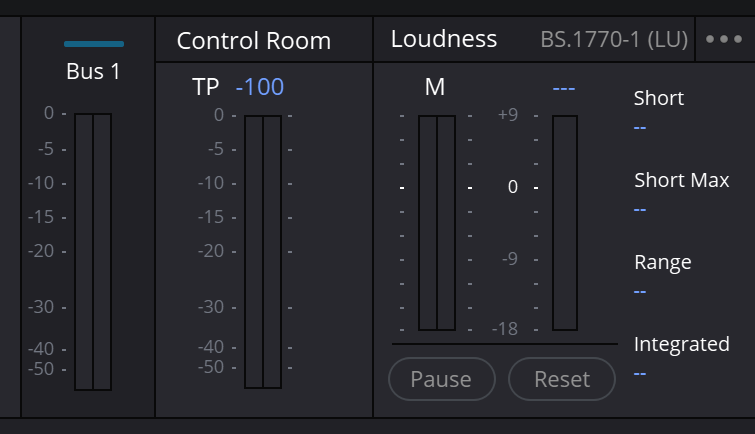
Bus 1, Control Room and unpopulated Loudness readings
The bus meter, monitoring area and loudness meter are distinct controls. Dashes in Loudness are not a successful measurement of the rendered file.
Reference: Blackmagic Design — Fairlight · Videomontazher — Bus 1 / Control Room / Loudness capture
07 / UNDERSTAND & APPLY
Gain, meters and processing order
A fader value of 0.0 means no level change by that control, not a promise of a 0 dBFS peak. A quiet clip remains quiet there. If overload occurs earlier, turning down monitoring does not repair its source.
The saved Mixer shows Order with FX, DY and EQ. That does not establish one fixed processing sequence for every track. Record the actual order and compare bypass at comparable perceived levels rather than mistaking more gain for better tone.
If a fader returns after you move it, inspect automation and its mode before assuming a control is broken. Do not accidentally write automation during the exercise. Editing automation data is a separate topic; here, recognize that the manual position may not be the final one.
Reference: Blackmagic Design — Fairlight · Videomontazher — Mixer tracks and Bus 1 capture
08 / UNDERSTAND & APPLY
Troubleshooting: checks instead of random gain
| Observation | Next check | Do not automatically |
|---|---|---|
| No Input with timeline clips present | Check clip playback, Mute/Solo, mapping and outputs. | Do not assign a microphone in place of file playback. |
| Track active, Main silent | Check the route through intermediate buses and their states. | Do not enable every output at once. |
| Voice changes after grouping | Compare direct/group routes, processing and their combination. | Do not promise exactly +6 dB; the result depends on signal, delay and processing. |
| Send present, no reverb | Check send level, FX processing and its return. | Do not mistake an assignment for a complete path. |
| Main active, headphones silent | Check monitoring source, device, outputs and the physical path. | Do not drive the main bus into overload. |
| Export differs from playback | Compare Audio Settings, selected bus/track and channel layout. | Do not rewrite the source files before checking the output assignment. |
Reference: Blackmagic Design — Fairlight · Videomontazher — Bus Assign / Send and Out capture · Videomontazher — Mixer tracks and Bus 1 capture
09 / UNDERSTAND & APPLY
A small, understandable session
Start with two voice tracks feeding Dialogue, one music track and one Main. Establish a verifiable dry mix first. Add a shared FX bus with an explicit send and return only when needed. More buses do not themselves improve sound quality.
Name tracks and buses for their roles, document assignments and compare using one known passage. Dialogue/Music/SFX stems and alternate deliveries require a separate output plan: naming a bus does not export it. Bus Format, Bus Assign and patching windows are covered in the FlexBus guide.
Reference: Blackmagic Design — Fairlight
PRACTICE / NO AUTOPILOT
A small task. A checkable result.
Work in a test copy, listen before and after, and write down what you actually observed. The checklist contains no pre-approved results.
Record the starting layout
Record Resolve version/edition, voice-track names, main bus, M/S states and output assignment. Set a comfortable monitoring level before testing.
Create one group
In a test copy, prepare Dialogue and route the selected voices through it to Main. Record both parts of the path, not just the appearance of a strip.
Check for an unintended duplicate
Inspect the tracks’ previous direct output to Main. Keep an intentional route; the Dialogue fader should control the intended group, not merely one copy of it.
Add FX only when needed
For parallel FX, check the send, wet/dry processing and return path. Do not feed Main back into a group already feeding it.
Verify both destinations
Clear temporary Solo, check the monitoring path, then make a short export from the intended bus and audition the file. Record that result separately from mixer state.
FAQ / BEFORE THE NEXT MOVE
Questions that matter in practice
Why can a clip play with No Input selected?
Input concerns recording and input-monitoring signals. An edited clip reads its media source. Check clip/track state, mapping and the output route rather than assuming a microphone must be assigned.
Reference: Blackmagic Design — Fairlight · Videomontazher — Mixer tracks and Bus 1 capture
Why is a newly created bus silent?
Creating and formatting a bus does not assign sources. Check track outputs, the route to that bus, its state and its onward route. Naming it Dialogue connects nothing automatically.
Reference: Videomontazher — Bus Assign / Send and Out capture · Blackmagic Design — Fairlight
Are Bus Assign and Patch Input/Output the same thing?
No. Track and bus assignments differ from patching specific input/output channels. Microphone patching does not replace choosing Out/Send routes for session playback.
Reference: Blackmagic Design — Fairlight · Videomontazher — Bus Assign / Send and Out capture
Does a parallel Send always create a duplicate?
It creates an additional path. A wet-only return can be an intentional effect. If the branch also passes dry audio, account for that separately. A Send assignment alone does not describe wet/dry or the complete route.
Reference: Videomontazher — Bus Assign / Send and Out capture · Blackmagic Design — Fairlight
Does 0 dB on a fader mean overload?
No. The fader value describes gain applied by that control. Use meters at appropriate points to check signal level and overload; a control value and a peak reading are different quantities.
Does a valid graph guarantee the correct file?
No. The teaching graph does not model levels, mute, delays, processing, channel layout or devices. Verify playback, the selected Deliver source and the resulting file separately.
Reference: Blackmagic Design — Fairlight
REFERENCES / 2026-10-06
What this guide is based on
Checked against the public Blackmagic Design Fairlight page and the encyclopedia’s existing interface captures on 6 October 2026. The images were inspected again; a resolve21 filename does not establish the exact build. The full current Reference Manual was unavailable in this pass; unverified menus have not been invented. The examples are teaching procedures, not a live Resolve test report. English interface names are retained; the placement and availability of individual controls depend on version, edition and selection context.
Blackmagic Design — Fairlight ↗
Clip Adjustments, Waveform Editing, Smart Edit Tools, Mixer and Channel Mapping; manufacturer page checked 6 October 2026.
Videomontazher — Mixer tracks and Bus 1 capture ↗
Shows No Input, Order, FX, Dynamics, EQ, Bus Sends and a red M on A1. The capture does not prove audibility or the exact Resolve build.
Videomontazher — Bus Assign / Send and Out capture ↗
Separate Send/Out assignments and B2s.B1o visually checked on 6 October 2026. Send level and a completed FX return cannot be established from the capture.
Videomontazher — Bus 1 / Control Room / Loudness capture ↗
Loudness fields contain dashes. BS.1770-1 (LU) is recorded as a capture observation, not a universal delivery-standard recommendation.