FAIRLIGHT / 02 / BUS → LISTEN → DELIVER
FlexBus in Fairlight
Build the mix. Then choose the destination.
A bus is where signals meet and share processing. Creating Bus 2 does not automatically make it audible, connect a speaker pair or include it in a rendered file. Follow the connections one by one and build a clear mix without an accidental second path.
- 01Give every bus a purpose before assigning it
- 02Separate outputs, sends and physical patching
- 03Compare the listening choice with the export
Switch the path and change each source in the teaching diagram.
Each group has a defined purpose↗
Dialogue collects speech; Music collects music. These are roles chosen for this example, not mandatory Resolve bus names or object classes.
Check: every source has an identified next destination.Change the controls to explore the diagram. No audio playback, native DSP or connection to Resolve.
Reference scope · reviewed 6 October 2026
Checked against published Blackmagic descriptions and the original encyclopedia captures. Images show individual states; the resolve21 filename does not identify an exact build. The console documentation also supports listening-control concepts, not the exact placement of desktop UI controls. Live routes, hardware output, the current Monitor plug-in Source list and external integrations were not tested here. Numerical examples and interactive panels are authored learning models, not Resolve presets or measurement reports. Save a test copy and document the original assignments before making changes.
Read the source notes ↓On this page
01 / UNDERSTAND & APPLY
What FlexBus changes about buses
FlexBus uses multipurpose buses. Names such as Dialogue, FX and Main describe their roles in your project, rather than different object classes.
A track holds edited clips; a bus receives tracks or other buses and combines them for further mixing. A dialogue group can share processing across microphones, while a final mix bus collects the program.
Identify the bus system before modifying an older project. Do not convert a fixed-bus project on the working original just to match a screenshot. This exercise uses FlexBus; legacy-project conversion is a separate procedure.
A group
Collects related sources. Give it a content-based name such as Dialogue, Music or SFX.
A parallel effect
Receives a send and returns processed audio to the mix. Both halves of the path must exist.
A final mix bus
Collects the program for a particular delivery. The number Bus 1 alone does not establish that it is Main.
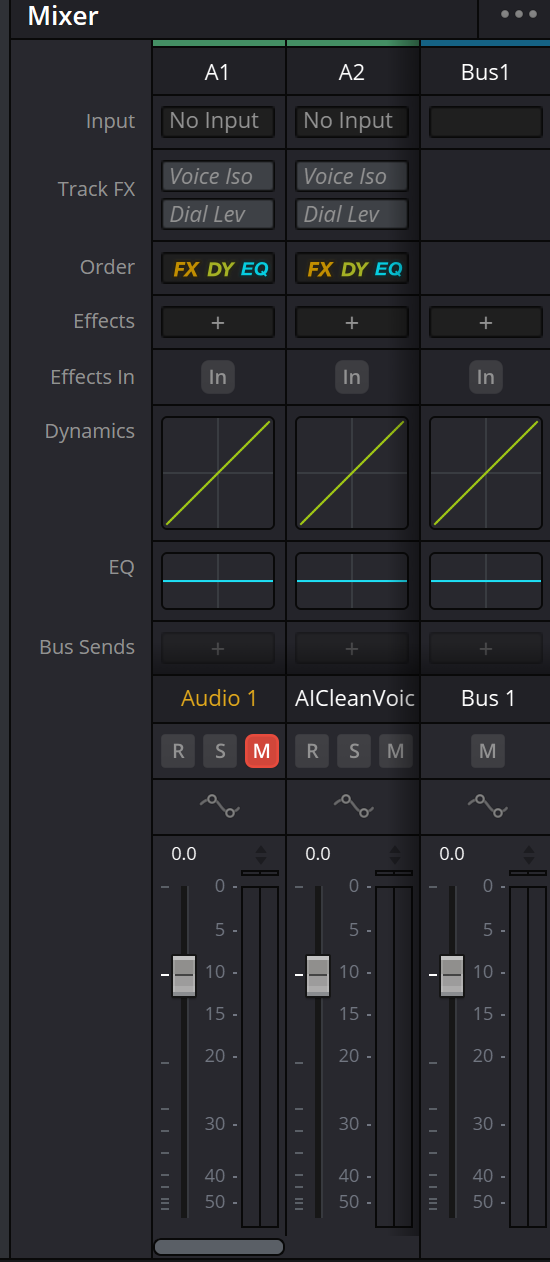
Track strips and Bus 1 in the Mixer
Bus 1 has its own strip. No Input belongs to the track input; the red M on A1 matters when diagnosing a route. A fader value of 0.0 is not a measured signal peak.
Reference: Blackmagic Design — Fairlight
02 / UNDERSTAND & APPLY
Bus Format: structure before connections
Open Fairlight → Bus Format. In a test copy, add only the bus you need, give it a clear name and select a suitable format. Do not choose surround merely for future flexibility when the project, speakers and delivery are stereo. A format defines the channel structure, not the completed assignments.
Confirm the change and locate the new Mixer strip. That verifies the first step, not the incoming audio or outgoing destination. Changing an already-used bus format is a separate decision: inspect channel assignments, processing and intended files.
| Field / action | What to check | Do not assume |
|---|---|---|
| Name | A distinct name describing the role | Renaming will rebuild the routes |
| Format / Channels | Channel layout fits the sources and output | Stereo makes every source wide |
| Color | Groups are visually distinguishable | Color changes processing |
| Add Bus / Duplicate / Remove | The operation and its scope are understood | Removing a bus is harmless to the mix |
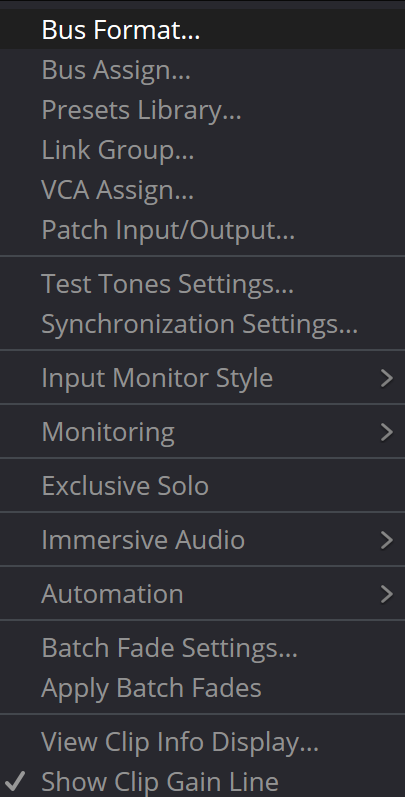
Fairlight menu: Bus Format, Bus Assign and Patch Input/Output
Three different windows: bus structure, logical assignments, and input/output connections. Monitoring and Input Monitor Style submenus are closed; their options cannot be read from this capture.
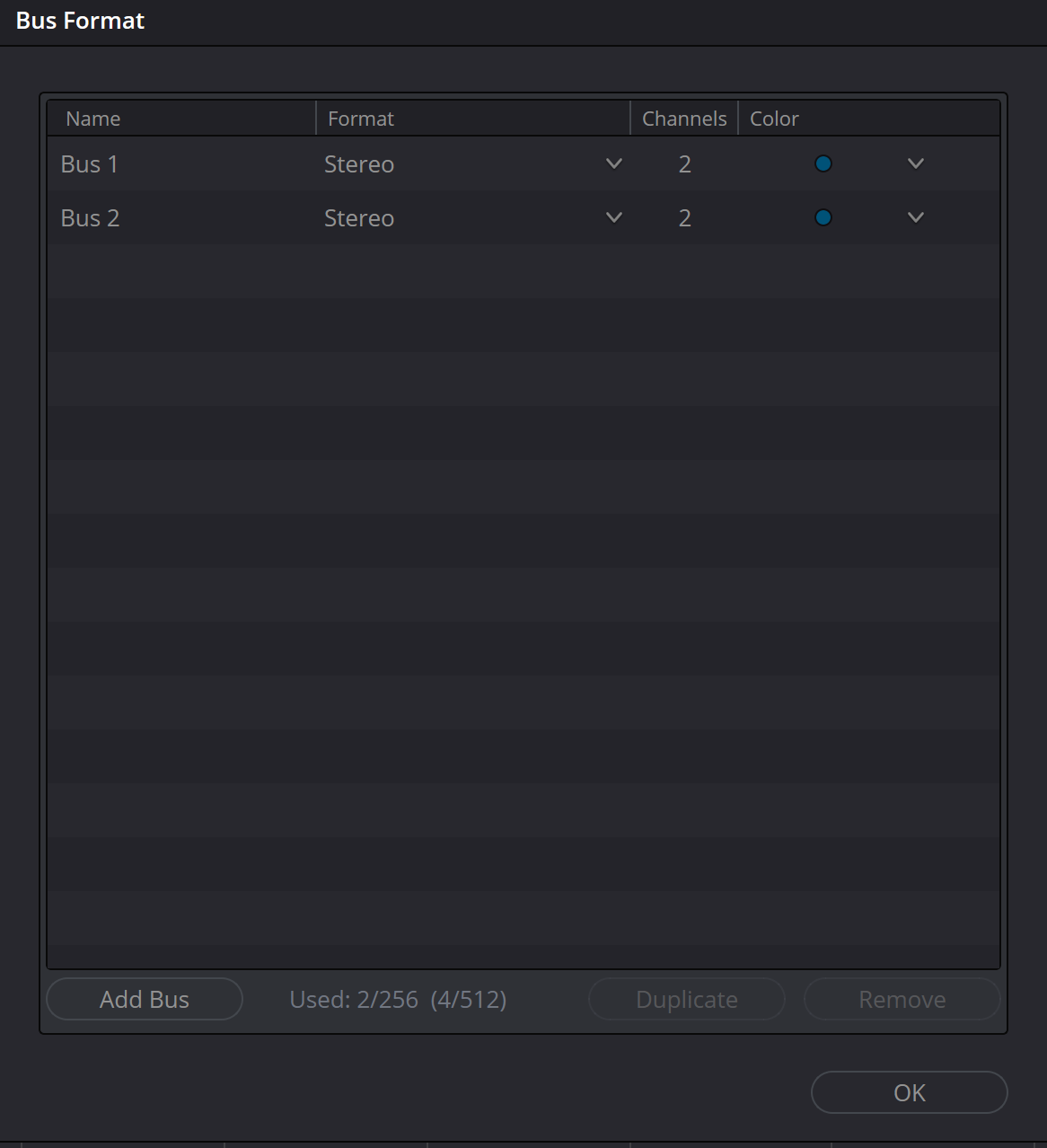
Bus Format: two stereo buses, two channels each
Shows Name, Format, Channels, Color and Add Bus. The two stereo buses belong to this project. The Used counter and format selection are not universal version or edition limits.
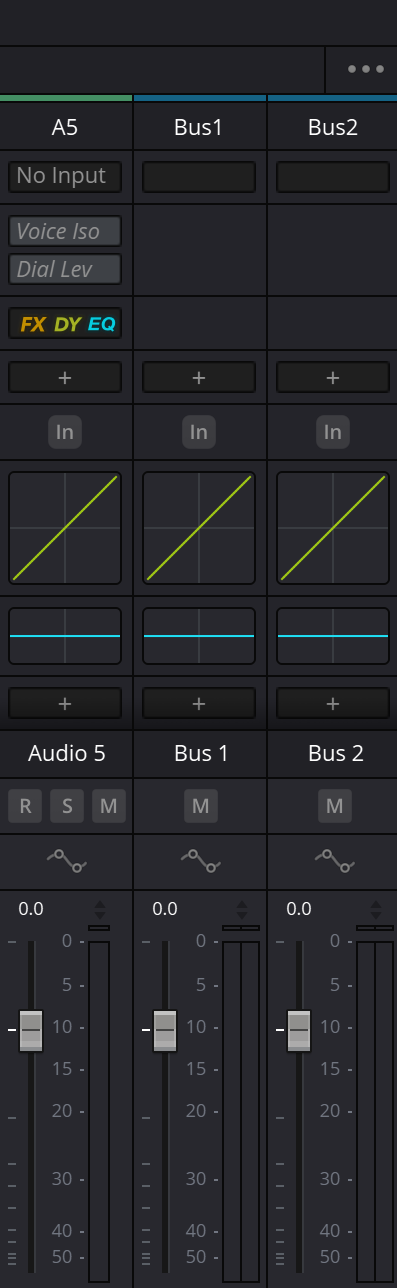
Bus 1 and Bus 2 in the Mixer
Two strips show that the buses exist, not that one feeds the other or that a working listening path has been established.
Reference: Blackmagic Design — Fairlight · Videomontazher — Bus Format / original capture
03 / UNDERSTAND & APPLY
Bus Assign: where the signal goes
Open Fairlight → Bus Assign. Identify the destination bus and choose Out or Send before selecting the relevant tracks or buses. Inspect each source badge after a change instead of relying on where a button happened to be.
In a simple serial route, speech tracks output to Dialogue, then Dialogue outputs to Main. If the same track retains a direct output to Main, the group is not its only path. Remove an unwanted assignment only after confirming the intended route and recording the original state.
| Capture badge | Meaning | What to check next |
|---|---|---|
| B1o | Output to Bus 1 | The role of Bus 1 and other outputs |
| B1s | Send to Bus 1 | Send level, enable state and position |
| B2s.B1o | Send to Bus 2 plus output to Bus 1 | Where Bus 2 returns; any duplicate dry audio |
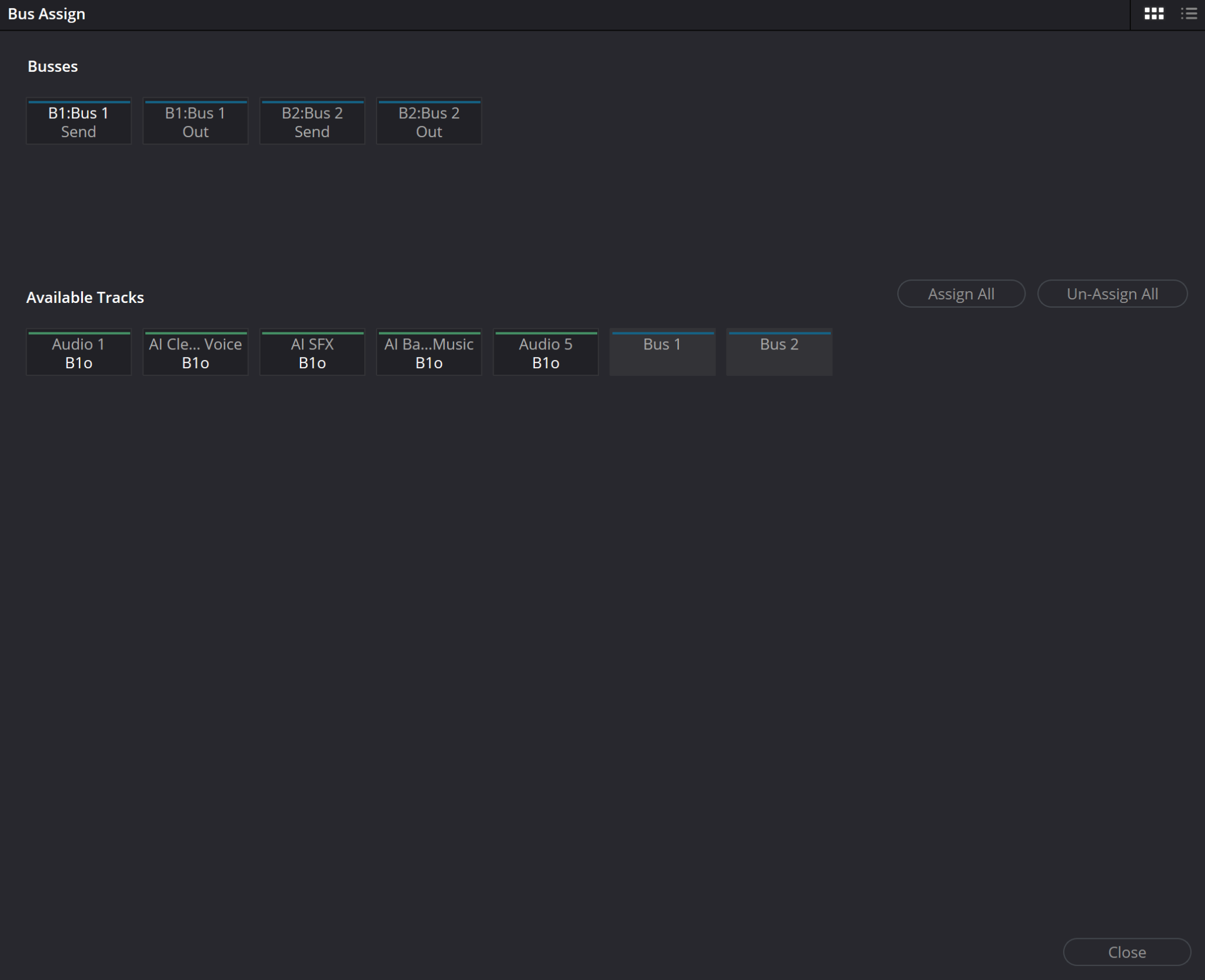
Bus Assign: separate Send and Out targets
Identify the destination bus and assignment type first. The track badges help inspect connections; they do not measure their signal levels.
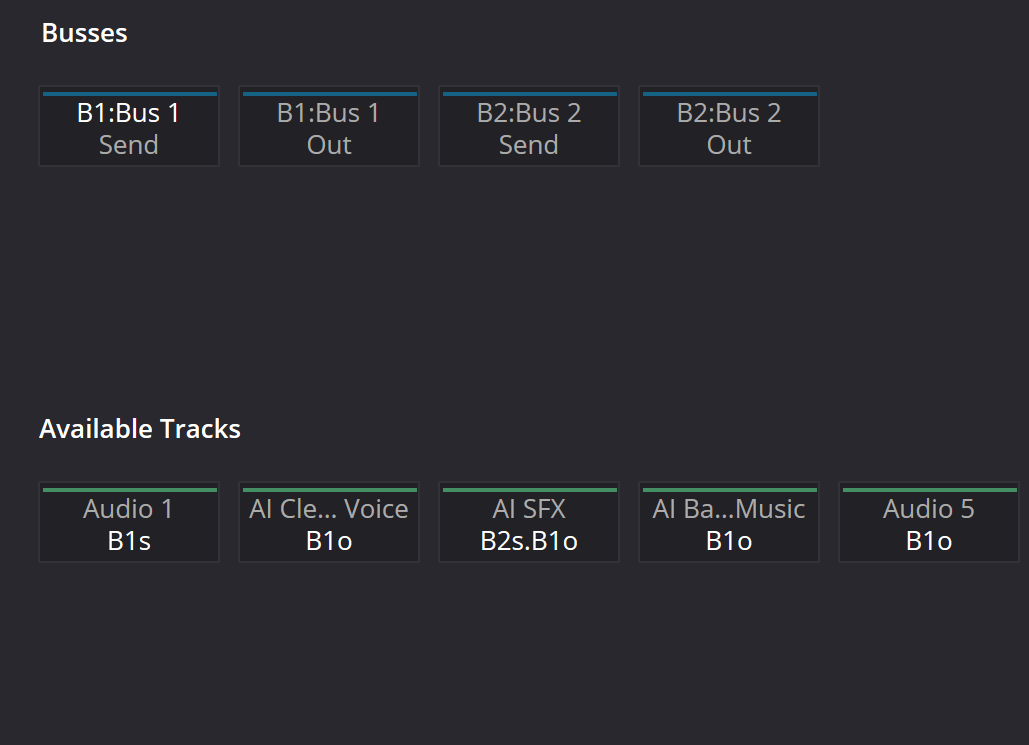
Bus Assign: the B2s.B1o example
AI SFX has a send to Bus 2 and an output to Bus 1. This does not prove an FX return, wet-only processing or pre/post position. Inspect the rest of the path before recreating it.
Reference: Blackmagic Design — Fairlight · Videomontazher — Bus Assign / Send and Out capture
04 / UNDERSTAND & APPLY
A practical route: speech → Dialogue → Main
Record the starting point
Choose a short speech passage and note its track outputs. Keep live recording, automatic external connections and unknown parallel paths out of this exercise.
Prepare the group
Create or identify Dialogue with a suitable format. Connect its output to the intended Main and establish that Main really is the complete mix bus.
Move one track
Assign it to Dialogue. In this serial model, do not also leave an extra direct output from the same track to Main.
Follow the whole path
Play the same passage and check the track, Dialogue, Main and the listening output. A missing indication means inspect the connection, not raise every fader.
Restore the mix context
Clear diagnostic Solo/Mute changes and listen with the music. An isolated check does not replace listening to the complete program.
Reference: Blackmagic Design — Fairlight
05 / UNDERSTAND & APPLY
A send without a return is not a completed effect path
A parallel effect needs a source, a send, a processing bus and an output back into the mix. In a reverb-only example the return carries the processed portion; inspect the actual plug-in wet/dry setting. A Send assignment alone does not enable the intended processing or establish its level.
Pre/post describes the send point relative to the relevant part of the path. Check the setting in your version and test its behavior: make a small fader change on one test track, compare the dry signal and return, then restore the original state. Do not infer the position from the B2s badge.
Dry audio in the return can create unwanted duplication. Do not promise an exact 6 dB increase: correlation, processing, delay and gain affect the result. Establish the routes first, then measure and listen.
Reference: Blackmagic Design — Fairlight
06 / UNDERSTAND & APPLY
Patch Input/Output is not another name for Bus Assign
Bus Assign describes mix assignments. Patch Input/Output connects specific sources and destinations; read their categories before pressing Patch.
The original capture selects Bus Out on the left and Track Input on the right. Its single connection, Bus 2-L → AI SFX-R, feeds one bus channel back into a track input. This is neither a stereo speaker connection nor a file output setting.
A return of this kind can serve a deliberate recording or print workflow, but it requires a plan. If the receiving track feeds that bus again, feedback is possible. Keep routes separate, use a safe listening level and inspect the connections with transport stopped.
For hardware output, inspect the selected device, available channels and monitor-system assignments in your installation. Do not substitute Track Input for a speaker destination or create several unintended bypass routes to the same speakers.
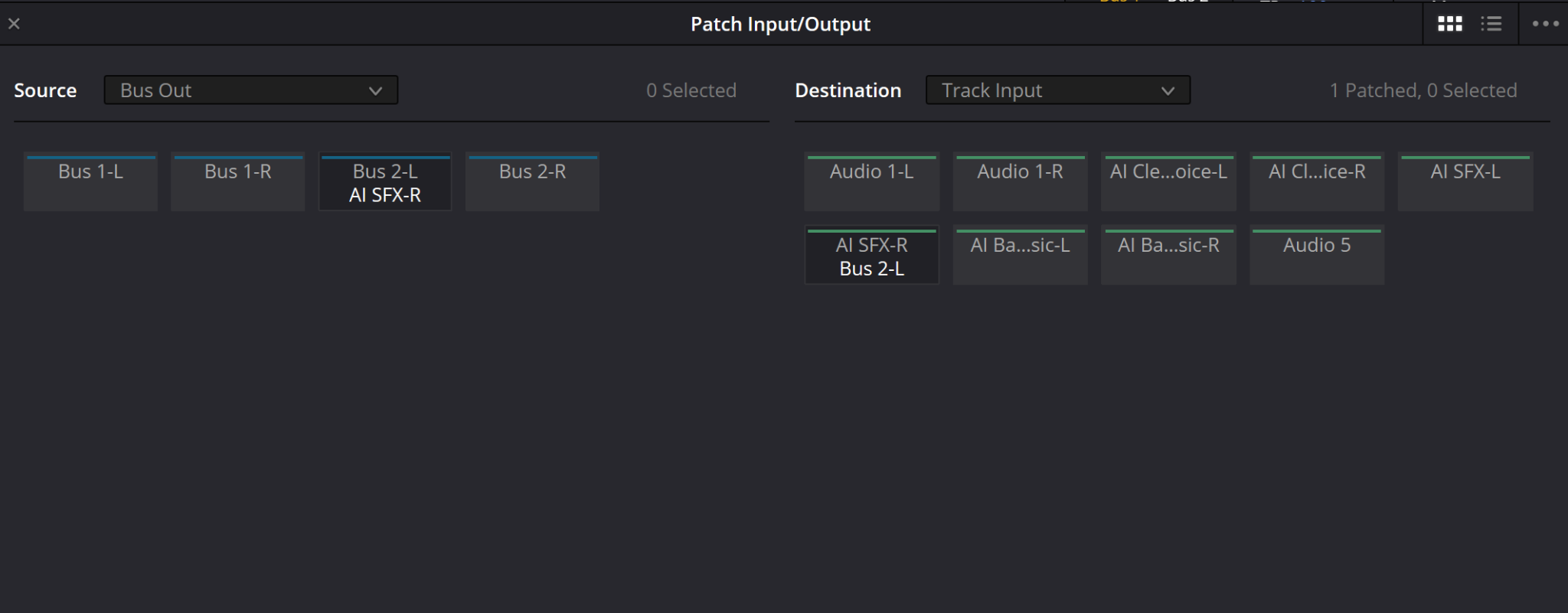
Patch: Bus Out to Track Input, one connection
Bus 2-L is connected to AI SFX-R. This is a return into a track input, not a speaker patch. One connection is not a complete stereo pair. Check whether the receiving track feeds the same bus again.
Reference: Videomontazher — Bus Out → Track Input capture · Blackmagic Design — Consoles / Monitoring Controls · Blackmagic Design — Fairlight
07 / UNDERSTAND & APPLY
One mix, two separate checks
Monitoring follows the chosen listening branch. Deliver Audio Settings independently selects which buses or tracks are written to the file.
The panel below assumes Dialogue and Music already contain their named sources. The checkboxes connect them to Main; listening and file buses are then chosen separately. The starting example is connected only in the diagram. It has not discovered any device on your computer.
Try “Listen to voice”: the speaker branch selects Dialogue while the file still selects Main. Then enable listening Mute. The file selection is unchanged because this switch belongs to the speaker branch, not to the bus fader or the bus Mute.
BUS / LISTEN / DELIVER LAB
What you hear is a different selection from what you export
A two-stem wiring model. It does not emulate the Monitor plug-in. Adjust one branch and compare the other; no sound is generated.
Content reaching the mix bus
Voice + Music
Speaker branch
Selected: Voice + Music
Path passes: Voice + Music
Open in the diagramDIM contribution only: 0 dB · not SPL or LUFSSources selected for the file
Voice + Music
No file has been rendered or verifiedOnly modeled connections are considered. No summing levels, pan laws, EQ, FX, bus faders, plugin sources, meters or physical devices are calculated. Listening Mute/Dim here is not a track or bus Mute. A populated path does not prove audibility. Nothing connects to Resolve, renders, uploads, or saves automatically.
Reference: Blackmagic Design — Fairlight · Blackmagic Design — Consoles / Monitoring Controls
08 / UNDERSTAND & APPLY
Name the deliverable: Main or stems
A full mix and separate groups are different deliverables. Specify whether the job needs Main, dialogue only, music without speech, individual stems or multiple versions. Inspect the selected buses, format and channel order in Deliver rather than trusting a preset name.
For a short test, export a passage where speech and music are easy to identify. Open the new file separately from the playing project and check both content and channels. A filename such as Dialogue.wav does not prove that the file excludes music.
Do not promise that arbitrary exported stems will reconstruct the master bit for bit when summed. Shared nonlinear processing, sends and automation can change that relationship. Reconstruction requirements need an agreed mix design and verification.
Check the tails
The output range must include the reverb or delay tails required by the brief.
Check shared processing
Establish whether it belongs in every delivered stem or only in Main.
Check the file
Verify channel count, content, duration and level requirements from the finished result.
Reference: Blackmagic Design — Fairlight
09 / UNDERSTAND & APPLY
Find the break or the second path
| Observation | Inspect | Do not blindly |
|---|---|---|
| Track activity, silent group | Track output, group assignments, Solo/Mute and processing | Raise all faders |
| Group activity, silent Main | Group output and the intended final bus | Add direct track routes as a workaround |
| Enabling a group changes balance sharply | Simultaneous direct and grouped routes | Assume a fixed dB increase |
| Main activity, quiet speakers | Listening source, monitor Mute/Dim, device and patch | Change the mix to fix speaker volume |
| Wrong sources in the file | Deliver bus/track selection and a test export | Assume the listening source controls the export |
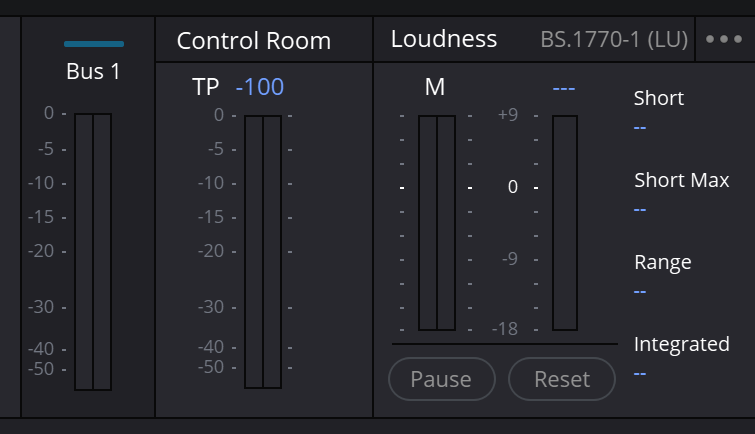
Bus 1, Control Room and Loudness without a completed measurement
Loudness fields contain dashes and TP shows −100. BS.1770-1 (LU) describes this capture; it does not prove silence across the project, full-program loudness or delivery compliance.
Reference: Blackmagic Design — Fairlight · Blackmagic Design — Consoles / Monitoring Controls · Videomontazher — Bus 1 / Control Room / Loudness capture
PRACTICE / NO AUTOPILOT
A small task. A checkable result.
Work in a test copy, listen before and after, and write down what you actually observed. The checklist contains no pre-approved results.
Make a test copy
Save separately. Choose a short passage with voice and music and record the original assignments.
Build two groups
Name the buses and establish one intentional route from each group into Main.
Follow the signal
Inspect the track, group, Main and listening branch in sequence. Record where a signal was actually observed.
Separate the checks
Listen to Dialogue alone while leaving Main selected for a short file. Confirm that these are independent choices.
Check the deliverable
Export a new short file and inspect its content and channels. Restore diagnostic Solo/Mute changes and record the observed outcome rather than a pre-approved success.
FAQ / BEFORE THE NEXT MOVE
Questions that matter in practice
Is Bus 1 always the master output?
Its number does not establish its role. Inspect its name, assignments, listening source and Deliver selection. A project can name the final mix differently.
Reference: Blackmagic Design — Fairlight
I created a bus but cannot hear it. Is FlexBus broken?
Check incoming assignments and the onward output first. A Mixer strip proves that an object exists, not that its route is complete.
Reference: Blackmagic Design — Fairlight
What is the difference between Send and Out?
Out routes a source into a bus; Send establishes a separate send. The send level, position and completed return need their own checks. The labels are not interchangeable.
Reference: Blackmagic Design — Fairlight
Should I reproduce the shown patch?
Not without understanding it. The capture connects Bus Out to Track Input, not speakers. Establish its purpose, channel mapping and feedback safety.
Why did music export while I was listening only to dialogue?
The monitoring source and Deliver output may differ. Check the actual file source; listening to Dialogue does not configure the export.
Reference: Blackmagic Design — Fairlight
Will summed stems always equal Main?
Only when the mix design and verification support that requirement. Shared processing, returns and automation may prevent it.
Reference: Blackmagic Design — Fairlight
REFERENCES / 2026-10-06
What this guide is based on
Checked against published Blackmagic descriptions and the original encyclopedia captures. Images show individual states; the resolve21 filename does not identify an exact build. The console documentation also supports listening-control concepts, not the exact placement of desktop UI controls. Live routes, hardware output, the current Monitor plug-in Source list and external integrations were not tested here. Numerical examples and interactive panels are authored learning models, not Resolve presets or measurement reports. Save a test copy and document the original assignments before making changes.
Blackmagic Design — Fairlight ↗
Clip Adjustments, Waveform Editing, Smart Edit Tools, Mixer and Channel Mapping; manufacturer page checked 6 October 2026.
Videomontazher — Bus Assign / Send and Out capture ↗
Separate Send/Out assignments and B2s.B1o visually checked on 6 October 2026. Send level and a completed FX return cannot be established from the capture.
Videomontazher — Bus 1 / Control Room / Loudness capture ↗
Loudness fields contain dashes. BS.1770-1 (LU) is recorded as a capture observation, not a universal delivery-standard recommendation.
Videomontazher — Bus Format / original capture ↗
Shows Name, Format, Channels, Color and two stereo buses. Visually inspected; not evidence of every menu option or current version limits.
Videomontazher — Bus Out → Track Input capture ↗
Visually shows Source Bus Out, Destination Track Input, one Bus 2-L → AI SFX-R connection. Not a speaker-routing example. A capture cannot establish the running route or the project’s feedback safety.
Blackmagic Design — Consoles / Monitoring Controls ↗
Listening source/system selection, monitor level, Dim and Mute. Hardware-console documentation supports the functional distinction, not identical desktop button placement or the purpose of the Monitor input plug-in.