FAIRLIGHT / 02 / SOURCE → LISTEN → FILE
Monitor and listening in Fairlight
Listening to the mix is not changing the mix.
Monitor names more than one thing in Fairlight. One window selects a source for a particular plug-in; another system controls listening, while a file uses a separately chosen output. Identify the scope first, so an attempt to restore playback does not unintentionally alter the mix.
- 01Separate Monitor, recording and Control Room
- 02Locate a break before changing the mix
- 03Verify the file independently of the speakers
Mute the teaching monitor path; the file output remains separate.
Identify the object first↗
This diagram listens to Main. It does not depict the Source field of a Monitor plug-in; these are not interchangeable selections.
Check: identify the window and object being changed.Change the controls to explore the diagram. No audio playback, native DSP or connection to Resolve.
Reference scope · reviewed 6 October 2026
Checked against published Blackmagic descriptions and the original encyclopedia captures. Images show individual states; the resolve21 filename does not identify an exact build. The console documentation also supports listening-control concepts, not the exact placement of desktop UI controls. Live routes, hardware output, the current Monitor plug-in Source list and external integrations were not tested here. Numerical examples and interactive panels are authored learning models, not Resolve presets or measurement reports. Save a test copy and document the original assignments before making changes.
Read the source notes ↓On this page
01 / UNDERSTAND & APPLY
Which Monitor window is shown here?
This is a Monitor plug-in in the “AI Background Music - Input” context. It is not the Control Room panel or the global listening-bus selector.
The capture shows Monitor, its state control and a Source field set to “--- No Source ---”. That text belongs to this plug-in instance. It does not establish that the whole project has no audio source or that hardware output is unconfigured.
The Source list is closed. We therefore do not invent a catalog of buses, devices or external applications for it. The round element to its right is not labeled; it is not presented here as a verified volume control.
An input plug-in source can belong to the track signal path rather than only the speakers. Do not apply “monitoring never affects the file” to it. Identify the instance’s purpose and follow the onward track route first.
| Visible item | What the capture supports | What it does not establish |
|---|---|---|
| … - Input title | The context of a particular track input | The full-program output is selected |
| Monitor | A plug-in instance is open | This is Control Room |
| Source: No Source | No source assigned in this field | All tracks are silent |
| Unlabeled round element | The interface element is visible | Its function and range are known |
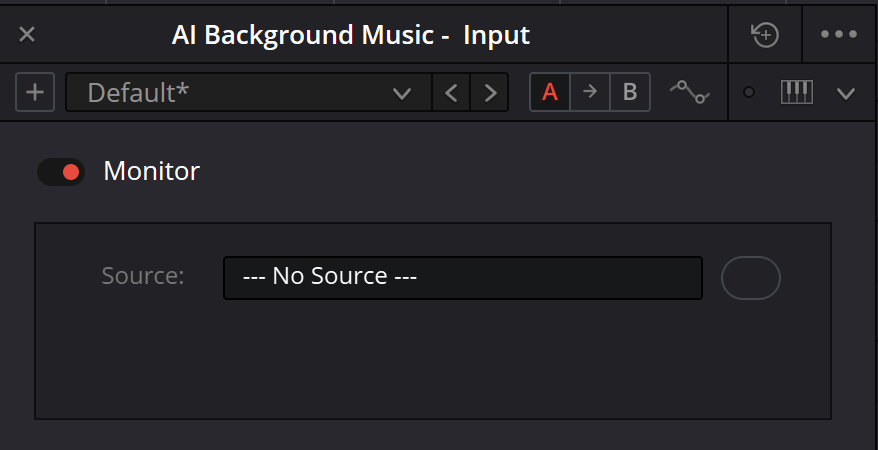
Monitor: no source assigned in a track-input context
The AI Background Music - Input title and plug-in UI are not the Control Room panel. Source is closed, and the round element on the right has no visible function label.
02 / UNDERSTAND & APPLY
Four different input and output scopes
Playing an imported speech clip does not require assigning a microphone to its track input. Inspect the clip, its channels, track, bus and listening output first. Input monitoring is a separate issue when recording.
A workflow that genuinely uses input Monitor and an external integration needs its actual source and version-specific documentation. A plug-in in an older capture does not prove compatibility with the current operating system, edition or external application.
| Scope | Why inspect it? | Not a substitute for |
|---|---|---|
| Monitor in Input | The particular plug-in and supported source | Speaker selection or Deliver bus |
| Track Input / recording | Recording source, patch and track preparation | Playing an already edited clip |
| Control Room / listening | The selected listening system and monitor level | The final mix fader |
| Deliver Audio Settings | Buses/tracks and channels written to a file | The current listening selection |
Reference: Blackmagic Design — Fairlight · Videomontazher — Monitor in track Input context · Blackmagic Design — Consoles / Monitoring Controls
03 / UNDERSTAND & APPLY
Check ordinary bus listening in order
Lower physical playback level
Start at a safe device or speaker level. Do not test unknown input returns at high volume.
Choose recognizable material
A short voice recording or known left/right stereo passage is more useful than silence or a random generator. Record the timeline and range.
Identify the final bus
Follow the assignments rather than relying only on Bus 1 as a name. Establish that the clip and track feed it with the expected material.
Inspect the listening system
Check its bus/source, selected output set or headphones, and Mute/Dim state. Do not change an input plug-in Source instead.
Inspect the device and channels
In your installation’s audio I/O settings, check the playback device and output-channel assignment. Labels and placement depend on the OS, hardware and interface; the checking logic does not require a physical console.
Reference: Blackmagic Design — Fairlight · Blackmagic Design — Consoles / Monitoring Controls
04 / UNDERSTAND & APPLY
Level, Mute and Dim: change the right scope
Blackmagic describes listening source and level controls separately from speaker Dim and Mute. This supports the functional distinction, not a promise that every desktop window contains the same hardware controls.
Monitor Level adjusts listening; monitor Mute closes that branch, and Dim attenuates it by a chosen amount. Fixed Level belongs to an established listening-system level. It is not file normalization or an LUFS target. Do not borrow another studio’s number without calibration.
The Main fader, bus Mute, processing and automation belong to the mix. They are not safe substitutes for a speaker-volume control. When the scope of a button is unclear, document its context and test it in a copy first.
| Goal | Where to look | Separate check |
|---|---|---|
| Listen more quietly to the same mix | Monitor level / physical device | The mix fader was not changed |
| Temporarily silence speakers | Specifically monitor Mute | Track or bus Mute was not changed |
| Deliver a quieter mix | A deliberate mix adjustment and measurement | The brief and the actual output file |
| Check another speaker set | Listening-system selection | Channels, level and a fair comparison |
Reference: Blackmagic Design — Consoles / Monitoring Controls
05 / UNDERSTAND & APPLY
What Bus, Control Room and Loudness readings prove
A meter is useful together with its measurement point, scale and observation interval. Activity at Bus 1 helps locate a path, but does not prove that the selected speakers are connected. A missing loudness value is not a zero measurement.
In the active original capture TP reads −3.6, and the Loudness panel is labeled BS.1770-1 (LU). Integrated reads +3.6 on that relative LU scale. It is not +3.6 LUFS: the reference value and full measured interval cannot be established from the image.
Delivery verification starts with the required method, units, target, limits and program range. A short passage or values retained from earlier playback cannot verify a newly rendered full program. Record the reset/start procedure and the interval actually measured.
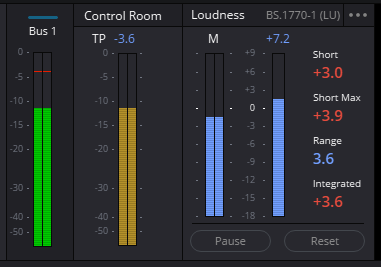
Active Bus 1, Control Room and Loudness readings
TP −3.6; Integrated +3.6 on an LU scale. The reference level and full measurement interval are not established. Do not relabel LU as LUFS or treat these values as universal targets.
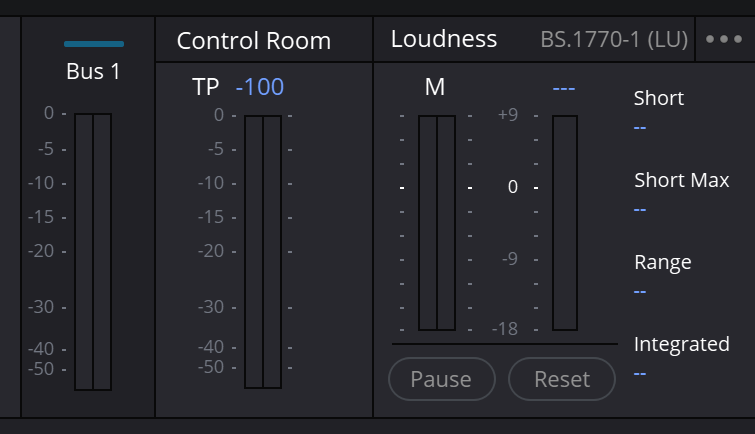
Bus 1, Control Room and Loudness without a completed measurement
Loudness fields contain dashes and TP shows −100. BS.1770-1 (LU) describes this capture; it does not prove silence across the project, full-program loudness or delivery compliance.
Reference: Blackmagic Design — Fairlight · Videomontazher — active Control Room / Loudness capture · Videomontazher — Bus 1 / Control Room / Loudness capture
06 / UNDERSTAND & APPLY
No sound: inspect five boundaries in sequence
Clip and source
Confirm the intended material exists in the selected range, has the right channel assignment and a usable clip level. A waveform does not prove a currently audible route.
Track
Inspect enable state, Mute/Solo, fader, processing and output. Handle input monitoring separately when recording; do not patch a random input for a Media Pool clip.
Group and Main
Follow bus assignments and locate where an observed signal stops. Do not add direct and grouped outputs at once just to obtain temporary sound.
Listening and device
Inspect the monitoring source, Mute/Dim, output channels and device. After a hardware change, an old output choice may no longer match the equipment.
A control file
Create a short file from an explicitly selected bus without overwriting a working result. Listen separately. This helps distinguish a mix problem from Deliver selection or local playback.
Reference: Blackmagic Design — Fairlight · Blackmagic Design — Consoles / Monitoring Controls
07 / UNDERSTAND & APPLY
Try it: speaker Mute versus file content
Choose “Mute speakers”. The model’s listening branch closes, but Main remains the file selection. Next try “Export music”: even while listening to a complete mix, a different bus can be chosen for the file.
Now change Dialogue → Main. This changes the mix composition, so it affects every model branch that selects Main. That is different from changing only the listening branch.
The panel neither measures a signal nor connects to hardware. The DIM number describes this model’s illustrative attenuation, not total speaker level, SPL or LUFS.
BUS / LISTEN / DELIVER LAB
What you hear is a different selection from what you export
A two-stem wiring model. It does not emulate the Monitor plug-in. Adjust one branch and compare the other; no sound is generated.
Content reaching the mix bus
Voice + Music
Speaker branch
Selected: Voice + Music
Path passes: Voice + Music
Open in the diagramDIM contribution only: 0 dB · not SPL or LUFSSources selected for the file
Voice + Music
No file has been rendered or verifiedOnly modeled connections are considered. No summing levels, pan laws, EQ, FX, bus faders, plugin sources, meters or physical devices are calculated. Listening Mute/Dim here is not a track or bus Mute. A populated path does not prove audibility. Nothing connects to Resolve, renders, uploads, or saves automatically.
Reference: Blackmagic Design — Fairlight · Blackmagic Design — Consoles / Monitoring Controls
08 / UNDERSTAND & APPLY
Handling No Source in the Monitor plug-in itself
First establish whether this input plug-in belongs in your workflow. For playback of edited clips, return to the ordinary track → bus → monitoring path. Do not install external software merely to remove the No Source label.
For an existing workflow that needs this plug-in, record the track and instance, Resolve version, OS and the intended external source. Inspect the actual Source list and the particular integration’s documentation. The closed menu in our image does not prove ReWire or other protocol support in your version.
This guide does not promise a universal ReWire setup or third-party compatibility: primary documentation and a live test of that integration were not obtained. This is an explicit scope limit, not a reason to replace Source with an imagined Bus 1 selector. Further diagnosis needs redacted captures of the expanded list and the entire assignment path.
09 / UNDERSTAND & APPLY
Before delivery or a hardware change
After testing
Restore diagnostic Solo/Mute and temporary routes. Check that a stem has not remained selected in place of Main.
Before export
Check bus/track selection, channel count and order, range and level requirements. The monitoring choice does not verify these.
After export
Open the exact new file. Check its start, end, speech, music and channels. An external player has its own level; compare deliberately.
After a device change
Recheck the listening source and output channels. Do not alter a good mix before excluding hardware configuration.
Reference: Blackmagic Design — Fairlight · Blackmagic Design — Consoles / Monitoring Controls
PRACTICE / NO AUTOPILOT
A small task. A checkable result.
Work in a test copy, listen before and after, and write down what you actually observed. The checklist contains no pre-approved results.
Name the context
Record whether this is input Monitor, ordinary listening or recording. Do not combine different Source controls under one label.
Document the route
For a short test clip, identify its track, groups, Main, listening source and physical output device.
Test a listening control
At a safe level, change only the listening control. Record its exact name and location; do not generalize the result to bus Mute.
Compare bus choices
Listen to Dialogue alone while selecting Main for the test export. Note both selections and the expected content, then inspect the result.
Finish with the file
Open and listen to the new file separately. Record channels, interval and any problems, then restore the original monitoring settings.
FAQ / BEFORE THE NEXT MOVE
Questions that matter in practice
Is Monitor with No Source the project’s main output?
No. The pictured window is a plug-in instance in a track Input context. No Source describes its field, not the entire project.
Does Monitor never affect an export?
That is too broad. The plug-in and the listening system are different scopes. A rule about a separate speaker branch cannot be applied to an input plug-in source or bus processing.
Reference: Videomontazher — Monitor in track Input context · Blackmagic Design — Consoles / Monitoring Controls
Why does a clip play even though the track says No Input?
A track input selects a recording source. An imported clip plays from the timeline through its track and buses; it does not need a microphone assignment merely for listening.
Reference: Blackmagic Design — Fairlight
Should I raise Main when the speakers are quiet?
First inspect monitor level, Dim/Mute, device and output channels. Main changes belong to the mix, not just listening convenience.
Reference: Blackmagic Design — Consoles / Monitoring Controls
Does Integrated +3.6 in the image mean +3.6 LUFS?
No. The panel is labeled LU. This is relative; the reference value and measured interval are needed before naming an absolute program loudness.
Reference: Videomontazher — active Control Room / Loudness capture
Does ordinary editing require Monitor or a physical console?
Do not add an input plug-in merely to play edited clips. This guide separates ordinary playback from special sources. Console documentation supports the functional explanation; it is not a requirement to purchase hardware.
Reference: Blackmagic Design — Fairlight · Blackmagic Design — Consoles / Monitoring Controls · Videomontazher — Monitor in track Input context
REFERENCES / 2026-10-06
What this guide is based on
Checked against published Blackmagic descriptions and the original encyclopedia captures. Images show individual states; the resolve21 filename does not identify an exact build. The console documentation also supports listening-control concepts, not the exact placement of desktop UI controls. Live routes, hardware output, the current Monitor plug-in Source list and external integrations were not tested here. Numerical examples and interactive panels are authored learning models, not Resolve presets or measurement reports. Save a test copy and document the original assignments before making changes.
Blackmagic Design — Fairlight ↗
Clip Adjustments, Waveform Editing, Smart Edit Tools, Mixer and Channel Mapping; manufacturer page checked 6 October 2026.
Videomontazher — Bus 1 / Control Room / Loudness capture ↗
Loudness fields contain dashes. BS.1770-1 (LU) is recorded as a capture observation, not a universal delivery-standard recommendation.
Blackmagic Design — Consoles / Monitoring Controls ↗
Listening source/system selection, monitor level, Dim and Mute. Hardware-console documentation supports the functional distinction, not identical desktop button placement or the purpose of the Monitor input plug-in.
Videomontazher — Monitor in track Input context ↗
Shows AI Background Music - Input, Monitor and Source: No Source. Not Control Room. The source menu is closed; neither the round element’s function nor external integration compatibility is inferred.
Videomontazher — active Control Room / Loudness capture ↗
TP −3.6; Integrated +3.6 on a BS.1770-1 (LU) panel. LU is not relabeled as LUFS. Reference value and measured interval are unknown; not a delivery target or verified file.