FAIRLIGHT / EQUALIZER / 06.2
Equalizer
Solve an audible problem, not a drawing.
Frequency locates a change, gain sets its amount, and bandwidth determines what else it touches. Identify the control, the processing location and the material affected before the curve becomes more complex than the problem.
- 01Read bands and filter controls
- 02Separate EQ response from recorded spectrum
- 03Compare the change in context
Move the band and change its gain; the response redraws.
Find a region, not a preset number↗
Frequency locates a change. Low, middle and high ranges are guides, not a diagnosis.
You can name the audible element you are changing.Change the controls to explore the diagram. No audio playback, native DSP or connection to Resolve.
Sources & limits · 7 October 2026
Native features were checked against Blackmagic’s current Fairlight description and its published EQ illustration. The original Equalizer PNG is missing from the supplied archive and could not be re-fetched; retain it on the server. The full Fairlight 20 training PDF exceeded the retrieval limit and was not treated as read. This is not a live Resolve test or a certified list of every closed menu in every build. The site’s mathematical models are explicitly separate from the native processors.
Read the source notes ↓On this page
01 / UNDERSTAND & APPLY
Open the intended Equalizer
Double-click the Mixer channel’s EQ area. For local correction, select the clip and its Inspector EQ. Check the object name first.
Blackmagic’s current Fairlight page describes six bands for both clip and channel EQ. That does not link the state of clip, track, bus and separate EQ-insert instances.
The official illustration shows six bands, Equalizer Type, overall Gain, middle-band parameters and slope choices at the edges. A setting in a promotional example is not a recommendation for your voice.
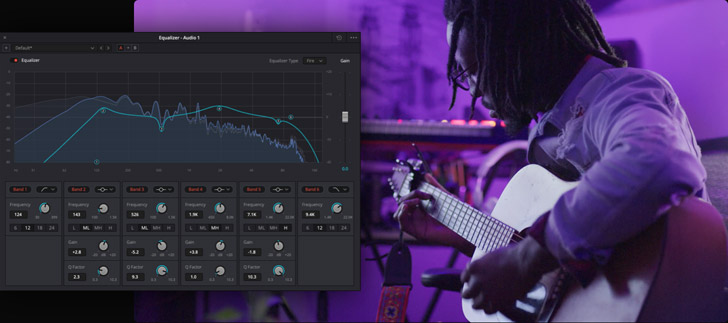
Equalizer
Six bands, overall Gain and Fire selected under Equalizer Type. Manufacturer illustration, not a measurement of your recording or an inventory of the closed menu.
Image source ↗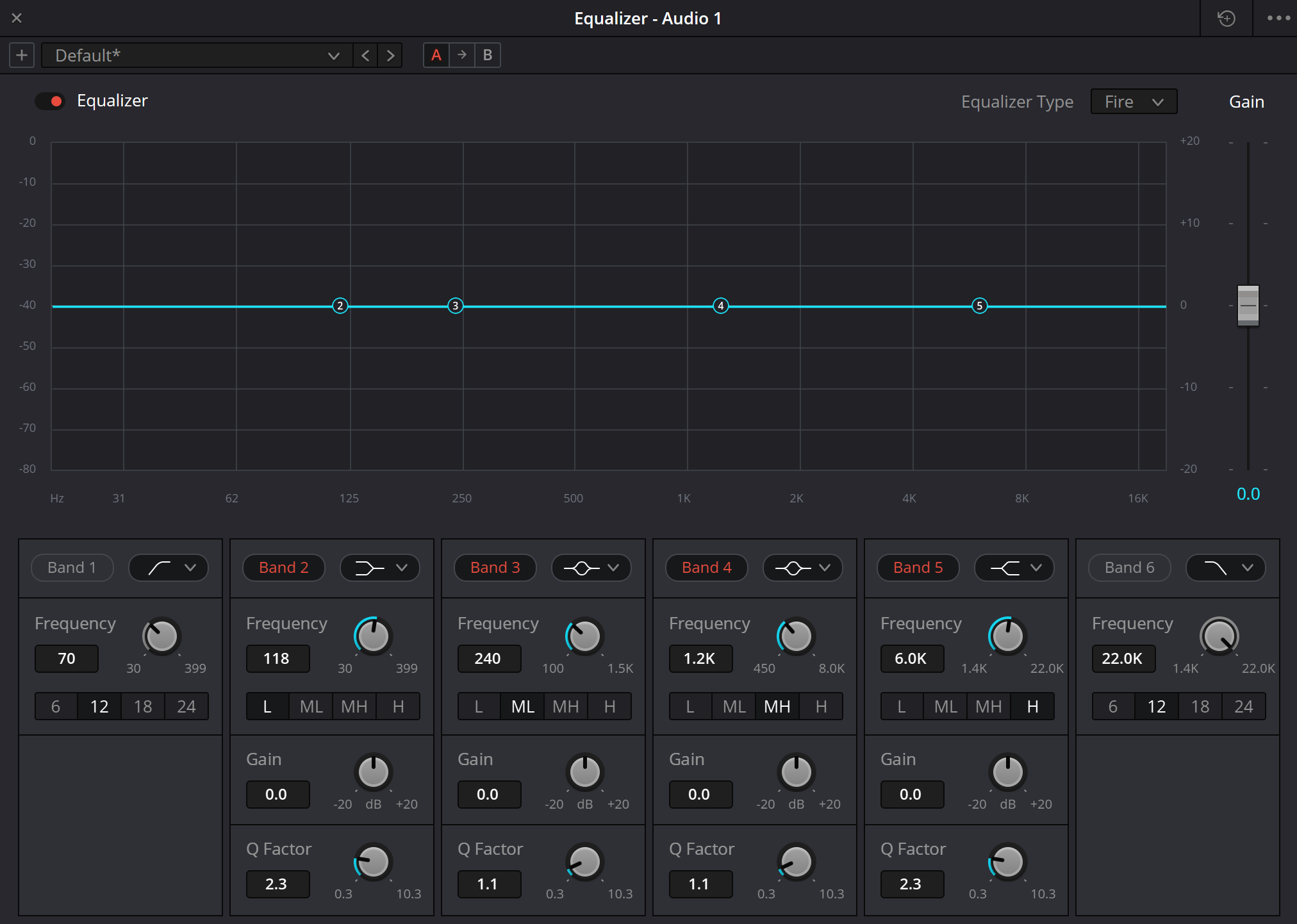
Original Equalizer capture
The existing URL is retained. Its filename contains “resolve21”, but the filename alone does not establish the exact build. This pass could not inspect the original pixels; the separate Blackmagic illustration supports the controls discussed below, not the state of this capture.
Reference: Blackmagic Design — Fairlight: EQ and Dynamics / Clip Adjustments · Blackmagic Design — official Fairlight Equalizer illustration · Videomontazher — original Equalizer screenshot URL
02 / UNDERSTAND & APPLY
Six bands, not six identical controls
The middle four sections handle parametric shaping; the outer sections filter the range edges in the illustrated interface.
| Group | What to read | Practical meaning |
|---|---|---|
| Band 1 | Enable state, shape, Frequency and the edge filter slope. | Control unnecessary low end. High-pass / low-cut passes higher frequencies and attenuates lower ones. |
| Bands 2–5 | Shape, Frequency, Gain, Q and available tuning range. | Treat a chosen region. Controls depend on shape: a shelf is not a bell and a notch is not an arbitrary broad cut. |
| Band 6 | Enable state, Frequency and upper edge slope. | Low-pass / high-cut passes lower frequencies and attenuates higher ones. It need not be active on every recording. |
| Whole EQ | Global enable, Gain, EQ type and saved state. | Whole-instance bypass differs from one disabled band; overall gain is not the height of one point. |
Reference: Blackmagic Design — official Fairlight Equalizer illustration
03 / UNDERSTAND & APPLY
Frequency, Gain, Q and compensation
Hz, dB and Q describe different quantities. Moving a nearby control may address a different problem even when the curve looks similar.
| Control | What changes | What to watch |
|---|---|---|
| Frequency · Hz / kHz | The band position or filter boundary; the centre frequency for a bell. | On a logarithmic axis, 100 → 200 Hz occupies the same width as 1000 → 2000 Hz. |
| Band Gain · dB | Boost or cut in the chosen region. | This is a gain change, not a recorded peak level in dBFS. |
| Q Factor | Selectivity and width of a parametric band. | With other values fixed, a larger Q narrows a bell. It is not a universal bandwidth in Hz for every filter shape. |
| Slope · dB/oct | The rate of attenuation in a filter’s stopband. The illustration shows 6 / 12 / 18 / 24. | 24 dB/oct does not mean an immediate 24 dB cut at the selected frequency. A filter is not a vertical wall. |
| Overall Gain · dB | A gain shift across the EQ output. | This can lift frequencies untouched by the bands. Inspect headroom after summing. |
| Band enable / EQ bypass | One correction or the entire instance. | Compare the stage you changed and retain a way to restore its settings. |
Reference: Blackmagic Design — official Fairlight Equalizer illustration · W3C — Audio EQ Cookbook / RBJ peaking EQ
04 / UNDERSTAND & APPLY
Filter shape and Equalizer Type are different choices
A band’s shape defines the geometry of its correction. Equalizer Type concerns the EQ behaviour variant, not a track destination or automatic voice diagnosis.
The inspected official illustration shows Fire selected under Equalizer Type. Its menu is closed, so it cannot establish the complete list in the current build or justify claims about particular third-party console emulations. Treat a type change as a separate decision and recheck response and sound.
Frequency-range switches and numerical limits depend on the interface. Do not transfer this lesson’s input limits to every Resolve band: the calculator intentionally models only one bell.
Bell
A local boost or cut around a centre. Frequency locates it, Gain sets its amount and Q controls width.
Low / High Shelf
Adjust a broad lower or upper region, with a transition between ranges. This is not a low-pass/high-pass cutoff: a shelf need not tend towards complete suppression.
Notch
Narrow attenuation of a selected region. Confirm the available shape and controls in the actual open band menu.
High-pass / Low-pass
Filter the edges. The name tells you what is passed: high-pass does not remove the top end.
Reference: Blackmagic Design — official Fairlight Equalizer illustration · W3C — Audio EQ Cookbook / RBJ peaking EQ
05 / UNDERSTAND & APPLY
Clip, channel or sum: locate the correction
A local source problem should not automatically reshape every line and the music.
Saving or copying settings does not merge two scopes. After transfer, check shapes, values, overall Gain and the target channel. Exact cross-context copy commands in a particular build were not certified in this pass.
| Scope | Suitable task | Recheck |
|---|---|---|
| Clip EQ | A particular take has a different tone or local resonance. | Neighbouring clips stay unchanged and you understand the clip’s own processing when it moves. |
| Track EQ | Consistent treatment for one microphone or sound role. | Unrelated material has not been placed on a track whose correction harms it. |
| Bus EQ | Overall tonal balance of a group or mix. | All assigned sources pass through the correction; it does not independently repair each source. |
| EQ insert | A deliberate additional stage in an effects chain. | The correction is not duplicated accidentally and its position is known. |
Reference: Blackmagic Design — Fairlight: EQ and Dynamics / Clip Adjustments
06 / UNDERSTAND & APPLY
Response, spectrum and recorded level
A response curve describes how frequencies are changed. A spectrum describes components observed by an analyser. They are different layers of information.
In the official illustration, the response line is overlaid on a spectral display. A peak in the source spectrum is not automatically a fault: voices and instruments naturally have unequal harmonic components.
A flat 0 dB response means no gain change in that characteristic, not silence. Conversely, +6 dB at 1 kHz does not reveal the peak that an unknown recording will produce.
Listen at a moderate level. A diagnostic boost during a resonance search is temporary, not the intended final correction. Avoid extreme narrow boosts and judging success by how unpleasant the result becomes.
Reference: Blackmagic Design — official Fairlight Equalizer illustration · W3C — Audio EQ Cookbook / RBJ peaking EQ
07 / UNDERSTAND & APPLY
One bell: a calculated response without an audio file
This is an RBJ peaking-EQ implementation from the W3C Audio EQ Cookbook, not a replica of Earth/Air/Ice/Fire algorithms or any particular Fairlight build.
The model uses a fixed 48 kHz sample rate. Change frequency, gain, Q and overall output; the logarithmic response updates. Disabling the band retains output gain, while global bypass removes both stages under the model’s explicit convention.
The graph shows relative gain, not spectrum, LUFS or recorded voice dBFS. JSON includes parameters, coefficients and calculated points. It is not a native preset and cannot apply treatment to a project.
BELL / RESPONSE LAB
One band. A visible response.
RBJ peaking EQ, fixed 48 kHz. Relative gain, not an audio spectrum. Not a Fairlight EQ-type emulation.
Limits belong to this lesson, not to Resolve. Decimal dot or comma; no blank values or exponent notation.
Relative gain at the selected centre. An inactive band keeps overall gain; full bypass removes both.
No files, audio, microphone access or Resolve connection. No automatic saving. JSON is a teaching model, not a native preset or evidence of delivery quality. Edits are lost when leaving this page.
Reference: W3C — Audio EQ Cookbook / RBJ peaking EQ
08 / UNDERSTAND & APPLY
Practical decisions without a universal preset
Useful correction solves the audible problem in context. It does not require every band to be active.
After each decision, bypass the changed band, then compare the whole EQ. Account for a louder version using overall Gain and repeat the check in the complete mix.
Low-frequency interference
Test an edge filter on a copy. Confirm that useful voice fundamentals survive while the interference is reduced. Do not use one speech cutoff for every source.
A persistent resonance
Locate the region, make a controlled cut and compare neighbouring vowels. An excessive narrow or deep correction can make tone unnatural.
Dialogue masked by music
Check balance and arrangement density first. A modest music correction may work better than excessive dialogue brightness.
Different microphones
Compare characteristic phrases and pauses, not just one spectral frame. Matching setting curves does not guarantee matching timbre.
Reference: Blackmagic Design — Fairlight: EQ and Dynamics / Clip Adjustments
09 / UNDERSTAND & APPLY
When the curve cannot solve the problem
EQ does not distinguish desirable signal from interference in the same region or automatically repair timing problems.
| Symptom | Check | Tool boundary |
|---|---|---|
| Thin voice | Cutoff frequency, slope and another cut elsewhere in the path. | Useful sound may have been removed with the interference. |
| More hiss with more clarity | High boost, sibilants and background noise in pauses. | A broad band raises both desirable and undesirable components. |
| Controls change but sound does not | Band enable, global bypass, channel identity and actual signal flow. | An open window does not establish that the intended signal passes through it. |
| Overloads after added gain | EQ output, subsequent inserts and the bus sum. | An attractive curve does not measure output peak. |
| Interference remains during words | Its nature, a clean recording or dedicated restoration. | Static EQ does not recognize speech and subtract only noise. |
Reference: Blackmagic Design — Fairlight: EQ and Dynamics / Clip Adjustments
PRACTICE / NO AUTOPILOT
A small task. A checkable result.
Work in a test copy, listen before and after, and write down what you actually observed. The checklist contains no pre-approved results.
Describe one problem
Choose a short recording of your own, preserve the source and identify the processing scope.
Make one correction
Select a suitable shape and adjust Frequency and Gain; assess width without automatically adding more bands.
Separate the gains
Compare band gain with overall compensation. Record which control you changed.
Check in context
Listen to quiet and loud speech, pauses and the full mix at similar loudness. Note any lost details.
Record observations
Record the exact build, controls and bypass result. Accept only a reduction of the original problem without an unacceptable change to useful sound.
FAQ / BEFORE THE NEXT MOVE
Questions that matter in practice
Must all six bands be used?
No. One suitable filter is better than several purposeless changes. A band needs a specific audible purpose.
Reference: Blackmagic Design — Fairlight: EQ and Dynamics / Clip Adjustments · W3C — Audio EQ Cookbook / RBJ peaking EQ
Why does higher Q narrow a bell?
Q expresses band selectivity. In the teaching model, increasing Q at fixed frequency and gain concentrates the change closer to the centre.
Reference: Blackmagic Design — Fairlight: EQ and Dynamics / Clip Adjustments · W3C — Audio EQ Cookbook / RBJ peaking EQ
Does 0 dB on the graph mean clipping?
No. Here it means zero gain change. Recorded level relative to digital full scale is measured separately in dBFS.
Reference: Blackmagic Design — Fairlight: EQ and Dynamics / Clip Adjustments · W3C — Audio EQ Cookbook / RBJ peaking EQ
Does high-pass remove high frequencies?
No. It passes higher frequencies and attenuates lower ones. Low-pass does the opposite.
Reference: Blackmagic Design — Fairlight: EQ and Dynamics / Clip Adjustments · W3C — Audio EQ Cookbook / RBJ peaking EQ
Is copying a preset enough?
No. Check target scope, band shapes and states, overall Gain and the new material. Settings are not a diagnosis.
Reference: Blackmagic Design — Fairlight: EQ and Dynamics / Clip Adjustments · W3C — Audio EQ Cookbook / RBJ peaking EQ
Can I export a Resolve preset here?
No. The JSON describes an authored mathematical bell model at 48 kHz. It does not read audio or emulate Fairlight processors.
Reference: Blackmagic Design — Fairlight: EQ and Dynamics / Clip Adjustments · W3C — Audio EQ Cookbook / RBJ peaking EQ
REFERENCES / 2026-10-07
What this guide is based on
Native features were checked against Blackmagic’s current Fairlight description and its published EQ illustration. The original Equalizer PNG is missing from the supplied archive and could not be re-fetched; retain it on the server. The full Fairlight 20 training PDF exceeded the retrieval limit and was not treated as read. This is not a live Resolve test or a certified list of every closed menu in every build. The site’s mathematical models are explicitly separate from the native processors.
Blackmagic Design — Fairlight: EQ and Dynamics / Clip Adjustments ↗
Checked 7 October 2026: six-band clip and channel EQ, double-click access, Expander/Gate, Compressor, Limiter and separate inserts. Not a complete closed-menu reference, true-peak measurement or live listening test.
Blackmagic Design — official Fairlight Equalizer illustration ↗
Illustration inspected: six bands, response over a spectral display, overall Gain, Frequency, middle-band Gain/Q, 6/12/18/24 edge choices and Fire selected. Menus are closed and exact build is unspecified. External image loads only on request.
Videomontazher — original Equalizer screenshot URL ↗
Original URL retained. Bytes are absent from the supplied ZIP and network retrieval failed. The original was NOT visually reinspected in F06-P01; this is not an established live-site 404.
W3C — Audio EQ Cookbook / RBJ peaking EQ ↗
Primary source for the single teaching bell section’s coefficients. Fixed 48 kHz and relative response; no audio playback. Not a source for native Fairlight EQ-type algorithms or the compressor equation.