FAIRLIGHT / VOICE / 06.04
Vocal Channel
Shape the voice. Keep the chain simple.
Remove unwanted low end, balance tone and control level changes in one compact insert. Learn what each section does, what bypass leaves behind and how to compare without letting extra loudness choose the winner.
- 01Choose the processing scope
- 02Understand each section
- 03Compare quiet and loud lines
Change the level; the source outline stays available for comparison.
One source. One clear problem.↗
Choose the correct microphone and balance major clip-level differences before adjusting the insert.
Check: the target channel and affected clips are known.Change the controls to explore the diagram. No audio playback, native DSP or connection to Resolve.
Sources and limits · 7 October 2026
Reviewed on 7 October 2026 against Blackmagic’s Fairlight overview and the reproduced primary Resolve 21 manual chapter on the independent iMaster mirror. The two manual illustrations were visually inspected. Source contradictions are explicit; native DSP, precise Reaction timing, preset restoration and listening were not tested. Original site PNGs remain an installation dependency.
Read the source notes ↓On this page
01 / UNDERSTAND & APPLY
When a compact channel strip is enough
Vocal Channel combines High Pass, a three-band Equalizer and a Compressor. It is a useful starting point for a reasonably clean voice that needs moderate tonal and dynamic adjustment rather than a large restoration chain.
Name the problem before turning a knob: excess low end, dull tone or a few prominent words. A defect in one short clip need not change the entire track. Keep a test copy and find a passage containing both the problem and a useful reference.
Clip
A local adjustment. Check neighbouring edits and any links to picture.
Track
A shared setting for a chosen microphone or speaker. Separate radically different recordings first.
Bus
Processing applies to the routed sum. Tuning while one voice plays alone does not test the full mix.
Reference: Blackmagic Design — Fairlight / plug-ins and mixer · Blackmagic — Resolve 21 manual, ch. 181 / Vocal Channel & Dialogue Processor (iMaster mirror)
02 / UNDERSTAND & APPLY
Read the window before reading its curves
The manual illustration has a frequency-response display and an input/output dynamics curve. Output is on the right; Gain Reduction belongs to the Compressor section. A visible curve does not prove that its section is enabled.
Read the channel name and slot in the window title. Then check overall bypass and the independent High Pass, Equalizer and Compressor switches. This avoids chasing a threshold that appears ineffective because the whole insert is bypassed.
| Control area | How to use it |
|---|---|
| High Pass / Equalizer / Compressor | Compare one section at a time. Disabling EQ does not bypass the whole insert. |
| EQ curve | A response display, not a measurement of all the speech frequencies in your recording. |
| Dynamics curve | A level relationship, not the actual transient response to every consonant. |
| Output / Gain Reduction | Output level and attenuation are different observations. |
| A/B, presets, Reset | Save a version before experimenting. Reset is not a substitute for a preserved working state. |

Vocal Channel
The three sections have independent switches. The EQ and dynamics curves are not measurements of your recording; Reaction is not labelled in milliseconds.
Image source ↗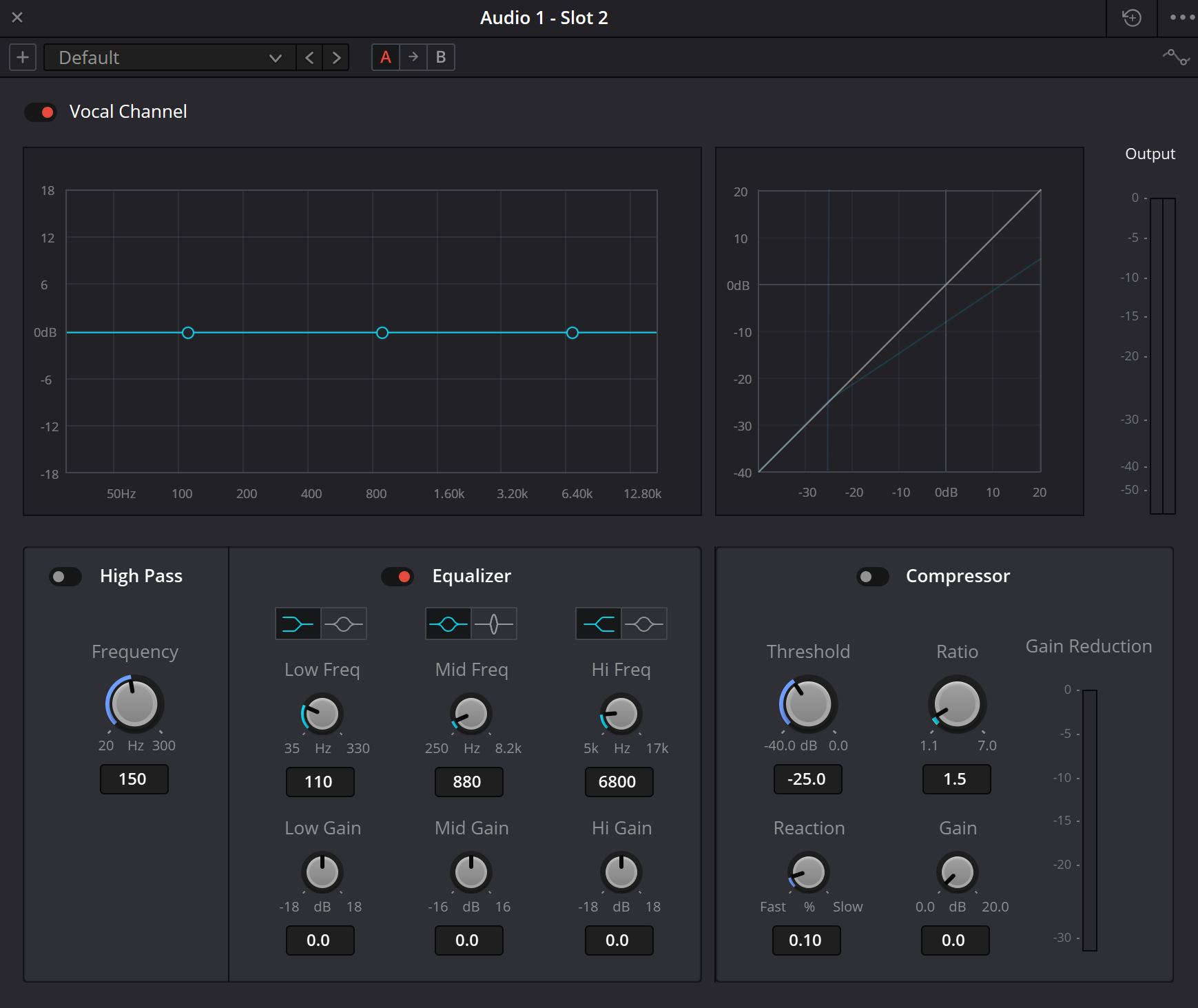
Original site capture: Vocal Channel
The existing URL is preserved. Its bytes are absent from the supplied ZIP and the original could not be reloaded in this pass. The separately identified manual illustration supports the control table; neither is presented as our live test.
Reference: Blackmagic — Resolve 21 manual, ch. 181 / Vocal Channel & Dialogue Processor (iMaster mirror) · Blackmagic manual illustration — Vocal Channel (iMaster mirror)
03 / UNDERSTAND & APPLY
High Pass and the three EQ bands
High Pass attenuates frequencies below its selected region. Aim for the least intervention that controls unwanted low end: raise Frequency, back off slightly and compare the weight of vowels. The example setting in a screenshot is not a mandatory voice filter.
Low, Mid and Hi each expose frequency and gain. Pictograms above the bands select shapes; the manual says the choices differ by band. Read the symbols and resulting curve rather than assuming one common mode list. A separate Q knob is not shown in this compact window.
| Control · markings in the illustration | Practical decision |
|---|---|
| High Pass Frequency · 20–300 Hz | Distinguish unwanted rumble from useful vocal weight. Back off if the voice becomes thin. |
| Low Freq · 35–330 Hz; Low Gain · −18…+18 dB | Decide between a broad shelf and a more local change; compare the displayed response. |
| Mid Freq · 250 Hz–8.2 kHz; Mid Gain · −16…+16 dB | Locate nasal or harsh tone in a real line. Avoid an aggressively boosted search at high monitoring volume. |
| Hi Freq · 5–17 kHz; Hi Gain · −18…+18 dB | Check added brightness against sibilants and pause noise. More top end is not automatically more clarity. |
| Mode / shape pictograms | Compare shelf and local shapes at the edges and the available middle-band widths. Confirm exact labels in your build. |
Reference: Blackmagic — Resolve 21 manual, ch. 181 / Vocal Channel & Dialogue Processor (iMaster mirror) · Blackmagic manual illustration — Vocal Channel (iMaster mirror)
04 / UNDERSTAND & APPLY
Threshold, Ratio, Reaction and Gain
Threshold and Ratio determine how strongly level growth is restrained. First find a threshold that affects the prominent words, then compare the amount of compression. Leave Gain for a separate step so that an increase in loudness does not masquerade as improvement.
Reaction changes the response between Fast and Slow. Do not import millisecond settings from channel Dynamics: an exact time calibration is not provided in the material reviewed here. Listen to consonant attacks, stressed syllables and recovery into quiet endings.
| Parameter | Meaning and check |
|---|---|
| Threshold · −40…0 dB | Compare a loud and a quiet line. Threshold is not a delivery loudness target. |
| Ratio · 1.1…7.0 | A larger ratio restrains growth above threshold more strongly. It does not determine the final loudness of a line. |
| Reaction · Fast ↔ Slow | Compare response on complete phrases. The illustrated 0.10 is not established as 0.10 ms. |
| Gain · 0…20 dB | Adds level; it is not a peak limiter. Recheck output and downstream inserts afterwards. |
| Gain Reduction | Compare attenuation across lines. A continuously tall meter is not the objective. |
Reference: Blackmagic — Resolve 21 manual, ch. 181 / Vocal Channel & Dialogue Processor (iMaster mirror) · Blackmagic manual illustration — Vocal Channel (iMaster mirror)
05 / UNDERSTAND & APPLY
One setting, three different input levels
This is not a simulation of the complete Vocal Channel. One static curve is applied to three entered levels, with no High Pass, EQ, Reaction or detector. The values are not measured from your audio and need not represent the peaks seen in Resolve.
With −32, −22 and −10 dB inputs, a −24 dB threshold and 3:1 ratio, the loud example changes most. Gain lifts all outputs equally without making them equal. Full model bypass skips both compression and makeup gain.
VOCAL / THREE INPUTS
Same controls. Different responses.
Teaching tool only. No audio files are read, played or measured; no Resolve connection or automatic storage. JSON is a learning record, not a plugin preset. Changes disappear when you leave the page.
| Example | Input · dB | Reduction · dB | Output · dB |
|---|---|---|---|
| Quiet example | -32 | 0 | -29 |
| Ordinary example | -22 | 1.333 | -20.333 |
| Loud example | -10 | 9.333 | -16.333 |
x ≤ T: y = x + G; x > T: y = T + (x − T) / R + G. Full bypass: y = x.
Independent steady levels, hard knee. No EQ, Reaction, envelope, true peak or loudness measurement. The displayed spread is not programme Loudness Range (LRA).
06 / UNDERSTAND & APPLY
A practical pass on a voice-over track
Choose the evidence
Include an ordinary line, loud word, quiet ending and pause. Do not tune the entire voice from one convenient syllable.
Balance major differences
Check source-channel mapping and clip levels. A moved microphone does not regain its previous tone from a preset alone.
Adjust tone
Compare High Pass and EQ separately. Identify both the improvement and the loss.
Control dynamics
Set Threshold/Ratio, then compare Reaction. Listen to complete words rather than only watching peaks.
Return to context
Compare A/B at similar loudness, then with music. Keep a setting only after both checks.
Reference: Blackmagic Design — Fairlight / plug-ins and mixer · Blackmagic — Resolve 21 manual, ch. 181 / Vocal Channel & Dialogue Processor (iMaster mirror)
07 / UNDERSTAND & APPLY
Know when to choose a different tool
Three bands are awkward for six narrow resonances. Use the detailed Equalizer for that task. Channel Dynamics may be more useful for precise time controls than trying to infer them from Reaction.
Vocal Channel does not contain the De-Pop or De-Ess modules found in Dialogue Processor. Do not keep cutting all high frequencies to tame one sibilant if that removes clarity. Decide whether the job is local editing, specialised repair or a better recording.
Several speech defects
Dialogue Processor provides compact specialised modules. Each still needs its own reason.
Line-to-line imbalance
Consider Clip Volume and automation first. One threshold may not suit radically different inputs.
Delivery requirements
Verify peaks, loudness and export routing separately. Vocal Channel does not certify the output file.
Reference: Blackmagic — Resolve 21 manual, ch. 181 / Vocal Channel & Dialogue Processor (iMaster mirror) · Blackmagic Design — Fairlight / plug-ins and mixer
08 / UNDERSTAND & APPLY
Troubleshoot the sound, not just the knob positions
| Observation | First check |
|---|---|
| The voice became thin | Compare High Pass and Low EQ separately. Do not add Gain to compensate for lost tone. |
| Pause noise became more obvious | Check Gain and the original level. Gain does not separate speech from background. |
| Word attacks lost expression | Compare Reaction and compression depth on complete phrases. |
| A/B sounds almost identical | Check the selected slot, section bypass and passage. Do not enable everything merely to force a difference. |
| Only the louder version sounds better | Match comparison loudness with a separate control instead of changing the compressor’s input conditions. |
| Copied settings sound different | Check source, channel, pre-insert level and the downstream chain. |
Reference: Blackmagic — Resolve 21 manual, ch. 181 / Vocal Channel & Dialogue Processor (iMaster mirror)
09 / UNDERSTAND & APPLY
Save more than a preset name
Record the source, track, slot, enabled sections and the passage you checked. A preset repeats settings; it cannot guarantee that another microphone and room need the same treatment.
After reopening, listen to that passage again and verify the actual file at delivery. Keep an accessible bypass and the original media. Do not replace the original with a processed copy before the result has been accepted.
Reference: Blackmagic — Resolve 21 manual, ch. 181 / Vocal Channel & Dialogue Processor (iMaster mirror) · Blackmagic Design — Fairlight / plug-ins and mixer
PRACTICE / NO AUTOPILOT
A small task. A checkable result.
Work in a test copy, listen before and after, and write down what you actually observed. The checklist contains no pre-approved results.
Prepare a copy
Record the Resolve build, project, track and slot. Choose ordinary, quiet and loud lines.
Separate the sections
Compare High Pass, EQ and Compressor one at a time. Note the benefit of each active section.
Check Reaction
Listen to word attacks and endings at two settings. Do not assign millisecond values without evidence.
Match the comparison
Repeat at comparable playback loudness. Record how you matched it.
Check persistence
Reopen the project and listen again. Write what improved, what remains and what needs revision.
FAQ / BEFORE THE NEXT MOVE
Questions that matter in practice
Is this the same EQ as the channel Equalizer?
No. Vocal Channel has its own compact three-band EQ; the six-band channel Equalizer is separate.
Reference: Blackmagic — Resolve 21 manual, ch. 181 / Vocal Channel & Dialogue Processor (iMaster mirror) · Blackmagic Design — Fairlight / plug-ins and mixer
Should every voice use High Pass?
There is no compulsory value for every recording. Identify unwanted low end and compare it against vocal weight.
Reference: Blackmagic — Resolve 21 manual, ch. 181 / Vocal Channel & Dialogue Processor (iMaster mirror)
Does Reaction 0.10 mean 0.10 milliseconds?
That equivalence is not established. The interface presents Fast/Slow response; native timing was not measured here.
Reference: Blackmagic manual illustration — Vocal Channel (iMaster mirror) · Blackmagic — Resolve 21 manual, ch. 181 / Vocal Channel & Dialogue Processor (iMaster mirror)
Why can Gain bring high peaks back?
Gain adds level and is not a limiter. Check the downstream chain and the actual output.
Reference: Blackmagic — Resolve 21 manual, ch. 181 / Vocal Channel & Dialogue Processor (iMaster mirror)
Can it reconstruct a clipped microphone recording?
Do not count on these sections to recover lost information. Separate recording and local restoration problems from overall tone and dynamics.
Reference: Blackmagic — Resolve 21 manual, ch. 181 / Vocal Channel & Dialogue Processor (iMaster mirror)
Is the lab JSON a preset?
No. It describes three hypothetical levels and an authored static model, not a Resolve file format.
REFERENCES / 2026-10-07
What this guide is based on
Reviewed on 7 October 2026 against Blackmagic’s Fairlight overview and the reproduced primary Resolve 21 manual chapter on the independent iMaster mirror. The two manual illustrations were visually inspected. Source contradictions are explicit; native DSP, precise Reaction timing, preset restoration and listening were not tested. Original site PNGs remain an installation dependency.
Blackmagic Design — Fairlight / plug-ins and mixer ↗
Reviewed 7 October 2026 for processing scope, inserts and mixer context; not the exact compact-plugin scales.
Blackmagic — Resolve 21 manual, ch. 181 / Vocal Channel & Dialogue Processor (iMaster mirror) ↗
Primary text on third-party hosting read. De-Pop, Expander and Vocal Channel Threshold discrepancies are explicit. Not a full official-PDF or installed-build verification.
Blackmagic manual illustration — Vocal Channel (iMaster mirror) ↗
Visually inspected: High Pass, three bands, compressor, section switches, graphs and scales. Manual illustration, not our capture. Loads only on request.