FAIRLIGHT / DYNAMICS / 06.02
Multiband Compressor
Four bands. One deliberate decision.
Use frequency-dependent compression where it solves a defined problem. Read the real controls, preserve the rest of the sound and verify the full mix—not only soloed bands.
- 01Identify four bands
- 02Adjust one region at a time
- 03Verify the combined result
Threshold and ratio change the static curve, not just the caption.
Separate / FOUR BANDS↗
Three boundaries define four regions. Master is shared.
Identify three boundaries.Change the controls to explore the diagram. No audio playback, native DSP or connection to Resolve.
Reference scope · 7 October 2026
Reviewed on 7 October 2026 against the manufacturer overview and relevant primary-manual sections reproduced on iMaster. This mirror is not Blackmagic hosting. Both window illustrations were inspected; exact local build compatibility and listening tests are not certified. Full official PDF retrieval failed. All interactive models are authored simplifications, not native DSP.
Read the source notes ↓On this page
01 / UNDERSTAND & APPLY
One effect, four frequency regions
Multiband Compressor is a separate Fairlight FX insert. Unlike broadband compression, it allows different reactions in several frequency regions. It can be useful when a problem occurs in only part of the spectrum and whole-signal compression changes too much.
The reviewed manual and open-window illustration show four bands, Band 1–4, divided by three frequency boundaries. The final Master column is not a fifth band. The site’s original capture shows the Dynamics → Multiband Compressor insertion menu, not the processor’s settings.
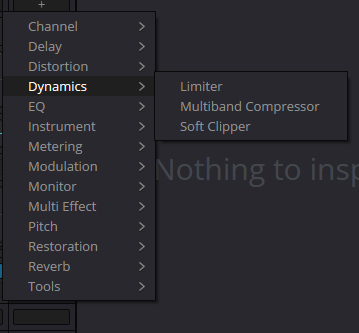
Dynamics → Multiband Compressor
Legacy menu capture; original path retained. The local PNG is absent from the supplied archive and was not re-fetched in this pass. It does not show the processor controls.
Reference: Blackmagic — Resolve 21 manual, ch. 181 / Multiband Compressor (iMaster text mirror) · Blackmagic manual illustration — four-band Multiband Compressor (iMaster mirror)
02 / UNDERSTAND & APPLY
Decide whether multiband processing is necessary
Constant imbalance
Compare a persistent excess with EQ first. If the same correction is needed throughout, a more complex dynamic setup may offer no advantage.
Whole-signal level varies
Check clip balance and an ordinary compressor. Do not split the recording merely to level an entire sentence.
Intermittent spectral excess
Compare specific words or events against normal passages. Aim to reduce excessive behavior in one region while preserving the rest.
Focused speech repair
Compare a de-esser for sibilance. Multiband compression should not be presented as a universal denoiser, restoration tool or replacement for all dialogue processing.
03 / UNDERSTAND & APPLY
Read the window: bands, graph and master output
The reproduced manual illustration shows three dividers, four band panels, enable and S buttons, plus Master Gain and Q. The graph relates frequency to gain. A displayed curve does not by itself make the view an analyzer of the source spectrum.
The illustration and accompanying text disagree: the parameter list mentions Hold, but the shown panels expose only Attack and Release. This guide therefore does not tell you to find a knob absent from that image. Check the controls and ranges in your installation; the illustration’s values are not a recommended preset.

Multiband Compressor
Four band panels and a Master column. Hold appears in the accompanying text but not on these panels. Values illustrate a state, not a recommended setting.
Image source ↗Reference: Blackmagic — Resolve 21 manual, ch. 181 / Multiband Compressor (iMaster text mirror) · Blackmagic manual illustration — four-band Multiband Compressor (iMaster mirror)
04 / UNDERSTAND & APPLY
Three boundaries: choose the region before the strength
Start with the audible issue, not fixed frequencies for “any voice.” Choose a repeatable passage, locate the excessive body or harshness, and compare neighboring normal words. After changing dividers, judge the result without isolated band monitoring.
Solo helps investigate a region but is not a final-tone criterion. Overly narrow listening can tempt you to fix an isolated band that is not supposed to sound natural by itself. Remove Solo and restore the whole mix for each final comparison.
Moving a boundary changes the material reaching each band’s detector. The earlier threshold and readings are not independent of that change. Recheck the response and listen to transitions: boundaries and compression must be adjusted together.
Reference: Blackmagic — Resolve 21 manual, ch. 181 / Multiband Compressor (iMaster text mirror)
05 / UNDERSTAND & APPLY
Band and master controls—without false guarantees
| Control | Purpose and check |
|---|---|
| Threshold / Ratio | Band threshold and compression strength. Equal settings do not imply equal attenuation across regions. |
| Gain | Band gain. Compare against the original balance; boosting is not evidence of improvement. |
| Attack / Release | Band response and recovery. Check transients, background and neighboring events, not just a sustained tone. |
| Limit | A separate band limiting control. Do not relabel it as a guaranteed final-file true-peak ceiling. Its exact law is not modeled here. |
| Enable / S | Bypass and isolated monitoring are different operations. Before delivery, check intended band states and remove accidental Solo. |
| Master Gain / Q | Overall gain and frequency-action width as described. Q is not ratio; its presence does not establish a particular dB/oct slope. |
Reference: Blackmagic — Resolve 21 manual, ch. 181 / Multiband Compressor (iMaster text mirror) · Blackmagic manual illustration — four-band Multiband Compressor (iMaster mirror)
06 / UNDERSTAND & APPLY
Four bands: compare decisions, not simulated audio
Enter three increasing boundaries and select a band. Each retains its hypothetical input level, threshold, ratio, gain and enable state. Changing the selected band does not erase its settings and is not Solo.
The calculation is static: no filtering, Limit, Q or timing response. You supply the input values; they are not measured from a file and remain unchanged when boundaries move. Band outputs are not added in decibels: combined level, peaks, phase and loudness remain undetermined.
FOUR BANDS / DECISION LAB
Different regions. Independent assumptions.
Static calculations from four user-entered levels. No filters, Limit, Q, timing or audio summation. Changing boundaries does not recalculate the input levels.
Editing band 1
Selecting another band keeps all edits. It does not isolate sound.
The bounds above belong to this lesson, not to Resolve. Use decimal dot or comma, without blank values or exponent notation.
FREQUENCY REGIONS · LOG SCALE
Band 1 · 20–120 Hz
-28 dBConditional output, including lesson master gain
Input -28 dB · GR 0 dB
Band processing active
Band 2 · 120–800 Hz
-21.6 dBConditional output, including lesson master gain
Input -18 dB · GR 3.6 dB
Band processing active
Band 3 · 800–4,500 Hz
-22.4 dBConditional output, including lesson master gain
Input -20 dB · GR 2.4 dB
Band processing active
Band 4 · 4,500–20,000 Hz
-32 dBConditional output, including lesson master gain
Input -32 dB · GR 0 dB
Band processing active
Combined output: NOT CALCULATED. Adding four dB values is not a mix measurement; phase, filters, peaks and loudness are unknown.
No audio files, microphone access, playback or Resolve connection. No automatic saving or transmission. JSON is a teaching model, not a native preset or acceptance evidence. Leaving the page discards edits.
07 / UNDERSTAND & APPLY
Build the setting on a real passage
Preserve a reference
Record the channel, slot and goal. Choose problematic and normal passages. Keep other processing and listening level unchanged between comparisons.
Set boundaries
Locate the relevant region and check it in the complete signal. Do not begin with heavy compression on all four bands.
Change one band
Set threshold and ratio around the intended event. Check timing next; leave neighboring regions unchanged initially.
Restore context
Remove Solo, match perceived level and compare neighboring scenes. Check for a thinner voice or an unstable music background.
Check output
Do not treat one band’s Limit as protection for the sum. Verify the main mix and a test file, then save the version with its purpose.
08 / UNDERSTAND & APPLY
Common ways to undermine a multiband setting
| Observation | Reconsider |
|---|---|
| Voice sounds thin | An overly broad or constantly attenuated low region; gain, boundaries and the full-signal comparison. |
| Tone changes with every word | Different reactions in adjacent bands, excessive ratios and overly fast response or recovery. |
| Improvement disappears when level-matched | A level-matched comparison and whether the processing is needed at all. |
| A soloed band sounds good but the mix does not | Full-context judgment, every Solo state and interaction with the other tracks. |
| Moving boundaries changed the reaction | Thresholds against the new band content; old readings no longer describe the same signal. |
09 / UNDERSTAND & APPLY
Preset reuse and acceptance
Record the three frequencies, all four band settings, master output and processing goal. After restoring a preset, check more than its name: insert order, enable and Solo states, and effect version. Using it on another voice requires another evaluation.
Perform acceptance on the full mix and exported file: words, consonants, pauses, scene changes, peak headroom and required loudness. Do not discard the source or working version merely because four band meters look stable.
PRACTICE / NO AUTOPILOT
A small task. A checkable result.
Work in a test copy, listen before and after, and write down what you actually observed. The checklist contains no pre-approved results.
Choose a localized problem
Find a short passage with a problematic word or event and a normal neighbor. State why multiband processing is preferable to EQ or broadband compression for this task.
Record the dividers
Save the three frequencies and selected band. Use Solo only temporarily for investigation, and note that it was removed before the final comparison.
Change one region
Keep the other bands unchanged. Adjust one region and note its reaction in problematic and normal passages. The normal passage should not be sacrificed to fix one event.
Check the full mix
Compare level-matched A/B, then restore music and effects. Check tone, onsets and pauses. The teaching JSON cannot complete this listening check for you.
Restore and verify
Restore the saved version in a safe copy. Check boundaries, settings, enable and Solo, then export a short file. Record restoration and listening results separately.
FAQ / BEFORE THE NEXT MOVE
Questions that matter in practice
How many bands are shown?
Four, separated by three boundaries in the reviewed text and illustration. Master contains common controls rather than a fifth band. Check your local version.
Reference: Blackmagic — Resolve 21 manual, ch. 181 / Multiband Compressor (iMaster text mirror) · Blackmagic manual illustration — four-band Multiband Compressor (iMaster mirror)
Is it always better than a broadband compressor?
No. For whole-signal level variation, begin with clip balance or broadband compression. Frequency separation needs a specific purpose.
Where is the Hold control mentioned in the text?
It is listed in the accompanying text but absent from the reviewed panel image. This is documented as a discrepancy, not a hidden feature with an invented access method.
Reference: Blackmagic — Resolve 21 manual, ch. 181 / Multiband Compressor (iMaster text mirror) · Blackmagic manual illustration — four-band Multiband Compressor (iMaster mirror)
Does Limit guarantee the delivered file ceiling?
That promise does not follow from this control. The result depends on the whole processing chain and summed signal; verify the file and true peak separately.
Why is there no combined level in the panel?
Its four values are hypothetical levels, not actual filtered signals. Phase, timing and filter information are missing; adding those decibels would produce a misleading result.
Is the JSON a Multiband Compressor preset?
No. It is a teaching comparison of independent static bands, with no implementation of the native Limit, Q, crossover filters or timing response.
REFERENCES / 2026-10-07
What this guide is based on
Reviewed on 7 October 2026 against the manufacturer overview and relevant primary-manual sections reproduced on iMaster. This mirror is not Blackmagic hosting. Both window illustrations were inspected; exact local build compatibility and listening tests are not certified. Full official PDF retrieval failed. All interactive models are authored simplifications, not native DSP.
Blackmagic Design — Fairlight / Dynamics ↗
Reviewed 7 October 2026: opening channel Dynamics, module scope, comparison and mixer context. Not an installation test.
Blackmagic — Resolve 21 manual, ch. 181 / Multiband Compressor (iMaster text mirror) ↗
Multiband Compressor section (printed p. 4120) read: four bands, Low/Mid/High, band controls, Master Gain/Q. Hold appears in text but not in the illustration; the discrepancy is retained. Limit behavior and native ranges are not live-certified.
Blackmagic manual illustration — four-band Multiband Compressor (iMaster mirror) ↗
Image inspected: four bands, three boundaries, enable/S, Threshold/Gain/Ratio/Limit/Attack/Release, Master Gain/Q. A manual illustration, not our live capture. Hold is not visible.