RESOLVE 21 · MULTI-TILE LAYOUT SYSTEM
Video Collage.
Assign the role.
Build the grid. Animate last.
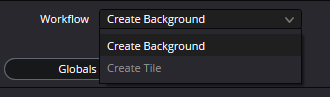
Video Collage has two alternative setups: Create Background makes transparent windows over footage on lower tracks; Create Tile builds an individual tile per source clip. Globals control the shared layout, Tiles control selection, reframing, styling and animation. Build the grid first, then time its keyframes.
Background · Tile
Rows · Columns · Margins · Spacing
Active Tile · Keyframes
Fast debugging rule: return Stagger and global Offsets to zero, use a simple grid, then separate Margins from Spacing. If that base layout is wrong, do not hide it with Rounding or animation timing.
Transparent windows reveal video tracks underneath; the colored sources are simulated.
Stagger, offsets and rounding +
Changing Offset Frames alone does not shift the keys. The Apply button moves the existing keys of this effect instance; it is not a per-tile cascade generator.
Original Resolve screenshots + documented Tiles controls + interactive teaching model
2 native captures · 65 controls/actions · 4 exercises01ROLE → GRID → STYLE → TIME
Video Collage becomes simple when global layout and local tiles stop competing.
Most failures are ownership failures: a global problem is corrected locally, or timing is used to hide geometry.
Background and Tile are two different roles
In Create Background, the upper clip becomes a frame with transparent windows revealing video tracks below. In Create Tile, each clip becomes its own tile; copy the effect with Paste Attributes and assign Active Tile per clip. Choose the workflow to match the timeline structure.
Layout defines structure; spacing defines rhythm
Columns and Rows define cell count and size. Margins control outer breathing room, Spacing controls gaps between cells, and Offset moves the whole structure. These are four different geometry problems and are easier to debug when kept separate.
Stagger and Rounding are design after the base grid
Stagger Horizontally/Vertically break the strict matrix, while Rounding changes the character of the tile windows. Add them after a plain rectangular grid already reads correctly so design choices do not hide spacing or margin errors.
Offset Frames and Apply Keyframing Offset are about animation timing, not static geometry. Build a stable layout and validate it at the target aspect ratio first, create the keyframes second, then stagger them in time.
022 ORIGINAL CAPTURES · COMPLETE GLOBALS AND TILES REFERENCE
From Workflow to individual tile styling and animation.
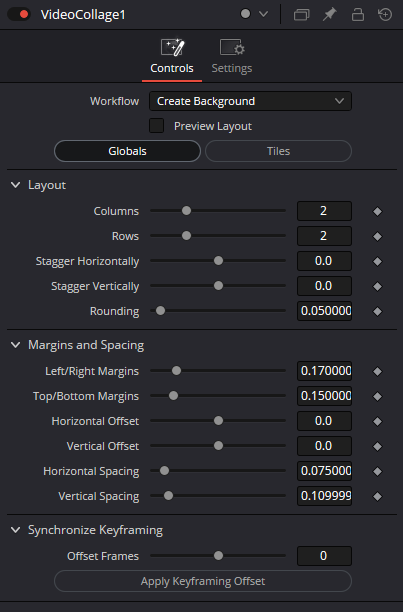
Two original screenshots document the visible Globals interface. Tiles controls, including Resolve 21 independent Fill and Border, are explained from the Blackmagic reference documentation and clearly not presented as missing screenshots.
ROLE · PREVIEW
Define the role of the Video Collage instance first
- Workflow
Determines what this instance outputs: Create Background creates a frame with transparent holes over lower video tracks; Create Tile outputs one tile from the assigned clip. They are alternative workflows, not two mandatory passes of one effect.
Create Background · Create Tile
CheckFor Background stack the sources below the effect clip; for Tile copy the effect to individual clips and assign each an Active Tile.
- Preview Layout
Enables a guide preview of the grid so geometry can be checked before tiles are fully populated.
CheckUse it while tuning Rows/Columns, margins, and spacing, then verify the final image with the guide off.
- Globals / Tiles
Switches between collage-wide settings and tile-local work. The supplied full-panel capture shows Globals.
CheckIf the wrong level of the system is changing, check this tab before compensating with unrelated sliders.
LAYOUT · GRID
Build a plain grid before styling it
- Columns
Number of columns. Together with Rows it defines cell count and the base size of each tile.
CheckIf tiles become too small, reduce Columns/Rows before collapsing margins to zero.
- Rows
Number of rows. It sets vertical grid density and directly affects how readable each source remains.
CheckJudge it at the actual delivery aspect ratio: a 3×3 that works in 16:9 may be too dense in a vertical frame.
- Stagger Horizontally
Offsets successive elements/rows horizontally to break the strict matrix.
CheckStart at 0.0 and approve the regular grid first. Add stagger as a design choice, not as a fix for a bad offset.
- Stagger Vertically
Offsets elements vertically for a more editorial or dynamic rhythm.
CheckLarge values can push tiles beyond the safe area; inspect the top and bottom frame edges.
- Rounding
Rounds the corners of tile windows at the layout level.
CheckOn small tiles, large rounding quickly turns windows into pills/circles and removes useful image area.
MARGINS · SPACING · OFFSET
Separate outer breathing room, inner gaps, and whole-grid position
- Left/Right Margins
Sets the outer horizontal margin between the grid and the frame edges.
CheckOversized margins shrink the tiles; tiny margins make the composition feel glued to the frame.
- Top/Bottom Margins
Sets the outer vertical margin between the grid and the frame edges.
CheckAccount for subtitles, title safe, and final-platform UI overlays.
- Horizontal Offset
Moves the entire grid on X without changing internal geometry.
CheckUse it to bias the whole block compositionally, not as a substitute for Left/Right Margins.
- Vertical Offset
Moves the entire grid on Y.
CheckIf top/bottom breathing room became accidentally asymmetric, return the offset to neutral and rebuild margins.
- Horizontal Spacing
Defines the gap between neighboring columns.
CheckCompare it with Vertical Spacing; inconsistent rhythm can read like an alignment error.
- Vertical Spacing
Defines the gap between rows.
CheckFor very wide or narrow sources, equal numeric H/V values may not look visually equal.
SYNCHRONIZE KEYFRAMING
Add temporal stagger after the static layout is finished
- Offset Frames
Sets the number of frames by which existing effect-instance keyframes will shift after pressing Apply. Negative values move keys earlier; the slider does not generate animation on its own.
CheckTune it relative to frame rate and edit/music rhythm; the same frame count feels different at 24 and 60 fps.
- Apply Keyframing Offset
One-shot action: shifts existing parameter keyframes of this instance by Offset Frames. Pressing Apply again shifts them again; it does not automatically stagger keys according to tile index.
CheckTo create a cascade, offset separate clip instances intentionally; do not accidentally Apply twice.
FINAL MIX · COLOR PAGE
Keep Global Blend as the final dosage control
- Global Blend
The standard final Resolve FX mix on the Color page: it mixes the finished Video Collage result with the original state after layout processing. This control is not shown in the supplied Fusion captures, so it is documented separately rather than disguised as a screenshot-backed control.
CheckDo not reduce Blend to hide wrong Rows/Columns, margins, spacing, or stagger. Fix the layout first, then dose the finished result.
TILES · LOCAL CONTROLS
Active tile and manual management
- Active Tile
Selects the tile assigned to this clip in Create Tile, and the tile whose local properties are edited. After Paste Attributes all clips may initially point to the same tile.
CheckVerify the selected tile number on every stacked clip.
- Bring Tile Forward / Send Tile Back
Moves the active tile forward or backward in tile order; relevant for overlapping tiles, not a Columns/Rows adjustment.
CheckInspect overlaps and layer order.
- Manual Tile Management
Automatic mode generates tiles from grid nodes. Manual mode lets you add and remove tiles independently of the number of grid cells.
CheckEnable it for asymmetric or overlapping layouts.
- Add / Delete Tile
In Manual Tile Management, creates another tile or removes the selected one. Removing a tile is not the same as muting it.
CheckCheck clip assignments in Active Tile before deleting.
- Mute Tile
Hides the active tile without deleting it; it can be keyframed for discrete reveals.
CheckCheck keyframed visibility across the timeline.
TILES · LOCAL CONTROLS
Cell spans and custom shapes
- Start Column
The first column occupied by the active tile; with End Column it defines the horizontal span.
CheckMatch the span to the global grid.
- End Column
The last column occupied by the tile; differing Start/End values allow a single tile to span multiple cells.
CheckDo not confuse spanning a tile with zooming its source.
- Start Row
The first row of the tile span; changing it can move or enlarge the tile region.
CheckKeyframe only after static geometry is approved.
- End Row
The final row of the span; paired with Start Row it can create one large tile from several grid positions.
CheckInspect outer bounds when Stagger is active.
- Custom Size/Shape
Enables active-tile scale and rounding to differ from the global grid.
CheckDo not use it to disguise an incorrect global grid.
- Custom Scale
Changes the size of the selected tile, not the zoom of the source displayed inside it.
CheckIf the subject is too large inside the window, use Resize Content Zoom.
- Custom Rounding
Controls the active tile corner radius independently of global Rounding.
CheckCheck the corner treatment against adjacent tiles.
TILES · LOCAL CONTROLS
Reframe the source within its tile
- Pan
Repositions clip content horizontally inside the tile; does not move the tile in the grid.
CheckInspect source edges after panning.
- Tilt
Moves source content vertically within the selected window.
CheckAvoid cropping eyes and key subjects.
- Zoom
Scales the source inside the tile. Custom Scale changes the window geometry instead.
CheckFor portraits inspect forehead, chin and safe area.
- Edge Behavior
Controls out-of-bounds source pixels: transparency, reflection, repeat, or stretching of the edge pixel.
Transparent · Reflect · Wrap · Replicate
CheckExamine corners when Pan/Zoom reveals source bounds.
- Move With Tile
Sets whether source fitting follows tile changes in position only or in both position and scale.
Position Only · Position and Scale
CheckCheck when Start/End Row/Column are animated.
TILES · LOCAL CONTROLS
Independent border and fill styling
- Apply to All Tiles (Styling)
Applies styling changes to all tiles; otherwise style adjustments target the active tile.
CheckTurn off when tiles need different styling.
- Border
Enables the tile border and its subsidiary controls.
CheckInspect thickness across all sides.
- Border Width
Changes border thickness independently of the gaps between tiles.
CheckDo not use oversized borders as a substitute for Spacing.
- Border Color
Sets the tile border color.
CheckCheck contrast over both dark and bright sources.
- Border Opacity
Adjusts border opacity separately from the fill.
CheckCheck that the border remains legible in the final composite.
- Fill Matches Border
Matches fill color to the border; Resolve 21 also supports independent Border and Fill controls.
CheckDisable for an independent Fill Color.
- Fill
Enables a colored background behind transparent source regions within a tile; it is not another video track.
CheckTest transparent graphics, not only opaque footage.
- Fill Color
Sets the independent fill color underneath transparent source content.
CheckUse contrasting test content with alpha.
- Fill Opacity
Sets fill opacity without changing border opacity.
CheckInspect the background after final compositing.
TILES · LOCAL CONTROLS
Drop shadow, independent of tile geometry
- Apply to All Tiles (Shadow)
Switches shadow styling from only the active tile to all tiles.
CheckUse sparingly in tight grids; shadows can muddy the gaps.
- Strength
Controls drop-shadow visibility/opacity.
CheckUse it to separate windows, not create a dark band.
- Color
Sets the drop-shadow color.
CheckInspect on both light and dark backgrounds.
- Drop Angle
Direction of the tile shadow offset.
CheckUse a consistent implied light direction.
- Drop Distance
Distance between the tile and its shadow.
CheckWatch for overlap with adjacent tiles.
- Expand
Expands or contracts the shadow silhouette relative to the tile.
CheckDo not hide window-size problems with shadow expansion.
- Blur
Softens the shadow edge; does not blur the source footage.
CheckJudge at 100% output scale.
TILES · LOCAL CONTROLS
Intro, outro, and manual keyframes
- Apply to All Tiles (Animation)
Applies the chosen animation to all tiles; not the same command as Offset Frames.
CheckDecide whether tiles should enter together or be manually staggered.
- Animate
Selects manual progress keyframes or automatic Intro, Outro, or both.
Manually Keyframe · Intro Only · Outro Only · Intro & Outro
CheckAvoid unreviewed mixes of manual keys and auto animation.
- Fly
Makes the tile fly in/out; direction is configured separately.
CheckCheck the motion beyond the frame edge.
- Shrink
Adds shrink/grow behavior during entrance or exit.
CheckLook for source reframing jumps.
- Rotate
Adds tile rotation to animation.
CheckKeep motion readable on small tiles.
- Fade
Fades tile opacity during entry or exit.
CheckCheck overlaps between tiles.
- Duration
Duration of automatic Intro or Outro, shown according to the Animate mode.
CheckReview at the project frame rate.
- Fly Progress
In manual mode: 0 is the normal position; 1 moves the tile offscreen.
CheckVerify both animation endpoints.
- Shrink Progress
In manual mode, animates the tile from full size toward zero.
CheckCheck text and thin borders while shrinking.
- Rotate Progress
Manual rotation-animation progress; not a global rotation of the whole grid.
CheckDo not confuse it with a regular clip Transform.
- Fade Progress
Manual fade-animation progress, distinct from Mute Tile.
CheckCheck alpha compositing against underlying layers.
TILES · LOCAL CONTROLS
Easing curves and motion blur
- Motion and Size Ease
Easing curve for tile movement and size changes.
None · Linear · In · Out · In & Out
CheckCompare Linear with In & Out against the music timing.
- Animation Effects Ease
Easing for tile animation effect controls.
None · In · Out · In & Out
CheckDo not use easing to compensate for poor duration.
- Ease Amount
Controls the strength of the chosen easing curve.
CheckInspect motion at the first and last frames.
- Motion Blur
Adds motion blur during tile animation, not an always-on blur of the footage.
CheckInspect trails and rendering cost.
The two supplied PNGs show Globals and Workflow only. Every Tiles section is documentation-based, not screenshot-based. Names can vary across Resolve builds. The lab is an illustrative model, not the actual OFX renderer.
03A REPEATABLE MULTI-TILE WORKFLOW
Role → grid → frame → style → timing → delivery.
This order prevents margins, stagger, offsets and animation from compensating for one another.
A / CREATE BACKGROUND
Cut holes, reveal lower tracks
The upper effect clip makes transparent apertures. Clips on tracks below are positioned independently beneath these apertures. You do not need a separate Create Tile effect on each lower clip.
B / CREATE TILE
One clip, one assigned tile
Build the grid once, copy the effect via Paste Attributes → Plugins to the other source clips, then set Active Tile on each instance. Updating Globals later requires synchronizing the copies again.
Assign the instance role
Choose Create Background when this instance owns the global grid, or Create Tile when it represents an individual tile. Do not postpone this decision until after geometry is built.
This is an editorial decision workflow, not Blackmagic’s internal layout graph. It separates role ownership, grid density, spacing, styling, animation timing, and delivery QC so one stage does not hide errors created by another.
Related reference: Transform ↗ · Picture In Picture ↗ · Surface Tracker ↗
04FOUR REAL LAYOUT DECISIONS
A 2×2 interview, vertical mosaic, staggered wall and cascade need different priorities.
These are decision procedures rather than fixed presets; source aspect ratios, final delivery size and the number of tiles change the useful values.
Clean 2×2 grid for interviews or comparison
Four equal windows without a spreadsheet feel.
- 01
Set Workflow = Create Background and enable Preview Layout while setting geometry.
- 02
Place four source clips on lower tracks beneath the Video Collage clip; size each source to its transparent window.
- 03
Set Columns = 2, Rows = 2; keep Stagger H/V at 0.
- 04
Set Left/Right and Top/Bottom Margins first, then H/V Spacing.
- 05
Add modest Rounding only after spacing is balanced.
- 06
Disable Preview Layout and inspect real faces/text at 100%.
Vertical social mosaic
Fit multiple vertical clips into 9:16 without destroying readability.
- 01
Start with a low Columns count and choose Rows for the number of sources.
- 02
Reserve Top/Bottom Margins for platform UI and subtitles.
- 03
Keep Horizontal Spacing visually even; do not compensate crowding with strong Stagger.
- 04
Use Vertical Offset only when the whole block intentionally needs to sit above or below center.
- 05
Check delivery crop and safe areas on an actual phone/preview.
Editorial staggered video wall
Break away from a strict matrix while preserving control.
- 01
First build a regular grid with zero Stagger.
- 02
Introduce either Horizontal or Vertical Stagger first, not both at once.
- 03
After each step, re-check outer margins and edge tiles.
- 04
Keep Rounding moderate so complex geometry does not become overly decorative.
- 05
Check motion inside the tiles; dynamic sources can visually amplify asymmetry.
Cascading tile entrance
One base animation staggered in time across elements.
- 01
Build a static Create Tile layout, copy the effect to separate clips via Paste Attributes, and assign Active Tile to each.
- 02
Set up an Intro or manually keyframe the entrance on each effect instance.
- 03
On each clip instance, set Offset Frames under Globals (negative values are permitted).
- 04
Press Apply Keyframing Offset once for the selected instance, then repeat on other instances using the intended delays.
- 05
Review the full stacked timeline. Offset Frames moves existing keys; it does not create a cascade on its own.
05CHOOSE THE RIGHT GEOMETRY TOOL
A grid system is not the same thing as one inset, one transform or one tracked surface.
Choose the tool by ownership: shared layout, single layer, single inset, tracked surface, or fully manual Fusion composition.
| FX | When it fits |
|---|---|
| Video Collage | You need a systemized multi-tile grid with shared Rows/Columns, margins/spacing, stagger, and keyframe offset. |
| Transform ↗ | You need precise placement/distortion of one layer rather than a shared grid. |
| Picture In Picture ↗ | You need one inset window with dedicated content, frame, border, and shadow controls. |
| Surface Tracker ↗ | You need to attach graphics to a deforming surface rather than arrange independent tiles. |
| Fusion Merge/Transform ↗ | You need a fully manual custom composition where every element follows its own logic. |
06READ THE LAYOUT FAILURE BEFORE MOVING A SLIDER
Ownership, density, spacing, styling and timing fail for different reasons.
Return to the stage that created the error instead of moving several global controls together.
01The whole grid changes when only one tile should change+
Likely cause: You are editing Globals/Create Background instead of the tile-level role.
Fix: Check Workflow and Globals/Tiles. Separate ownership of global layout from the local tile first.
02Tiles are too small+
Likely cause: Too many Rows/Columns and/or oversized outer margins/spacing.
Fix: Reduce grid density first, then margins, then spacing. Do not treat this with Offset.
03The grid looks crooked and accidentally asymmetric+
Likely cause: Stagger and global Offset were changed together without a neutral baseline.
Fix: Return Stagger H/V and Offset to 0, approve the regular grid, then add one design control at a time.
04Rounding is eating useful image area+
Likely cause: Rounding is too large relative to tile size.
Fix: Reduce Rounding or make tiles larger via Rows/Columns/margins.
05Offset Frames changed but no cascade appears+
Likely cause: There are no source keyframes and/or Apply Keyframing Offset was not executed.
Fix: Verify the base animation, then run the action. Offset Frames alone does not replace keyframes.
06The layout looks fine in the Viewer but fails on delivery+
Likely cause: The check was done at a different aspect ratio/resize or without platform safe areas.
Fix: Check final resolution, crop/resize, subtitle/UI safe areas, and a short representative encode.
07After copying the effect, clips overlap in one tile+
Likely cause: All Create Tile instances inherited the same Active Tile.
Fix: Open Tiles on each clip and assign a distinct Active Tile.
08The source is cropped even though tile dimensions are correct+
Likely cause: Pan/Tilt/Zoom reframe the source independently of Columns/Rows and Custom Scale.
Fix: Use Tiles → Resize Content to adjust Pan, Tilt and Zoom; check Edge Behavior.
09Some clips retain the old grid after editing Globals+
Likely cause: In Create Tile, the copied effect instances retain their own layout settings; changing one does not automatically update the others.
Fix: Paste the updated effect attributes again and re-check Active Tile on each clip.
07BEFORE DELIVERY
Approve the layout without guides, then approve the real export.
Multi-tile layouts are unusually sensitive to aspect ratio, resize, subtitles and platform UI safe areas.
08FAQ
Practical Video Collage questions.
How is Create Background different from Create Tile?
Create Background cuts transparent windows into the top layer; clips beneath are positioned to match the windows. Create Tile places an individual clip into a selected tile: copy the effect to other clips and assign an Active Tile for each.
Should I set Margins or Spacing first?
Set the outer frame first with Left/Right and Top/Bottom Margins, then the inner rhythm with Horizontal/Vertical Spacing.
Does Stagger replace Offset?
No. Stagger offsets elements relative to one another; Offset moves the whole grid as one block.
Why does Offset Frames appear to do nothing by itself?
The selected effect instance needs existing keyframes. Offset Frames sets the delta; Apply Keyframing Offset shifts the keys (negative values move them earlier). For a cascade, shift separate instances independently.
When is regular Transform better than Video Collage?
When you need to control one layer or build a unique composition without shared grid logic. Video Collage wins specifically as a layout system for multiple tiles.
Why did all clips land in the same tile after Paste Attributes?
The copied instances inherit Active Tile. Visit each clip, open Tiles and assign its own Active Tile. If you edit Globals later, synchronize the layout across instances again.
How can one tile span two or four cells?
Under Tiles set Start/End Column and Start/End Row to span the desired positions. This changes the tile geometry; Resize Content adjusts the source framing inside it.
Where are separate border and fill colors?
Resolve 21 provides separate Border and Fill settings, including color and opacity. They live in Tile Styling, not Spacing. The supplied archive has no Tiles-tab capture, so the description follows documentation, not a fabricated screenshot.
Sources and boundaries
Two original screenshots establish the visible Globals names. Tile-specific controls, including Resolve 21 independent Fill and Border, follow Blackmagic documentation; screenshots of Tiles are not in the source archive. The interactive model illustrates roles, layouts and keyframe commands but does not replicate Blackmagic’s actual OFX renderer.
Verify exact tile-state behavior, performance and animation interpolation in the Resolve build you use. This page documents the supplied interface and a repeatable production workflow; it does not reverse-engineer the effect.