RESOLVE FX · CONTROL THE GEOMETRY
Warper.
Move the surface.
Protect the story.
Learn the difference between gray warp points and red limiters, between curve reference and moving warp, and between boundary constraints and pixel edge filling. Start with the interactive model, then work with real Resolve controls.
Points / Curves
Limiter / Limits
Elasticity / Blend
Try “Protected area”, drag the gold point, then disable the limiter and compare the deformation. The model is not a Blackmagic renderer.
Geometry and keyframe tools +
Interactive teaching approximation, not the Blackmagic OFX algorithm or native parameter ranges. Manual requires a limiter; Alt-click deletes a marker; Shift-click adds a limiter in Add.
Studio only · native screenshots and technical reference
33 controls · 10 PNG01THE WARP FIELD
One image. Two different kinds of controls.
Warper is not an ordinary perspective transform. Its editable controls make some parts of the picture move and others resist. A reference marker is not itself a pixel mask.
Reference vs deformation
Original markers/curves define reference positions; warp is displacement relative to them. Origin Reference only changes the visibility of guides.
Warp vs limiter
Gray warp points displace pixels; red limiter points anchor protected regions. A closed limiting curve is intended to prevent bending inside the region.
Limits vs Edge Behavior
Limits restricts deformation geometry; Edge Behavior determines how to fill source samples outside the picture.
In the laboratory a synthetic scene is warped with an independent mathematical approximation. The actual Resolve algorithms, scaling, point weights and parameter ranges are not reverse-engineered.
02NATIVE RESOLVE CONTROL PANEL
Every control has a purpose. Every purpose has a test.
Thirty-three entries organized by actual working stages and documented options. All ten screenshots are from the supplied archive; the Points-only panel is documented from Blackmagic rather than invented.
01 · Control geometry
Choose structure before deformation
- Warp Mode · Points / Curves
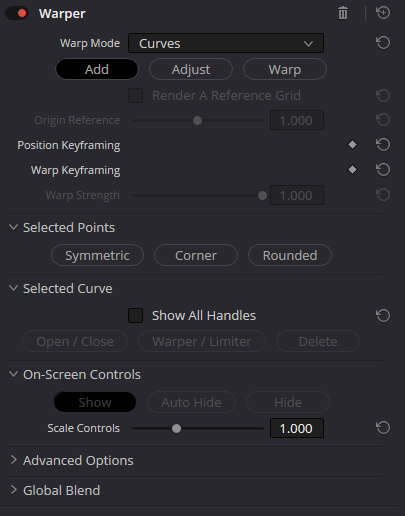
Points uses independent warp/limiter points. Curves creates lines and outlines from connected anchors; dragging a single point is not the same as warping a closed curve.
CHECKCompare one point with a curve along an extended edge in the lab.
- Add (Curves)
Builds curve anchors; Shift-click starts a limiter curve. Finish with Esc or close with Enter.
CHECKPlace the reference outline first; do not try to deform the image yet.
- Adjust (Curves)
Edits the original curve and its handles without applying a warp. Can be entered automatically after finishing a new curve.
CHECKInspect the original outline on a still before switching to Warp.
- Warp (Curves)
Moving the control curve away from its reference location deforms the image.
CHECKCorrect the curve instead of compensating with heavy Global Blend.
- Limiter points (Shift-click in Points)
Red limiter points protect a local area from warping. Add using Shift-click; remove an unwanted point with Option-click (Alt on some systems).
CHECKPlace limiters before pushing an object boundary into the background.
- Limiter curves
A limiter curve constrains deformation; a closed loop is useful for protecting a region inside the shape.
CHECKA red limiter is not a cutout alpha mask; it restricts deformation.
02 · Reference / Animation
Separate origin guides from animated displacement
- Render a Reference Grid
Overlays a reference grid to reveal deformation and artifacts. It is a diagnostic overlay, not an artistic layer.
CHECKHide the grid before judging the delivered frame.
- Origin Reference (Curves)
Adjusts visibility of the original curve/point locations — from faint to strong guides. It does not redefine the warp reference state.
CHECKMove only Origin Reference: the warped picture must not change shape.
- Position Keyframing (Curves)
Keyframes the positions of control points over time. Points mode uses its Positions animation control.
CHECKInspect the motion of reference points separately from deformation.
- Warp Keyframing (Curves)
Separately keyframes the warp of curve control points, enabling evolving deformation without rebuilding the reference outline.
CHECKInspect in-between frames, not just first and last.
- Positions (Points)
Keyframes individual point positions in Points mode; not a global frame-position offset.
CHECKFollow the actual motion of the subject with keys.
- Warp Strength
Scales the influence of an existing warp. At zero the control points remain available while the result returns toward the source.
CHECKCompare a small control move at full strength with a large move at low strength.
- Show Origin Locations (Points)
Shows the original location of Points-mode markers, separating reference positions from current positions.
CHECKCompare original and current positions on a moved point.
- Reset Warp
Clears applied deformation while retaining control geometry (especially useful in Points mode).
CHECKThe controls should remain while the stretch disappears.
- Clear All Points (Points)
Deletes all added points; unlike Reset Warp, it removes control geometry.
CHECKUse only when the point layout itself should be rebuilt.
03 · Selected Points / Curve
Selected handles and curve operations
- Symmetric
Keeps spline handles symmetrical for smooth balanced point transitions.
CHECKUseful on smooth cheek, fabric or product contours.
- Corner
Converts a chosen point into a hard corner instead of a continuous curve.
CHECKAvoid hard corners on soft organic lines unless intentional.
- Rounded
Creates rounded spline-controllable geometry for the selected point.
CHECKWatch for overshoot between adjacent handles.
- Reset Handle Adjustments
Returns selected spline-handle offsets to a neutral state in Warp mode.
CHECKFix a bad handle without destroying the whole deformation.
- Show All Handles
Shows every spline handle on the selected curve; a Viewer overlay only.
CHECKHide while inspecting the finished pixels.
- Open / Close
Connects the final curve point to the first one, or reopens a closed loop.
CHECKClosed limiter contours are especially useful for protected areas.
- Warper / Limiter
Switches the selected curve between a warping curve and a limiting curve.
CHECKThe red limiter constrains warp and does not create deformation by itself.
- Delete (Selected Curve)
Deletes the entire selected curve, not a single anchor point.
CHECKConfirm that the intended curve is selected before deleting.
04 · On-Screen Controls
Overlay visibility does not change pixels
- Show / Auto Hide / Hide
Controls Viewer overlay visibility. Auto Hide temporarily clears overlays during adjustments.
CHECKThe warped image should match with handles visible or hidden.
- Warp Boundaries (Points only)
Visualizes the protected region of limiter points: None, As Border or As Mask. This is diagnostic, not an alpha output.
CHECKAs Mask dims the protected area only in the Viewer overlay.
- Scale Controls
Resizes control handles in the Viewer, not warp radius or pixel count.
CHECKEnlarge markers for precise grabbing, then shrink the overlay.
05 · Advanced Options
Boundaries, elasticity, quality and mixing
- Limits
Pin At Corners locks corners; Around The Edges locks the perimeter; Distant offers a more permissive boundary; Manual (Free-Floating) releases the edges but requires at least one limiter point before any warp point.
CHECKFor blanking check Limits before choosing Edge Behavior.
- Elasticity · Fabric / Rubber / Jelly
Fabric is the pointiest interpolation; Rubber is balanced and is the default; Jelly gives the smoothest, loosest bending.
CHECKCompare spatial falloff with identical control points.
- Edge Behavior
Black leaves blanking black; Reflect mirrors nearby pixels; Wrap-Around borrows the opposite side; Replicate extends the boundary pixel.
CHECKThe modes differ only where warping asks for pixels outside the source frame.
- Warp Detail · Faster / Default / Better
The three calculation methods trade speed against warping smoothness; Better may suit final complex deformation at a performance cost.
CHECKInspect a target-resolution export; quality is not an effect-intensity slider.
- Effect Follows
Choose Input and Edit Sizing or Timeline Frame anchoring, especially when the clip is resized on Edit.
CHECKAlter Edit sizing to verify which coordinates the handles follow.
- Auto Advance to Adjust Mode
Automatically switches Add → Adjust after creating a curve.
CHECKDisable when creating multiple shapes in sequence.
- Global Blend
Mixes the original frame with the already-rendered warp. Unlike Warp Strength it can superimpose both unwarped and warped edges.
CHECKLook for doubled edges at intermediate blend values.
03DIFFERENT EDITING LOGIC
Points are local anchors. Curves describe contours.
The shortcuts below are actual Warper workflow commands. They are not controls from the teaching lab.
| Action | Points | Curves |
|---|---|---|
| Add warp | Click an image point | In Add, click to place successive curve anchors |
| Protect area | Shift-click → red limiter point | Shift-click → begin a limiter curve |
| Finish curve | — | Esc → finish; Enter → close |
| Remove | Option-click / Alt-click | Delete selected anchor; Selected Curve → Delete |
| Neutral state | Reset Warp ≠ Clear All Points | Adjust reference, then move controls in Warp |
Curve anchors can have spline handles. Symmetric, Corner and Rounded affect shape; the selected curve can be opened, closed, converted to a Limiter, or deleted. Do not treat red limiter contours as output matte signals.
04THE FRAME AND ITS MISSING PIXELS
First constrain the bend. Then decide what fills the gap.
Limits and Edge Behavior are not interchangeable. Compare the exact same warp near a frame edge under each choice.
Pin At Corners
CORNER / FIXEDLocks corners but permits warping between them.
A mid-edge can still bow.
Around The Edges
PERIMETER / FIXEDLocks the perimeter, useful when blanking must be avoided.
Edge lines should remain steady.
Distant
DISTANT / SOFTMore permissive anchoring of distant frame regions.
Compare the outermost row of pixels.
Manual (Free-Floating)
FREE / LIMITERFreely moving edge; one limiter point must be placed first.
Try the lab edge preset and notice empty areas.
If the warped picture asks for off-frame pixels, Edge Behavior decides between Black, Reflect, Wrap-Around and Replicate. Reflect mirrors; Wrap-Around repeats the opposite edge; Replicate extends the last pixel. No setting can reconstruct image details that were never captured.
05FROM INPUT TO OUTPUT
Put Warper on a separate Color node.
The distinction between an internal limiter and a Color Power Window is crucial: one constrains the mesh, the other limits where the node’s result contributes.
02 / Warper
Apply Resolve FX Warper (Studio) to this serial Color node. Limiter points and curves operate inside Warper; they do not output alpha.
Green lines carry the RGB image. These controls and arrows are an educational schematic, not a native Resolve node screenshot. No extra RGB or alpha input is required for an ordinary serial Warper node.
Related guides: Color Node Pipeline ↗ · Power Windows / Tracker ↗
06FOUR CONTROLLED EXERCISES
Correct the source. Protect the surroundings. Test the motion.
These are methods, not fixed slider recipes. Real footage and the target export determine the useful amount.
Remove an edge boom
Nudge one edge out of frame without stretching nearby faces
- 01
Put Warper (Studio) on a dedicated Color node and choose Points.
- 02
Add limiter points at the face and important straight lines, then a warp point near the boom.
- 03
Displace the point only as needed, compare Limits and check the start/end of the shot.
Faces and adjacent edges stay stable; no black gaps or jitter while stepping through the shot.
Refine a product contour
Adjust a long edge without melting the entire scene
- 01
Outline the edge in Curves Add with three to five anchors and finish the curve.
- 02
Refine handles in Adjust; choose Rounded/Corner where appropriate.
- 03
Move into Warp, refine the outline and compare Fabric versus Rubber.
The edge is corrected, with no wobbly stretch outside the desired region.
Protect a logo or graphic
Warp the surroundings while leaving a protected feature intact
- 01
Build your chosen warp curve or point.
- 02
Add limiter points or a closed limiter curve around the logo.
- 03
Inspect Warp Boundaries As Border/Mask, then return to a clean Viewer.
The logo is undistorted even when nearby content is moved.
Animate an organic bend
Fade into a small warp through time without pulsation
- 01
Prepare reference curves and preserve original positions.
- 02
Separate Position and Warp keyframing; set start and end keys.
- 03
Check edges, faces, straight lines and motion artifacts at several intermediate frames.
No sudden shape jumps or blanking; the deformation changes predictably.
07THE RIGHT TOOL FOR THE JOB
Not every geometric edit needs a free-form warp.
| Tool | Best fit |
|---|---|
| Warper | Editable point/curve deformations for local or organic reshaping. |
| Lens Distortion ↗ | Radial optical distortion with a single center, not a free point/curve layout. |
| Transform ↗ | Whole-layer position/scale/perspective rather than local warp points. |
| Surface Tracker ↗ | Tracking and deformation of a moving surface rather than manually controlled warp fields. |
| Power Window | Limits an effect region in Color; it does not warp the geometry by itself. |
08READ THE FAILURE
A warped edge, a displaced guide and a bad keyframe require different repairs.
01The entire frame stretches instead of one feature+
Likely cause: Insufficient limiters, excessive displacement or an unplanned Manual boundary.
Fix: Add nearby limiter points; compare Fabric and Around The Edges; reduce displacement.
02Black wedges appear along the edge+
Likely cause: The warp samples outside the frame while Edge Behavior is Black.
Fix: First check Limits, then try Reflect/Replicate/Wrap-Around while checking artifacts.
03Origin Reference appears ineffective+
Likely cause: It changes original curve-guide visibility, not warp geometry.
Fix: Enable controls and adjust Origin Reference; use Warp Strength for effect intensity.
04The logo still moves inside a limiter+
Likely cause: An open limiter shape, poor contour or too few protection points.
Fix: Close the limiting curve or surround the logo with limiters; inspect Warp Boundaries.
05A formerly smooth contour has kinks+
Likely cause: Corner mode or accidental spline-handle offsets.
Fix: Check Selected Points; try Rounded or Reset Handle Adjustments.
06In-between frames behave unexpectedly+
Likely cause: Position and Warp keyframing were mixed or control points are misaligned over time.
Fix: Separate origin movement from the warp and verify intermediate frames.
07Warper playback is sluggish+
Likely cause: Complex paths, numerous handles and Better quality calculation.
Fix: Use Faster/Default while editing; remove redundant points; evaluate Better before final render.
09FINAL VERIFICATION
Inspect the real export, not only one convincing still.
Limiter overlap, source sizing and interpolation can look different during playback and after render.
10FAQ
Practical questions about Warper
Is Warper available in free Resolve?
Blackmagic’s reference describes Warper as a Studio-only effect.
Why does Origin Reference not move the picture?
It adjusts the visibility of original curve guides, not the warp reference. Move curve/point controls in Warp mode to deform.
Reset Warp versus Clear All Points?
Reset Warp returns the deformation to neutral while preserving point geometry. Clear All Points removes the points.
What does Shift-click do?
In Points it adds a red limiter point; in Curves it can start a limiter curve. Both protect regions rather than cut alpha.
Can I warp the edges freely?
Yes, via Limits Manual (Free-Floating), but a limiter point must exist first. Verify blanking and Edge Behavior.
Why three Elasticity choices?
They change spatial interpolation: Fabric is pointier, Rubber balanced, Jelly gentler. They are not output modes.
How do I animate without losing the reference outline?
Use Position and Warp keyframing intentionally, inspect origin guides and in-between frames.
Why does Global Blend double edges?
Intermediate Blend mixes original and displaced pixels. For a subtler deformation try lowering Warp Strength first.
Does a limiter make a cutout matte?
No. Limiters constrain warp fields. Use masking/matte/Power Window tools for actual transparency and appropriate routing.
Sources, original screenshots and accuracy boundaries
The original project contains ten actual PNG captures, predominantly in Curves mode. The studio-only requirement, Point-only commands, limiter behavior and menu choices are supported by official Blackmagic documentation and Resolve 21 reference text. The learning lab is a deliberately independent warp field model.
The overlay “Warp Boundaries”, origin guides, timeline demo and numerical ranges in the laboratory are educational abstractions. Always confirm behavior with the Resolve build and real footage you are using.