FAIRLIGHT / PLUGINS / FILE ROUND TRIP
Plugins and external processing
Connection is only the first check.
A search folder, an available insert and a running audio editor are three different states. Separate processing inside Resolve from file handoff, then establish that the treated audio really returned to its intended place.
- 01Separate native FX, third-party inserts and applications
- 02Diagnose discovery and loading without a global reset
- 03Check the returned file, format and sync
Reorder modules and change their number to rebuild the path.
A usable dependency↗
A search folder does not prove that a plugin loaded. Establish one compatible instance.
Record the version, format and opening result.Change the controls to explore the diagram. No audio playback, native DSP or connection to Resolve.
Reviewed 7 October 2026
Core actions reviewed on 7 October 2026 against Blackmagic’s current Fairlight FX and Plugins, External Processing and Chain FX pages. This is a workflow guide, not a compatibility matrix for every plugin. Original image URLs are retained, but their binary files are absent from the ZIP and fresh network inspection failed in this pass. The exact build, closed menus and external-process arguments are not established from those images. Plugin installation, listening, Bounce and the Resolve file-return workflow have not been tested here.
Read the source notes ↓On this page
01 / UNDERSTAND & APPLY
Three processing paths, three different checks
Do not add an application to VST paths or look for a native effect in a third-party plugin table.
Native Fairlight FX are part of Resolve. A third-party insert requires a compatible installation. External Audio Process configures exchange with a separate application that receives an audio file.
One product name can cover both plugins and a standalone editor. Establish which component is installed and what it should do: process the Mixer signal or open a separate file.
| Path | Where work happens | First evidence |
|---|---|---|
| Fairlight FX | Inside Resolve | The intended effect is on the intended target. |
| VST / Audio Units | A plugin loaded by a compatible host | One instance opens and processes the test signal. |
| External Audio Process | In a separate application | The expected working copy opened; return still needs checking. |
Reference: Blackmagic Design — Fairlight FX and Plugins / Mixer
02 / UNDERSTAND & APPLY
Preferences → System → Audio Plugins
Check discovery paths, the discovered list and external-process configuration separately.
Open Audio Plugins in Preferences. For a third-party plugin, establish a build for your OS and architecture and a path to the actual plugin, not a shortcut or standalone application. Save settings and perform any restart required by your build.
The original article retains a Windows capture with VST paths, Available Plugins and Setup External Audio Processes. Do not copy those paths mechanically to macOS or Linux. An empty table does not explain itself: nothing may be installed, the path may be wrong or discovery may be incomplete.
Change one entry at a time. Do not remove all paths and project settings to test one plugin. Save your work before restarting.
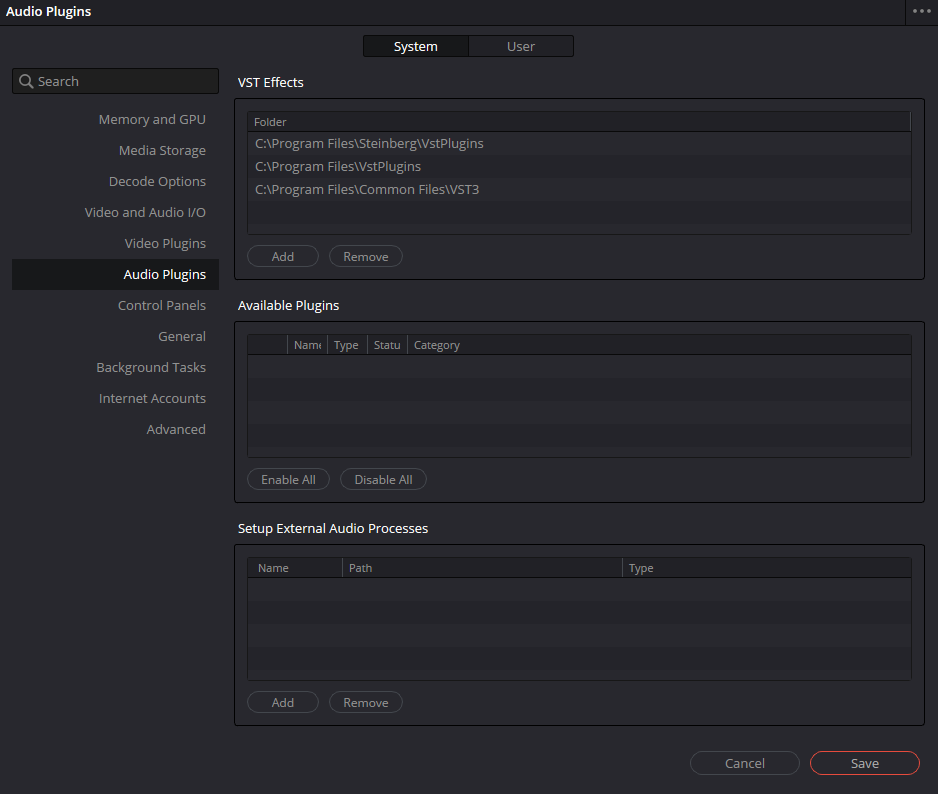
Preferences / Audio Plugins
Existing article capture with its URL retained. Fresh visual inspection was not completed in this pass. Compare it with your installation; it does not establish a complete catalog, settings or exact version.
Reference: Blackmagic Design — Fairlight FX and Plugins / Mixer · Videomontazher — archived FX / Audio Plugins illustrations
03 / UNDERSTAND & APPLY
Compatibility belongs to a specific combination
Format, OS, architecture, version and channel configuration are separate properties.
Blackmagic explicitly names VST and Mac Audio Units. Supporting a family does not mean that the host accepts every binary or plugin variant. When transferring a project, compare the exact product, format and version rather than its display name alone.
Windows and Linux each require a build intended for that environment; on Mac, also establish the application and plugin architecture. Do not promise a Windows plugin will run on Linux after adding a folder. Emulation and bridges are outside this guide’s native workflow.
An interface image is not a compatibility test. Open one instance in a test project, check the required channel format and make a short export. Record any licensing or activation condition separately from discovery status.
| Record | Example verification field |
|---|---|
| Environment | OS, architecture, Resolve version and Free / Studio edition |
| Dependency | Developer, exact product, version and plugin format |
| Signal | Mono, stereo or the specific channel layout |
| Result | Loading, listening, saving / reopening and a test output file |
Reference: Blackmagic Design — Fairlight FX and Plugins / Mixer
04 / UNDERSTAND & APPLY
Discovered is not the same as working
An Available Plugins entry, a parameter window and changed sound are separate observations.
Check that the intended plugin is not disabled. Insert one instance on a prepared target and use familiar material. Compare its initial state, then one obvious but safe change and bypass.
If no effect is audible, check signal presence, insertion scope, bypass, output gain and routing. If a window will not open or the application becomes unstable, isolate one suspect plugin in a test project rather than disabling everything in a working session.
Native Fairlight FX are checked independently of third-party scanning. The retained Restoration and EQ menu illustrations belong to that other path; they do not establish successful VST discovery.
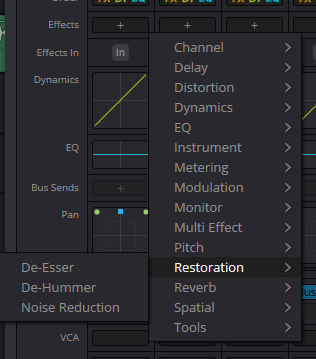
Native Restoration effects
Existing article capture with its URL retained. Fresh visual inspection was not completed in this pass. Compare it with your installation; it does not establish a complete catalog, settings or exact version.
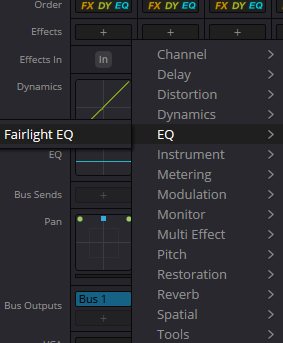
Native EQ in the FX menu
Existing article capture with its URL retained. Fresh visual inspection was not completed in this pass. Compare it with your installation; it does not establish a complete catalog, settings or exact version.
Reference: Blackmagic Design — Fairlight FX and Plugins / Mixer
05 / UNDERSTAND & APPLY
Register the application, then send one clip
Blackmagic describes registering an editor at the bottom of Audio Plugins and invoking it from a clip’s context menu.
Give the process a clear name and configure the installed application. Use the developer-documented launch and file-handoff method. This article does not supply universal command arguments, quoting templates or executable paths; those depend on the application and OS.
Use one short clip with a recognizable beginning and a retained original. Blackmagic describes creating a bounced version, opening it externally and returning the saved treatment as a new layer above the source. Verify that workflow for the selected application.
Do not run unfamiliar internet commands or overwrite a working original during a trial. Record the actual working-copy path, region and format. An application window alone does not prove the correct copy opened.
Reference: Blackmagic Design — External Processing
06 / UNDERSTAND & APPLY
Command Line, Clipboard and Reveal: establish the contract
The earlier article retains three Type labels. They are not a substitute for application-specific instructions.
The original captions name Command Line, Clipboard and Reveal. Fresh inspection of the associated PNG failed in this pass; the original URL is retained rather than replaced with a fabricated menu. The list is therefore not presented as complete for every current build.
The word Clipboard alone does not establish whether audio samples, a full path or a specialized exchange format is transferred. Reveal likewise does not establish automatic adoption of a saved file. Test one working copy and consult the installed documentation.
| Original label | Establish before using it |
|---|---|
| Command Line | Which process runs, how it receives the filename and how it saves; do not guess arguments. |
| Clipboard | What enters the clipboard and how the application accepts it; this is unrelated to the webpage’s JSON copy button. |
| Reveal | What opens or is shown and how to return to the correct file; revealing a file is not accepting a treatment. |
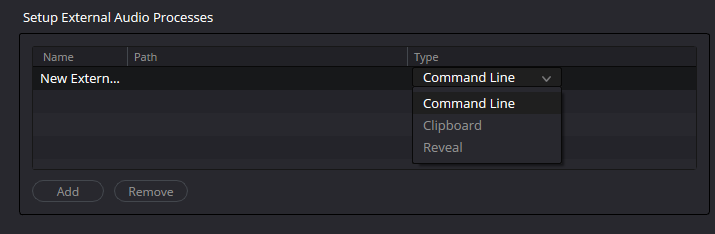
Setup External Audio Processes / Type
Existing article capture with its URL retained. Fresh visual inspection was not completed in this pass. Compare it with your installation; it does not establish a complete catalog, settings or exact version.
Reference: Videomontazher — archived FX / Audio Plugins illustrations · Blackmagic Design — External Processing
07 / UNDERSTAND & APPLY
Return means checking the file, layer and alignment
Do not stop verification at the external application’s Save button.
Establish where the application saved its result. Save As to another name or directory must not automatically be treated as returning the originally handed-off copy. Avoid blindly rerunning the process when a file is saved but the new layer is absent.
In Resolve, check the source, returned material, active layer, boundaries and picture alignment. A layer’s existence does not guarantee that it contains the latest treatment. Listen to the attack, middle, ending and edit boundary.
A sample-rate change need not change duration: ten seconds at 48,000 Hz and at 44,100 Hz contain different sample-frame counts. The format change still needs agreement. Stereo has two channels, not twice the running time.
EXTERNAL / RETURN CHECK
A returned file is not yet an accepted take.
Enter observed properties. Sample frames count time steps per channel, not the total number of individual channel samples. No file is uploaded or inspected here.
Offset is measured at the returned file’s sample rate, relative to its intended timeline position. Positive is later; negative is earlier. Zero is your input, not an automatic alignment check.
Changing numbers or loading an example resets both observations to “Not checked”. Teaching limits: 8–384 kHz, 1–36 channels, 1–33,177,600,000 sample frames. These are not application limits.
Numbers match. Listening is still separate.
- Original duration
- 10 s
- Returned duration
- 10 s
- Duration change
- 0 s
- Placement offset
- 0 s
- Sample rate / channels
- same / same
Review the exact returned layer and its start/end, channels, sync, processing artifacts and loudness by listening. Equal properties cannot detect silence, wrong words or the wrong take.
Preserved: Not checked. Listening: Not checked. Reported observations are never promoted to site verification.
Exact duration ratios are saved in JSON. Decimal display is rounded. No audio reading, application control, automatic saving or network requests.
Reference: Blackmagic Design — External Processing
08 / UNDERSTAND & APPLY
Find the first unconfirmed stage
Start with one process and one short passage. Repeating everything increases uncertainty.
| Observation | Next check | Avoid |
|---|---|---|
| Plugin absent | Supported build, installation location, discovery and disabled state | Resetting every plugin and the entire project. |
| Plugin listed, but window or sound fails | One instance, compatibility, signal and licensing | Attributing every failure to a missing VST folder. |
| Application opened without the file | Actual working-copy path and handoff contract | Overwriting the original as an experiment. |
| Saved, but return not visible | Exact save location and Resolve layer | Creating more and more treatments of the same line. |
| Returned sound or timing differs | File version, rate, channels, duration and reference event | Stretching the file before locating the cause. |
| Different result on another machine | Dependencies, versions, routing and a printed reference | Treating a preset as a transferable plugin installation. |
Reference: Blackmagic Design — Fairlight FX and Plugins / Mixer · Blackmagic Design — External Processing
09 / UNDERSTAND & APPLY
Transfer settings and dependencies separately
Make the result reproducible without relying on assumptions.
Record the Resolve, plugin or editor version, format, stages and known limitations. Keep the source and processed copy with clear names. Do not include activation secrets or private paths from logs in a shared report.
For acceptance, supply a checked short example or the agreed full output. If editability is required, the recipient must separately confirm dependencies. If delivering printed audio only, agree the region, tails and channels.
Reopening the project and listening to the output answer different questions from a successful plugin launch. Record each check independently; matching numbers on this webpage do not replace any of them.
Track Layers
Select the returned layer while retaining the original.
↗Bounce / Cache
Decide when to print a file and what to check afterwards.
Reference: Blackmagic Design — Fairlight FX and Plugins / Mixer
PRACTICE / NO AUTOPILOT
A small task. A checkable result.
Work in a test copy, listen before and after, and write down what you actually observed. The checklist contains no pre-approved results.
Identify the combination
Record the environment, Resolve edition, application or plugin, version and one testable path.
Prepare a test
Retain the source. Choose a short passage with an attack, pause and ending; record its initial properties.
Perform one action
Open one insert or send one working copy. Do not merge the two workflows in one test.
Inspect the return
For an external application, check the saved file, layer, duration, channels and alignment. Do not silently fix differences.
Listen and reopen
Compare source and output in context. Note the observation, then check saving and reopening the project.
FAQ / BEFORE THE NEXT MOVE
Questions that matter in practice
Can I put the RX application path in VST folders?
A standalone editor and its plugins are different components. VST paths point to compatible plugins; the application is configured as an External Audio Process.
Reference: Blackmagic Design — Fairlight FX and Plugins / Mixer · Blackmagic Design — External Processing
Does an empty Available Plugins table mean Resolve is broken?
No. It is an observation, not a diagnosis. Check a compatible installation, path, discovery and disabled state for one specific plugin.
Reference: Blackmagic Design — Fairlight FX and Plugins / Mixer
Do native Fairlight FX require installing VST?
No. Separate Resolve’s built-in tools from third-party discovery. Check the required native effect in your edition.
Reference: Blackmagic Design — Fairlight FX and Plugins / Mixer
Will Save As always return the treatment to the timeline?
There is no universal guarantee. Check whether the result was saved to the expected file and how the configured workflow tracks return. Another path may require an explicit separate step.
Reference: Blackmagic Design — External Processing
Does matching duration prove the correct file returned?
No. A same-length file may contain different audio, channels or a shifted attack. Verify the target and listen. The panel compares only entered observations.
Can I import the panel’s JSON into Resolve?
No. It is a self-report card with calculations, not a plugin preset, an External Audio Process configuration or an edit file.
REFERENCES / 2026-10-07
What this guide is based on
Core actions reviewed on 7 October 2026 against Blackmagic’s current Fairlight FX and Plugins, External Processing and Chain FX pages. This is a workflow guide, not a compatibility matrix for every plugin. Original image URLs are retained, but their binary files are absent from the ZIP and fresh network inspection failed in this pass. The exact build, closed menus and external-process arguments are not established from those images. Plugin installation, listening, Bounce and the Resolve file-return workflow have not been tested here.
Blackmagic Design — Fairlight FX and Plugins / Mixer ↗
Reviewed 7 October 2026: clip/track effects, list order, separate EQ/Dynamics, VST and Mac Audio Units, Mixer operations and cache/bounce. Not a third-party compatibility matrix or a listening test.
Blackmagic Design — External Processing ↗
Manufacturer workflow: register an application in Audio Plugins, invoke from a clip menu, create a bounced copy and return saved treatment to a new layer. Does not establish launch arguments, Clipboard/Reveal contracts or arbitrary app compatibility.
Blackmagic Design — What’s New / Chain FX ↗
Checked Chain FX description: up to six internal effects, presets and combining chain instances in channel slots. The container is covered separately in F05-P02; closed menus and live preset recall are not certified.
Videomontazher — archived FX / Audio Plugins illustrations ↗
Captions and paths retained from the supplied project. Nine unique PNG files are absent from the ZIP. Fresh network fetches failed; visual reinspection was NOT completed in F05-P01. Closed menus, Type behavior and versions are not certified from them.