FAIRLIGHT / FINAL MIX / COMMIT · 11
Bounce & Cache
Keep editing smoothly. Commit the intended result.
Decide whether the task needs faster clip processing, a new audio file or a recorded bus mix. Check processing scope, start and end boundaries, effect tails and the route back to editable settings. The teaching diagram separates an updated cache from a previously written revision.
- 01Choose cache, clip, track or mix scope
- 02Retain the intended processing and full tail
- 03Verify the file and preserve an editable source
Change the selected range end and the authored tail length. Compare with full coverage of the clip and tail.
A cache and a new file serve different purposes.↗
Cache supports playback of editable clip FX. A written result retains chosen processing. First name what you are committing: a clip, a track or a bus sum.
Check: the operation’s scope is known before it runs.Change the controls to explore the diagram. No audio playback, native DSP or connection to Resolve.
Sources and scope · 9 October 2026
Reviewed on 9 October 2026 against the complete DaVinci Resolve 21 Reference Manual: pp. 3960–3961, 3969–3970, 4044–4045 and 4087–4088. Pages 3970, 4044 and 4087 were visually inspected. The manual inconsistently uses In Place / New Layer for selected-track bounce and varies the Mix command path. The source note records this without inventing a version history. The site model calculates only authored intervals and FX revision labels, not every native processing stage, cache invalidation rule, plugin tail or render time.
Read the source notes ↓On this page
01 / UNDERSTAND & APPLY
Begin with the result the workflow needs
If a heavy clip chain interrupts playback, caching may address the immediate task. If the next step needs independent processed material, choose an operation that creates new media. If it needs a combination of sources, identify the tracks or bus providing that sum.
Bounce appears in several contexts. Clip effects, exporting selected files, rendering selected tracks and recording a bus mix have different boundaries. Before starting, name the input, included processing, time range and destination; a performance improvement then remains separate from the content check.
Playback
Keep clip-plugin parameters editable while using a temporary calculated playback result.
New material
Write the intended processing into media and retain the source for another revision.
A sum
Obtain a selected track or bus result with known boundaries and channels.
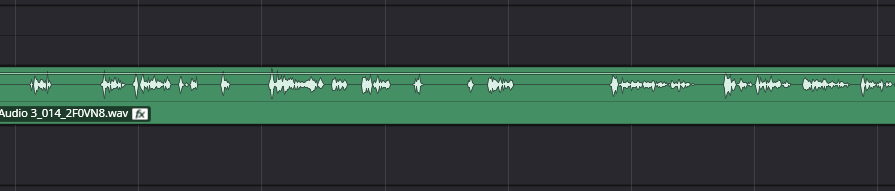
Clip before cache / bounce
Before running the operation, inspect the clip FX and retain an editable original version.
Reference: Blackmagic Design — Resolve 21 Reference Manual · clip cache, pp. 4087–4088 · Blackmagic Design — Resolve 21 Reference Manual · Export Audio Files and layers, pp. 3970 / 4088 · Blackmagic Design — Resolve 21 Reference Manual · Bouncing Audio, pp. 4044–4045
02 / UNDERSTAND & APPLY
Cache Audio Effects: reduce clip-plugin playback work
The manual describes Cache Audio Effects for audio clips with applied plugins. Select the intended clips, open one selected clip’s context menu and enable the command. With multiple clips selected, the operation applies to that selection. The same menu item disables caching.
After caching, the clip waveform reflects the processed result and a separate cache badge appears beside FX. The operation is nondestructive: source media is not overwritten and clip-plugin parameters remain editable. A clip cache does not establish that an entire track or final bus has been committed.
Identify the scope
Establish that the expensive effect belongs to the clip. Clip-plugin caching does not promise to remove every source of load in a session.
Enable the command
Select only the intended clips and activate Cache Audio Effects in the context menu.
Wait for completion
Compare playback and clip state after the work finishes. The actual material and computer determine the time needed.
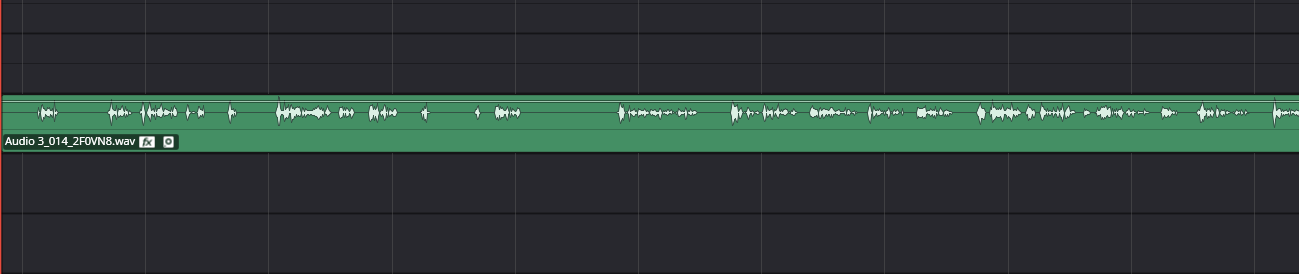
Clip cache
The cache badge and processed waveform update were independently verified on manual page 4087.
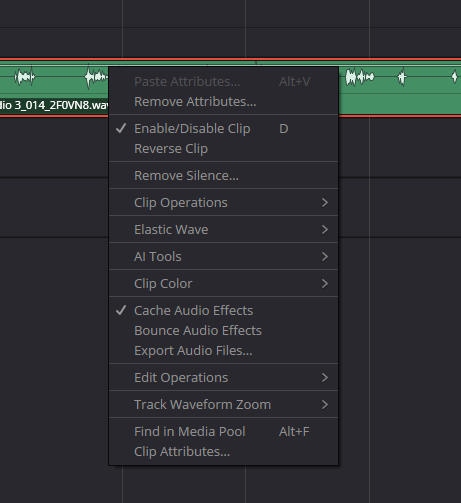
Clip context menu
When working with the clip, inspect its effects and Cache Audio Effects state in the context menu. Command availability belongs to the current context.
Reference: Blackmagic Design — Resolve 21 Reference Manual · clip cache, pp. 4087–4088
03 / UNDERSTAND & APPLY
After a plugin change, wait for a fresh cache
Opening the graphical controls of a cached clip plugin temporarily suspends audio caching. Resolve 21 documentation says the clip is automatically recached and its waveform updated after editing, provided Cache Audio Effects remains enabled.
Judge the result after recaching, especially after changing speech restoration or a long spatial effect. A parameter change does not itself prove that background work has finished. The teaching model’s rebuilt state shows the end of that process directly, without estimating real elapsed time.
| State | Meaning | Next step |
|---|---|---|
| Cache disabled | The temporary clip-FX cache is not used. | Continue with editable processing or enable cache again. |
| Plugin GUI open | The documented workflow temporarily suspends caching. | Finish the adjustment and wait for the update. |
| Recache complete | The cache reflects current clip-plugin parameters. | Replay the same passage and judge the result. |
Reference: Blackmagic Design — Resolve 21 Reference Manual · clip cache, pp. 4087–4088
04 / UNDERSTAND & APPLY
Bounce Audio Effects: commit clip FX deliberately
The manual confirms Bounce Audio Effects in the context menu of audio clips with clip-based effects. The manufacturer’s public Fairlight page also lists it among bounce operations. Before using it, retain access to the original clip and settings, then inspect the resulting media and placement.
For detailed control of an external file, use the separately documented Export Audio Files workflow. Do not transfer all its options or behaviour to every command called Bounce. A clip operation also should not be treated as a printed master containing every track, return and bus processor.
Before commitment
Agree the sound and record the revision. Keep source parameters accessible in a saved version or layer.
After commitment
Check the beginning, end, channels and sound. Identify processing already in the file before applying it again.
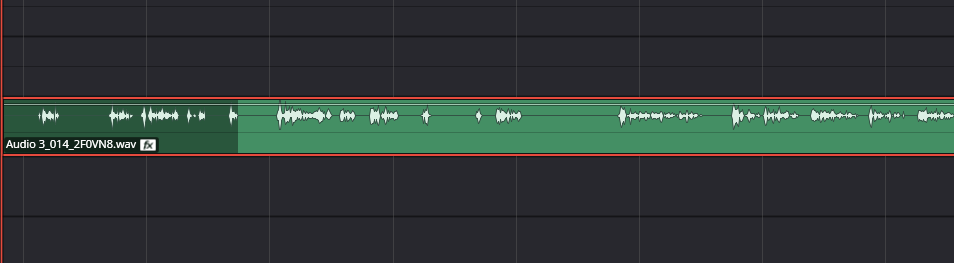
Committed result
Check the result by listening, range and layer. A changed waveform alone cannot confirm the intended processing point or a complete tail.
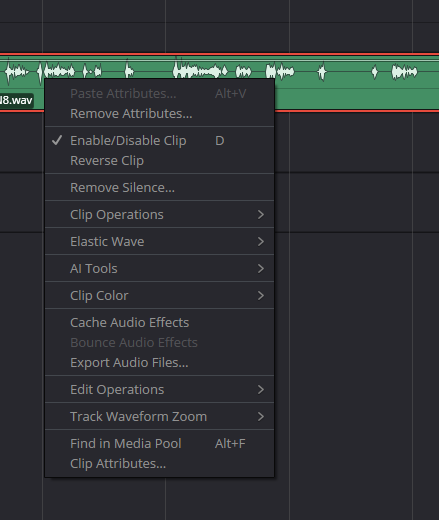
Context after the operation
One menu-item state belongs to the selected clip. It does not enumerate every bounce method or prove that original material was removed.
Reference: Blackmagic Design — Resolve 21 Reference Manual · Bouncing Audio, pp. 4044–4045 · Blackmagic Design — Resolve 21 Reference Manual · Export Audio Files and layers, pp. 3970 / 4088 · Blackmagic Design — Fairlight · Bounce Clips, Tracks and Mixes
05 / UNDERSTAND & APPLY
Export Audio Files: choose contents and file structure
Select clips and choose Export Audio Files in the context menu. Manual page 3970 shows the output folder, naming and tag, format, Sample Rate, Bit Depth and Channel Format. Multi-Mono and Interleaved determine how channels are written; choose the arrangement needed by the next task.
Source offers individual or consolidated clips, while the range menu chooses the entire timeline, a selected range or selected clips. Other options concern selected and hidden tracks, frame-boundary padding, clip parameters and normalization. Read the current state of each group before confirming the export.
| Group | Inspect | Purpose |
|---|---|---|
| Folder / Name / Tag | Destination and naming rules. | Identify the revision and locate the new media. |
| Format / Sample Rate / Bit Depth | The required file settings. | Distinguish project settings from output choices. |
| Channel Format | Multi-Mono or Interleaved. | Obtain the intended organization of channels. |
| Source / From | Clips, consolidation and time range. | Avoid exporting a different scope of material. |
| Export with / Normalize | Clip processing, metadata and normalization. | Know which changes enter the file. |
Reference: Blackmagic Design — Resolve 21 Reference Manual · Export Audio Files and layers, pp. 3970 / 4088
06 / UNDERSTAND & APPLY
Check which changes are actually printed
Export Audio Files separately offers Clip Level, Clip Fades, Clip EQ and FX, and Clip iXML. The last option concerns metadata, not a sound effect. Normalization is selected separately. Record these states with the file name when preparing a comparison.
A clip export should not be assumed equivalent to listening to the complete mix through a bus. Establish the capture point for a track or mix operation separately. Where the instructions do not specify a particular fader, EQ or automation position, test a short passage in a timeline copy and compare through a clean path.
List the changes
Name the required clip levels, fades, FX, track, bus and normalization decisions. Each needs a known place in the workflow.
Make a clear test
On a copy, use a short identifiable passage and one setting under examination. Record its state before export.
Listen to a clean import
Place the result where the previous processing is not applied again. Compare alignment and the intended change.
Chain FX
Inspect effect order and processing scope.
↗Mixer & Routing
Trace the source through to the sum.
Reference: Blackmagic Design — Resolve 21 Reference Manual · Export Audio Files and layers, pp. 3970 / 4088 · Blackmagic Design — Resolve 21 Reference Manual · Bouncing Audio, pp. 4044–4045
07 / UNDERSTAND & APPLY
Render selected tracks with defined In and Out points
The selected-track bounce procedure on page 4044 begins with In and Out; without a range, the described operation does not run. Next, select the track headers or mixer strips. This is a Timeline menu operation, named Bounce Selected Tracks to New Layer in the step-by-step instructions.
The result is described as new media on the top layer of each selected track. Original audio remains underneath and becomes visible through View > Show Audio Track Layers. Media is written to the Save clips to directory in Project Settings, Capture and Playback. Before continuing, identify which layer actually plays.
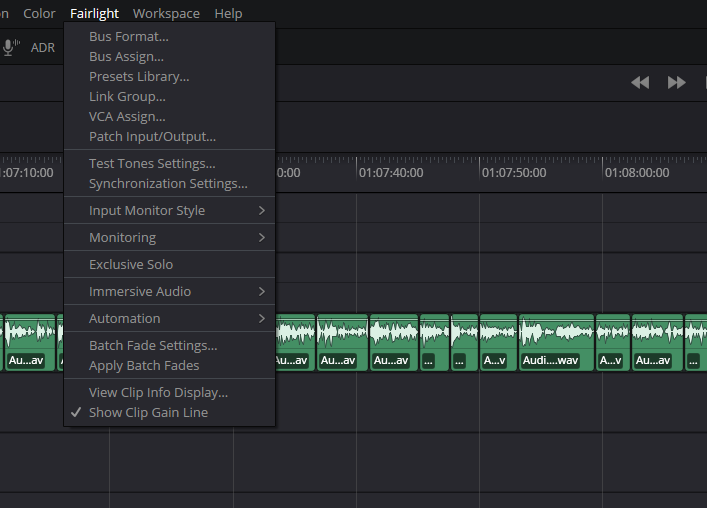
Fairlight menu
A picture of one menu is not a list of every application command. Track and mix bounce are documented separately under Timeline menu operations.
Reference: Blackmagic Design — Resolve 21 Reference Manual · Bouncing Audio, pp. 4044–4045 · Blackmagic Design — Resolve 21 Reference Manual · Export Audio Files and layers, pp. 3970 / 4088
08 / UNDERSTAND & APPLY
Bounce Mix to Track: choose the bus and destination
Bounce Mix to Track opens a list of available buses and a Destination Track column. Choose a new or existing track for the intended mix, then create the audio media. The manufacturer separately states that the bounced channel configuration matches the source bus.
Before running it, inspect that bus’s contents, temporary Mute/Solo states, returns, automation and destination track. After creating the file, confirm that playing it does not silently add it to the same original sources. Compare the original mix and recording in turn at an agreed point in the path.
Source
The bus name and channels must match the task. Similar names do not prove identical contents.
Destination
Choose where the new material will appear and check where that track subsequently routes.
Verification
Listen through the duration and channels. Successful file creation is not a complete mix check.
Reference: Blackmagic Design — Resolve 21 Reference Manual · Bouncing Audio, pp. 4044–4045 · Blackmagic Design — Fairlight · Bounce Clips, Tracks and Mixes
09 / UNDERSTAND & APPLY
Retain the whole event: onset, edits and tail
First listen to the approach, the passage and its ending. An effect can continue after the useful sound or clip; an edit boundary does not itself establish the end of the audible result. Choose a range for the task and inspect how the selected command obtains that range.
The lab clip occupies 0–20 seconds, followed by an assumed four-second tail. Ending at 22 seconds leaves two seconds of tail outside the range. Ending before 20 seconds also excludes part of the clip. This is interval arithmetic for a teaching example; establish an actual tail by listening and checking the rendered file.
Beginning
Check the first attack, sync and required lead-in. Do not add arbitrary handles without knowing their purpose.
Ending
Listen to fades, final repeats and decay. Establish whether the result must end with the programme or include additional space.
After export
Compare the actual duration and last seconds of the file. One Out point cannot replace that inspection.
Reference: Blackmagic Design — Resolve 21 Reference Manual · Export Audio Files and layers, pp. 3970 / 4088 · Blackmagic Design — Resolve 21 Reference Manual · Bouncing Audio, pp. 4044–4045
10 / UNDERSTAND & APPLY
Retain an editable source and identify each revision
A cache can be rebuilt after a clip-plugin change. An independently written file retains the chosen result and does not automatically follow a new control position. To revise it, return to the original settings and deliberately create another version.
For the documented layer-based workflow, the manual retains the original clip below the result. Show Audio Track Layers helps locate it. A lower layer is useful together with an unambiguous choice of the playing version; when handing over the project, retain source media and the generated files it uses.
| Record | Include | Purpose |
|---|---|---|
| Version | Scene name, edit revision and date. | Connect the file to a sound decision. |
| Scope | Clip / track / bus and included processing. | Identify what has already been committed. |
| Range | In, Out and the tail decision. | Repeat the export after a revision. |
| Recovery | Original layer and source-media location. | Preserve a route back to editing. |
Reference: Blackmagic Design — Resolve 21 Reference Manual · clip cache, pp. 4087–4088 · Blackmagic Design — Resolve 21 Reference Manual · Export Audio Files and layers, pp. 3970 / 4088 · Blackmagic Design — Resolve 21 Reference Manual · Bouncing Audio, pp. 4044–4045
11 / UNDERSTAND & APPLY
Test boundaries and revisions in the teaching model
Begin with the end at 22 seconds and a four-second tail: the complete assumed result ends at 24. Enable Full range, then return to the chosen value. Comparison changes only the displayed boundary and retains your selected end.
Change the current FX label, open the plugin GUI and disable cache. The model distinguishes disabled caching, temporary suspension and completed recaching. The file label changes only through its own control or explicit copying. Equal labels check only an FX revision, not channels, routing or file quality.
What will the range contain, and which FX revision will remain?
A fixed 20-second clip, an assumed effect tail and two FX revision labels. Move the range boundary and compare a completed cache with a previously written file. The example calculates intervals and label equality; it does not render audio, measure a tail or time the Resolve cache.
Outside the plan: 0.0 s of clip and 2.0 s of assumed tail. Completed recache: FX revision v2. File FX: v1.
This button updates the teaching label only. It does not save, export, overwrite or play any file.
A fresh cache and a sufficiently long selection solve different problems. Neither establishes which clip, track or bus processing a real export contains. Inspect the command, export options and resulting audio separately.
Equations and assumptions
clipEnd = 20 s; requiredEnd = 20 + tail
shownEnd = fullRange ? requiredEnd : chosenEnd
missingClip = max(0, 20 − shownEnd)
coveredTail = min(tail, max(0, shownEnd − 20))
missingTail = tail − coveredTail
FX labels match = currentRevision === fileRevision
The tail is a supplied duration, not an exponential decay or an amplitude threshold. Seconds are continuous and In is fixed at zero. Frames, handles, latency, actual plugin behaviour and native tail extension are not calculated. Cache and file states are independent of this illustrative range calculation.
Cache off takes precedence over an open GUI. With cache on and GUI closed, the model shows the state after recaching has completed, without claiming instantaneous work or estimating processor load. Only documented clip-plugin editing is illustrated; the example does not define a universal cache-invalidation rule for every timeline change.
A file label can be copied explicitly or selected independently. Equality checks only the FX revision label. Range, channels, normalization, routing and file contents still need verification. Full range retains all settings; focus changes emphasis only. Reset restores every control, comparison, All focus and the closed assumptions panel.
Reference: Blackmagic Design — Resolve 21 Reference Manual · clip cache, pp. 4087–4088
12 / UNDERSTAND & APPLY
Verify the created material before using it further
Open the file or import it to a verification track with a known route. Inspect name, duration, channels, Sample Rate and required bit depth. Then listen to attacks, edit transitions and tails, comparing the intended processing on the same passage.
Exclude unintended doubling of the source and repeated application of an already printed effect. For final delivery, measure the complete finished file separately and check the project requirements. A useful intermediate bounce supports the work; mastering and export verification remain their own tasks.
Structure
Do the file, revision, boundary and channel organization match the plan?
Content
Are the line, attack, fade and audible continuation intact?
Path
Are source and result unintentionally playing together, or are FX being applied twice?
Next step
Record the verified version and proceed to delivery or the next mixing task.
Mastering
Check requirements and measure the final file.
↗Audio Plugins & External Processing
Understand external processing and returned material.
Reference: Blackmagic Design — Resolve 21 Reference Manual · Export Audio Files and layers, pp. 3970 / 4088 · Blackmagic Design — Resolve 21 Reference Manual · Bouncing Audio, pp. 4044–4045
PRACTICE / NO AUTOPILOT
A small task. A checkable result.
Work in a test copy, listen before and after, and write down what you actually observed. The checklist contains no pre-approved results.
1 · Choose the task
Use a short clip with audible clip processing. Retain an original version and record whether the task needs cache, a new clip, a track or a bus sum.
2 · Inspect caching
Enable Cache Audio Effects. Open the plugin GUI, change one parameter, finish editing and wait for recaching. Compare the same passage.
3 · Specify the output
Choose the appropriate operation. For Export Audio Files, record Source, From, channels, format, Clip Level / Fades / EQ and FX, and normalization.
4 · Preserve the tail
Listen to the beginning and end. Relate the required range to the output command. In the model, explain the missing two seconds in 20 + 4 → 22.
5 · Verify and retain the revision
Listen to the created file on a clean verification path and inspect channels and duration. Name the revision and original-layer location. After another FX change, deliberately create the next result.
FAQ / BEFORE THE NEXT MOVE
Questions that matter in practice
Does Cache Audio Effects alter the original file?
No. The manual describes a nondestructive operation: clip-plugin parameters remain editable while cached playback uses the processed result. This is not an independent final-mix delivery.
Reference: Blackmagic Design — Resolve 21 Reference Manual · clip cache, pp. 4087–4088
Must I disable cache before every plugin edit?
The documented workflow temporarily suspends caching when the graphical controls open. After editing, the clip is recached if Cache Audio Effects remains enabled. Wait for completion and check the sound.
Reference: Blackmagic Design — Resolve 21 Reference Manual · clip cache, pp. 4087–4088
Are all bounce operations in the Fairlight menu?
No. Clips have contextual commands, while the manual places track and mix bounce in Timeline. In Place / New Layer names and some paths are inconsistent in the document; identify the command by its purpose and the available context in your installation.
Reference: Blackmagic Design — Resolve 21 Reference Manual · Bouncing Audio, pp. 4044–4045
Does Export Audio Files always include every mixer processor?
Its documented options explicitly include Clip Level, Clip Fades, Clip EQ and FX, and Clip iXML. They should not be equated with the full sum and bus processing. Establish the intended mix source and inspect the result separately.
Reference: Blackmagic Design — Resolve 21 Reference Manual · Export Audio Files and layers, pp. 3970 / 4088 · Blackmagic Design — Resolve 21 Reference Manual · Bouncing Audio, pp. 4044–4045
Why did selected-track bounce do nothing?
The procedure on page 4044 first requires In and Out, followed by track-header or mixer-strip selection. Check those conditions and the intended command. This is one documented condition for that procedure, not a diagnosis of every possible failure.
Reference: Blackmagic Design — Resolve 21 Reference Manual · Bouncing Audio, pp. 4044–4045
Will Pad to frame boundaries preserve an entire reverb tail?
That option concerns alignment to frame boundaries. It does not determine an audible tail’s duration. Listen to the ending and verify the range and file; no universal automatic extension is promised here.
Reference: Blackmagic Design — Resolve 21 Reference Manual · Export Audio Files and layers, pp. 3970 / 4088
Where is the original after rendering to a new layer?
In the documented workflow, original material remains under the result. Enable View > Show Audio Track Layers, locate the clip and inspect the playing layer. Do not extend that guarantee to arbitrary external exports or manual source deletion.
Reference: Blackmagic Design — Resolve 21 Reference Manual · Export Audio Files and layers, pp. 3970 / 4088 · Blackmagic Design — Resolve 21 Reference Manual · Bouncing Audio, pp. 4044–4045
Do matching FX labels in the model mean the file is ready?
They mean only that an authored clip-settings identifier matches. The model does not inspect audio, the real export range, channels, normalization, routing or measurements. Check those independently on the actual file.
REFERENCES / 2026-10-09
What this guide is based on
Reviewed on 9 October 2026 against the complete DaVinci Resolve 21 Reference Manual: pp. 3960–3961, 3969–3970, 4044–4045 and 4087–4088. Pages 3970, 4044 and 4087 were visually inspected. The manual inconsistently uses In Place / New Layer for selected-track bounce and varies the Mix command path. The source note records this without inventing a version history. The site model calculates only authored intervals and FX revision labels, not every native processing stage, cache invalidation rule, plugin tail or render time.
Blackmagic Design — Resolve 21 Reference Manual · clip cache, pp. 4087–4088 ↗
Reviewed pp. 4087–4088 and the cache-badge image on p. 4087: clip plugins, selected clips, nondestructive caching, waveform update, suspension while the GUI is open and recaching after editing when Cache Audio Effects remains enabled. No exhaustive invalidation list, render-time estimate or whole-session speed guarantee is supplied.
Blackmagic Design — Resolve 21 Reference Manual · Export Audio Files and layers, pp. 3970 / 4088 ↗
Text and complete panel on p. 3970 inspected: folder, name/tag, format, rate, depth, Multi-Mono/Interleaved, Individual/Consolidated, From, selected/hidden tracks, frame padding, Clip Level/Fades/EQ and FX/iXML, Normalize. Page 4088 describes Export Audio Files as creating effect-baked media/layers with an original underneath. Its Save clips to wording is not transferred to the explicit Browse destination on p. 3970. Layers also checked on pp. 3960–3961; the external round-trip on p. 3969 is not equated to every export. Frame padding is not presented as tail capture.
Blackmagic Design — Resolve 21 Reference Manual · Bouncing Audio, pp. 4044–4045 ↗
Reviewed pp. 4044–4045 and visually inspected p. 4044. Selected-track bounce requires In/Out and track/strip selection; output is a top layer with originals beneath and uses Save clips to. Mix shows buses, Destination Track and new/existing tracks. The p. 4045 tip confirms contextual Bounce Audio Effects for a clip with FX. Internal inconsistency: the p. 4044 list uses Timeline > Audio > Bounce Selected Tracks in Place, whereas the steps say Bounce Selected Tracks to New Layer; Mix includes Audio in the list but omits it in p. 4045 steps. This does not prove a version change. No exhaustive track-FX/automation capture point or universal tail policy is established.
Blackmagic Design — Fairlight · Bounce Clips, Tracks and Mixes ↗
Official page rechecked 9 October 2026: lists clip bounce/export, track bounce to a layer, mix bounce to a track and a result channel configuration matching the source bus. Used only for those limited claims; this overview does not establish every dialog option or test a local installation.