FAIRLIGHT / ORGANIZATION / LAYERS
Fairlight audio track layers
Choose a take. Keep the alternatives.
A strong line often comes from more than one recording. Layers keep alternatives together while you choose specific portions and retain a route back to the originals. A neat-looking edit is only the beginning of the listening check.
- 01Distinguish layers from adjacent tracks
- 02Assemble a phrase with explicit selection boundaries
- 03Check transitions, picture sync and room-tone continuity
Move the boundaries and switch the selected take.
Alternatives inside one track↗
Display layers to see competing takes. An additional layer row does not become a separate mixer channel.
Identify the track and sources first.Change the controls to explore the diagram. No audio playback, native DSP or connection to Resolve.
Reference scope · reviewed 6 October 2026
Documentation reviewed on 6 October 2026. Layers: manufacturer Fairlight page; the separate editing-mode menu reference is historical. Four of five existing images inspected; the View-menu image still needs visual verification. These are written procedures and local learning models, not live Resolve certification. Exact build, edition and operating-system behavior must be checked in your installation. Original screenshot filenames do not establish a build.
Read the source notes ↓On this page
01 / UNDERSTAND & APPLY
One track, several alternatives
A layer is not a track folder or a separate bus.
Audio Track Layers keep alternate recordings within one audio track. Blackmagic describes assembling dialogue, music or effects by placing preferred take portions on upper layers to create a composite. Additional recording takes can also be retained as separate layers.
For interviews and voice-over, a base version can remain underneath while selected replacements sit above. Do not turn every alternate into a simultaneously playing track when the task is selection; likewise, do not substitute take selection for deliberately mixing two sources.
| Structure | Purpose | Important distinction |
|---|---|---|
| Multiple audio tracks | Independent mix contributors | Two microphones are not necessarily alternative takes |
| Layers in one track | Alternate material and a composite phrase | A visible layer lane is not an independent Mixer output |
| Folder Tracks | A compact hierarchy of tracks | The folder does not choose the best performance |
Reference: Blackmagic Design — Fairlight / Working With Audio Track Layers
02 / UNDERSTAND & APPLY
Display Audio Track Layers
The documented command is View → Show Audio Track Layers.
Open Fairlight and enable Show Audio Track Layers in the View menu. Locate the intended audio track and give it enough vertical space. A compact view is not evidence that alternatives are absent; it may simply hide the structure.
Displaying layers is distinct from an editing-mode setting. Timeline has a separate Layered Audio Editing command, identified in a historical reply by a Blackmagic Product Manager. That archived reference is not certification of all combinations of settings in a current installation.
Before moving an important take, test a short overlap on a timeline copy and establish whether the underlying material is preserved. Do not enable an unfamiliar editing mode in the middle of a critical comp without that check.
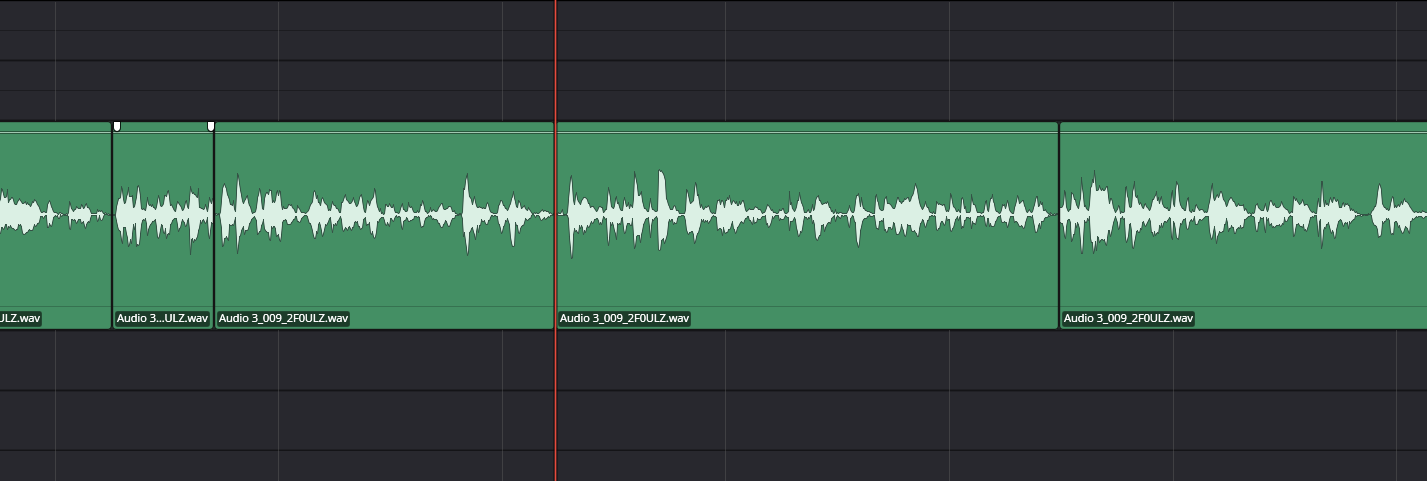
Compact track view
One visible lane does not establish the absence of hidden alternatives. Check the display setting and actual content first.
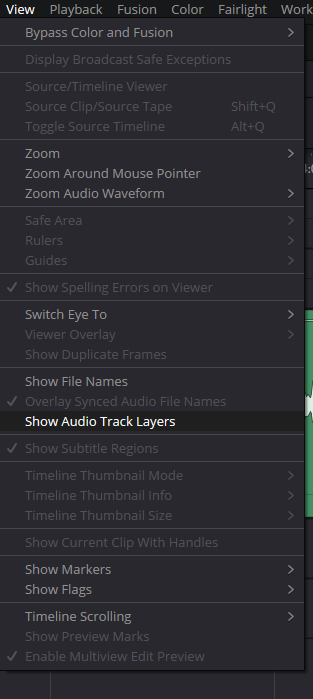
Layer display command
The original image path is preserved; renewed visual review of this file remains pending. View → Show Audio Track Layers is independently documented by Blackmagic.

Multiple layers in one track
Check the track header and occupied intervals. A layer lane is not a separate audio track with its own fader.
Reference: Blackmagic Design — Fairlight / Working With Audio Track Layers · Blackmagic forum — Product Manager / Layered Audio Editing · Videomontazher — original Track Layers captures
03 / UNDERSTAND & APPLY
An occupied interval, not an eternally active lane
The occupied time and actual selected material matter more than a lane’s position on screen.
Blackmagic’s workflow places preferred portions of takes on upper layers. Do not interpret an empty area of an upper lane as a command to silence everything underneath. Check which clip occupies the time and which version is actually heard.
For example, base take A lasts 12 seconds and replacement B occupies seconds 2–5. Our simplified model selects A → B → A. It does not sum both recordings throughout, nor assert that clip-disable states and transition settings can never affect a real project’s result.
Listen across both edges of a replacement. A tidy rectangle cannot restore a consonant that begins outside the chosen boundary. A different breath on the underlying take may become conspicuous as soon as the selection returns to A.
Reference: Blackmagic Design — Fairlight / Working With Audio Track Layers
04 / UNDERSTAND & APPLY
Explore a phrase selection
Change the upper excerpt’s length and see where the lower take remains.
The diagram uses seconds with an exact one-millisecond calculation step for teaching. That is not a Fairlight subframe-editing limit or a conversion into source samples. Hiding the individual diagram lanes does not change the selected output intervals.
Fades, disabled clips, processing and latency are excluded. The downloaded JSON is not an edit decision to import into Resolve. It helps record intended boundaries before checking real material.
TAKES / SELECTION LAB
The upper take occupies its own interval
A 12-second teaching phrase: take A underneath, an excerpt of B above. The diagram computes interval selection, not audio playback.
Use 0–12 seconds, start before end, up to three decimal places. End is excluded: [start, end). This is a chosen model precision, not a Fairlight limit. Fields are validated even when B is absent.
Selected phrase segments
- 0–2 s → take A
- 2–5 s → take B
- 5–12 s → take A
B duration: 3 s / 12 s
Boundaries to listen across: 2 / 5 s
All teaching clips are enabled. Fades, crossfades, effects, speed, source samples and latency are not modeled. Showing layers changes only the drawing. Interval selection does not prove a click-free or correct phrase. No Resolve connection, audio analysis, data upload or automatic saving.
05 / UNDERSTAND & APPLY
Build the thought before polishing micro-edits
Comping selects portions of different performances; it is not a mechanical collection of isolated “best words.”
Listen to complete takes first and select a base for meaning, pace and delivery. Replacements should solve a specific problem such as a mistake, noise or an awkward pause. Too many small replacements can sound unnatural even when their transitions are technically clean.
Retain material beyond the tentative edges while finding the right boundary. Compare the whole thought with picture and adjacent lines, rather than judging only a tiny repeated loop. Establish the intended scope of movement when audio and video are linked.
With two microphones from one scene, distinguish replacing a performance from preserving a synchronized pair. A better word from another recording does not automatically remain phase-compatible or synchronized with the microphone that was left unchanged.
Choose the base
Listen to the complete thought and note the exact problem to replace.
Match the content
Find the same words and position in the performance, not merely a similar waveform peak.
Place the replacement
Move the intended excerpt to an upper layer, keeping source handles for boundary adjustment.
Check context
Listen before the entry, through the replacement and back to the base. Compare picture synchronization separately.
Reference: Blackmagic Design — Fairlight / Working With Audio Track Layers
06 / UNDERSTAND & APPLY
Alignment and the ghost waveform
The ghost display helps reveal a shift; it does not approve synchronization.
Blackmagic describes a ghost waveform while dragging as an alignment aid. Use it with an identifiable event such as a consonant onset or a clap. Similar-looking peaks are not necessarily the same event.
Check the excerpt’s timeline position, then its edges and duration. Avoid changing position, gain and trim simultaneously: several edits at once make it harder to identify what corrected the problem.
Zoom in for fine adjustment when needed and listen with picture afterward. The number of decimals in the teaching panel does not determine the precision available in the application’s audio editing tools.
Reference: Blackmagic Design — Fairlight / Working With Audio Track Layers
07 / UNDERSTAND & APPLY
Crossfades must act on the audible boundary
Establish the participating clips before adjusting the transition.
Blackmagic recommends crossfades when assembling take portions. Choose their duration and shape for the material. A fade through a consonant may reduce intelligibility; excessive speech overlap may produce a doubled word. No single duration suits every line.
In the original comp-crossfade image, the visible transition is on a lower layer while overlapping material occupies layers above. Calling this a proven seamless comp would be unjustified. Establish whether the audible selection crosses that transition and which clips participate.
Listen to context on both sides, including room tone and breathing. Removing a click does not prove natural delivery. Retain source handles and the ability to rebuild the boundary until the phrase has been accepted.
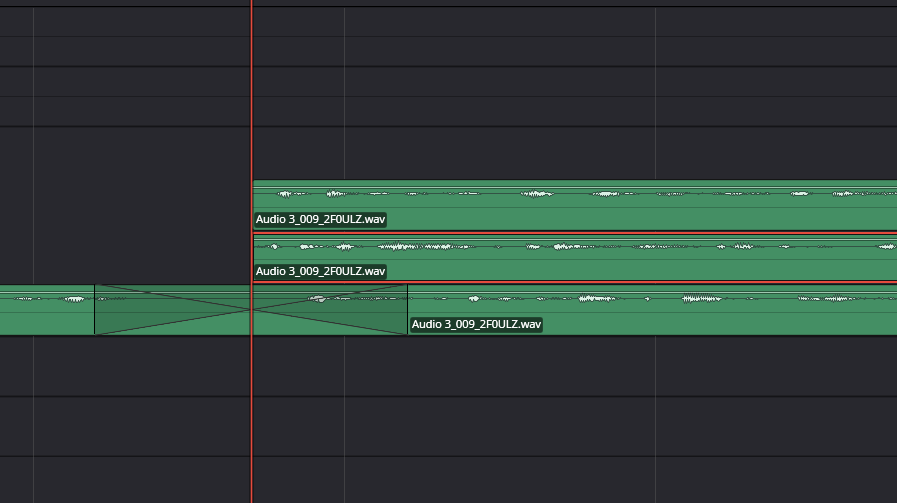
A transition on a lower layer
The crossfade is below the upper clips. The image cannot approve the audible boundary: identify the selected clips and listen across the interval.
Reference: Blackmagic Design — Fairlight / Working With Audio Track Layers · Videomontazher — original Track Layers captures
08 / UNDERSTAND & APPLY
Review the composite
A filename containing final-comp is not evidence of final acceptance.
The retained image shows short portions above long underlying material. It explains the structure, not whether the right words were selected, an extra breath was removed, background remained continuous or picture sync passed.
Check every take change, then listen to the complete line without stopping. Compare clip levels, timbre and track processing: improving one portion should not produce a tonal jump against the rest of the performance.
Do not delete alternatives solely to make a clean view. Save a version or timeline copy, identify the accepted decisions and make the base and replacements easy for a colleague to find. Consolidating or printing audio is a separate task, not a hidden last step of this guide.
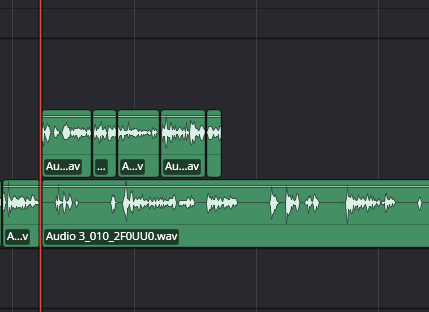
Composite structure
The original final-comp filename is retained, not a claim of acceptance. The picture shows arrangement; words, background and sync need separate checks.
Reference: Blackmagic Design — Fairlight / Working With Audio Track Layers · Videomontazher — original Track Layers captures
09 / UNDERSTAND & APPLY
Troubleshooting in a useful order
Do not try to fix take selection by randomly raising gain.
| Observation | Check | Do not assume |
|---|---|---|
| Only one lane is visible | Show Audio Track Layers, track height, actual alternatives | Hidden takes were deleted |
| The wrong line plays | Occupied intervals, clip layer and clip states | A name such as best take sets priority |
| A word sounds doubled | Overlap, transition, adjacent tracks and routing | Every crossfade automatically improves speech |
| Background jumps on return | Room tone and breath around both take boundaries | Peak alignment solved tonal continuity |
| Picture sync moved | Positions, links and the preserved copy | Ghost waveforms guarantee sync |
| The transition looks right but sounds wrong | Which clips are actually selected across its interval | A lower transition processed an upper replacement |
Reference: Blackmagic Design — Fairlight / Working With Audio Track Layers
PRACTICE / NO AUTOPILOT
A small task. A checkable result.
Work in a test copy, listen before and after, and write down what you actually observed. The checklist contains no pre-approved results.
Prepare test takes
On a copy, use two recordings of a short line. Identify base A and replacement B, preserve versions and mark the target phrase.
Display the layers
Enable Show Audio Track Layers. Test a short overlap and confirm that the chosen editing mode preserves the alternative material.
Assemble one replacement
Place only the intended B excerpt above A. Record start and end without moving neighboring lines for convenience.
Check both boundaries
Listen to the entry into B and return to A in context. Confirm the transition participants before adjusting a fade, then compare with picture.
Record actual observations
Note the words, breaths, background and sync you checked. Preserve alternatives and explicitly list any unreviewed sections.
FAQ / BEFORE THE NEXT MOVE
Questions that matter in practice
Where do I show the layers?
On Fairlight, choose View → Show Audio Track Layers. This path is documented on the manufacturer’s page; verify the exact layout in your installation.
Reference: Blackmagic Design — Fairlight / Working With Audio Track Layers
Are Show Audio Track Layers and Layered Audio Editing the same switch?
No. Display is in View and the editing setting is in Timeline. The source for the second command is historical; test preservation of overlapped material on a copy before moving important takes.
Reference: Blackmagic Design — Fairlight / Working With Audio Track Layers · Blackmagic forum — Product Manager / Layered Audio Editing
Do all layers mix like separate audio tracks?
Do not use take layers as a substitute for independent mix contributors. The documented workflow assembles selected portions into a composite; verify what plays at a specific time. Use an explicit multitrack route when deliberate summing is required.
Reference: Blackmagic Design — Fairlight / Working With Audio Track Layers
Does empty space in the upper layer mean silence?
In our example, base A remains where B is absent. In a real session, inspect the clips that occupy the time and their states. One empty lane alone does not prove silence.
Reference: Blackmagic Design — Fairlight / Working With Audio Track Layers
Can I approve a transition from its crossfade graphic?
No. Identify the participants and whether they lie on the audible selection, then listen to speech, background and breath. The retained capture shows a transition below the upper replacements.
Reference: Blackmagic Design — Fairlight / Working With Audio Track Layers · Videomontazher — original Track Layers captures
Must I remove unused takes after comping?
Not automatically. Preserve the checked version and a route back to alternatives. Cleanup, consolidation or printing is a separate decision after review, not a requirement of showing layers.
Reference: Blackmagic Design — Fairlight / Working With Audio Track Layers
REFERENCES / 2026-10-06
What this guide is based on
Documentation reviewed on 6 October 2026. Layers: manufacturer Fairlight page; the separate editing-mode menu reference is historical. Four of five existing images inspected; the View-menu image still needs visual verification. These are written procedures and local learning models, not live Resolve certification. Exact build, edition and operating-system behavior must be checked in your installation. Original screenshot filenames do not establish a build.
Blackmagic Design — Fairlight / Working With Audio Track Layers ↗
Manufacturer section: View → Show Audio Track Layers, assembling preferred take portions on upper layers, crossfades and the ghost waveform for alignment. Documentation checked; not execution in an installed Resolve.
Videomontazher — original Track Layers captures ↗
Four of five captures opened and inspected. In comp-crossfade, the transition is on a lower layer; final-comp does not prove final acceptance. The view-menu file could not be reopened in the review environment: its path is retained and the command is independently documented by Blackmagic. Sound and exact build are not verified.
Blackmagic forum — Product Manager / Layered Audio Editing ↗
Product Manager Peter Chamberlain’s 2021 reply locates Layered Audio Editing in the Timeline menu. Used only to distinguish editing mode from displaying layers, not to certify all setting combinations in Resolve 21.
Blackmagic Design — training / Working with Audio Track Layers ↗
The official page lists a dedicated audio-track-layer training video. It is further study, not a claim that the video or the complete Fairlight 20 PDF was reviewed in this package.