FAIRLIGHT / CAPTURE / ADR
ADR in Fairlight
Every cue needs a task, a take and a check.
ADR organizes dialogue replacement against picture. A cue list is not finished audio: first verify sources and prompts, then record, compare takes and keep the selected result tied to a specific task.
- 01Separate setup, cue preparation and recording
- 02Keep the guide distinct from the microphone
- 03Accept takes through picture and sound checks
Change the window position and length in the teaching scene only.
Make the cue understandable↗
Test the source, track, guide and prompts before a working take. Pre/post-roll provides context, not a new meaning for the line.
Begin with one rehearsal pass.Change the controls to explore the diagram. No audio playback, native DSP or connection to Resolve.
Reference scope · reviewed 6 October 2026
Reviewed on 6 October 2026 against Blackmagic’s Fairlight overview, the Resolve 20 New Features Guide (pp. 50–51 and 92–93) and eight existing website captures. Source/version boundaries are stated per section; a filename containing resolve21 does not identify the exact build. These are documentation and image checks, not microphone, driver, recording or playback tests in Resolve. The full Fairlight Audio Guide was not accessible in this environment. Check menus, edition, supported languages and audio hardware in your installation.
Read the source notes ↓On this page
01 / UNDERSTAND & APPLY
What ADR organizes—and what you still decide
The system relates replacement tasks to the timeline and helps organize repeated recording passes. It does not judge performance for you.
Open ADR on the Fairlight page. Setup defines session conditions, List holds cues, and Record supports the takes. A useful preparation order is Setup → List → Record even though the tabs appear in a different visual order.
Every cue needs clear words and context. Replacing a noisy word, revising a line and recording new narration are different tasks; explain the intention rather than creating an unqualified list.
Cue
A record of what should be spoken and where; not yet an audio file.
Take
The result of a recording pass, which may be unsuitable.
Accepted version
A take or composite phrase checked against picture and neighbouring sound.
02 / UNDERSTAND & APPLY
Prepare the input, not a copy of the screenshot
First perform the short microphone test in the normal recording guide.
Audio Inputs → Track Input connects a source to the recording track. A track’s bus output decides where its signal goes next; assigning Bus 1 does not choose a microphone.
The Patch capture shows 0 Selected on the source side and Audio 3 selected on the right. It is not a finished connection. Likewise, Monitor / No Source in a separate window does not establish the absence of every hardware input.
Keep only intended tracks prepared for capture. If using a second source, check its assignment and generated file separately: it should not silently duplicate the first microphone.
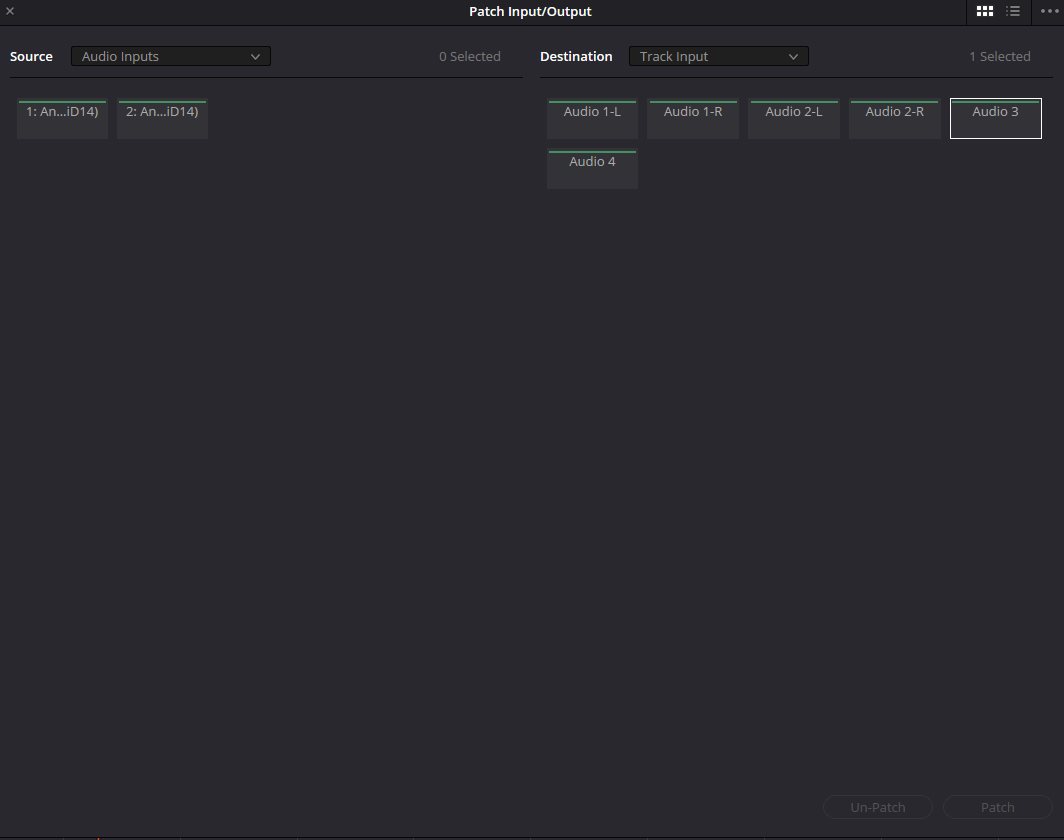
Patch: no source selected
Source is Audio Inputs, Destination is Track Input. The left side says 0 Selected; Audio 3 is selected on the right. Patch is disabled. This is a setup state, not proof of an established connection.
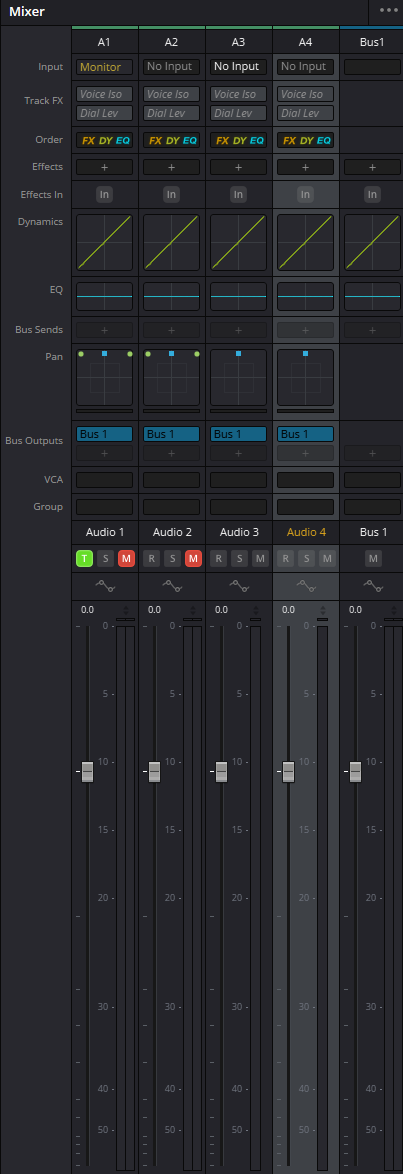
Mixer before a recording check
A1 shows Monitor in its Input row; A2–A4 show No Input. A1 and A2 have red M buttons; all four tracks route to Bus 1. This project state is not a recording-ready template. A bus output does not assign a microphone to a track input.
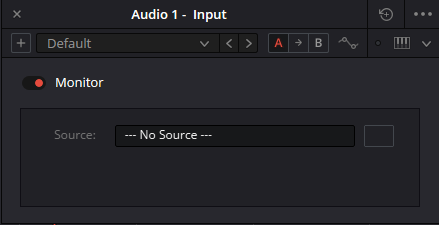
Monitor is not proof of an input patch
The “Audio 1 - Input” window contains Monitor and Source: --- No Source ---. This is a particular input-processing instance. Its field does not establish a hardware patch, arming or disk recording. Check the input assignment and a short take separately.
Reference: Blackmagic Design — Fairlight / VO and Multi Track Recording · Videomontazher — original recording and ADR captures
03 / UNDERSTAND & APPLY
Setup: sources, destinations and context
Configure the session for the line and performer. None and zero values in the capture are an initial state, not a recommended preset.
| Field or group | Purpose | Verification |
|---|---|---|
| Pre Roll / Post Roll | Context before and after the cue; the pictured fields use seconds | Test actual pass and capture behaviour in your build; not a promised file duration |
| 1st / 2nd Record Source | Capture sources | Configure only those used; do not substitute the guide material |
| 1st / 2nd Record Track | Recording destinations | Check names, formats and that the original dialogue is not an accidental target |
| 1st / 2nd Record File Name | Names for new recordings | A name neither selects the track nor checks storage space |
| Guide Track | Reference material for the line | Keep it distinct from the input being recorded and the selected final take |
| Character Setup | Character list | Performer and role names need not match; use the agreed label |
| Beep to In Point / Beep at In Point | Audible cues around the entry point | Set and audition them; exact beep count or frequency is not inferred from collapsed sections |
| Count In / Video Streamer / Cue Text | Visual countdown, moving prompt and text | Check the actual performer display, readability and entry timing |
| Smart Timeline / Mixing Control | Additional Setup sections | Collapsed in the source capture. Review your version’s help and rehearse before using them |
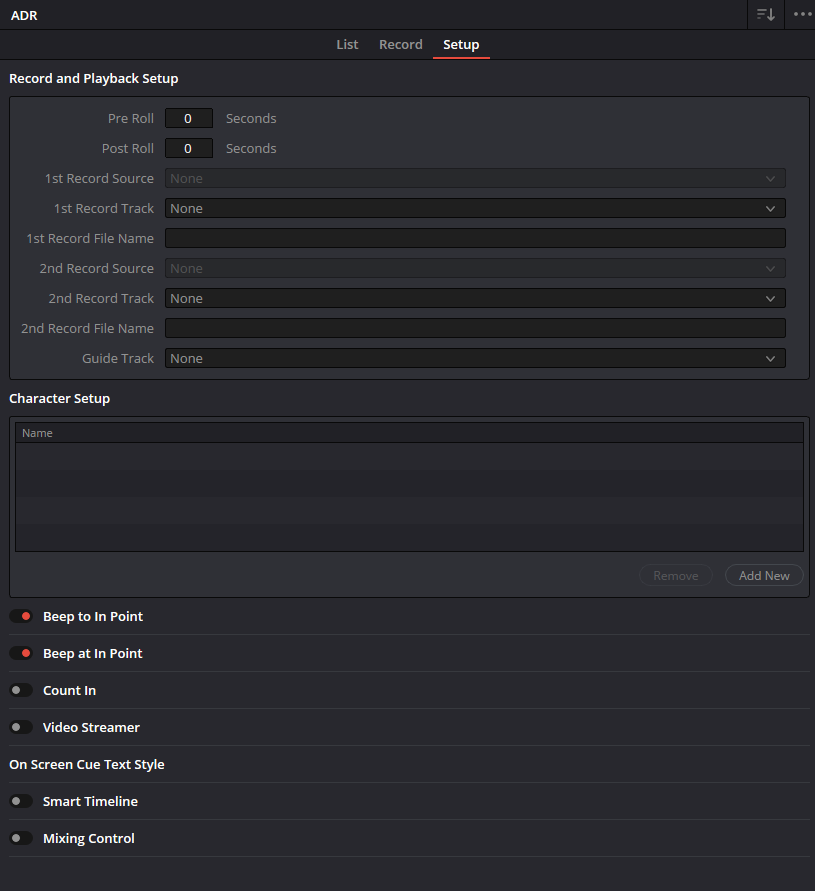
ADR Setup: an unconfigured session
Pre Roll and Post Roll are 0. Record Source, Record Track and Guide Track show None; filenames are empty. Beep to In Point and Beep at In Point are separate from Count In and Video Streamer. These visible values are not a recommended preset.
Reference: Blackmagic Design — Fairlight / Professional ADR · Videomontazher — original recording and ADR captures
04 / UNDERSTAND & APPLY
List: create a cue that can be checked
Cue ID, text, character and timing must describe the same task.
Choose the range against picture
Check the intended edit version and line boundaries. A timecode without known FPS and DF/NDF is not a safe seconds value.
Enter the line
Assign the character and actual words to perform. Keep the reason for replacement in the work record rather than making the performer search technical notes.
Create and reread the row
Use New Cue and check that the entry appears in List with the correct fields. An editor above an empty table does not demonstrate a saved cue.
Check after picture changes
Recheck cues against the scene after re-editing. Retaining the same Cue ID does not validate old timing.
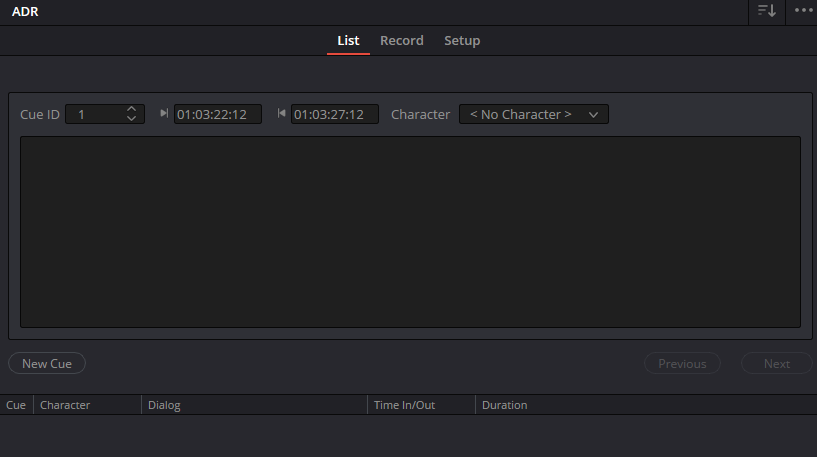
ADR List: fields are not a saved cue
The editor shows Cue ID 1, 01:03:22:12 and 01:03:27:12, Character: <No Character>; the text area and table below are empty. This does not demonstrate a saved cue. Full timing mode and frame rate are not established by this image.
Reference: Blackmagic Design — Fairlight / Professional ADR · Videomontazher — original recording and ADR captures
05 / UNDERSTAND & APPLY
AI Create ADR Cues: a draft list, not a complete session
Resolve 20 documents cue creation from transcribed dialogue and a separate option that identifies speakers.
For selected timeline clips on a track, the guide specifies AI Tools → Create ADR Cues. Text, Cue ID, Time In/Out and Duration appear in List. Create ADR Cues with Speakers also adds speaker names in Character.
Check the supported language under Subtitles and Transcriptions and whether the command is available in your edition/build. Optional AI availability is not a prerequisite for creating cues manually.
After analysis, correct names, recognized words, phrase divisions and timing. The generated list does not choose a microphone, record replacement speech or approve the revised script. Before repeating analysis, inspect existing entries to avoid duplicated tasks.
Reference: Blackmagic Design — Resolve 20 New Features Guide · pp. 92–93
06 / UNDERSTAND & APPLY
Record: rehearse, capture and compare
Select one reviewed cue, rehearse without treating the pass as acceptance, then record and audition a new take.
Confirm the cue
Check words, character and position against picture, not only its ID.
Verify the presentation
Confirm the performer hears the correct guide and sees the prompts. Remove doubled monitoring and feedback.
Record a bounded pass
Use ADR transport for one take. Keep Playing and Keep Recording are visible in the capture; leave extended modes off for the first test and explicitly verify stopping.
Compare particular takes
Check words, entry, ending, performance and surrounding ambience. Ratings help organize choices; they are not measurements.
Link the result to the task
Note the chosen take and remaining corrections. Do not mark Done solely because the transport ran.
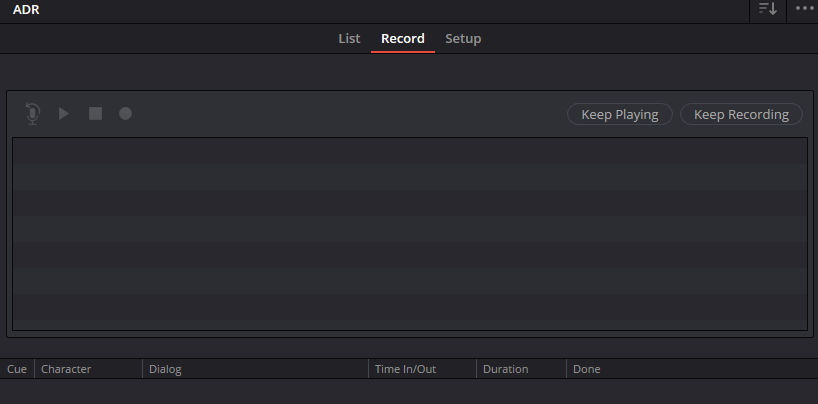
ADR Record: an empty take list
The tab contains transport controls, Keep Playing, Keep Recording and a table with Done. The list is empty: no recorded or approved take is demonstrated. Expanded settings for these modes are not shown.
Reference: Blackmagic Design — Fairlight / Professional ADR · Videomontazher — original recording and ADR captures
07 / UNDERSTAND & APPLY
Separate pre-roll, the cue and post-roll
This teaching strip distinguishes the task interval from surrounding context. It does not operate the ADR transport.
Enter frame offsets from the timeline start, an exact rate and context in seconds. The model uses an exclusive end, [In, Out). This is the exercise’s geometry, not instructions to paste its numbers into Resolve fields.
If pre-roll extends before the timeline start, the panel shows the missing context instead of silently trimming it. Its window length is not presented as the captured file duration.
A cue and its surrounding context
Use frame offsets—not absolute timecode or sample indices. End is exclusive in this teaching model. Decimal seconds use a dot and up to three decimal places.
Context window, not file duration
- Cue duration
- 5.000 s
- Window start offset
- 2.000 s
- Window end offset
- 11.000 s
Exact cue duration: 5/1 s. Displayed decimals are rounded; JSON retains exact fractions.
Timing can be explored without a character or script, but this is not a complete production cue.
Authored geometry only. No microphone, audio analysis, Resolve connection or automatic storage. JSON is not a supported ADR import file; capture duration remains unknown. Do not enter private scripts or names; edits disappear when you leave the page.
08 / UNDERSTAND & APPLY
ADR and Record Voiceover are different interfaces
Both record speech, but session organization and take retention are different.
Record Voiceover on Edit is a quick tool with an input, filename and destination track. ADR adds cues, characters and prepared prompts. The small Voiceover capture is not presented as the ADR recording window.
In the Edit 20 guide, a repeated Voiceover take replaces the previous timeline clip while earlier recordings remain in the Media Pool. For Fairlight layers, follow the separate normal-recording and Track Layers workflow.
The three-second countdown described for Edit 20 is visual, without an audio beep. Do not transfer that rule to Beep to In Point / Beep at In Point in ADR Setup.
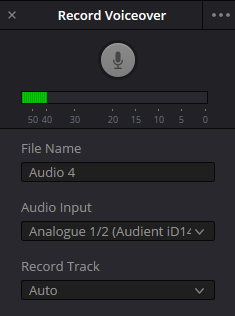
Record Voiceover: check Auto
The panel shows File Name: Audio 4, Audio Input: Analogue 1/2 and Record Track: Auto. A filename does not select track Audio 4; Auto is not an explicit destination. This is the simplified Edit/Cut tool, not the ADR panel.
Reference: Blackmagic Design — Resolve 20 New Features Guide · pp. 50–51 · Videomontazher — original recording and ADR captures
09 / UNDERSTAND & APPLY
What to hand over after the ADR session
Finishing capture starts take selection and editing; it does not automatically approve the whole phrase.
Elastic Wave can help with timing, but it does not fix incorrect words or a weak performance. Listen again after any stretch: preserving pitch is not a promise of artifact-free sound.
For a multi-take composite, continue to Track Layers. Keep source alternatives while the result is unapproved or the edit may change.
| Record | Why | Verification |
|---|---|---|
| Cue ID, text and picture version | The task belongs to the current edit | Recheck words and location after significant picture changes |
| Chosen take and alternatives | The result can be found and rebuilt | Do not rely on accidental filename order |
| Sync and performance | The replacement belongs in the scene | Check the start, internal events and ending |
| Edits and space | The line fits its surroundings | Listen to breaths, background, neighbouring words and transitions |
| Media files | The project can move without hidden dependencies | Identify actual files and include them in the backup |

An overview is not take acceptance
This existing wide capture shows edited material and a playhead. It cannot establish the content of a new take, its exact input or sound quality. Open and audition the particular new clip for verification.
Reference: Blackmagic Design — Fairlight / Professional ADR · Blackmagic Design — Fairlight / VO and Multi Track Recording
PRACTICE / NO AUTOPILOT
A small task. A checkable result.
Work in a test copy, listen before and after, and write down what you actually observed. The checklist contains no pre-approved results.
Prepare the test
Open a timeline copy, choose one line and verify the microphone with a short normal recording.
Configure Setup
Note source, track, Guide Track and context values. Test prompts on the actual performer display.
Create the cue
Set character, text and boundaries; verify the resulting row in List.
Record two choices
Compare two short takes for the same cue and document the reason for selection. Keep the alternative.
Verify handover
Relate the chosen clip to the cue, audition against picture and neighbours, and locate its file. Leave untested conditions explicitly open.
FAQ / BEFORE THE NEXT MOVE
Questions that matter in practice
Is ADR AI voice generation?
Not in this workflow. ADR organizes and captures replacement dialogue. AI Create ADR Cues helps prepare a list from existing speech; it does not perform a new take for the actor.
Reference: Blackmagic Design — Fairlight / Professional ADR · Blackmagic Design — Resolve 20 New Features Guide · pp. 92–93
Why is there a cue but no recorded audio?
A cue is a task entry. Audio still needs an assigned source, destination and an actual capture pass. Check Setup and a short take.
Is Guide Track the microphone?
It is the reference track for the line, not a substitute for the chosen Record Source. Guide playback and new performance capture are checked separately.
Reference: Videomontazher — original recording and ADR captures
Can I trust AI cue text without reading it?
No. Check language, words, characters and every cue boundary. It is an automatically prepared draft, not an approved script or proof of sync.
Reference: Blackmagic Design — Resolve 20 New Features Guide · pp. 92–93
Does pre-roll + cue + post-roll give exact WAV length?
Here it describes a context window. Test actual recording boundaries and transport modes in your build. The model neither reads files nor calculates the result of capture.
Should bad takes be deleted immediately?
Keep alternatives and label the chosen take while the exercise or project remains unfinished. Before deleting a file, establish its uses and backup. Removing a cue record and removing source audio are different actions.
REFERENCES / 2026-10-06
What this guide is based on
Reviewed on 6 October 2026 against Blackmagic’s Fairlight overview, the Resolve 20 New Features Guide (pp. 50–51 and 92–93) and eight existing website captures. Source/version boundaries are stated per section; a filename containing resolve21 does not identify the exact build. These are documentation and image checks, not microphone, driver, recording or playback tests in Resolve. The full Fairlight Audio Guide was not accessible in this environment. Check menus, edition, supported languages and audio hardware in your installation.
Blackmagic Design — Fairlight / VO and Multi Track Recording ↗
Reviewed recording section: Input, Patch, R, transport, stopping and further takes on layers. Also checked layers and Elastic Wave. A workflow reference, not proof of microphone or OS compatibility.
Blackmagic Design — Fairlight / Professional ADR ↗
Checked Setup, List, Record, characters, text, prompts and take ratings. The overview does not establish all collapsed parameters or continuous recording modes.
Blackmagic Design — Resolve 20 New Features Guide · pp. 50–51 ↗
Text and pages 50–51 visually inspected: Edit Record Voiceover, Auto, Input Monitoring, visual countdown without a beep, Mute Timeline, Stereo Input, Hide Options and retention of prior takes in the Media Pool. A version-20 document, not a test of every version-21 build.
Blackmagic Design — Resolve 20 New Features Guide · pp. 92–93 ↗
Text and pages 92–93 inspected: AI Create ADR Cues, with Speakers, supported language and the resulting List entries. Command and language resources depend on the installation; the recognized result requires editorial checking.
Videomontazher — original recording and ADR captures ↗
All eight original PNGs inspected on 6 October 2026. Captions corrected: unapplied Patch, Monitor not proving a hardware route, filename not selecting Auto’s destination, None in Setup, empty List and Record. Original paths retained; PNG bytes are absent from the ZIP baseline.