FAIRLIGHT / NAVIGATION / SYNC
Sync Scrollers in Fairlight
Picture gives the reference. The onset defines the shift.
Align a picture event with its audio onset—not a convenient WAV edge. Work from the filmstrip and chosen track to a justified shift and a second check, without promising one-button automatic synchronization.
- 01Choose the right picture frame and audio track
- 02Determine the direction and amount of a shift
- 03Separate a local match from whole-recording sync
Move the sound relative to the picture event.
Two views of one event↗
The filmstrip provides picture context; the chosen track’s waveform locates the onset. At this stage you are only inspecting.
Double-clicking a filmstrip frame moves the playhead.Change the controls to explore the diagram. No audio playback, native DSP or connection to Resolve.
Reference scope · reviewed 6 October 2026
The activation path, filmstrip, waveform, playhead navigation and separate audio-clip move were checked against Blackmagic’s current page on 6 October 2026. The manufacturer’s illustration was inspected, but its exact UI build is not claimed. The ZIP contains no author-supplied Sync Scrollers capture. Scenarios and calculations below are educational; live Resolve and audio tests were not performed.
Read the source notes ↓On this page
01 / UNDERSTAND & APPLY
Video Scroller and Audio Scroller
Enable the video and audio scrollers from Timeline View Options. They appear at the bottom of the workspace.
Video Scroller
The filmstrip lets you compare adjacent frames rather than only the current Viewer frame. Find a contact, clap or another recognizable action.
Audio Scroller
Use the waveform from the intended track. The illustration’s Display is A1 - Audio 1; it is an example state, not a requirement to use your first track.
Playhead
Navigating to a frame establishes a reference. Viewing the filmstrip does not itself require the audio clip to move.
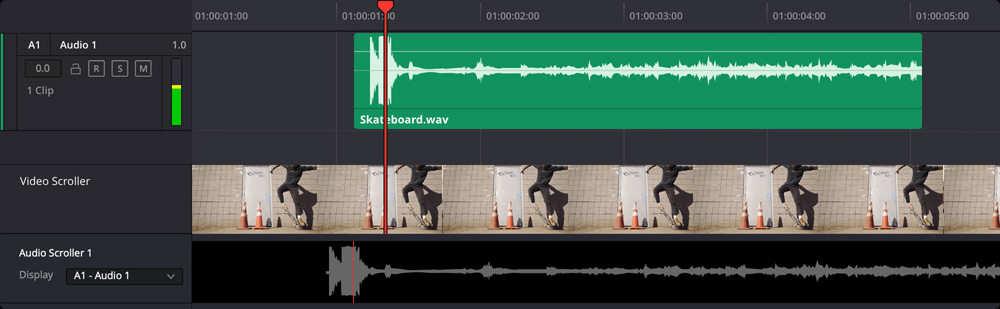
Sync Scrollers
Skateboard.wav, Video Scroller and Audio Scroller 1 with Display: A1 - Audio 1. An illustration of the relationship; the exact build is not identified. The image alone does not verify audible synchronization.
Image source ↗Reference: Blackmagic Design — Sync Scrollers / precision editing · Blackmagic Design — original Sync Scrollers illustration
02 / UNDERSTAND & APPLY
Workflow: identify the event before editing
Keep an untouched copy or duplicate timeline and start with a short, checkable section.
Choose matching events
Find an action that is unambiguous in both picture and sound. A clap or contact is usually easier to compare than a sustained vowel or echo.
Place the picture reference
Inspect neighboring frames and navigate through the filmstrip. Establish the event boundary: first contact rather than an arbitrary later frame.
Find the intended sound onset
Check the displayed waveform source. Distinguish the intended onset from preceding noise, another clap or an echo.
Check the edit scope
Check selected clips, links, locks and edit mode. Move only the intended audio: adjacent or linked picture must not shift accidentally.
Compare the result
Watch and listen before and after; then inspect another event later in the recording. Record the shift actually applied.
Reference: Blackmagic Design — Sync Scrollers / precision editing
03 / UNDERSTAND & APPLY
The WAV edge is not the sound onset
A recording may start with silence, ambience or preparation for a clap. Aligned clip edges then say nothing about the event.
Example: picture contact is at 2.000 s and the onset in the already positioned audio is at 2.100 s. With a shared origin, the required audio shift is −0.100 s: earlier. Clip duration and channel count do not enter this formula.
If the onset is 0.300 s after the clip’s left edge, placing it at 2.000 s requires that edge at 1.700 s. Before editing, ensure that the event remains within available media and unrelated items are not moved.
| Quantity | Meaning |
|---|---|
| Δ = tPicture − tAudio | Planned shift of the intended audio object |
| Δ < 0 | Audio needs to move earlier |
| Δ > 0 | Audio needs to move later |
| Δ = 0 | The measured events agree; other points still need checking |
04 / UNDERSTAND & APPLY
Frames, sample frames and rounding
Picture and audio use different time grids. Numerical precision cannot add timing detail absent from a picture frame.
At 24 fps, a video frame spans 1/24 s; at 48,000 Hz, a sample frame spans 1/48,000 s. A 0.1 s shift is 2.4 video frames or 4,800 sample frames. Blackmagic describes sample-accurate editing in Fairlight, but that does not make every visual measurement sample-accurate.
For stereo, 4,800 sample frames has the same duration as for mono: each time position contains a value for each channel. Do not multiply time by two. Fractional frame rates can require rounding when a picture boundary is mapped to audio samples.
Reference: Blackmagic Design — Sync Scrollers / precision editing
05 / UNDERSTAND & APPLY
Scrollers, waveform sync and timecode
The available source information determines the method. Every automatic result still needs event-level verification.
This guide does not issue an Auto Sync command or change source metadata. It covers timeline inspection; multicam preparation and Media Pool synchronization are separate tasks.
| Approach | What you need | How scrollers help |
|---|---|---|
| Timecode | Verified labels and consistent timing parameters | Check the actual action against sound |
| Waveform matching | Corresponding reference sound in both sources | Verify that the intended clap or take was matched |
| Manual alignment | A recognizable event and a precisely chosen edit scope | Locate picture reference and audio onset |
Reference: Blackmagic Design — Sync Scrollers / precision editing
06 / UNDERSTAND & APPLY
Calculate the shift direction and residual
Enter measurements of known events. Start with one reference, then add another farther into the recording.
07 / UNDERSTAND & APPLY
A fixed offset or a changing mismatch
An identical shift cannot remove a difference between two measured offsets.
If audio is 100 ms late at the first point and 200 ms late at the second, a −100 ms shift fixes the first and leaves +100 ms at the second. That is arithmetic on two measurements, not a diagnosis of “wrong sample rate”. First rule out mismatched events and imprecise onset selection.
For a long recording, inspect the beginning, middle and end. A consistently changing mismatch warrants investigating rate interpretation, clip speed, gaps/edits and recorder/camera timing. Do not blindly relabel sample rates or stretch the recording from two uncertain points.
08 / UNDERSTAND & APPLY
When sound still does not line up
Confirm that the observation belongs to the intended event and track.
| Symptom | First check | Avoid |
|---|---|---|
| No filmstrip | Scroller visibility and picture in the relevant interval | Moving audio without a picture reference |
| Wrong waveform | Display and the chosen audio source | Assuming A1 is always the intended track |
| Double-click did not repair sync | Playhead navigation versus an actual clip edit | Calling navigation an automatic repair |
| Picture moved with audio | Selection, links, mode and edit scope | Continuing without checking surrounding items |
| First clap matches, last does not | The second event and changing residual | Repeatedly changing one constant offset |
| Waveform seems aligned but sounds wrong | Onset identity, surrounding context and listening chain | Treating the picture as final acceptance |
Reference: Blackmagic Design — Sync Scrollers / precision editing · Blackmagic Design — original Sync Scrollers illustration
09 / UNDERSTAND & APPLY
Record a reproducible result
A verification record should show exactly what moved and how the result was checked.
Target
Project/revision, timeline, track, clip instance and identified event. Leave an Index note where useful.
Action
Direction and amount with units, shared origin and the objects actually affected.
Verification
Before/after comparison, later events and neighboring clip state. “Checked the first onset” is not “verified the whole recording”.
PRACTICE / NO AUTOPILOT
A small task. A checkable result.
Work in a test copy, listen before and after, and write down what you actually observed. The checklist contains no pre-approved results.
Prepare a short section
Use a copied timeline with two recognizable events. Record picture and audio rates. Do not use a client project for a first experiment.
Check the displayed sources
Enable scrollers and confirm the picture and audio track. Navigation should not move clips.
Establish a plan
Compare the event and onset; specify units and the sign of Δ. Do not substitute the file edge for the onset.
Make a limited edit
Move only the intended audio after checking selection, links and neighbors. Retain a way back to the original state.
Accept or reject the outcome
Watch and listen, then check the second event. If the residual changes, stop and investigate timing instead of declaring the whole take synchronized.
FAQ / BEFORE THE NEXT MOVE
Questions that matter in practice
Where are Sync Scrollers enabled?
Blackmagic points to Timeline View Options: enable the audio and video scrollers. Their appearance and placement may differ from the older manufacturer illustration.
Reference: Blackmagic Design — Sync Scrollers / precision editing
Does double-clicking the filmstrip move the WAV?
The documented action moves the playhead to that frame. Moving the audio clip is a separate action requiring target and outcome checks.
Reference: Blackmagic Design — Sync Scrollers / precision editing
Should the clip start align with the clap frame?
Only if the intended onset is actually at the beginning. Otherwise account for its internal offset and align the event itself.
Does stereo double the calculated shift?
No. A sample frame is one time position across all channels. Duration follows the sample-frame rate, not the count of channel values.
Do two different offsets prove drift?
They establish only that the entered measurements differ. Event mismatch or measurement error could explain it. Check several points before changing speed or rate interpretation.
Does the manufacturer illustration show my version?
Its exact build is not established. Video Scroller, Audio Scroller 1 and Display are visible; the illustration explains their relationship, not every current menu.
Reference: Blackmagic Design — original Sync Scrollers illustration
REFERENCES / 2026-10-06
What this guide is based on
The activation path, filmstrip, waveform, playhead navigation and separate audio-clip move were checked against Blackmagic’s current page on 6 October 2026. The manufacturer’s illustration was inspected, but its exact UI build is not claimed. The ZIP contains no author-supplied Sync Scrollers capture. Scenarios and calculations below are educational; live Resolve and audio tests were not performed.
Blackmagic Design — Sync Scrollers / precision editing ↗
Checked Timeline View Options, filmstrip/waveform, playhead navigation and the separate audio-clip move; also sample-accurate editing sections. Website calculations and limits are not attributed to Resolve.
Blackmagic Design — original Sync Scrollers illustration ↗
Inspected: Skateboard.wav, Video Scroller, Audio Scroller 1, Display: A1 - Audio 1. Exact build unspecified. Image loads from an external host, is not packaged and is not presented as a new Resolve 21 capture.