After this lesson
- Identify the media actually used for export.
- Distinguish re-encode bypass, scaling and debayer quality.
- Find settings that can remove grading, transforms or tracks.
Before starting
- Save a separate project version and confirm originals are available.
- Use a short section with text, motion and processing; export comparisons into separate files.
One panel contains different kinds of controls
Advanced Settings combines file properties, media sourcing and processing. Data Levels and colour tags describe levels/metadata; Use proxy media, Use optimized media and Use render cached images can change the pixel source. The whole panel is not a universal quality preset.
The screenshot has Auto Data Levels, Same as project tags and proxy/optimised/cache use disabled. Before final output, confirm originals are online and any alternatives have suitable resolution, depth, colour and current processing.
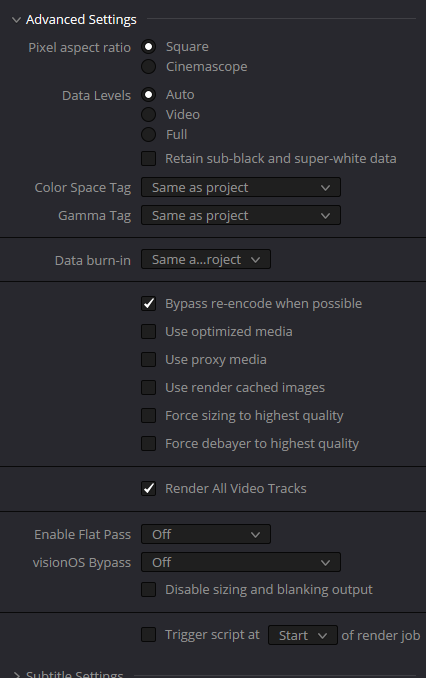
Data Levels, tags and proxy/optimised/cache use share a panel but control different properties. Here Data Levels is Auto and proxy/cache are off. Check sources and purpose before copying settings.
Proxy, optimised media and cache serve different purposes
Proxy is a separate source representation, often lighter for editing. Optimised media also aids playback but has its own quality settings. Render cache stores processed images; its format and correspondence to current effects matter for final output.
Use… permits an existing representation; it neither creates missing data nor improves it. A 4K file rendered from low-resolution proxies cannot restore original 4K detail. For a clean baseline, use online originals with all three permissions off. Verified high-quality cache can be a valid acceleration path.
| Source | Final-output check |
|---|---|
| Original | Online file, correct decoding and Clip Attributes |
| Proxy / optimized | Dimensions, codec, depth and agreement with original |
| Render cache | Format quality and current effects/colour |
- Check originals are online in Media/Edit.
- Record alternative-media format and dimensions before using them in the final output.
- Export a short baseline from originals.
- In a separate job enable only the representation under test and compare the same range.
Bypass re-encode does not make every export instant
Bypass re-encode when possible applies where supported compressed data can pass directly through. The manual requires matching Format, Codec and Type; verify passthrough in Supported Codec List. Two .mov extensions alone prove nothing.
Grading, scaling, stabilisation, compositing, Fusion and other picture changes require affected areas to be recalculated; transitions at least require their own region. H.264/H.265 Encode support is not Pass Through support. Bypass is not a universal lossless MP4 assembly promise.
Force sizing and Force debayer concern processing
Force sizing to highest quality raises render scaling quality where the original setting was lower. Compare diagonal edges, fine detail and actual resizing. If no resizing occurs or quality was already high, there may be no useful difference.
Force debayer to highest quality concerns converting camera RAW data into pictures. It does not universally improve JPEG, H.264 or decoded 8-bit sources. Extra computation is useful only when it improves the relevant operation; neither option recreates absent source detail.
- Identify actual scaling and RAW sources in the scene.
- Compare the relevant control on identical frames and in motion.
- Record render time and visible changes.
- Save it as part of a particular task, not a mandatory maximum.
Some controls change the result itself
Render All Video Tracks controls track inclusion for Single clip. Disabling it permits track exclusion. This can create a graphics-free version, but a mistakenly excluded title cannot be repaired with more bitrate.
Enable Flat Pass can bypass grading; Off preserves the normal graded output. Disable sizing and blanking can remove relevant Edit/Color transforms, stabilisation and output blanking, not universally every Fusion/OpenFX transform. Data Burn-In adds information over the picture. Check each against the intended deliverable.
| Control | What may change |
|---|---|
| Render All Video Tracks / Disable | Included video tracks |
| Enable Flat Pass | Colour grading application |
| Disable sizing and blanking | Some transforms, stabilisation and blanking |
| Data Burn-In | Visible metadata over the image |
Verify the final version, beyond speed
After media, grade or effect changes, recheck cache and a short output. Missing titles, wrong frames, changed cropping or old effects matter more than a small time saving.
Reimport into a verification timeline with consistent colour management. Compare start, heaviest processing and end. If originals render correctly but cache differs, the source path is already isolated; do not change codec, levels, GPU and every switch together.
STEP-BY-STEP PRACTICE
Confirm the master's media source
- Open a project with online originals and save a pre-export version.
- Prepare a short Single clip with optimised/proxy/render-cache permissions disabled.
- Check Render All Video Tracks, Flat Pass, sizing/blanking and Data Burn-In against the brief.
- Render and compare text, framing and grade.
- If cache output is needed, create a separate job using verified cache and compare.
The render source is recorded and the test file includes current effects, colour, tracks and detail. Enable acceleration after that comparison.
Errors and diagnosis
The large output looks like a low-quality proxy.
Output size does not prove pixel-source quality. Check proxy/optimised permissions and compare an online-original render.
The final file lost grading or framing.
Check Flat Pass, Disable sizing and blanking and timeline version. Raising Quality cannot restore intentionally bypassed processing.
Bypass re-encode is enabled but everything still encodes.
Check Pass Through support, exact format/codec/type matches and picture changes. Encode and passthrough are separate capabilities.
Frequently asked questions
Does cache always degrade a master?
No. Current, suitable-quality cache can be valid. Verify its settings and compare output.
Will Force debayer improve ordinary MP4?
It applies to RAW debayering. It cannot create RAW detail or increase a decoded MP4 source's original bit depth.
Sources and applicability
Check available settings against format, codec, encoder and your Resolve installation. Screenshots depict one configuration; diagrams explain individual operations.