DAVINCI RESOLVE / EDIT
Editing in Edit.Every frame in its place.
From the first source to a precise scene rhythm. Explore the interface, control tracks and cuts, and add titles and animation with Resolve examples and interactive practice.
WORKSPACE
Six areas.
One editing process.
Explore the actual DaVinci Resolve Studio 21 interface. Choose a panel in the screenshot to understand its role, from finding footage to building the edit.
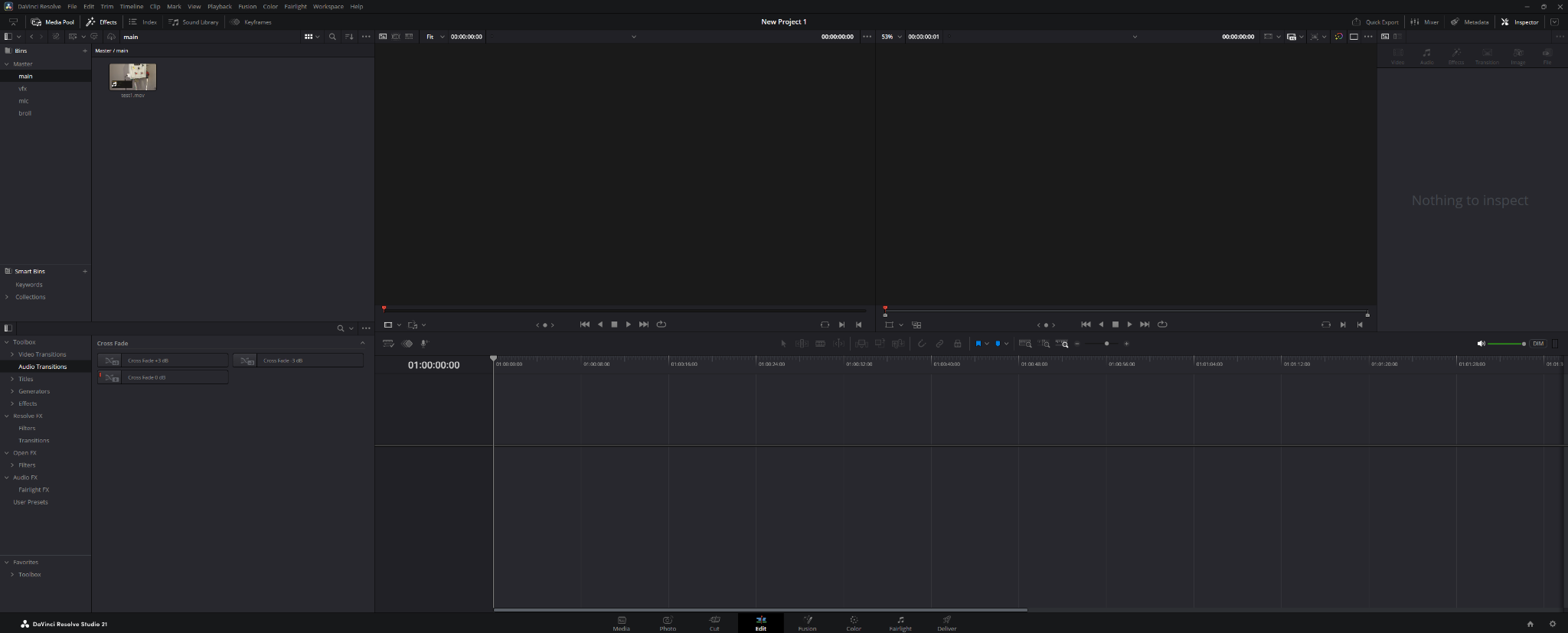
Select a number on the image or a panel name. Open the enlarged view for small controls.
The Edit page in Resolve Studio 21 before timeline assembly.
THE EDITOR'S GUIDE
From the first frame
to advanced editing.
Choose a task or tool. Each topic includes a diagram, the actual interface, a step-by-step exercise and common errors.
The Edit interface in DaVinci Resolve 21
Explore the Edit page and the relationship between the Media Pool, Source Viewer, Timeline Viewer, Inspector, Effects Library and timeline.
Media Pool, bins and source organization
Organize your media, distinguish a bin from a disk folder, use Smart Bins and preserve links when moving files.
Source Viewer and Timeline Viewer: playback and marking
Use both viewers to choose a source range, prepare an edit and distinguish source timecode from timeline timecode.
The Edit timeline: video tracks, audio and overlays
Understand multitrack editing: V2 over V1, linked audio and video, locks, visibility and monitoring.
Timeline View Options and a readable workspace
Set track heights, waveforms, thumbnails and labels to navigate a long edit efficiently.
In/Out, Insert and Overwrite: precise clip placement
Learn how In/Out sets the edit length, why Insert shifts the sequence, and how Overwrite replaces a range without moving later frames.
Track targeting and synchronization
Configure source patching, red track selectors and Sync Lock in Resolve 21 to route edits correctly and preserve synchronization.
Blade, Selection and precise clip cuts
Cut accurately on Edit: selection, Blade, linked audio/video, edit boundaries and result checks.
Ripple Trim and Roll Trim: how edit points work
Explore what Ripple and Roll change, what stays fixed, how to preserve synchronization and how to check the result in an interactive model.
Slip and Slide: change an edit without changing its duration
Slip changes frames inside a clip; Slide moves the clip between its neighbors. Explore source calculations and an interactive model.
Inspector Video: Transform, Crop, Zoom and composition
Explore the Resolve 21 Inspector: Zoom, Position, Rotation, Anchor, Cropping, Composite, Stabilization, Retime and Scaling.
Effects Library and transitions: when to use Cross Dissolve
Explore Effects Library groups, apply transitions to cuts and understand why Cross Dissolve needs spare source frames.
Video transitions: duration, handles and the Inspector
Advanced transition editing: source handles on both sides, alignment, duration, Inspector settings and diagnosing poor dissolves.
Text and Text+: titles and text animation on Edit
Create Text and Text+ title clips, adjust Inspector parameters, animate Position, set duration and check readability.
Keyframes: animate parameters on Edit
Understand Resolve 21 keyframe time, value, parameter tracks and Inspector controls; verify clip movement at exact frames.
Animation curves: Ease In, Ease Out and pacing
Read parameter graphs, shape easing, avoid abrupt acceleration and inspect movement between Edit keyframes.
Clip speed: Change Speed, Retime Controls and Speed Points
Control speed on Edit: constant percentages, Retime segments, Speed Points, timeline length, intermediate-frame quality and audio.
Automatically synchronize external audio
Align camera and recorder audio on Edit: Automatically Align Clips, waveforms, timecode, drift checks and safe linked-track editing.
Compound Clip and Adjustment Clip: structure and processing
Learn why to nest an edit in a Compound Clip, how an Adjustment Clip affects lower tracks, and why grouping differs from shared image processing.
Markers: notes, checkpoints and navigation
Use clip and timeline markers for naming, color categories, notes, scene navigation and checking revisions before handoff.
Subtitles: tracks, timing, style and export
Edit subtitle text, phrase boundaries and readability; distinguish Subtitle Tracks from Text+ and choose burn-in, separate-file or embedded export.
Multicam: synchronize angles and select cameras
Prepare and synchronize cameras, use the Angle Viewer, switch shots, preserve continuous audio and refine edit decisions.
Timeline setup: frame rate and resolution
Create a predictable timeline before editing: 30 fps, 1920×1080, project and sequence settings, mixed sources and duration checks.
Audio editing: J/L-cuts, fades and clip volume
Separate picture and audio cuts without losing synchronization, soften edges with fades and check clip volume before the final mix.
Match Frame and Replace: find the source and replace a shot
Return to a source frame, align action between takes and replace a shot without changing its duration; separately fill a defined range with three-point Overwrite.
Recover media and hand off the finished project
Restore missing links, package the project with its files and verify finished video and SRT: a practical editing handoff without repeating the full Deliver guide.
INTERACTIVE / TIMELINE LAYERS
What appears in the frame?
Look at the tracks.
Toggle the video track and compare actual screenshots. See how an opaque upper clip covers the image below.
What happens when you hide V2?
Toggle the track and compare real timeline states.
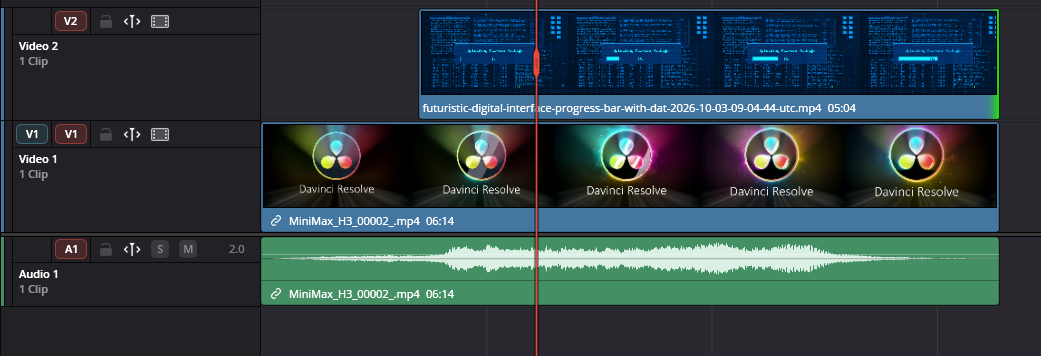
V2 sits above V1. An opaque upper clip usually covers the lower one.
The frame shows the opaque upper clip. V2 covers V1 where they overlap. Disable V2 to compare its state.
EDITING PRACTICE
Feel the cut.
Check the result.
Move a boundary by a few frames. Compare clip positions, edit duration and source ranges. Test Insert and Overwrite separately.
Open practiceThe B/C boundary moved. Total duration stayed fixed.
COMPLETE PRACTICE PROJECT
One minute.
The full editing journey.
Prepare media, synchronize sound, edit angles, add titles and verify export. Twelve steps connect the lessons and nine practice tools in one project.
- 01—03Prepare the footage
- 04—07Assemble and refine the edit
- 08—10Finish the picture
- 11—12Check and hand off the result
PRACTICE BY TOPIC
Change a parameter.
See what it does.
Move keyframes, change speed and switch angles. Teaching models connect settings to results; the lessons help you repeat each operation in Resolve.
WHAT COMES NEXT
Editing builds the foundation.
Sound and graphics complete it.
Continue the video: create graphics and animation in Fusion, prepare dialogue and mixing in Fairlight, then export and check the result in Deliver.