What you will learn
- Distinguish source patching, red selectors, Sync Lock and ordinary Lock.
- Explain why a track did not receive an edit.
- Preserve linked picture and sound during ripple operations.
Before you begin
- Duplicate a 30 fps timeline. Place three linked A/B/C pairs of 90 frames each on V1/A1: [0,90), [90,180), [180,270).
- Use matching CAM_A_GUEST.mp4 / MASTER.wav source ranges for the three pairs: A [180,270), B [270,360), C [360,450). Add BROLL_GRID.mp4 source [60,120) to V2 timeline [180,240).
- Start with all tracks unlocked and Linked Selection enabled. The checkpoint is the start of C and the cutaway at frame 180.
Where the source will land
In Resolve 21, blue source-component selectors sit at the left of track headers, with red timeline-track selectors to their right. In E04, source V1/A1 routes to the same numbered timeline tracks. Moving blue V1 to V2 changes the video's destination; disabling blue A1 excludes that audio component.
Source routing does not lock existing clips. Before overwriting a cutaway, check the video destination, unwanted source audio and track locks separately. Select a short range and identify the area you expect to change before testing.
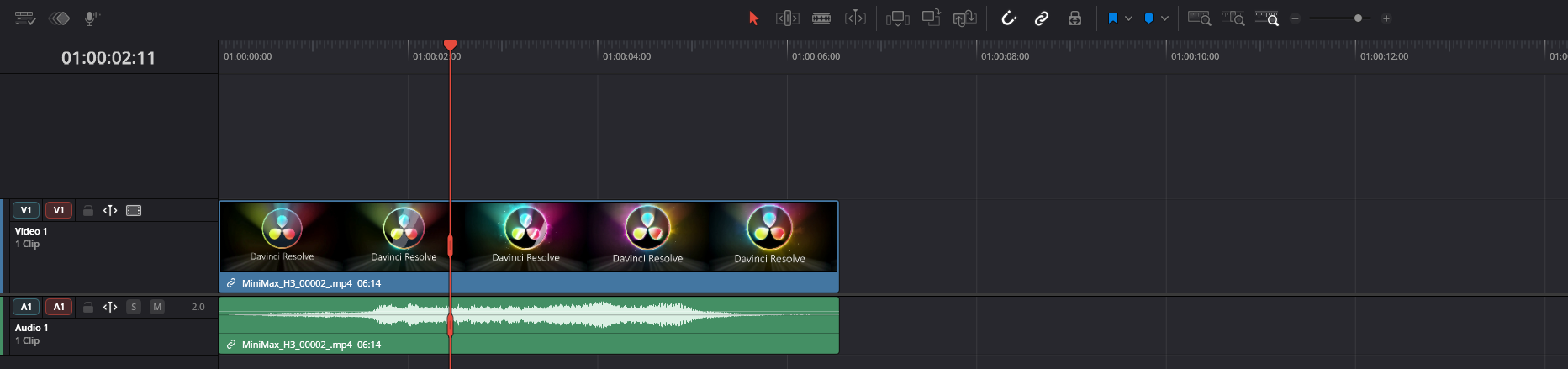
Select a number on the image or a panel name. Open the enlarged view for small controls.
Linked V1/A1 pair: picture and original sound from one source clip.
Track selectors and Sync Lock: selection and ripple
Since Resolve 20.2, the former Auto Track Selector's selection and navigation functions belong to the red track selectors. Participation in a shared ripple uses the separate Sync Lock icon beside the lock. Do not use the old Auto Select description as instructions for the version 21 interface.
Sync Lock lets a track follow ripple edits on other tracks. Disabling it prevents that shared shift but does not prevent editing the track's own clips. Ordinary Lock protects against edits; Linked Selection controls selection of linked components. Understand each control's state before editing.
Lock, Mute and Disable serve different purposes
Lock prevents track edits. Mute and video disabling control audible or visible output. A closed lock does not hide the picture. Locks help when adjusting graphics above finished dialogue, but can block intended operations if left enabled.
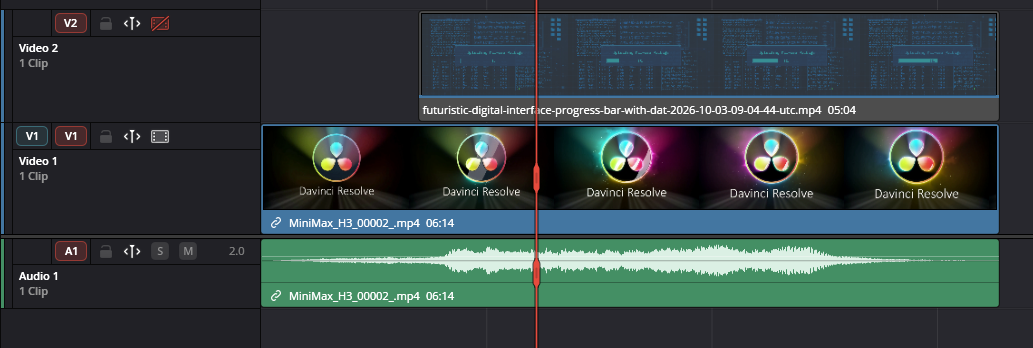
Disabled V2: its clip remains on the timeline but does not contribute to the visible result.
| Control | Controls | Check |
|---|---|---|
| Blue source selector | Source component and edit destination | Where will source video or audio land? |
| Red track selector | Track selection for applicable commands | Which tracks does this command consider? |
| Sync Lock | Participation in ripple on other tracks | Should this material move with the edit? |
| Lock | Protection against track changes | Are edits allowed here? |
| Mute / Disable Video Track | Audibility / picture output | What contributes to playback? |
A controlled check before editing
Compare two versions of the same sequence. In both, Ripple Trim the right edge of B shorter by 12 frames while selecting its linked picture and sound. Change only V2 Sync Lock so the reason for the difference is clear.
With V2 Sync Lock on, C and the cutaway move from 180 to 168; V1/A1 end at 258 instead of 270. With it off, C still starts at 168 but the cutaway remains at 180, now 12 frames late relative to C. Keep the red track selector unchanged during this test.
| Checkpoint | V2 Sync Lock on | V2 Sync Lock off |
|---|---|---|
| C start after Ripple −12 | 168 | 168 |
| V2 cutaway start | 168 | 180 |
| V2 offset relative to C | 0 frames | +12 frames |
| V1/A1 endpoint | 258 | 258 |
- Verify three 90-frame pairs on V1/A1 and V2 cutaway [180,240); record the original endpoint of 270.
- Enable Sync Lock on V1, A1 and V2; leave the tracks unlocked.
- In Trim Edit, select only the right edges of linked B on V1/A1 and Ripple −12. If both sides of B/C are highlighted, you selected Roll; correct the selection.
- Check B = 78 frames, C start = 168, V2 = 168–227 and V1/A1 end = 258.
- Undo to the original state, disable only V2 Sync Lock and repeat Ripple −12.
- Check C = 168 and V2 = 180–239. The cutaway is 12 frames late relative to C even though its source range is unchanged.
- Undo and restore Sync Lock. Separately enable V2 Lock: attempting to move its clip should not change the edit. Then unlock it.
- Save the version whose timing matches the cutaway's purpose; listen to the linked pair around the cut.
STEP-BY-STEP PRACTICE
Check a track's ripple participation
- Build A/B/C at 90 frames each and a V2 cutaway starting at frame 180.
- Ripple −12 at B's right edge with V2 Sync Lock ON: C and V2 should start at 168.
- Undo and repeat with V2 Sync Lock OFF: C starts at 168; V2 remains at 180.
- Check that linked B/C video and audio changed together, then restore the original settings.
You can connect the specific 12-frame offset to Sync Lock and distinguish it from track selection, locking and linked clips.
Errors and diagnosis
The insert went to the wrong track.
Check source patching and locks. An active track does not guarantee the required source component is routed to it.
The ripple edit broke synchronization.
Undo and check the affected tracks' Sync Lock, ordinary locks and Linked Selection. The red selector does not replace the separate ripple setting.
Common questions
What do V1/A1 at the left of the timeline mean?
In version 21, blue labels identify source components and red labels identify timeline tracks. Their positions help verify source routing; Sync Lock and Lock serve different purposes.
Does locking a track hide its image?
No. Lock protects the edit from changes without removing the clip from playback.