What you will learn
- Make several timeline cuts without damaging the original file.
- Check when picture and sound are cut together.
- Remove an accidentally created edit point.
Before you begin
- Place a linked video/audio clip on V1/A1.
- Zoom in until seconds and frames are visible.
Selection and Blade serve different purposes
Selection selects and moves clips. Blade adds an edit point at a chosen position. The original file on disk remains intact; the timeline gains separate segments with their own In and Out points.
Choose the exact cut frame by watching and listening, not only by reading the time scale. In a cut during movement, even a one-frame adjustment can change the rhythm.
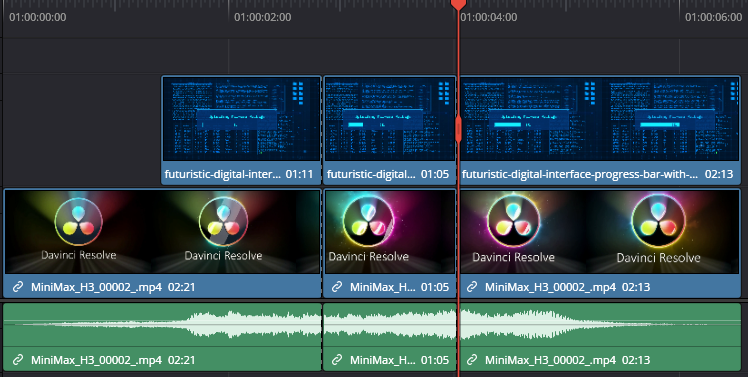
Blade creates separate timeline segments without creating new files on disk.
Linked sound: avoid accidental loss of sync
Close-up E07 still shows continuous clips and chain icons on the linked picture/audio pair; the cuts are shown in E08 above. Before using Blade, check Linked Selection and which components should be cut. Afterward, confirm that boundaries appeared on the intended tracks.
Complex edits sometimes deliberately cut video alone. Preserve the positions of synchronized audio events and avoid shifting speech relative to its source frames.
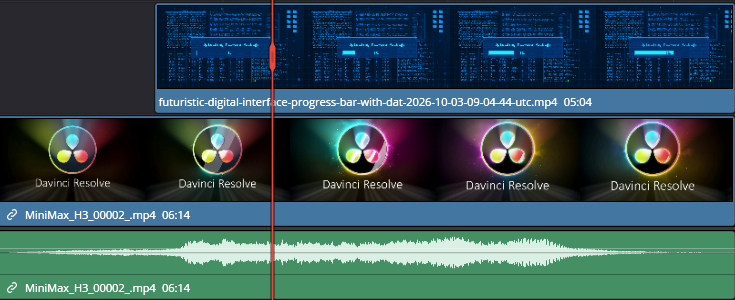
Continuous V2/V1 clips and linked A1 audio. No cuts are present yet; E08 shows the cut result.
A cut is different from a trim
Blade creates a boundary between segments. Trim moves existing boundaries and may shift later clips. Cutting around two seconds of dialogue does not automatically close the gap after deletion; that depends on using ripple or ordinary deletion.
Other tools can organize neighboring clips into a logical sequence later, but timeline cuts do not physically split the source file into new files.
- Zoom in and place the playhead at the start of an unwanted pause.
- Choose Blade (B in the default layout), click the required clip at the playhead and check the linked audio cut.
- Go to the pause's end and cut the same components again.
- Return to Selection (A), select the middle segment and check joint picture/audio selection.
- On a timeline copy, compare Delete Selected and Ripple Delete, undoing each operation. Check Sync Lock before ripple deletion.
Check after cutting
Look for picture or sound gaps, a shifted component of a linked pair, and changes to rhythm. A one- or two-frame gap is easy to miss when zoomed out; zoom in and play across the cut.
STEP-BY-STEP PRACTICE
Remove a pause without an accidental gap
- Find a short dialogue pause using the waveform.
- Cut at the beginning and end of the pause.
- Select the middle segment and verify linked picture/audio selection.
- Use ripple deletion so later material closes the gap.
- Play the cut and confirm the voice sounds natural.
The pause is shorter, the timeline has no empty interval, and the original file remains unchanged.
Errors and diagnosis
I cannot move the clip after using Blade.
Return to Selection. Blade makes cuts rather than ordinary clip moves.
The video was cut but the sound was not.
Check selection, Linked Selection and the chosen tracks. Undo and repeat deliberately if necessary.
Common questions
Does Blade cut the source file?
No. It creates two timeline ranges referencing the same media.
Do I need to cut a clip before Ripple Trim?
No, if an existing edit boundary is available for trimming.