What you will learn
- Choose the right tool for a specific editing task.
- Understand which In/Out points move with Slip and Slide.
- Check source and neighboring-clip limits.
Before you begin
- Use the original Trim exercise assembly: A=75, B=60, C=85, endpoint=220. B uses BROLL_MOTION source [15,75); C uses BROLL_GRID source [35,120).
- Frames are numbered from zero; Source Out in formulas is exclusive. Check the first and last included frames in the Source Viewer.
Slip: keep the clip in place and change its source frames
Slip preserves B's timeline position and duration. It changes the source range: the 60 frames 15–74 become 27–86 after Slip +12. The model writes these as [15,75) and [27,87), excluding the right Out boundary. B's cuts with A and C stay at their existing positions.
Use it when the excerpt misses the most expressive part of an action but its placement and length already fit the rhythm. Slip finds better content inside the same 60-frame slot.
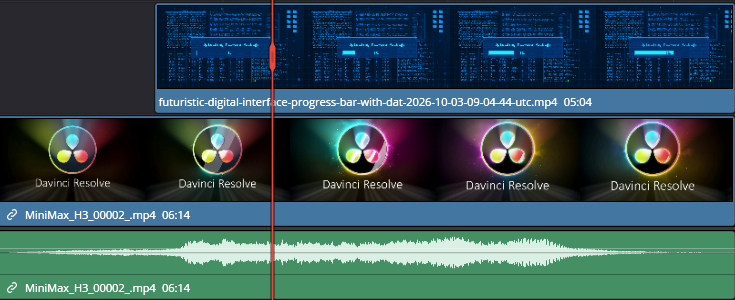
Continuous V2/V1 clips and linked A1 audio. No cuts are present yet; E08 shows the cut result.
| B property | Before | Slip +12 |
|---|---|---|
| Timeline In | 75 | 75 |
| Duration | 60 frames | 60 frames |
| Source In | 15 | 27 |
| Model Source Out boundary | 75 | 87 |
| Last included frame | 74 | 86 |
Slide: move B while compensating with its neighbors
Slide moves B left or right within the sequence while preserving its length and source In/Out. A and C change length to prevent gaps.
Slide +12 to the right extends A by 12 and shortens C from the left by 12; B starts 12 frames later. B still uses the same 60 source frames, and total sequence duration stays fixed.
| Property | Before | Slide +12 |
|---|---|---|
| A duration | 75 | 87 |
| Timeline In B | 75 | 87 |
| Source In B | 15 | 15 |
| C duration | 85 | 73 |
| Total duration | 220 | 220 |
Distinguish the four trim operations
Ripple changes total duration and moves material after the cut. Roll redistributes duration between neighbors. Slip changes a clip's source content. Slide changes its position by trimming its neighbors. Ordinary Selection dragging differs and may create gaps or overwrite material.
| Operation | B position | Source In B | Total length |
|---|---|---|---|
| Ripple (B right edge) | unchanged | unchanged | changes |
| Roll (B/C) | unchanged | unchanged | preserved |
| Slip (B) | preserved | changes | preserved |
| Slide (B) | changes | preserved | preserved |
What limits Slip and Slide
Slip cannot access frames before the file's beginning or after its end. Slide depends on neighboring source handles: A must have frames to extend into; C needs a valid new entry point.
Overlapping layers and audio can add constraints on a complex timeline. Start by testing a short three-clip sequence.
- Open the lab in Slip mode and change B by +12.
- Confirm that B's timeline start and duration are unchanged.
- Reset and select Slide +12.
- Compare B's start, A/C durations and B's source In.
Checkpoint frames for Slip and Slide
In the A75/B60/C85 assembly, B occupies timeline [75,135) and source [15,75). Slip +12 changes its source to [27,87) while keeping timeline frames 75–134. Its first frame should show source 27 and its last source 86; total length remains 220.
After undoing, Slide B right by 12 to timeline [87,147), retaining source [15,75). A grows to 87 frames; C shrinks to 73 and starts at source 47. Endpoint 220 is unchanged; B still begins at source 15 and ends at 74. A needs tail handles and C must allow shortening from the left.
- Record B's timeline range 75–134 and source range 15–74.
- In Trim Edit, Slip so Source In increases by 12. Verify source 27–86 at the original timeline position.
- Undo. Slide B right by 12; verify timeline 87–146 with the original source 15–74.
- Compare neighboring frames at both boundaries and endpoint 220. Check the actual source In direction instead of relying only on mouse movement.
STEP-BY-STEP PRACTICE
Choose the right moment without breaking rhythm
- Find a clip whose duration and position are right but whose selected action is wrong.
- Slip the chosen source range while preserving length.
- If you need to change when the clip appears, undo and consider Slide.
- Check neighboring frames and audio continuity.
Slip changes B's content; Slide changes its position. Both preserve the sequence's combined duration.
Errors and diagnosis
Slip seems to have done nothing.
Inspect the source frames in the Viewer. Timeline position and length remain fixed; the selected file range changes.
Slide will not move the clip any farther.
Check the source frames available at the neighboring clips' edges. The operation cannot create missing footage.
Common questions
What is the difference between Slip and Slide?
Slip keeps the clip in place and changes its source frames. Slide moves it in time while trimming its neighbors.
Does Slide preserve the video's duration?
A normal Slide between neighbors preserves the sequence's combined duration.