What you will learn
- Distinguish scaling the picture from hiding its edges.
- Understand Anchor Point and how transforms affect composition.
- Diagnose unavailable Inspector settings.
Before you begin
- Select a video clip on the timeline.
- Open Inspector → Video.
Transform: scale, position, rotation and pivot
Zoom X/Y scale the image along each axis. Linking them preserves proportions; unlinking them can distort the image. Position X/Y moves it within the frame. Rotation Angle rotates it, and Anchor Point sets the pivot used by applicable transforms.
For simple portrait reframing, check source and timeline aspect ratios before choosing scale and position. Accidentally changing Zoom X/Y independently distorts faces and geometry.
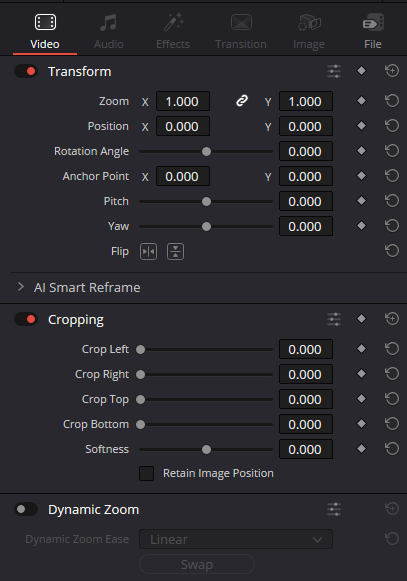
Select a number on the image or a panel name. Open the enlarged view for small controls.
Inspector: Transform controls position and scale; Cropping hides edges.
| Parameter | Purpose | Example |
|---|---|---|
| Zoom X / Y | Horizontal / vertical scale | 1.000 = base scale |
| Position X / Y | Move the image within the frame | 0 / 0 = original position |
| Rotation Angle | Rotate around the anchor | 0° = no rotation |
| Anchor Point | Transform pivot | Moving the anchor changes rotation behavior |
| Flip | Horizontal / vertical reflection | Change image orientation |
Cropping does not replace Zoom
In the illustrated Inspector's Cropping section, Crop Left/Right/Top/Bottom hide their respective edges. Softness softens the boundary. The source file is not rewritten; resetting the parameters reveals the cropped region again.
Use Zoom to enlarge a detail. Use Crop to remove an unwanted edge when combining shots. Cropping is particularly clear when another image lies beneath the clip on V1.
Composite, Stabilization, Speed Change and Scaling
Sections below Transform handle different operations. Composite Mode and Opacity determine blending with lower layers; Stabilization attempts to compensate for camera movement; Speed Change affects temporal playback; Retime and Scaling controls scaling and interpolation in the applicable context.
Do not adjust stabilization to solve a framing-position problem, or use Opacity to fix black edges caused by incorrect scaling. These controls serve different tasks.
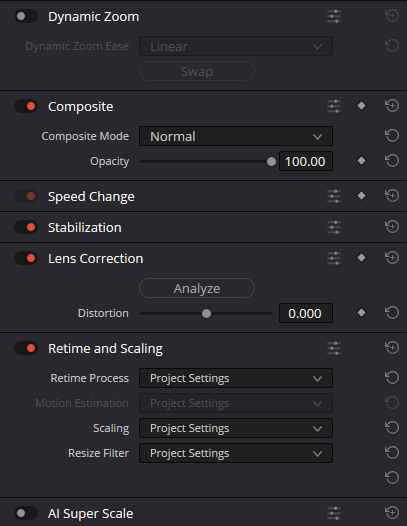
Additional Inspector sections: Composite, Speed Change, Stabilization, Retime and Scaling.
Adjust directly in the Viewer
On-screen overlay handles let you change the selected clip's position, scale and crop visually. The illustrated Viewer menu includes Transform, Crop, Dynamic Zoom, Open FX Overlay, Fusion Overlay and other modes.
Numeric Inspector fields make settings reproducible. Enter an exact value and inspect the Viewer. After experimenting, reset the relevant parameter instead of compensating for an error with another adjustment.
For a simple framing move, enable Dynamic Zoom in the Inspector and its matching Viewer overlay. The green rectangle sets starting framing; the red rectangle sets ending framing. Adjust them and play the whole clip. The automatic move spans the clip's duration; use ordinary Transform keyframes for several controlled positions.
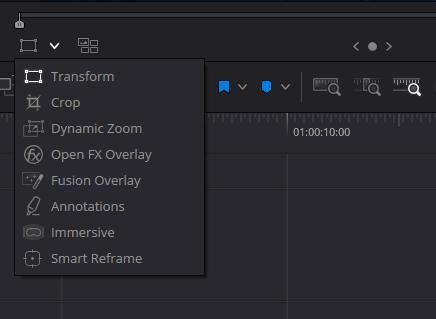
Viewer overlay menu: Transform, Crop, Dynamic Zoom and other modes.
- Select the timeline clip and open Inspector → Video.
- Change Zoom from 1.000 to 1.100 and inspect the frame edges.
- Move Position X slightly, then return it to 0.
- Try Crop Left and confirm Zoom stays unchanged.
- Use each parameter's reset control to restore the original image.
STEP-BY-STEP PRACTICE
A carefully framed cutaway above the main shot
- Place the main shot on V1 and a cutaway on V2.
- Select V2 and set Zoom/Position for the required composition.
- Check Opacity and Composite Mode if you need blending.
- Restore the settings and decide which framing reads better.
You distinguish scale, cropping and transparency instead of treating them as one generic framing adjustment.
Errors and diagnosis
The Inspector says Nothing to inspect.
Select a clip or effect on the timeline. An open Inspector without a selected object has no parameters to display.
The scale became distorted.
Check the Zoom X/Y link and restore matching values unless you deliberately need distortion.
Common questions
How do I scale video in Resolve?
Select the timeline clip, open Inspector → Video → Transform and change Zoom.
How does Crop differ from Zoom?
Crop hides edge regions; Zoom scales the entire image.