What you will learn
- Find the six Edit work areas on your own screen.
- Understand why the Source Viewer and Timeline Viewer show different things.
- Change the layout without losing media or edits.
Before you begin
- Open DaVinci Resolve 21 and switch to Edit. The illustrations use Studio 21.
- Create a practice project and import one video file with an audio track.
A map of the workspace
Edit is the main page for precise multitrack editing. Project media and effects are on the left, viewers above the timeline, and the Inspector and other panels on the right. Their arrangement can change with the screen width and the panels you enable.
The Media Pool stores references to source files, the Source Viewer displays the selected source, and the Timeline Viewer displays the edited sequence. The timeline controls time and layers; the Inspector changes the selected object's parameters.
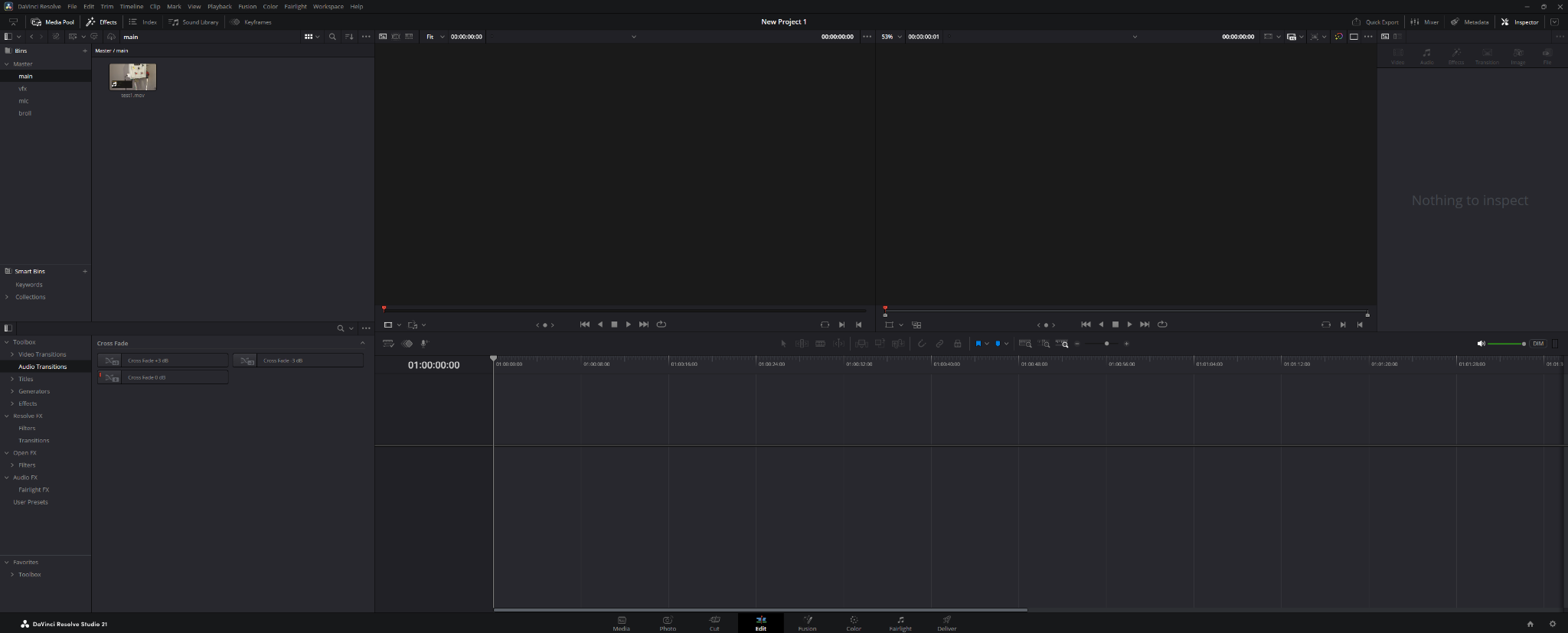
Select a number on the image or a panel name. Open the enlarged view for small controls.
The Edit page in Resolve Studio 21 before timeline assembly.
| Area | Purpose | When to use it |
|---|---|---|
| Media Pool | Project clips and bins | Find a source or create a selection |
| Source Viewer | Source playback and marking | Choose a range before adding it |
| Timeline Viewer | Final composition preview | Check edits and overlays |
| Timeline | Clips, cuts and tracks over time | Build the sequence |
| Inspector | Selected object parameters | Change scale, position and effects |
| Effects Library | Transitions, titles, effects and generators | Add an effect or title |
Manage panels without losing your place
The Media Pool, Effects and Inspector buttons at the top show or hide their panels. Hiding a panel does not delete media or effects; it changes only the workspace. On small screens, the available space may be redistributed automatically.
Avoid opening every panel at once. A wide timeline helps with assembly; the Media Pool and Source Viewer help you find footage; the Inspector and Timeline Viewer help you adjust the image.
- Show the Media Pool and select a clip.
- Double-click it to open it in the Source Viewer.
- Move the clip to an empty timeline and select it.
- Show the Inspector and notice that its settings now belong to the timeline clip.
- Hide and reopen the Effects Library; check that the edit has not changed.
Two viewers: source and result
Each viewer has its own time coordinates. In the Source Viewer you find source frames and optionally mark In and Out; in the Timeline Viewer you move the playhead through the current sequence. Opening a source does not insert it automatically.
The illustrated source already contains a graphic overlay baked into the video file. Create editable graphics separately, for example with Text+ or Fusion; text inside a finished image cannot be edited as a title.
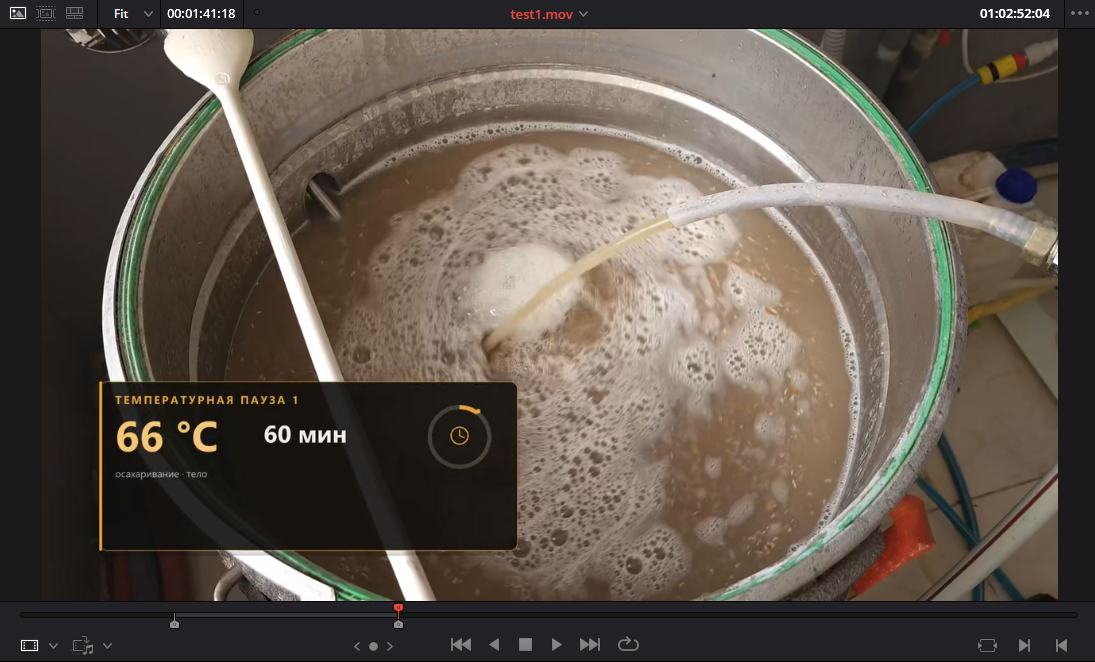
Source Viewer: source file, navigation bar, range marks and transport.
From import to the first assembly
A practical order is to organize the Media Pool, review and mark sources, then create a timeline, assemble, trim and finish. This reduces accidental errors and makes source frames easier to find again.
Before assembly, choose the practice timeline's resolution, aspect ratio and frame rate. Make a deliberate choice when Resolve offers to match the project to the first imported file. Numerical exercises here use 30 fps; some interface screenshots show 25 fps. Calculate durations using your own project's frame rate: 30 frames equal one second only at 30 fps.
- Check the practice timeline settings, then sort files into main, broll, mic and vfx bins.
- Find a usable take and mark its In/Out range.
- Place a short range on V1/A1 and check picture and sound synchronization.
- Add a cutaway to V2 and check that it appears above the main video.
- Save and reopen the project.
STEP-BY-STEP PRACTICE
A two-minute interface check
- Open a Media Pool file in the Source Viewer.
- Place a range on V1/A1.
- Select the clip, change Zoom in the Inspector, then undo.
- Hide the Inspector: the timeline image should not change.
You can distinguish source media, the edited sequence and an individual clip's settings.
Errors and diagnosis
I cannot see the Inspector or Effects Library.
Check the buttons at the top of Edit and the workspace size. Hiding a panel does not delete clips or effects.
The Source Viewer shows footage but the timeline is empty.
Previewing a source does not create an edit. Use Insert/Overwrite or drag the clip to the required track.
Common questions
How does Edit differ from Cut?
Cut focuses on fast assembly; Edit provides detailed multitrack control of cuts, titles and clip parameters.
Why has one viewer disappeared?
Resolve may redistribute space in a narrow layout. Check the viewer display mode and enabled panels.