What you will learn
- Mark an In/Out range without physically trimming the source.
- Distinguish source coordinates from sequence coordinates.
- Understand the Source Viewer's role in Insert and Overwrite.
Before you begin
- Import a clip at least 30 seconds long.
- Double-click the source in the Media Pool.
The Source Viewer shows the original, not the edit
The Source Viewer displays the selected filename at the top; its playback bar and timecode belong to that source. In and Out marks define a working range for a subsequent edit. They do not remove other frames from the media file.
Choose a meaningful entry point where the required action begins, then an exit that avoids cutting off a phrase or movement. The source range's length is independent of where you later place it in the finished sequence.
Click the Source Viewer before pressing I for In and O for Out in the standard DaVinci Resolve keyboard layout. The same keys mark the sequence when the timeline has focus. Check which viewer received the marks: accidental timeline In/Out points can change the location and length of the next edit.
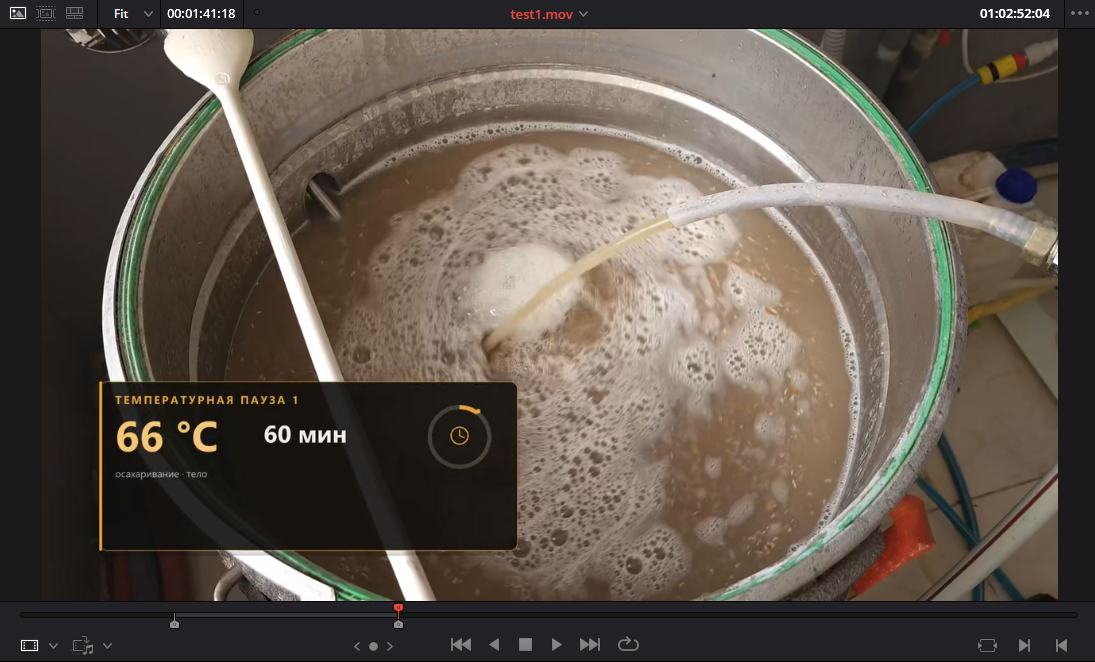
Source Viewer: source file, navigation bar, range marks and transport.
Two time scales
Source Viewer timecode belongs to the open clip; Timeline Viewer timecode belongs to the sequence playhead. A timeline may start at 01:00:00:00 without the source starting at one hour.
The same source frame can appear at several timeline positions while retaining its original source coordinate. Slip editing relies on this: change the source frames while keeping the timeline clip's position and duration.
Count both marked endpoint images. An In on frame 15 and an inclusive Out on frame 74 select 60 frames. The practice diagrams describe the right boundary as 75: [15, 75) contains frames 15–74. These are two ways to describe the same range, not a missing frame.
Transport, In/Out and preparing an edit
Transport and range controls sit below the Source Viewer. Depending on the source, use picture or sound to mark In/Out. If you accidentally mark too short a range, clear or adjust the marks before inserting it.
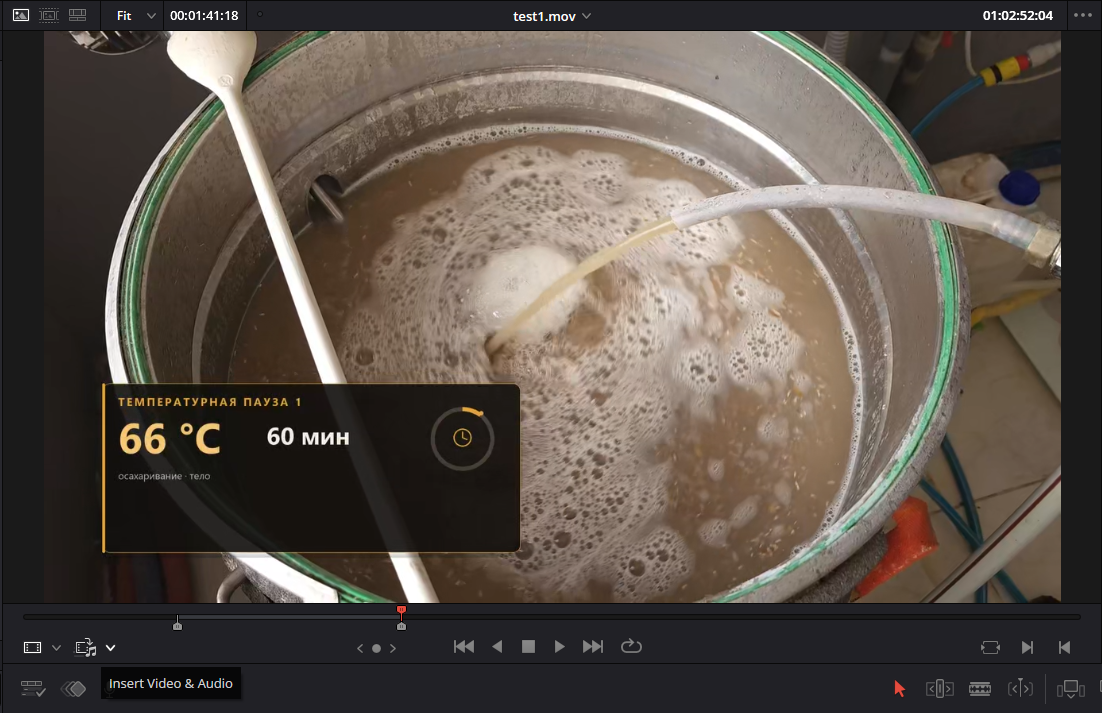
Source Viewer insertion controls showing Insert Video & Audio.
- Move the playhead to the required action's beginning and mark In.
- Find the end of the line or movement and mark Out.
- Play the selected range.
- Move to the timeline and choose where the range should begin.
- Use Insert or Overwrite and compare the resulting clip's length.
Viewer handles are different from timeline trimming
The Timeline Viewer provides Transform, Crop, Dynamic Zoom and other overlays where applicable to the selected object. These change the image's visual parameters, not edit-point positions.
Transform moves an image within the frame; it does not replace Slip or Slide. The illustrated overlay menu belongs to the Viewer and selected clip.
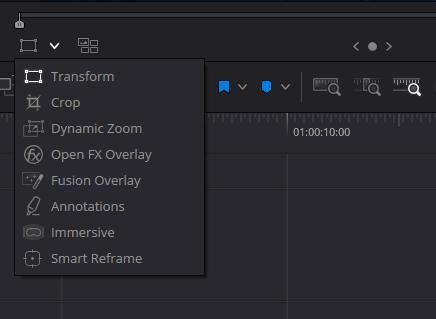
Viewer overlay menu: Transform, Crop, Dynamic Zoom and other modes.
STEP-BY-STEP PRACTICE
Prepare a meaningful excerpt
- Select 10–12 seconds from the source using In/Out.
- Place the timeline playhead in an empty area.
- Insert the selected range.
- Compare the source and result using timecode and duration.
The edit contains the selected range; the remaining source frames stay available.
Errors and diagnosis
Did In/Out shorten the file on disk?
No. In/Out define an edit range without rewriting the media file.
The two viewers show different images.
They are independent: one shows the source, the other the current sequence position.
Common questions
What are In and Out in Resolve?
In marks the beginning of a selected range; Out marks its end for an edit or playback operation.
Can I recover frames after editing with In/Out?
Yes. If the original source remains available and has not been overwritten, you can change the boundaries later.