What you will learn
- Distinguish source-clip markers from timeline markers.
- Build a clear note system for a long project.
- Check marker tasks without moving edit boundaries.
Before you begin
- Open a timeline with several scenes and at least one dialogue track.
- Choose three events you need to revisit during revisions.
A marker identifies an event without cutting video
A marker adds a time reference and information. It creates no clip cut and changes no duration. Keep editorial tasks separate from timeline structure: flag an audio issue, clarify graphics, plan a cutaway or identify a checkpoint.
Markers help both individual work and handoff. Consistent names become more valuable as a timeline grows. Do not leave dozens of unnamed marks whose purpose will be forgotten a week later.
Clip markers and timeline markers
A marker can belong to a source or a sequence position depending on the active Viewer and selected object. A source marker refers to specific media; a timeline note helps manage the overall sequence.
For a timeline marker, deselect clips, click the timeline, position the playhead and press M in the default DaVinci Resolve layout. Press M again on the mark to open its dialog. With a clip selected, the marker may belong to it. Check the icon's location and whether it moves with the clip.
The marker dialog: name, color and note
The illustrated Markers dialog includes Time, Duration, Name, Notes, Keyword and Color. Use Name for a short task, Notes for a verifiable action and Duration for an interval. Marker 5 does not explain a task; replace it with something such as Check title and specify the change in Notes.
Keep color meanings predictable. Using red for both completed and urgent makes the timeline confusing. Agree on a small set of meanings for team work instead of relying on one person's memory.
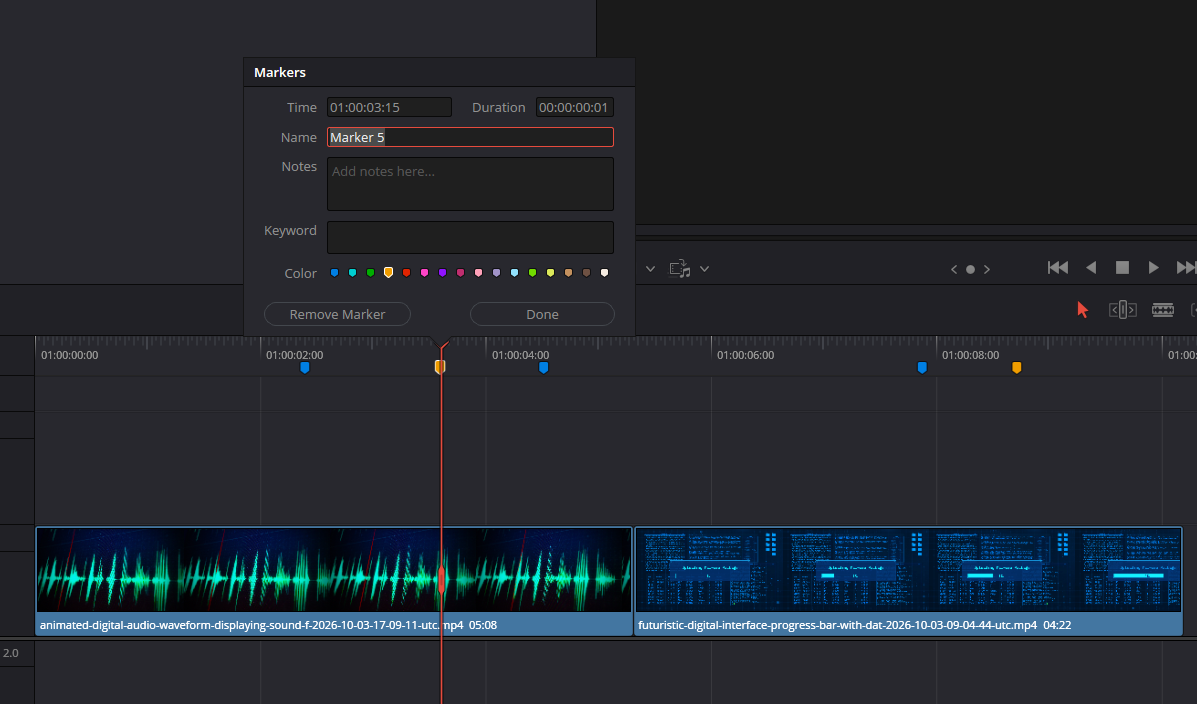
Select a number on the image or a panel name. Open the enlarged view for small controls.
Timeline marker dialog: Time, Duration, Name, Notes, Keyword and Color. Separate colored marks appear on the ruler.
| Color / category | Example name | Check |
|---|---|---|
| Blue · Audio | Dialogue cleanup, 02:13 | Microphone click and level |
| Yellow · Picture | Add a cutaway | Cover the V1 cut |
| Red · Blocker | Correct the title | Facts, spelling and safe margin |
| Green · Complete | Scene approved | Review again after export |
Markers during review
Collect unresolved markers before sharing a preview. A note such as make it better does not define the result. A useful note identifies time and action: at 02:13, microphone click; add a short fade.
After revisions, check effects on the whole timeline as well as nearby frames. Removing or moving a large section may require matching notes to the current edit again. Give important tasks searchable wording.
Open Index → Markers to review notes as a list and navigate by selecting a row. After a change, replay the marked range and update the note. The table's colors are an example team convention, not built-in Resolve category meanings.
A final handoff review
Review markers by category: blocking errors first, then sound, graphics, content and aesthetic issues. A marker does not replace checking the exported video; some problems appear only after encoding or at another resolution.
Save the project and retain only useful production markers if appropriate. A clean timeline can still contain marks, provided each helps the next stage.
STEP-BY-STEP PRACTICE
A marker plan for the finishing pass
- Add markers at three different timeline positions.
- Name them by task: audio, cutaway and title.
- Add short, verifiable notes and meaningful colors.
- Fix all three issues and reopen their notes.
- After final export, check the same timecodes in the delivered file.
You have a navigation system for finishing the project without altering edit points.
Errors and diagnosis
My marker is not on the timeline.
Check the active Viewer and selection. You may have added a source or clip marker instead of a sequence marker.
The note now points to another scene.
Match the marker to the current sequence again, especially after moving large sections.
Common questions
Do markers affect exported video?
Editorial markers themselves add no picture or sound unless a separate workflow uses them as control references.
Do I need different colors?
They are optional, but a consistent system helps distinguish tasks in a long edit.