What you will learn
- Distinguish a value curve from an object's path through the image.
- Understand how handles affect the rate of change.
- Compare pacing without moving endpoint keys.
Before you begin
- Create a clip of at least 91 frames at 30 fps. Set Transform Position X=0 at frame 0 and X=400 at 90. Remove other Position keys only in a practice copy.
- Open Keyframes → Curve Editor. Save a Linear version and a separate eased copy.
Graph axes: time and value
The horizontal axis shows animation time; the vertical axis shows the parameter value. A curve rising left to right does not necessarily move an object right: it might describe Zoom, Rotation, Opacity or another numeric parameter.
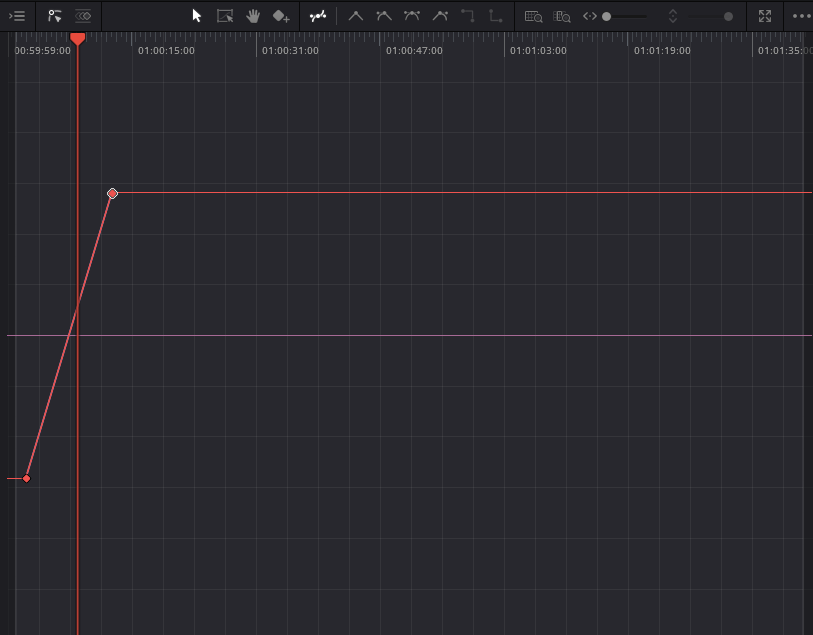
The selected red line in the screenshot rises straight and then becomes horizontal. The value changes evenly before the upper key and stays fixed after it, creating an abrupt stop at the corner. It illustrates a discontinuity, not a smooth Ease Out. The slope, rather than the height, indicates the rate of change.
Select a number on the image or a panel name. Open the enlarged view for small controls.
The straight rise becomes a horizontal hold. The corner at the upper key indicates an abrupt stop, not smooth Ease Out.
Linear speed versus a smooth start and stop
Linear interpolation gives equal value changes over equal time intervals, drawing a straight line. Ease In provides a slow start and acceleration; Ease Out slows the approach to the destination. Combining them softens both ends.
Do not automatically ease every movement. An indicator or graph may need constant speed; a title entrance may benefit from acceleration and settling. Choose pacing to suit the visual task and duration.
The table describes the character of the complete practice transition. In Resolve, select the required key or pair, apply interpolation and inspect the actual curve. A soft start requires a shallow initial slope; a soft stop requires a shallow final slope. A button label alone does not confirm the result.
| Shape | Start | End |
|---|---|---|
| Linear | Constant pace | Constant pace until stopping |
| Ease In | Slow acceleration | Faster approach |
| Ease Out | Fast start | Gentle deceleration |
| Ease In/Out | Acceleration | Deceleration |
Curve handles are not extra keyframes
Handles change the slope and shape between neighboring keys. Keep endpoint times and values fixed in this exercise; change only how the animation travels between them.
A steep segment can feel like a sudden burst; an excessively flat one can feel like a long pause followed by a rush. Judge the movement at one-quarter, halfway and three-quarters of the interval, not only the graph's appearance.
- Select the clip, open Keyframes and switch to Curve Editor.
- Show only the required parameter, such as Position X, and verify its name.
- Select the endpoint keys and compare Linear with eased interpolation.
- Adjust handles while preserving the keys' coordinates. Check values at one-quarter, halfway and three-quarters.
Tune a known frame interval
Use Position X from 0 to 400 over 90 frames at 30 fps. Save the Linear version, change the curve and compare frames 22, 45 and 68. This reveals where acceleration and deceleration occur.
The interactive lab uses a normalized cubic Bézier curve. Move its control handles and read the value at a selected frame. It explains easing mathematics; it does not promise an exact match to Resolve's internal curve algorithm.
Distinguish curve problems from keyframe problems
If the object ends in the wrong place, check the final key value. If it reaches the right place but jerks, check the curve and extra keys. If the whole move is too fast, increase key spacing first.
Check small titles carefully. Acceleration that seems subtle in a large Viewer can hinder reading in a vertical video. Readability takes priority over extreme motion.
Measure easing without moving the keys
For keys 0 → 0 and 90 → 400, Linear equals 400×frame/90. Frames 22, 45 and 68 therefore give approximately 97.778, 200 and 302.222. These verify the starting straight line; the eased version need not match them.
In the copy, flatten the first key's outgoing tangent and the last key's incoming tangent. Create an approximately symmetric, monotonic S-curve without overshoot beyond 0–400. A soft start stays nearer 0 early; a soft stop lies nearer 400 late than Linear. A symmetric curve's midpoint stays around 200, but arbitrary Bézier curves need not share that property.
| Frame | Linear X | What to check in the eased version |
|---|---|---|
| 0 | 0 | Same first key |
| 22 | ≈97,778 | Less progress with a soft start |
| 45 | 200 | Midpoint of the chosen curve |
| 68 | ≈302,222 | Closer to the finish with a soft stop |
| 90 | 400 | Same final key |
- Check keys at times 0/90 and values 0/400. Select Linear and record frames 22, 45 and 68.
- Duplicate the version, enable Bézier editing and adjust handles without moving the keys.
- Flatten the beginning and end, keeping the curve between 0 and 400.
- Compare frames 22, 45 and 68, then 0/1 and 89/90: soft endpoints change less per frame than the middle.
- Play both versions at real speed. If duration is wrong, deliberately change key times first and repeat the comparison.
STEP-BY-STEP PRACTICE
Compare movement styles
- Create two Position keys 90 frames apart.
- Keep Linear interpolation and record intermediate positions.
- Ease both ends without moving the keys.
- Compare frames 22, 45 and 68, then normal-speed playback.
- Restore Linear and choose the version that best suits the scene.
You can separate endpoint positions from acceleration behavior and judge the visible movement.
Errors and diagnosis
The curve looks smooth but the movement is abrupt.
Check neighboring keys, time spacing and graph scale. The abrupt segment may lie between closely spaced keys.
I accidentally changed the object's final position.
Restore the endpoint value and edit its handles without dragging the key itself.
Common questions
Do Ease In and Ease Out change animation duration?
Not if key times stay fixed. They redistribute movement within the same interval.
What does a value curve's slope show?
How quickly the parameter changes at that time. A steeper segment means a faster change.