After this lesson
- Distinguish sidecar, burned-in text and supported embedded captions.
- Check frames immediately before cues and after their ends.
- Align SRT timing with a full movie or exported excerpt.
Before starting
- Use a zero-based 12-second, 30 fps / 360-frame timeline.
- The kit includes subtitles/practice-12s.en.srt with cues at 1–3, 5–8 and 9–11 seconds. Import it into a practice copy and check the subtitle track.
- Use a player with explicit SRT loading; do not assume automatic filename matching.
Where the text lives
A sidecar is a separate timed-text file alongside video. A player/platform draws the letters; viewers may disable it or choose languages where supported. SRT does not guarantee exact preservation of timeline fonts, positioning or styling.
Burn into video writes text into picture pixels; it cannot be disabled later, and corrections need a new render. Embedded captions store data in a supported container under a particular standard. An SRT file does not imply it can be embedded in every MP4 or codec.
| Method | Delivered content | Main check |
|---|---|---|
| Separate SRT | Video and timed-text sidecar | Loads correctly; timing and language match |
| Burn-in | Video with letters in its pixels | Readability, margins and correct text |
| Embedded captions | Supported container and caption stream | Receiver support, encoding and display |
Enable export, then choose format
The screenshot has Export Subtitle off, with As a separate file and IMSC1 inactive. It locates the controls but is not a completed SRT configuration. Renaming IMSC output .srt does not convert it.
For SRT, enable subtitles, choose As a separate file, select available SRT in Export As and choose the intended track. Options vary with output mode. Verify language and current text before queuing, rather than an old or empty track.
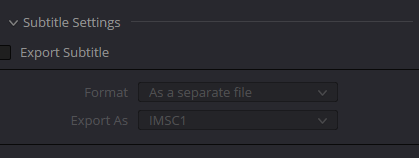
This is not a configured SRT export. Enable the available SRT option separately and verify the result in a player.
- Open Subtitle Settings and enable Export Subtitle.
- Choose As a separate file and SRT for the practice sidecar.
- Select the intended subtitle track and check all three cues.
- Give the video a unique name and verify related output files.
SRT, WebVTT and IMSC have different contracts
Choose timed-text format for the receiver. SRT carries cues/timestamps; WebVTT serves web text tracks; IMSC constrains TTML to interoperable profiles. Arbitrary XML is not IMSC, and an extension change is not conversion.
D12's IMSC1 label does not establish IMSC 1.2 support. Agree version/profile, use its validator and check display. This local inspector parses SRT, not TTML/IMSC or WebVTT conformance.
| Format | Before handoff |
|---|---|
| SRT | Cue structure, timing, encoding and player compatibility |
| WebVTT | WebVTT syntax, supported cue settings and web-player display |
| IMSC / TTML | Required version/profile, validator and agreed text/image representation |
Cue end is a boundary, not another included frame
At 30 fps, the 1–3 second cue occupies frames 30–89; frame 90 is already outside it. The 5–8 cue occupies 150–239, and 9–11 occupies 270–329. The lab uses [start,end) consistently.
Check four positions: preceding frame, first frame, final included frame and following frame. For cue one: 29 has no text, 30 does, 89 still does, 90 does not. This reveals one-frame errors missed at playback speed.
| Cue | SRT times | Frames with text |
|---|---|---|
| 1 | 00:00:01,000 → 00:00:03,000 | 30…89 |
| 2 | 00:00:05,000 → 00:00:08,000 | 150…239 |
| 3 | 00:00:09,000 → 00:00:11,000 | 270…329 |
An excerpt changes the file's origin
A 2–6 second export lasts four seconds and begins at source frame 60. Full-version SRT does not automatically fit. Cue one overlaps source 2–3 s, becoming local 0–1 s; cue two overlaps source 5–6 s, becoming local 3–4 s.
Cue three is outside that excerpt. Inspect exported text for cropped crossing cues and the correct time origin. Container start timecode and player-relative time can differ. Fixing one timecode tag does not prove SRT timing is correct.
Verify the two outputs differently
For a sidecar, open the output and explicitly load SRT. Check characters, wrapping, all three intervals and the ability to disable text. Inspect UTF-8 text for ordered numbers, millisecond timestamps and nonempty cues. The lab downloads a real SRT; it does not encode video.
For burn-in, open the file without external subtitle tracks. Text must remain at intended times. Inspect native-size and platform-scaled readability, margins, contrast and duplicate captions. Adding a sidecar to burned-in video may draw text twice; use distinct delivery names.
Load your SRT into the inspector and compare cue count/order/ranges with duration. Reversed or zero-length cues need correction. Overlap requires review because it can be intentional. Structural checks do not judge translation, speech sync or visual readability.
STEP-BY-STEP PRACTICE
Deliver one movie in two ways
- Verify three cues at 1–3, 5–8 and 9–11 seconds on the 360-frame timeline.
- Export clean video with a separate SRT under a new name.
- Load the sidecar and check frames 29/30/89/90, then the remaining boundaries.
- Create a separate Burn into video job with another name.
- Verify the second version displays readable text without loading SRT.
- Record delivery method, language, time origin and boundary checks in QC.
The package clearly identifies where text lives and how to display it. Cues match the delivered file, beyond the original timeline.
Errors and diagnosis
“I selected SRT but no subtitle file appeared.”
Check Export Subtitle, As a separate file, Export As and track selection. D12 shows export off and inactive IMSC1.
“Cues shifted after exporting an excerpt.”
Check In/Out, file origin and sidecar-relative times. The 2–6 s test should have local cue overlaps at 0–1 and 3–4 s.
“Subtitles appear twice.”
Check whether a sidecar overlays already burned-in text. Separate the versions and disable the extra player track.
Frequently asked questions
Will SRT preserve my title styling?
Not necessarily. SRT primarily carries text/time; appearance depends on player/platform. Consider burn-in for fixed appearance, with its limitations.
Can a letter be corrected after burn-in?
It is already part of the pixels. Correct the project and render a new version.
Must captions be embedded in every MP4?
No. Support depends on container, standard and receiver. If a sidecar is agreed, deliver the verified separate file.
Sources and applicability
Check available settings against format, codec, encoder and your Resolve installation. Screenshots depict one configuration; diagrams explain individual operations.