After this lesson
- Distinguish a job preset from an encoder Preset.
- Explain multipass, lookahead and adaptive quantisation without assuming guaranteed improvement.
- Create a repeatable quality/time comparison.
Before starting
- Prepare the 12-second, 1920×1080 / 30 fps test; select one supported codec and encoder.
- Record platform, Resolve version/edition, GPU and baseline settings. If a field is unavailable, compare an available pair of settings.
Preset changes encoder effort
A preset at the top of Render Settings saves a delivery configuration. The encoder's Preset field instead balances speed and compression efficiency. The screenshot selects Faster from Very Fast through Very Slow.
Slower modes may search motion representation and allocation more thoroughly. Results depend on material, codec and implementation: fewer artefacts at equal bitrate or a different size at constant quality are possible, not guaranteed. Do not directly equate NVIDIA's P1–P7 numbers with Resolve menu labels.
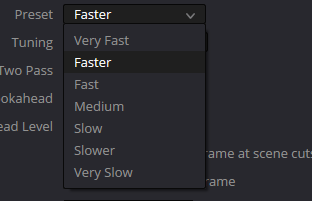
This Preset controls encoder effort/speed, distinct from the full-job preset above Render Settings. Faster is selected.
- Save a baseline job identifying the encoder.
- Duplicate it and change only the encoder Preset.
- Keep range, fps, profile and Rate Control unchanged.
- Compare render time, actual size and motion in the files.
Choose Tuning for the purpose
High Quality, Low Latency and similar options prioritise different implementation goals. Encoder latency does not equal delayed playback of an already rendered file. For live delivery, future-frame buffering and reordering can be critical.
High Quality does not override bitrate, source depth or GPU limits. Low latency can remove useful compression tools when chosen simply to accelerate offline rendering. Define the use: finished file, interactive stream or another specific task.
Two Pass: Quarter versus Full
Two Pass offers Disable, Quarter and Full. NVENC describes multipass within frame processing: Quarter analyses reduced resolution before full-resolution encoding; Full performs both passes at full resolution. This differs from two sequential software-encoder passes over the entire timeline.
Additional analysis estimates complexity and data allocation at a resource/time cost. Benefits depend on Rate Control, material and GPU. Other encoders may implement similarly named fields differently. D02 uses Auto, which does not establish a particular hardware path.
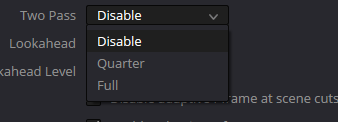
These labels describe this encoder's multipass mode; do not automatically equate them with two whole-file software-encoder passes.
| NVENC mode | Meaning | Check |
|---|---|---|
| Disable | One frame-processing pass | Baseline speed and artefacts |
| Quarter | Quarter-resolution analysis + full pass | Useful improvement on this material? |
| Full | Both passes at full resolution | Is the extra resource cost justified? |
Lookahead analyses future frames
Lookahead considers later frames when allocating bits and structuring the stream. At 30 fps, 16 frames cover about 0.533 seconds of source time. This describes the analysis window, not guaranteed playback delay in an exported file.
A larger window needs buffers and computation; with high resolution, effects and other jobs it can reduce speed or increase memory pressure. Adaptive I/B options also depend on implementation. Change one control at a time to identify causes.
- Record the encoder's available baseline depth.
- Change only Lookahead in a separate test.
- Compare scene changes and difficult motion at equal target bitrate.
- Assess the improvement against time and resources.
AQ redistributes compression precision
Adaptive Quantization redistributes quantisation spatially or temporally to spend data where it helps perception. It does not increase resolution, restore previously compressed detail or replace noise reduction.
Spatial AQ and Temporal AQ are distinct. NVIDIA notes that perceived spatial-AQ improvement can lower formal metrics such as PSNR. The pictured AQ Strength 8 is one configuration, not a required value for every camera, scene or GPU.
Multi Encode is different from Two Pass
Multi Encode and Two Pass are separate controls. Do not describe the former as another quality pass or add them into a timeline-pass count. Its exact behaviour depends on encoder and hardware configuration.
NVIDIA's Multi-NVENC Split Frame Encoding, for example, encodes parts of a frame in parallel on multiple NVENC blocks for supported HEVC/AV1 modes. It has its own speed/quality tradeoff and is separate from multipass. A Multi Encode label with Auto alone does not prove that mechanism is active.
One parameter per test
Record source range, codec, encoder, profile, Rate Control, target bitrate/quality, changed parameter, render time, size and observations. With VBR, average rates may differ; record that instead of attributing every difference to Preset.
Inspect movement at equal display scale. A slower render is not itself an improvement; identify a useful visible or measurable gain. Keep the simpler working configuration when extra settings provide no benefit.
| Test | Change from baseline | Observation |
|---|---|---|
| A | Baseline settings | Time, size, difficult frame |
| B | Preset only | Detail and motion under the same constraint |
| C | Two Pass only, if available | Benefit of additional analysis |
| D | Lookahead or AQ only | Specific area improved or degraded |
STEP-BY-STEP PRACTICE
Compare three settings without mixing causes
- Select a 12-second range and one available encoder; record baseline settings.
- Create A with the baseline Preset and B with a slower one; retain Rate Control and target bitrate.
- Create C using the baseline Preset and change only Two Pass or Lookahead.
- Measure time, size and video bitrate; inspect motion, gradients and text.
- Record which variant benefits this task and save a separate job preset.
Three comparable files and a cause/result table support the choice, rather than setting every control to maximum.
Errors and diagnosis
Very Slow was selected without testing and rendering takes much longer.
Compare a short difficult excerpt with Faster/Medium while fixing other settings. Keep the extra cost only for useful improvement.
Two Pass Full is described as two complete timeline renders.
The NVENC mode described here operates per frame. Consult other implementations' documentation instead of transferring the name mechanically.
Multi Encode is treated as an extra quality pass.
It is separate. Identify the actual encoder/hardware support and distinguish parallelism from multipass.
Frequently asked questions
Should AQ and maximum Lookahead always be enabled?
No. Establish availability, purpose and baseline, then evaluate one variable on difficult footage.
Can identical Preset numbers across encoders be compared?
Without explicit documentation they do not imply identical algorithms. Compare outputs under agreed constraints and record the implementation.
Sources and applicability
Check available settings against format, codec, encoder and your Resolve installation. Screenshots depict one configuration; diagrams explain individual operations.