After this lesson
- Distinguish quantisation, target quality and bitrate control.
- Predict which modes cannot guarantee exact size.
- Compare static and moving portions under the same constraint.
Before starting
- Choose one available codec/encoder and the 12-second test.
- Save baseline values. The screenshot's options belong to one codec/encoder; another may label similar controls differently. Auto does not establish the hardware path.
Reading the Rate Control menu
The menu offers Constant QP, Variable Bitrate (Quality), Variable Bitrate (Target Kbps) and Constant Bitrate. They prioritise quantisation loss, target quality or data budget differently. None creates missing source detail.
Do not transfer QP numbers or mode labels between codecs without checking. Even within a family, presets, AQ, rate limits and implementation affect behaviour. NVENC documentation distinguishes const QP, VBR, CBR and target quality.
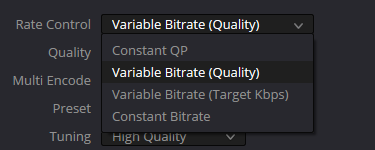
VBR Quality is selected. Quality goals, target bitrate and Constant QP serve different purposes; their scales are not directly comparable.
| Mode | You specify | Remains variable |
|---|---|---|
| Constant QP | Quantisation parameters | Bitrate and size with scene complexity |
| VBR Quality | Quality target | Bitrate, and possibly quality under rate limits |
| VBR Target Kbps | Target bitrate | Data allocation and visible loss |
| CBR | Constant-rate target | Per-frame budget and scene quality |
Constant QP does not mean constant size or perceptual quality
With other settings equal, lower quantisation generally retains more detail and requires more data. One QP does not produce equal subjective quality for a static wall, noisy water and fine text. Motion, grain and complex edges change the information to encode.
Constant QP is not “make exactly 20 MB”. Avoid a universal QP range across codecs/backends. For predictable size or channel bandwidth, use suitable rate control and measure the output.
- Test one available QP and record size.
- Change QP moderately within the encoder's valid range.
- Compare detail, gradients and actual bitrate.
- Do not generalise that QP to another codec.
Best is an encoder-specific target, not lossless
The pictured VBR Quality scale has Best/High/Medium/Low/Least. It does not reveal numeric QP or promise size. Best does not prove losslessness or override source, profile or encoder limits.
NVENC target quality allows bitrate to vary. An overly tight maximum can prevent reaching the quality target. Inspect difficult footage even with Best selected; that label cannot predict exact size.
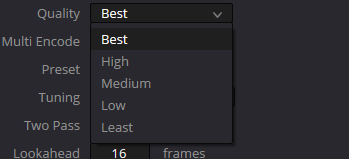
These are encoder-specific categories, not a bitrate or size guarantee. Measure the output.
VBR and CBR allocate a limited budget
VBR distributes data according to complexity and its target. A target bitrate guides the average; maximum/ buffer controls add constraints when available. Simple frames may need less and complex frames more.
CBR suits channel or receiver requirements for controlled bitrate. It does not mean identical bytes per frame: I/P/B frames differ, and buffers or padding affect behaviour. CBR is not a mandatory quality upgrade over VBR for file viewing.
Change one thing per experiment
Compare two versions of the same range, for example 600 and 3000 Kb/s in available VBR Target mode. Keep codec, encoder, preset, resolution, fps and audio unchanged. A fivefold video-bitrate target does not guarantee fivefold total file size.
The supplied low/high H.264 samples record targets in filenames and actual properties in the manifest. They come from a separate technical process. Verify your Resolve setup using your own exports, not an assumed hidden sample preset.
- Fix common settings and an identical short range.
- Create two bitrate versions with different names.
- Read average video bitrate and file size.
- Compare identical frames and motion at the same display scale.
- Save that comparison before trying another Rate Control target.
Choose for the constraint
For perceptual detail with flexible size, test a quality-oriented mode. For a file-size or bandwidth ceiling, calculate bitrate with room for audio/container overhead. Further processing may call for an intermediate codec with different compression controls.
State a concrete result: under these settings text survives, motion is acceptable and the file fits the budget. VBR/CBR labels alone do not prove quality, compatibility or maximum-size compliance.
STEP-BY-STEP PRACTICE
Connect the mode to a measurable constraint
- Prioritise quality, size or channel requirements.
- Fix codec/encoder and source range.
- Export two variants, changing only the studied mode/value.
- Measure size/bitrate and inspect difficult sections.
- Keep a variant meeting the goal without unacceptable visible defects.
You explain size changes and distinguish Constant QP, VBR Quality and target bitrate.
Errors and diagnosis
“Constant QP should give a constant bitrate.”
It controls quantisation; picture complexity changes data requirements.
“Best means lossless.”
No. It is one encoder's quality-target category. Inspect the picture and actual stream.
“CBR makes every frame the same size.”
Rate control considers buffering and frame structure; individual frame sizes can vary.
Frequently asked questions
Can I compare H.264 and AV1 QP directly?
No. Scales and implementations differ. Compare results and specify codec/encoder.
Why is average bitrate below the entered value?
Mode, test complexity and encoder limits can cause this. Check whether you set a target, maximum or quality goal.
Sources and applicability
Check available settings against format, codec, encoder and your Resolve installation. Screenshots depict one configuration; diagrams explain individual operations.