After this lesson
- Distinguish codec profile from gamma, signal levels and bitrate.
- Explain 8/10-bit and 4:2:0/4:2:2/4:4:4 differences.
- Verify the stream's pixel format and compatibility.
Before starting
- Use a test chart with gradients and thin coloured edges.
- Fix the codec and encoder: identical profile words across codec families do not guarantee an identical format.
A profile defines a codec's feature set
Encoding Profile defines or limits stream features a decoder must understand. It is not a poor/medium/best scale or an encoder speed preset. H.264 Main and HEVC Main belong to different codecs and mean different things.
The HEVC menu shows Main, Main10 and 4:2:2/4:4:4 variants, including 10-bit. Typical HEVC Main is 8-bit 4:2:0; Main10 supports 10-bit 4:2:0. Check other combinations against the encoder and recipient, beyond the existence of a profile.
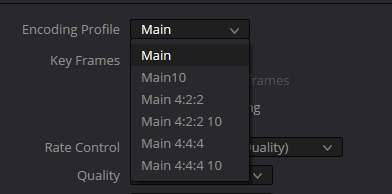
H.265 profiles combine depth and chroma sampling. Selecting a profile and playing it at the recipient are separate checks.
Bit depth: representable values per component
8-bit offers 256 code values; 10-bit offers 1024. These are component values, not nits, total image colours or a guarantee against gradient banding. Source, processing, codec quantisation and display also matter.
Putting an existing 8-bit image into a 10-bit file does not restore earlier losses. A deeper output can reduce additional rounding after processing. Verify the stream: Main10 should be supported by corresponding pixel-format evidence and decoding.
| Property | 8 bit | 10 bit |
|---|---|---|
| Code values per component | 256 | 1024 |
| What the number does not imply | Does not guarantee a small file | Does not guarantee HDR |
| Check | Banding/quantisation and source | Actual output depth and compatibility |
4:2:0, 4:2:2 and 4:4:4 describe colour resolution
YCbCr can store luma and colour-difference components at different spatial resolutions. In a simplified 2×2 block, 4:4:4 stores four samples of each component; 4:2:2 reduces horizontal chroma resolution, and 4:2:0 reduces both axes. Exact chroma sample positions depend on format.
Small coloured text and sharp red/blue boundaries make this visible. Web compatibility often calls for 4:2:0; graphics or further processing may need 4:2:2/4:4:4. Choosing 4:4:4 cannot recover chroma already lost in a 4:2:0 source.
| Scheme | Simplified Y/Cb/Cr samples per 2×2 block | Inspect |
|---|---|---|
| 4:4:4 | 4 / 4 / 4 | Thin coloured edges |
| 4:2:2 | 4 / 2 / 2 | Horizontal chroma detail |
| 4:2:0 | 4 / 1 / 1 | Chroma on both axes |
Four independent properties
Bit depth does not mean HDR: 10-bit Rec.709 can be SDR. Full/Video Data Levels specify code range, not bit count. Color Space/Gamma Tags describe interpretation; they do not turn Main into Main10 or change chroma sampling.
Codec Level is another property governing limits such as dimensions, frame rate and decoder resources. Do not confuse it with Data Levels. Record the full set of delivery properties instead of “maximum quality”.
- Record codec and profile.
- Add bit depth and chroma format.
- Separately record fps/resolution, range and colour tags.
- Verify the receiving system accepts the entire combination.
Practice: gradients and coloured text
Export two versions with identical range/dimensions, changing the studied property as independently as the encoder permits. Inspect banding and coloured-text edges. If codec, bitrate and profile also change, conclusions concern the whole configuration, not bit depth alone.
The H.264 kit source already has limitations. For a stricter 8/10-bit comparison, generate an additional gradient in the project rather than relying solely on a low-quality MP4 reference. Browser models illustrate value distribution, not a codec or display simulation.
- Check actual source depth/chroma.
- Export available variants and record every changed field.
- Read profile/pixel format from the outputs.
- Compare gradients and coloured edges under identical display conditions.
- Open the result with the target decoder.
STEP-BY-STEP PRACTICE
Document colour sampling
- Select codec and an available profile.
- Record depth/chroma separately from range and colour tags.
- Export a short test and inspect stream properties.
- Compare difficult edges and gradients with the source.
- Verify compatibility with the next processing stage.
You understand what a profile preserves or limits, without treating 10-bit/4:4:4 as automatic source-quality restoration.
Errors and diagnosis
“Main10 automatically converted SDR to HDR.”
No. HDR needs the appropriate colour transform, signal and metadata. Bit depth is a separate condition.
“I chose 4:4:4 but coloured text is still blurred.”
Check source chroma, scaling and compression. A switch cannot restore previously lost colour resolution.
“The player shows black or cannot open the file.”
Check the exact profile, bit depth and chroma, beyond support for the H.265 family.
Frequently asked questions
Are all H.264 files 8-bit?
No. The family has several profiles. Ordinary H.264 High and higher-depth variants differ; encoder/decoder support matters.
Should I always choose 4:4:4?
Choose for the downstream workflow and specification. Fuller chroma can increase requirements and reduce compatibility without improving a limited source.
Sources and applicability
Check available settings against format, codec, encoder and your Resolve installation. Screenshots depict one configuration; diagrams explain individual operations.