After this lesson
- Choose a codec for viewing and compatibility requirements.
- Check OS, edition and hardware-encoder constraints.
- Compare two versions on identical footage without assuming fixed size savings.
Before starting
- Prepare the 12-second test and your system details.
- Open the current Supported Codec List. No single codec is mandatory for every platform or task.
Three families for different circumstances
H.264 often suits widely compatible SDR viewing. HEVC/AV1 can use bitrate more efficiently with suitable material and encoders, but require compatible decoding. “Same quality at half the bitrate” is not a universal promise across footage, encoders and modes.
First establish the target: browser, television, client system, hosting service or edit workstation. A compact file is useless if its exact profile or bit depth cannot play there.
| Codec | Useful checks before exporting |
|---|---|
| H.264 | Profile, pixel format and recipient decoder |
| H.265/HEVC | Main/Main10, chroma, hardware and software support |
| AV1 | Resolve Encode availability and target decoding |
What the H.265 Master screenshot actually shows
The screenshot selects H.265 Master, QuickTime, H.265 and Auto, with Main, Variable Bitrate (Quality), Best, Faster and Two Pass Disable. These are observed settings. Master does not mean lossless; Auto does not prove an explicitly selected NVIDIA encoder.
The panel also shows 24 fps and inherited timeline resolution. Verify your own 30 fps project. Do not treat Main, Best, AQ Strength 8 and Lookahead 16 as a mandatory recipe: they control different things and may be unavailable elsewhere.
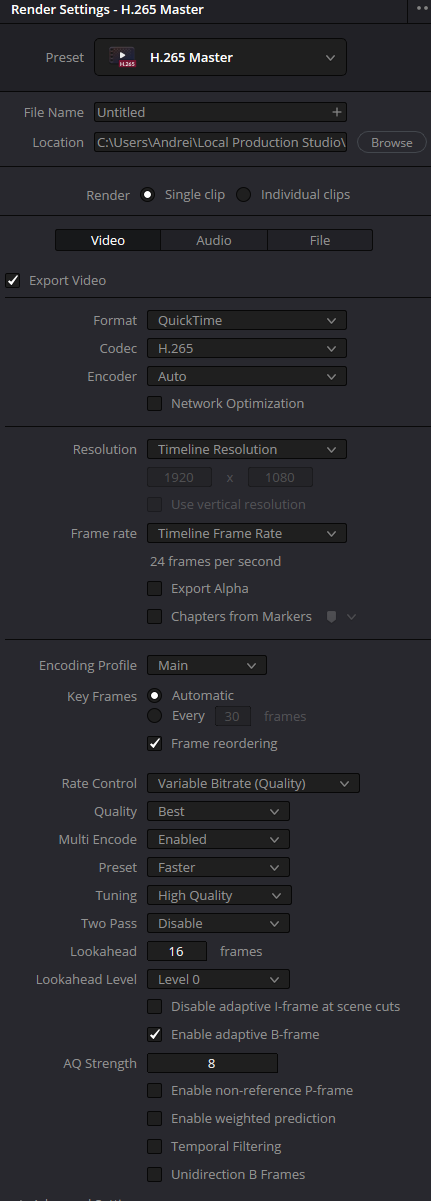
H.265 Master preset with QuickTime, Auto and a 24 fps timeline. Its name does not establish archival-master quality. Options depend on encoder/system.
An availability matrix instead of a universal button
Codec List 21.1 has separate macOS, Windows and Rocky Linux tables. For example, macOS lists AV1 decoding without encoding; Windows lists GPU-accelerated AV1 encoding, while Linux specifies NVIDIA. Hardware AV1 decoding alone therefore does not guarantee an AV1 render.
The same edition lists Studio/NVIDIA conditions for Linux H.264/H.265 output. Windows profile and acceleration availability differs from macOS. Read your row and footnotes; retest after Resolve/driver updates. This is versioned documentation, not a permanent property of an OS name.
Example from Codec List 21.1: macOS AV1 has Decode and a dash for Encode; Windows hardware Encode depends on GPU; Rocky Linux specifies NVIDIA. This describes one edition, not a permanent ban or automatic computer inspection.
- Find your platform in Supported Codec List.
- Find codec/container; read Encode, profile and footnotes.
- Check the GPU model's hardware features in manufacturer documentation.
- Inspect the Encoder and fields actually available in Resolve.
- Confirm with a short export and recipient playback.
Compare with fixed conditions
Keep source range, 1920×1080, 30 fps, colour path and sound identical. Compare two available codecs either at similar bitrate limits or similar visible detail. Those are different experiments: equal bitrate does not guarantee equal quality, and equal Quality labels do not guarantee equal bitrate.
Inspect motion, gradients, fine text and coloured edges. Record size, average video bitrate, render time and visible problems. The supplied 600/3000 kb/s H.264 samples teach compression; they do not compare HEVC/AV1 or test NVENC in your Resolve.
- Start with an available H.264 configuration and record it.
- Create a HEVC or AV1 version if your system supports it.
- Compare frames 0/180/359 and the complete motion.
- Open both in the target player; check sound and seeking.
- Keep conclusions with settings and avoid generalising to every device.
Why a delivery codec is not a project archive
H.264/HEVC/AV1 commonly serve compressed delivery. Editing and recompressing an already compressed version can accumulate losses. Retain project, sources, graphics, audio and required resources separately for future revisions.
Choose a processing master to an agreed specification: suitable ProRes/DNxHR or another format, required bit depth/chroma and PCM audio. A preset named Master does not establish suitability for repeated processing or project restoration.
STEP-BY-STEP PRACTICE
Choose by verified compatibility
- Record the recipient and required properties.
- Check Encode for your OS, Resolve and GPU.
- Produce two short versions under fixed conditions.
- Compare properties, picture, sound and target playback.
- Save a working preset named for its encoder and purpose.
Required quality and actual compatibility support your codec choice, beyond a label or someone else's menu.
Errors and diagnosis
“I have AV1 decoding but no export option.”
Decode and Encode are separate. Check application, platform and GPU encoding support.
“HEVC Master must be lossless.”
The preset name does not mean lossless. Inspect profile and compression mode.
“It works for me but not for the client.”
Check the exact codec/profile/bit depth on the target device, not just the container.
Frequently asked questions
Should I always choose the newest codec?
No. Match the task and receiving system, then verify quality and size.
Can one test prove a GPU advantage?
Only for the recorded configuration and footage. Drivers, presets, bitrate and effects change the comparison.
Sources and applicability
Check available settings against format, codec, encoder and your Resolve installation. Screenshots depict one configuration; diagrams explain individual operations.