After this lesson
- Separate dimensions, frame rate and playback speed.
- Explain why 30 (3:2) is not ordinary 30 fps selection.
- Check 1080p/720p frame counts and composition.
Before starting
- Baseline: 1920×1080, 30 fps, 360 frames, 100% clip speed.
- Give resolution variants different names; keep timeline and range identical.
Dimensions, timebase and speed
Resolution sets output pixels. Frame rate describes the file's timebase. Clip speed determines which source event appears at an edit frame. These are different operations: Full Data Levels does not change fps, and upscaling 1080p to 4K does not create recorded detail.
Start with Timeline Resolution and Timeline Frame Rate, then check their numeric values. Inheritance is convenient, but also inherits a wrongly configured timeline.
| Setting | Reference value | Affects |
|---|---|---|
| Resolution | 1920×1080 | Image dimensions |
| Frame rate | 30 fps | Timebase |
| Duration | 360 frames / 12 s | Selected range duration |
| Clip speed | 100% | Source-to-timeline time correspondence |
What 30 (3:2) means
The screenshot comes from a 24 fps project and offers Timeline Frame Rate, 23.976, 24 and 30 (3:2). The last option applies 3:2 pulldown from the corresponding 24 fps base; it is not a universal ordinary 30 fps export button.
The manual separately describes 23.98 → 29.97 and 24 → 30 pulldown. Some Frame rate options change metadata or a specialised output mode. Deliver is not an unrestricted frame-rate converter; inspect results. Set the practice project's 30 fps base before editing.
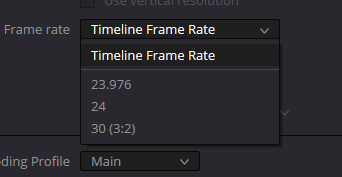
The special 30 (3:2) option is not ordinary 30 fps selection. The practice timeline is configured to exactly 30 fps before editing.
Inspect mixed sources in motion
Single clip conforms mixed-rate sources to the output timebase using the selected Retime Process. Repetition, blending and generated intermediate frames affect movement differently. Optical Flow can reduce judder but distort edges and intersections.
For another frame rate, prepare a separate edit version with deliberate settings and check duration, cuts, keyframes and sound. Changing a number in Deliver does not prove preserved timing or motion.
- Record every test source's frame rate.
- Check timeline rate and clip speed.
- Inspect difficult motion frame by frame.
- After conversion, compare duration and audio markers at both ends.
1080p and 720p: one edit, two sizes
Export 1280×720 from the same 1920×1080 timeline. Both are 16:9: composition should stay consistent while fine detail decreases. At unchanged 30 fps and range, the video still contains 360 frames.
A vertical version is a separate composition task. Selecting 1080×1920 does not position people, titles or subtitles correctly by itself. Check fit/fill, Pixel Aspect Ratio and edges; prepare a dedicated version for important vertical work.
- Export 1920×1080, 30 fps, Entire Timeline.
- For the second job, change only output resolution to 1280×720 and the name.
- Verify 360 frames, no stretching and complete composition.
- Compare fine text and coloured edges at each file's native display size.
Confirm properties after encoding
Inspect actual width/height, frame rate and decodable frame count. 30/1 differs from 30000/1001; a rounded “30” display can hide this. The kit requires exactly 30/1.
Check counters 0/180/359 and smooth motion. Unexpected repeated/skipped counters may indicate time conversion rather than bitrate. Accept spatial resolution and temporal cadence separately.
Distinguish exact 30/1 from 30000/1001 in analysis reports. Average fps alone does not establish constant frame spacing; VFR needs timestamp inspection. Missing frame counts must not be replaced with zero or rounded duration.
STEP-BY-STEP PRACTICE
Two resolutions with unchanged timing
- Confirm a 1080p30 timeline and 360 frames.
- Create 1080p and 720p jobs with the same range.
- Verify actual 30/1 fps and 360 frames in both.
- Compare composition, text and motion.
- Test another fps separately and recheck time correspondence.
Dimensions differ while events and duration agree; pulldown options are distinguished from an ordinary 30 fps timebase.
Errors and diagnosis
“I chose 30 (3:2) because I wanted normal 30 fps.”
This is specialised output from a 24 fps base. Check your timeline and conversion requirement.
“Exporting 4K added detail to my 1080p source.”
More output pixels do not create camera-recorded detail. Inspect scaling and source footage.
“The vertical export cropped my title.”
Check the dedicated vertical composition and safe margins, beyond Deliver Width/Height.
Frequently asked questions
Why are there few Frame rate options?
The list depends on project timebase and output format. It is not always an arbitrary list of all rates.
Can 30 fps and 29.97 fps be treated as identical?
No. Their timebases differ. Verify exact rate and duration, especially for sync and long programmes.
Sources and applicability
Check available settings against format, codec, encoder and your Resolve installation. Screenshots depict one configuration; diagrams explain individual operations.