After this lesson
- Distinguish three independent Deliver choices.
- Explain why MOV or MP4 does not determine quality.
- Check Encode and Decode separately.
Before starting
- Open Custom Export and the 12-second / 30 fps practice timeline.
- Record Resolve version, Free/Studio edition, OS and GPU. Another computer may offer different options.
Format: packaging or an image sequence
MP4, QuickTime/MOV, MXF and MKV organise streams and metadata. They support different combinations of picture, audio, timecode and captions. Quality depends on source, processing, codec, profile and encoding settings, not the extension.
The pictured Format menu also includes PNG/JPEG. These are individual-image formats: rendering a timeline creates numbered files. Not every menu entry is a video container, and PNG does not contain a separate audio track.
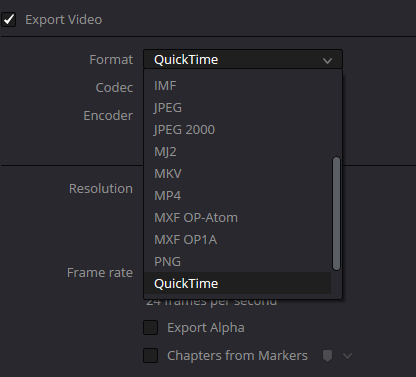
Format includes movie containers and image-sequence formats. QuickTime is selected. Codec is separate; the extension alone does not describe compression.
| Choice | Possible result | Clarify |
|---|---|---|
| MP4 / QuickTime | A file containing media and metadata | Supported codecs and streams |
| MXF | Professional interchange container | OP1A/OP-Atom and delivery specification |
| PNG / OpenEXR | Image sequence | Numbering, import fps and separate sound |
Codec determines the video representation
H.264, H.265/HEVC, AV1, ProRes, DNxHR and FFV1 represent and compress pictures differently. Some suit compact viewing, others further processing or storage. Even within one container, size, load, bit depth and compatibility can differ greatly.
The screenshot shows QuickTime's codec list on one configuration, not a universal list for every OS/edition. Check Supported Codec List and its Encode column when you intend to export.
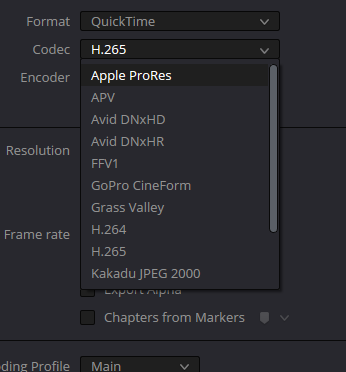
QuickTime codecs on the screenshot author's system. Availability varies by platform, Resolve version and encoder. Check profile/depth after selecting codec.
- Select Format and inspect the Codec list.
- Check the required option for your OS and edition in Blackmagic's table.
- Check bit depth, chroma and alpha separately.
- Render a short test and inspect its actual stream properties.
Encoder is the implementation
Native, NVIDIA, Intel, AMD or Auto identify encoding paths available in a configuration. One codec may have multiple encoders with different options. An NVIDIA GPU does not make every render NVENC: effects and decoding can use the GPU independently of final encoding.
Auto selects an available path; the label alone does not identify it. For a fair comparison, fix encoder, version, driver and other settings. Do not assume a field from another screenshot exists in a different backend.
| Field | Question |
|---|---|
| Format | How are the streams packaged? |
| Codec | How is the image represented? |
| Encoder | Which implementation encodes it? |
| Profile / bit depth / chroma | Which stream features must the decoder support? |
Reading and writing are separate capabilities
Decode means reading; Encode means writing. OS/GPU support for AV1 playback does not prove Resolve AV1 export. ProRes import likewise does not imply every output profile or alpha mode. The application, driver and specific format must all support the path.
The kit's high-quality source is H.264. If your setup cannot decode it, changing output Format will not help. Prepare compatible source media using the README. An external transcoder is a separate tool, not a Render Queue result.
Select OS, codec, container and profile in the compatibility guide. Compare Decode, Encode and Alpha Exports separately: macOS AV1 Decode does not imply AV1 Encode in the 21.1 table; AAC has its own row without Linux support. Then test your installation. The guide does not measure your GPU.
Experiment: one codec in different containers
If H.264 is available in MP4 and QuickTime, export the same 12-second range with closely matched video/audio settings. Distinguish containers in filenames; do not change profile, bitrate and encoder together. Inspect both streams and playback.
If changing Format also changes available settings, record that comparison limitation. Containers may differ in timecode, metadata and player behaviour even with similar pictures. Choose for a reason rather than rating the suffix as “high quality”.
- Export MP4 and record settings.
- Export MOV with the same codec, if available.
- Compare picture stream, audio, duration and player support.
- Choose packaging for the recipient and retain configuration details.
STEP-BY-STEP PRACTICE
Describe an output unambiguously
- Record Format, Codec and Encoder separately.
- Add resolution/fps, profile, bit depth, chroma, audio codec and channels.
- Check your platform's corresponding Encode rows.
- Export a test and compare actual properties with your specification.
“MP4” becomes a verifiable stream and compatibility specification.
Errors and diagnosis
“MOV is always higher quality than MP4.”
MOV is packaging. Compare codec, profile, processing and stream settings, not just the extension.
“My GPU supports AV1, so Resolve must export it.”
Check GPU model, encoding versus decoding, application and driver support. These are separate conditions.
“My menu does not contain the article's field.”
Check Format, Codec, Encoder, Free/Studio and platform; options may differ.
Frequently asked questions
Are codec and encoder the same?
No. The codec defines the compressed-video format; the encoder is the implementation that produces it.
Why does Format contain PNG?
Deliver exports image sequences as well as movie containers. Arrange separate sound and import fps for sequences.
Sources and applicability
Check available settings against format, codec, encoder and your Resolve installation. Screenshots depict one configuration; diagrams explain individual operations.