FAIRLIGHT / AI / VOICE · 08
Dialogue Leveler
More consistent lines. A living performance.
One speaker turns away from the microphone, another speaks loudly, and a quiet ending disappears. Dialogue Leveler can bring dialogue levels closer together. Choose a mode, test the three modules and preserve the difference between a whisper and an ordinary line.
- 01Understand the four modes
- 02Choose useful modules
- 03Keep intentional dynamics
Explore how quiet and loud phrases move closer in level. These teaching controls are not plug-in parameters.
Choose quiet and loud lines.↗
One successful phrase does not test the scene’s dynamics. Check the source and major clip differences first.
Check: the original levels and intended perspective are understood.Change the controls to explore the diagram. No audio playback, native DSP or connection to Resolve.
Sources and scope · 8 October 2026
Reviewed on 8 October 2026 against the official DaVinci Resolve 21 Reference Manual: Track FX, clip controls and the relevant module descriptions. The manual illustrations were inspected. The workflow and browser exercise are authored teaching material; native processing, audio quality and project recall were not tested in an installed Resolve session. Existing site image paths are preserved; their filenames do not establish a particular build.
Read the source notes ↓On this page
01 / UNDERSTAND & APPLY
Balance speech while retaining perspective
Dialogue Leveler detects dialogue in recorded material and can reduce loud passages, lift quiet ones and gently reduce background. A useful test is an interview with different speaker levels or someone partly turning away from the microphone.
Equal waveform heights are not the objective. A quiet line, a character’s distance and an emotional stress may belong to the scene. Decide which variations obstruct understanding and which must survive; check that distinction after processing.
A quiet ending
The listener should understand the word while its ending may remain softer than its opening.
A louder participant
Bring the level closer to neighbouring lines without erasing that speaker’s character and accents.
Partly off microphone
Check level and changed tone separately. More gain alone does not restore the original vocal colour.
Reference: Blackmagic Design — DaVinci Resolve 21 Reference Manual · Fairlight Track FX
02 / UNDERSTAND & APPLY
Where to enable Leveler and what it affects
Choose a timeline or Media Pool clip to use its Dialogue Leveler in the Audio Inspector. For a whole track, use Mixer Track FX or switch the Inspector to track controls. Divide recordings made under different conditions into sensible scopes first.
Enable Track FX in the Mixer’s three-dot menu. Dialogue Leveler occupies its own position in this section. Effects In for ordinary inserts does not bypass it: use Leveler’s own enable switch and inspect any second instance on the clip.
Chapter 181 of the Resolve 21 manual describes mono, stereo and dual-mono operation, excluding tracks with more than two channels and live input for the ordinary Track FX path. The dedicated Cut Voiceover workflow also documents Leveler during recording. Keep that specific workflow distinct from an ordinary Mixer input.
Dialogue Leveler has no Studio-only marker in the manual, unlike the adjacent Voice Isolation and Dialogue Separator sections. If the panel is absent, first check scope, channel format and your build.
| Scope | Check |
|---|---|
| One clip | Settings belong to the selected object. Test both quiet and loud material within it. |
| Track | Make sure the shared setting suits all the lines, including exceptions. |
| Track FX window | It includes the Waveform Processing display. Its absence from the clip Inspector is expected. |
| Source level | Correct wrong channel mapping and extreme clip differences before trying one mode on everything. |
Reference: Blackmagic Design — DaVinci Resolve 21 Reference Manual · Fairlight Track FX
03 / UNDERSTAND & APPLY
The window: preset, behavior and three switches
The Resolve 21 manual illustration shows Baseline in the upper preset area and Allow wider dynamics in the lower selection. They are different controls: a saved window state and Leveler’s behavior choice. Baseline is not a fifth processing mode.
The Waveform Processing display shows a scrolling waveform and a grey processing line. This display is unavailable in the clip Inspector version. It helps locate events but neither measures intelligibility nor replaces listening.
| Element | Meaning |
|---|---|
| Dialogue Leveler on/off | Bypasses the module itself and is the primary comparison with the previous processing state. |
| Upper Preset / A/B | Saved window variants. Recheck mode, switches and Gain after choosing one. |
| Behavior selection | Four choices for different source levels and speech character. The manual calls it Preset Menu. |
| Three switches | Separate decisions about loud dialogue, quiet speech and background. |
| Output Gain | A 0.0…+6.0 dB overall boost. Its value does not describe the internal leveling. |
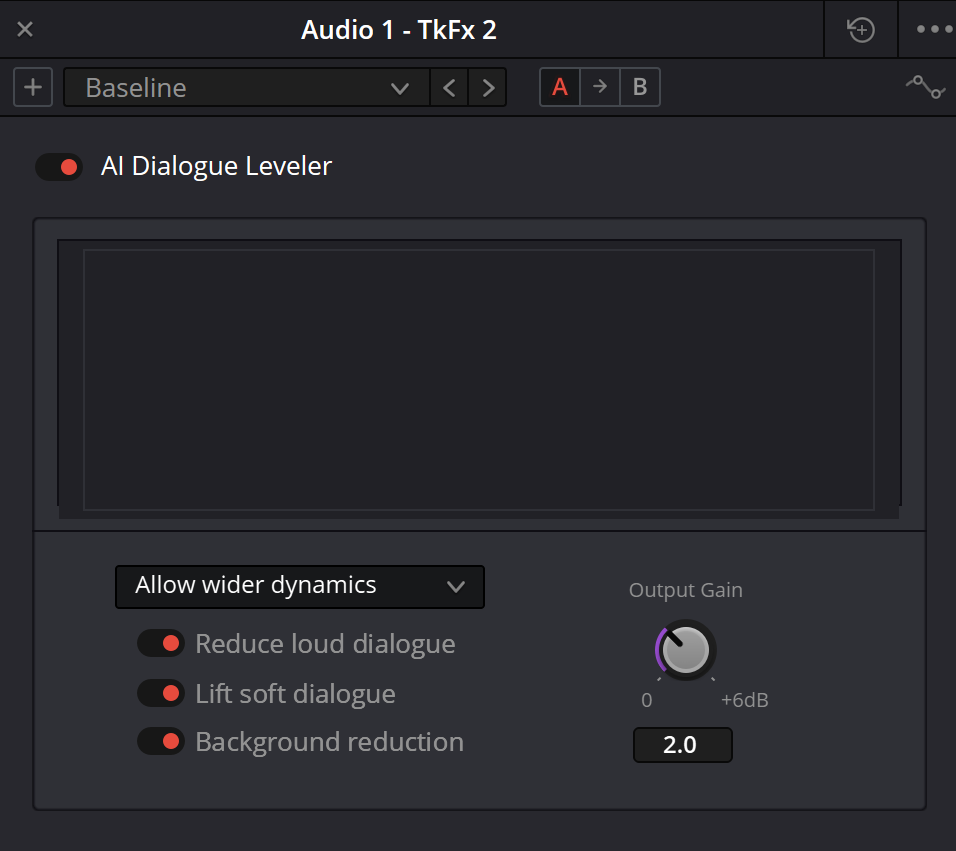
Dialogue Leveler — original interface example
Baseline, Allow wider dynamics, three switches and Output Gain. The existing site illustration is retained. Control descriptions below were checked separately against the official Resolve 21 manual.
Reference: Blackmagic Design — DaVinci Resolve 21 Reference Manual · Fairlight Track FX
04 / UNDERSTAND & APPLY
Four modes: choose from the source
Identify the recording you are working with first. A mode is a starting point for comparison, not a promise to repair a weak microphone, an unintelligible whisper or missing words.
Inspect the three switches after choosing a mode and record their actual state. The reviewed manual does not establish a universal table of automatic switch changes when a mode is selected; the teaching panel therefore assumes no such dependency.
| Resolve 21 mode | Source described in the manual | Listening check |
|---|---|---|
| Allow wider dynamics | Default; a wide loud-to-soft range with medium-to-high clip levels. | Whether stresses and the relationship between ordinary and quiet lines survive. |
| More lift for low levels | More low-level dialogue that needs raising. | Whether background during words becomes too prominent with the voice. |
| Lift soft whispery sources | Whispered speech with background noise. | Whether endings remain clear and the whisper stays natural. |
| Optimize moderate levels | Material at moderate levels throughout. | Whether useful consistency is gained without unnecessarily flattening accents. |
Reference: Blackmagic Design — DaVinci Resolve 21 Reference Manual · Fairlight Track FX
05 / UNDERSTAND & APPLY
The three modules and Output Gain
| Control | Action | Practical check |
|---|---|---|
| Reduce loud dialogue | Rides prominent speech downward without manually setting a threshold or times. | Compare a stressed word and emotional emphasis. This does not promise a particular exported peak ceiling. |
| Lift soft dialogue | Raises detected low-level speech. | Inspect endings and quiet lines; background occurring with them can become more apparent too. |
| Background reduction | Gently reduces background according to the internal mode selected. | Compare pauses and background during words. Consider Voice Isolation or Separator separately for complex interference. |
| Output Gain · 0.0…+6.0 dB | Adds overall level after leveling. | Raises the complete result. Use another appropriate path control for attenuation and recheck peaks. |
Reference: Blackmagic Design — DaVinci Resolve 21 Reference Manual · Fairlight Track FX
06 / UNDERSTAND & APPLY
Set up a three-line comparison
Prepare the material
In a test copy, select quiet, ordinary and loud lines with pauses. Check microphone and source channels.
Correct major exceptions
Adjust obvious clip-level errors locally. Do not turn an intentional whisper into a shout simply to match peaks.
Choose a mode
Begin with the source description in the table. Audition all three lines, not only the one that first sounded better.
Test modules separately
Compare Reduce, Lift and Background reduction individually, then evaluate them together.
Set overall level
After choosing the behavior, assess Output Gain. Compare at similar loudness and inspect later effects and the output.
Restore the scene and save
Listen with picture, music, pauses and edits. Record settings and remaining issues; recheck the saved project and a short export.
07 / UNDERSTAND & APPLY
A teaching scene: bring dialogue levels closer
The panel provides hypothetical quiet, ordinary and loud lines. Mode selection changes the teaching source while the three switches retain their state. Source spread and Level convergence are drawing parameters, not extra controls in the real Leveler.
Compare Lift alone and Reduce alone. Explain which phrases moved up or down and why a pause remained a pause. This authored model uses predefined annotations: it does not recognize your speech, reproduce internal analysis or predict the recording’s final loudness.
Lift the soft phrase. Hold back the loud one.
Try the two directions of leveling independently. The scenario changes the authored source, while the switches keep their state. Pauses remain in the same places.
The middle reference is an author-defined guide. A quiet phrase moves upward only with Lift enabled; a loud phrase moves downward only with Reduce enabled. No speech appears in a pause.
08 / UNDERSTAND & APPLY
Leveler, clip level, compression and automation
| Tool | Useful task | Separate check |
|---|---|---|
| Clip Volume / normalization | Set a baseline or correct a major difference between clips. | Equal gain changes both voice and noise; it does not level every phrase within the recording. |
| Dialogue Leveler | Bring detected dialogue levels closer, accounting for the type of source. | Check mode, three switches and intentional dynamics. |
| Compressor / Dynamics | Adjust dynamic response with explicit threshold, ratio and available time controls. | Check accents and the signal reaching the detector. The control set is different. |
| Automation | Specify an exact creative balance throughout the scene. | Audition transitions and preserve character perspective. |
| Voice Isolation / Dialogue Separator | Address speech and a complex environment. | Choose isolation or component balance from the audible problem. |
| Music Remixer / Ducker | Change musical components or create space in a separate bed. | Judge the competition between music and speech in the full mix. |
Reference: Blackmagic Design — DaVinci Resolve 21 Reference Manual · Fairlight Track FX · Blackmagic Design — DaVinci Resolve Studio / AI audio tools
09 / UNDERSTAND & APPLY
When leveling is not enough
Leveler really does include Background reduction. That does not turn it into a universal restoration tool. Mains hum, a harsh sibilant, a click and a strongly reflective recording need separate comparisons and sometimes local editing.
Do not automatically stack Leveler, a compressor and a limiter just to add stages. If Leveler already addresses the unwanted variation, further treatment may be unnecessary. For a specific dynamic response or deliberate level movement, use suitable controls and automation.
Raising a word obscured by clipping, an edit or interference does not establish that it has been recovered. Revisit another microphone, take or ADR. At delivery, independently verify actual loudness, peaks, channels and the chosen export route.
10 / UNDERSTAND & APPLY
When more consistent sounds less convincing
| Observation | Check |
|---|---|
| A whisper sounds like normal speech | Mode, Lift and source Clip Volume. Define the intended performance difference first. |
| Quiet speech brings the background up | Compare Lift and Background reduction, then consider a separate interference tool. |
| An emotional emphasis disappeared | Compare Reduce loud dialogue and another mode at similar listening level. |
| Output Gain created high peaks | Overall gain adds level. Inspect the downstream path and actual output. |
| No waveform display in the clip Inspector | This is a documented clip-control difference. Open Track FX if the processing display is needed. |
| Effects In makes no difference | Bypass Leveler itself and inspect processing on both clip and track. |
Reference: Blackmagic Design — DaVinci Resolve 21 Reference Manual · Fairlight Track FX
PRACTICE / NO AUTOPILOT
A small task. A checkable result.
Work in a test copy, listen before and after, and write down what you actually observed. The checklist contains no pre-approved results.
Choose three lines
Find quiet, ordinary and loud speech. Record which differences are intentional.
Record the starting conditions
Build and edition, clip or track scope, channel format and any Clip Volume changes.
Compare modes and modules
Record the complete mode label and three actual switch states. Note the benefit and side effect of each active module.
Separate Output Gain
Compare at similar listening loudness. Check that an overall boost is not hiding lost expression.
Review scene and export
Check words, pauses, music, edits and the output file. Keep unresolved observations.
FAQ / BEFORE THE NEXT MOVE
Questions that matter in practice
Is Leveler just another name for a compressor?
No. It focuses on detected dialogue and offers four modes and three modules. The user does not set the usual Threshold, Ratio, Attack and Release combination.
Reference: Blackmagic Design — DaVinci Resolve 21 Reference Manual · Fairlight Track FX
Is Baseline another mode?
No. Baseline in the illustration belongs to the upper window preset. The lower behavior selection shows Allow wider dynamics; its four options are listed separately.
Reference: Blackmagic Design — DaVinci Resolve 21 Reference Manual · Fairlight Track FX
Does Background reduction really lower background?
Yes. The manual describes gentle background reduction depending on the selected mode. It does not promise complete removal of a complex environment.
Reference: Blackmagic Design — DaVinci Resolve 21 Reference Manual · Fairlight Track FX
Does every Leveler require Studio?
The Resolve 21 manual does not mark Dialogue Leveler Studio-only. It does apply that marker to Voice Isolation and Dialogue Separator. Check the feature, build and channel format individually.
Reference: Blackmagic Design — DaVinci Resolve 21 Reference Manual · Fairlight Track FX
Can Output Gain go below 0 dB?
This control’s documented range is 0.0…+6.0 dB. Use another appropriate signal-path control to reduce level, then recheck the result.
Reference: Blackmagic Design — DaVinci Resolve 21 Reference Manual · Fairlight Track FX
Does the teaching panel know how much my whisper will be lifted?
No. It uses a predetermined scene and authored rules. Native detection, noise and the recording’s final level are not analyzed.
REFERENCES / 2026-10-08
What this guide is based on
Reviewed on 8 October 2026 against the official DaVinci Resolve 21 Reference Manual: Track FX, clip controls and the relevant module descriptions. The manual illustrations were inspected. The workflow and browser exercise are authored teaching material; native processing, audio quality and project recall were not tested in an installed Resolve session. Existing site image paths are preserved; their filenames do not establish a particular build.
Blackmagic Design — DaVinci Resolve 21 Reference Manual · Fairlight Track FX ↗
Official PDF: chapter 181, pages 4091–4096 cover Voice Isolation, Dialogue Leveler, Ducker, Music Remixer and Dialogue Separator; page 3982 covers clip controls; 3837 covers Effects In bypass; 690–692 cover the separate Cut-page Voiceover workflow; 952–953 cover Track Mode; 4090 covers Track FX automation; 1148–1149 distinguish AI Music Editor. Text and panel illustrations reviewed on 8 October 2026. This is documentation review, not an audition of processing in an installed application.
Blackmagic Design — DaVinci Resolve Studio / AI audio tools ↗
The current manufacturer page lists Voice Isolation, Music Remixer and Dialogue Separator in DaVinci Resolve Studio. Their purpose, controls and limits are reviewed using the full Resolve 21 manual. These three Studio tools do not imply that the entire editorial chapter requires Studio.