 ILLUSTRATION
THE EFFECT HAS A PURPOSE
The Resolve FX
catalog.
Find the tool. Understand the effect.
From a subtle glow to technical color transforms. Search by name, purpose or control, compare the tools and move to a detailed guide — without scrolling through a wall of settings.
101published guides
16library categories
RU / ENone reference
YOUR REFERENCE SHELF
Which task is next?
Search the entire reference, then narrow the results.
Quick look explains the controls without leaving this page.
Found: 101 / 101
- ILLUSTRATION
 ILLUSTRATION02 / Blur
AI CineFocus
AI depth separation, optical simulation and a controllable focus/bokeh workflow on a dedicated node.
 ILLUSTRATION03 / Blur
Directional Blur
Linear blur along a chosen angle for motion, streaks and controlled directional energy.
 ILLUSTRATION04 / Blur
Gaussian Blur
Soft Gaussian blur with horizontal/vertical channel adjustment and predictable edge behavior.
 ILLUSTRATION
 ILLUSTRATION06 / Blur
Mosaic Blur
Pixelation through Pixel Frequency, Cell Shape, Aliasing and precise offsets for concealment or stylization.
 ILLUSTRATION07 / Blur
Radial Blur
Rotational blur around a center point with Blur Symmetry, Position, Quality and border handling.
 ILLUSTRATION
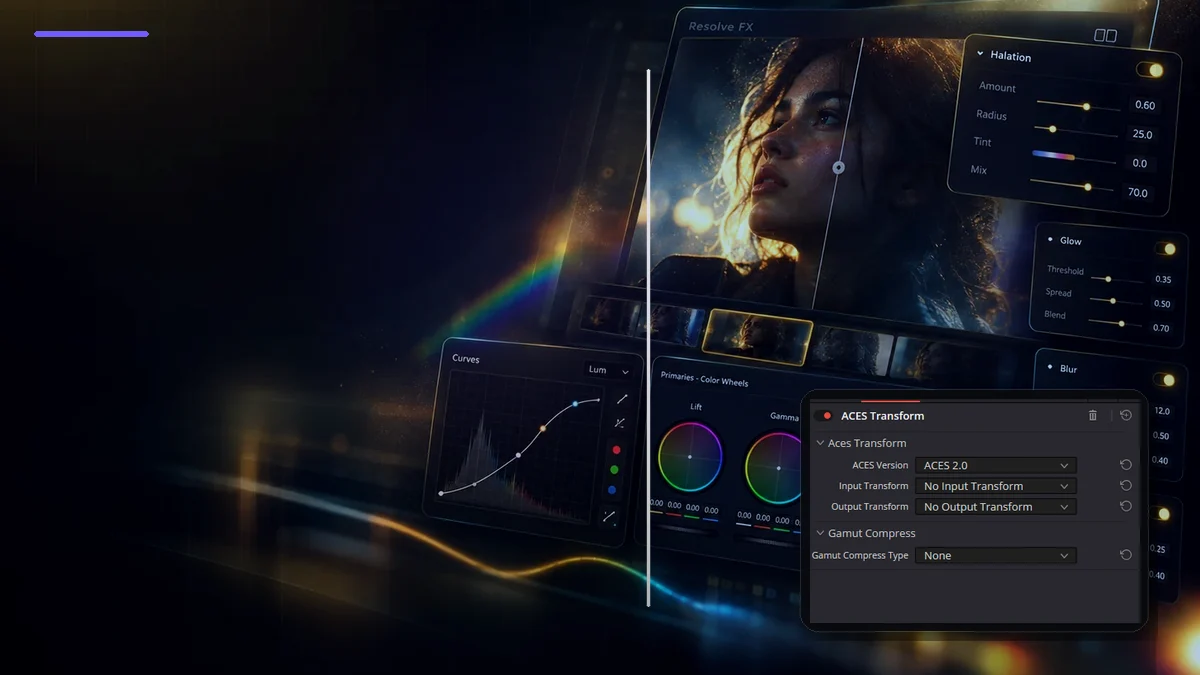 ILLUSTRATION09 / Color
ACES Transform
ACES Version, Input/Output Transform and Gamut Compress — an ACES-specific node-level transform.
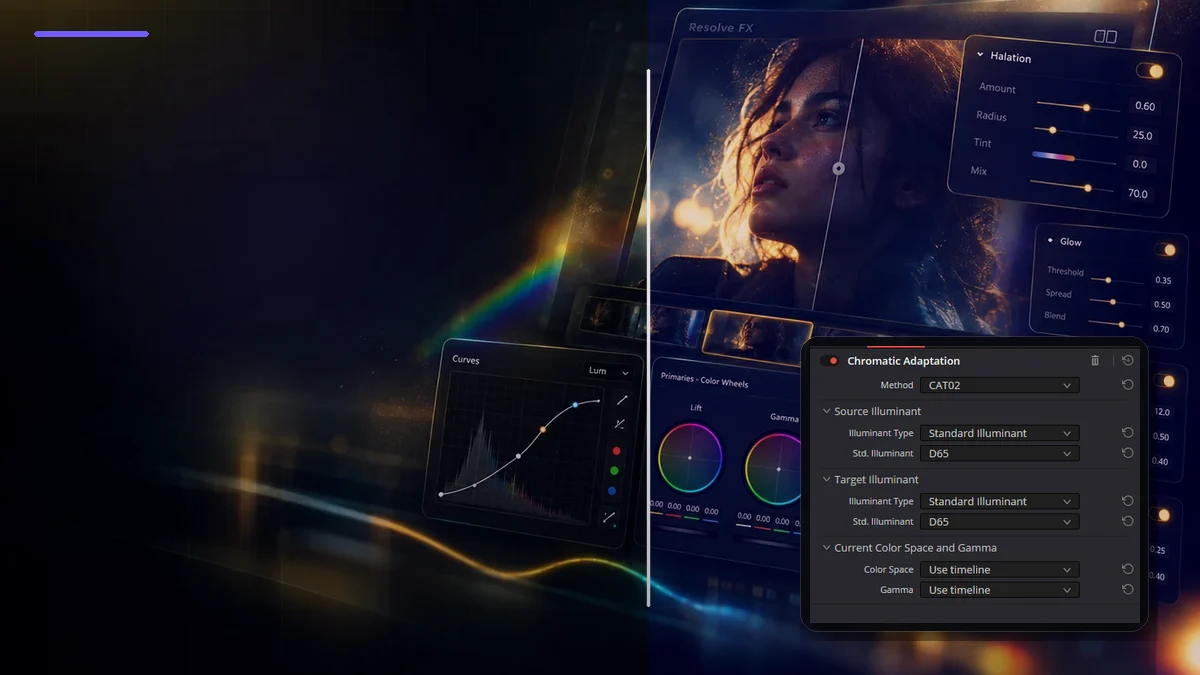 ILLUSTRATION10 / Color
Chromatic Adaptation
Method, Source/Target Illuminant, Current Color Space and Gamma for technical white-point adaptation.
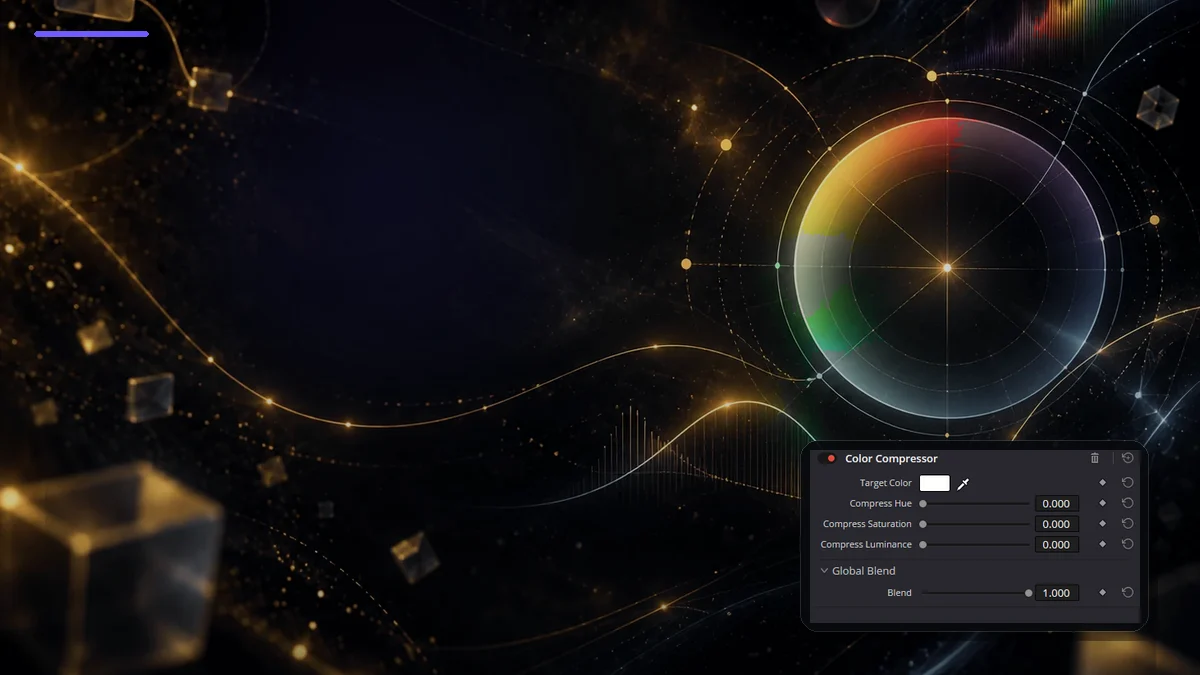 ILLUSTRATION11 / Color
Color Compressor
Target Color with independent Hue, Saturation and Luminance compression for stabilizing a chosen color region.
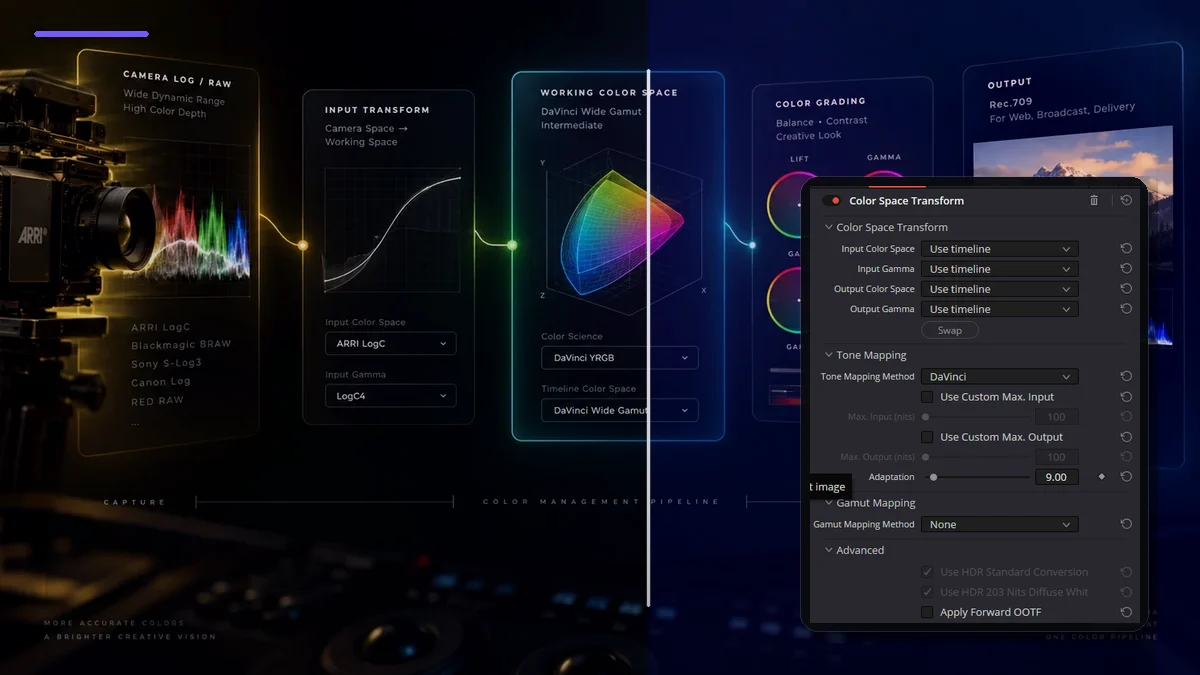 ILLUSTRATION12 / Color
Color Space Transform
Input/Output Color Space and Gamma, Tone Mapping and Gamut Mapping — Resolve's core manual technical transform.
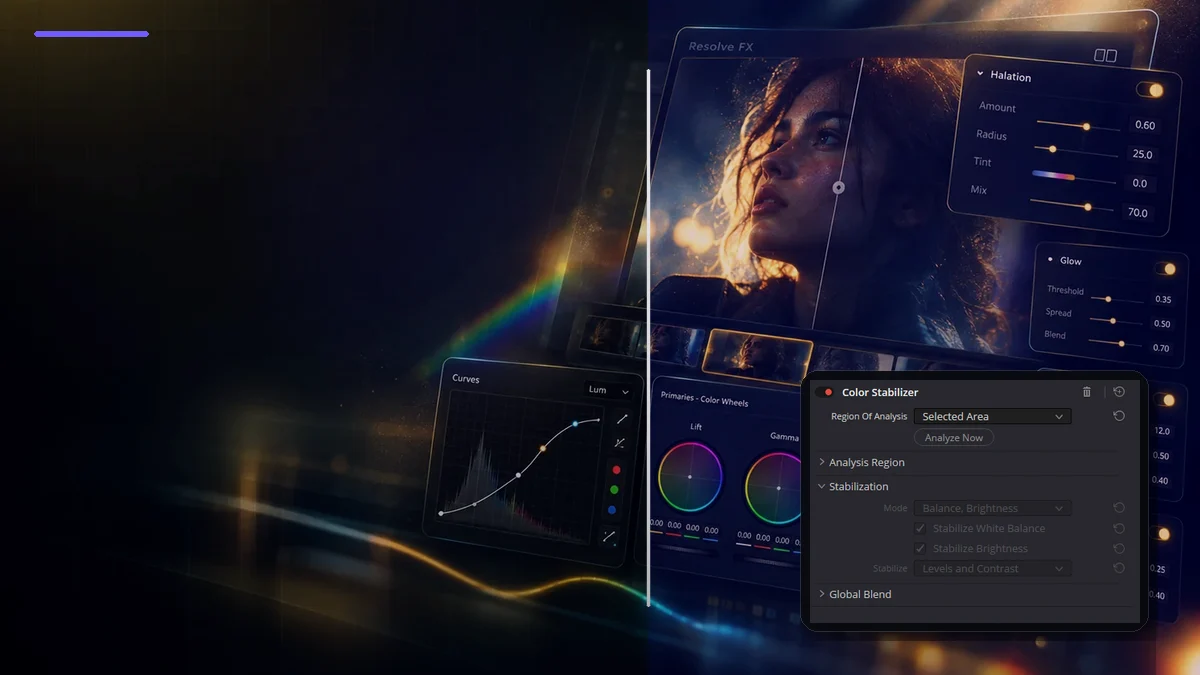 ILLUSTRATION13 / Color
Color Stabilizer
Region Of Analysis, Analyze Now, White Balance/Brightness and Levels and Contrast for stabilizing color and exposure drift over time.
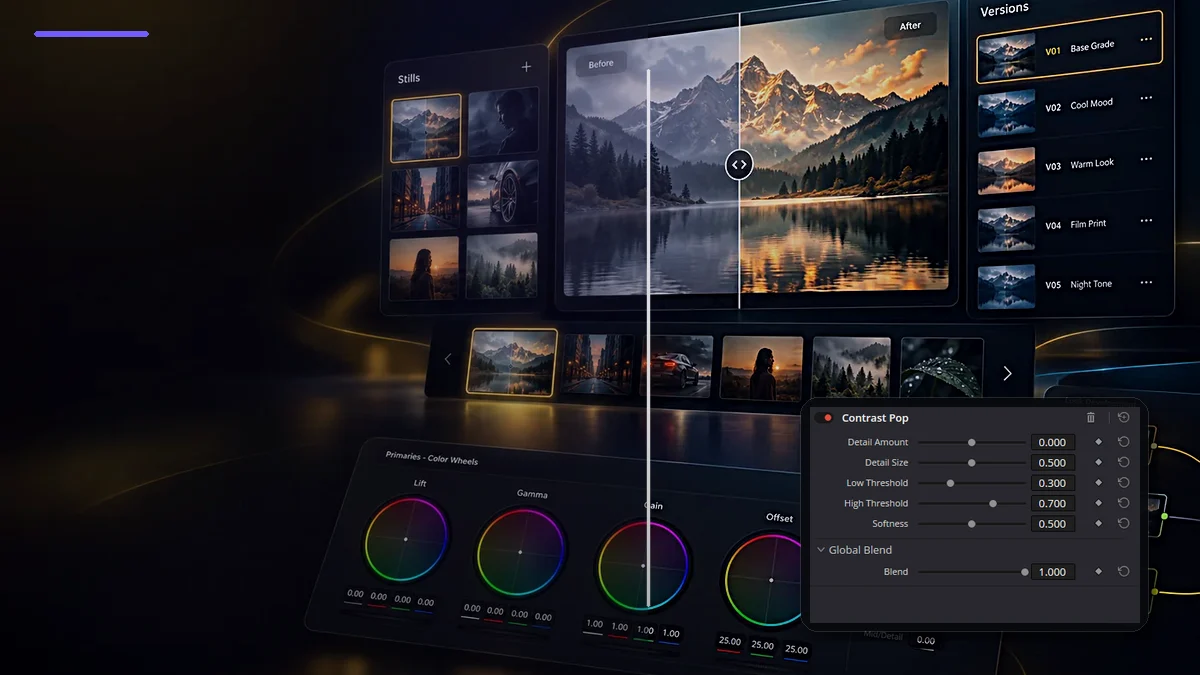 ILLUSTRATION14 / Color
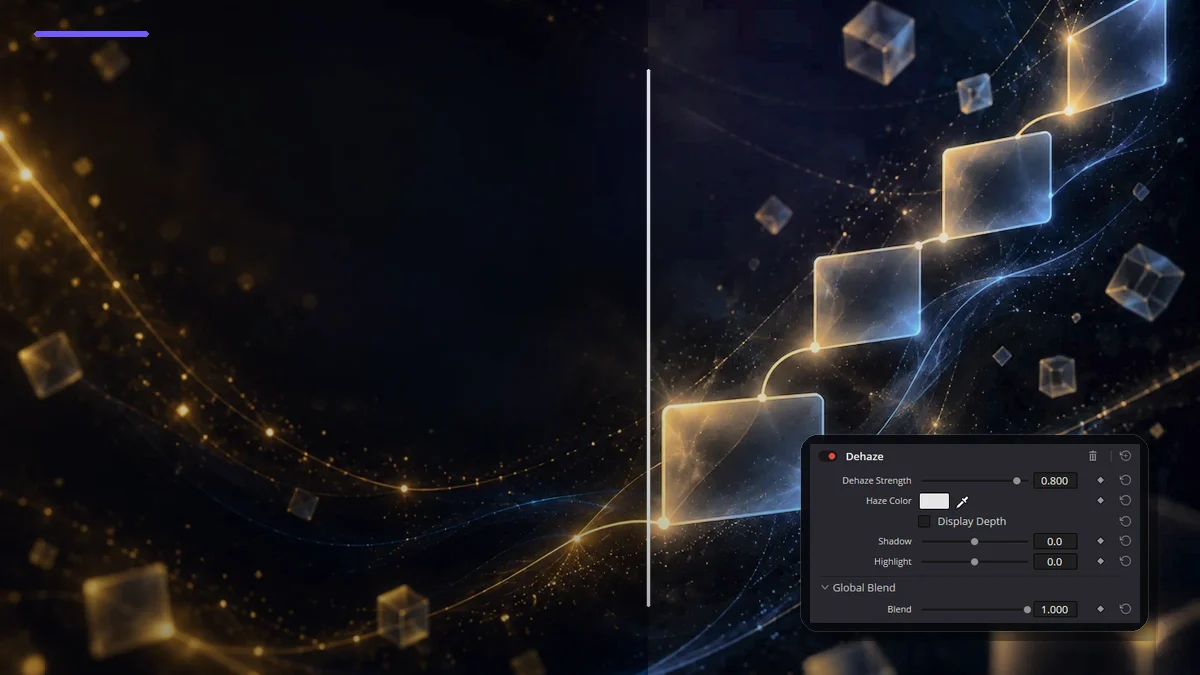
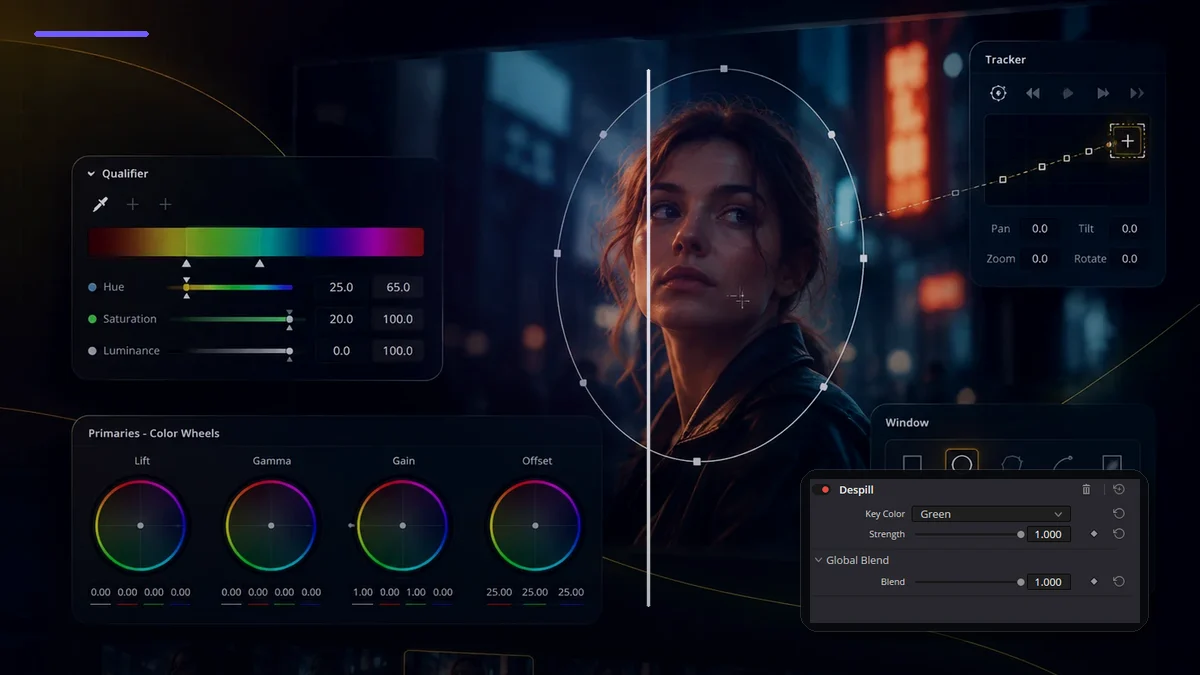
Contrast Pop
Detail Amount, Detail Size, Low/High Threshold and Softness for selectively increasing or reducing local contrast.
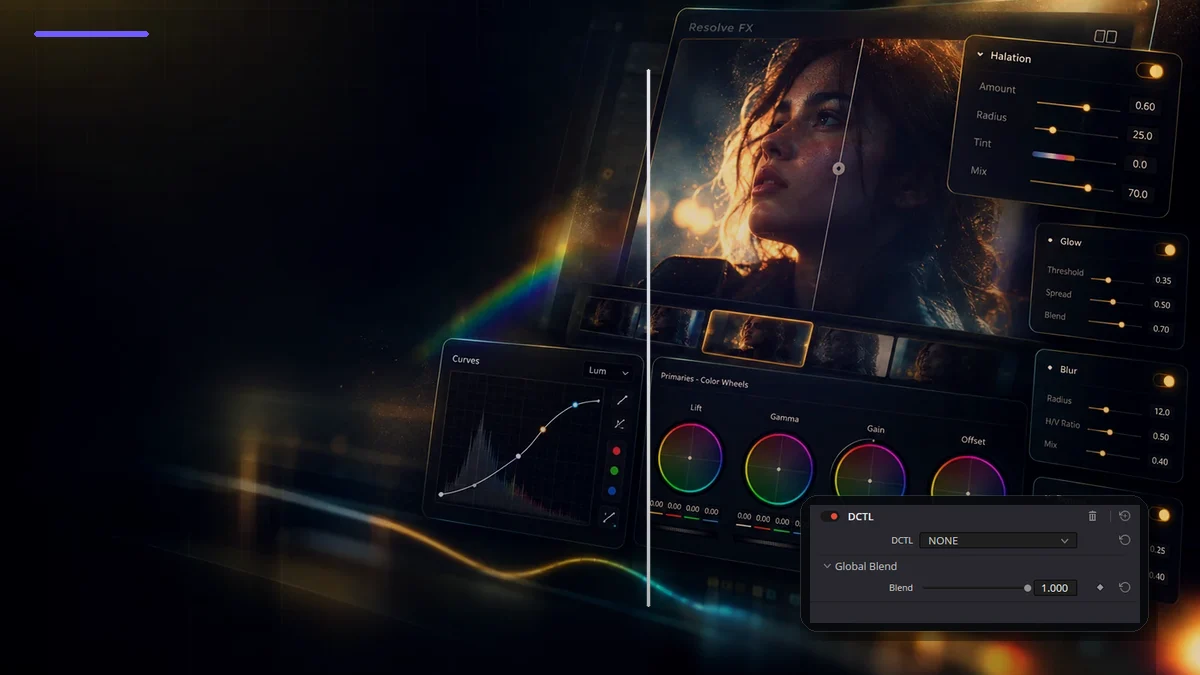 ILLUSTRATION
 ILLUSTRATION
 ILLUSTRATION
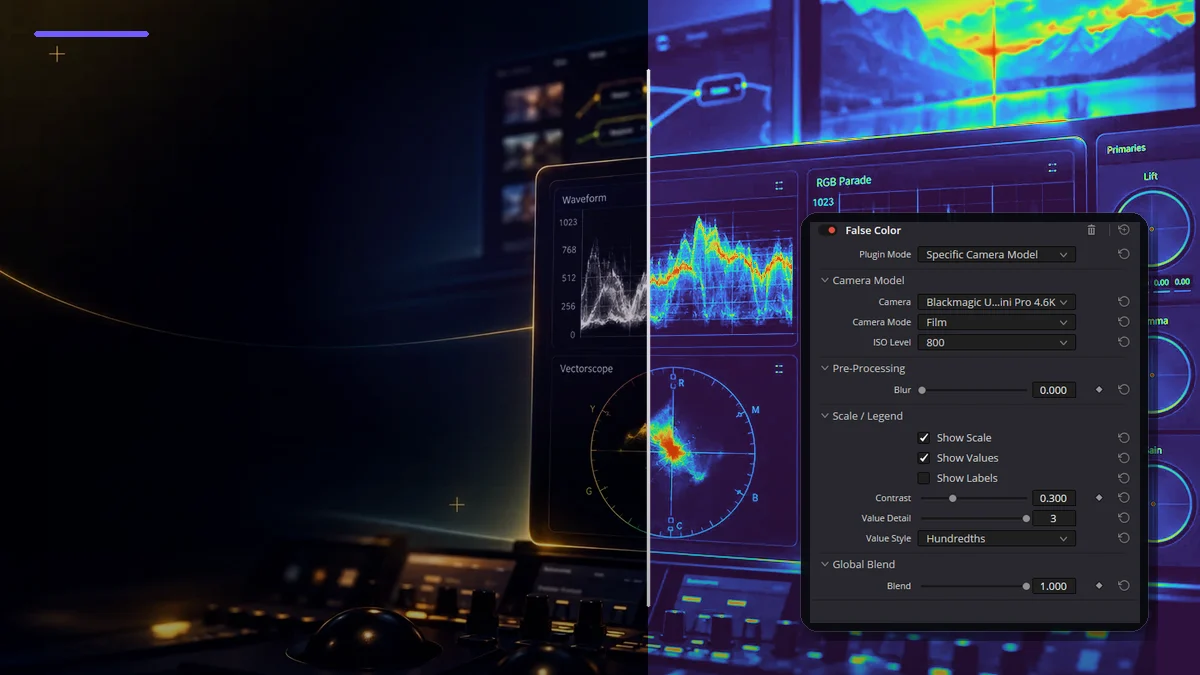 ILLUSTRATION18 / Color
False Color
Camera-matched or Creative false color: Camera/Mode/ISO, Pre-Processing, Scale/Legend, Value Style and Global Blend for spatial exposure analysis.
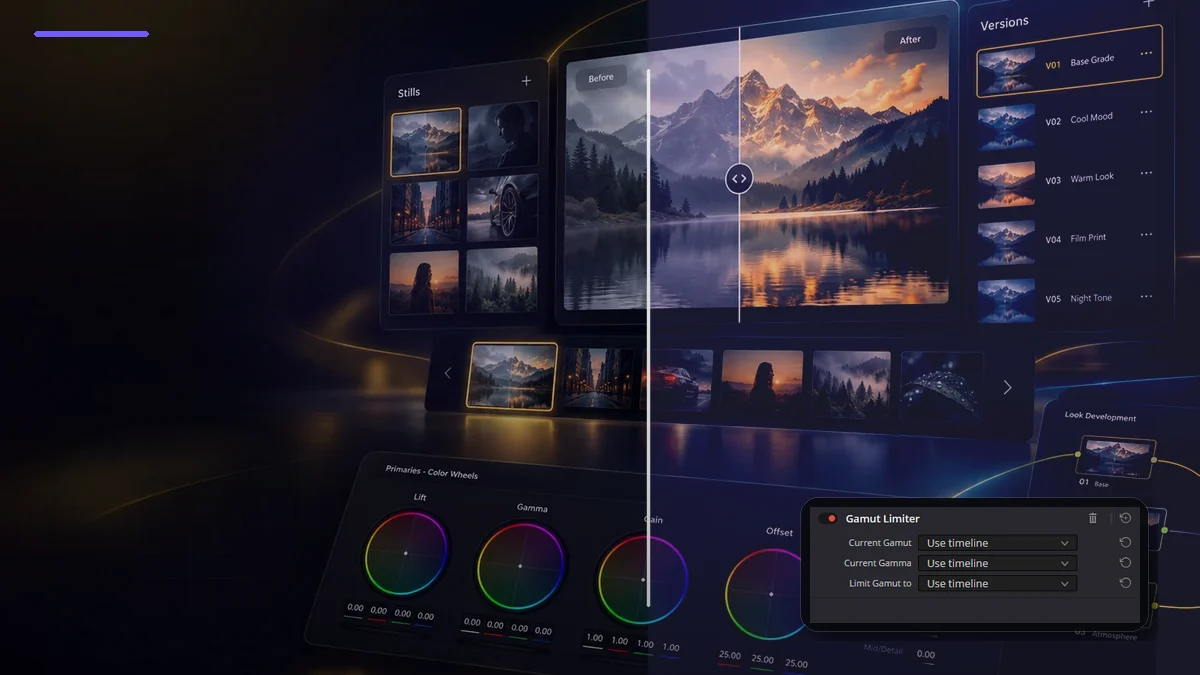 ILLUSTRATION19 / Color
Gamut Limiter
Current Gamut, Current Gamma and Limit Gamut to for hard-limiting out-of-gamut values to a delivery/QC boundary.
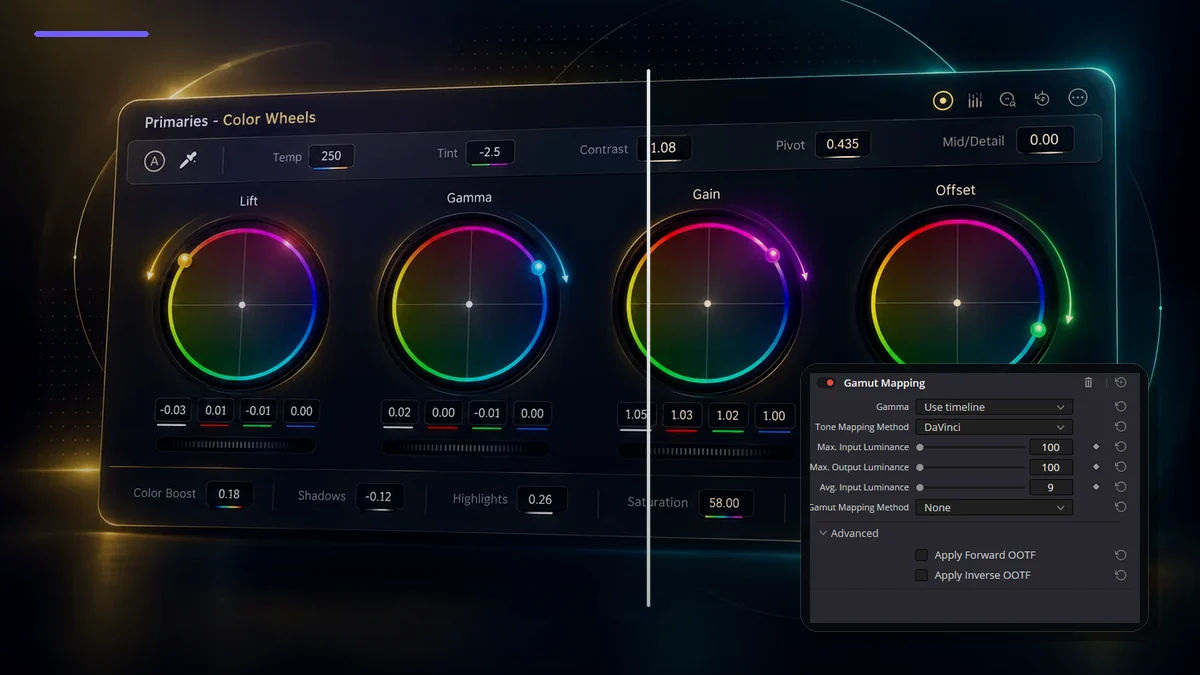 ILLUSTRATION20 / Color
Gamut Mapping
Gamma, Tone Mapping, Max/Avg Luminance, Saturation Compression/Clip and Forward/Inverse OOTF for controlled tone/gamut remapping.
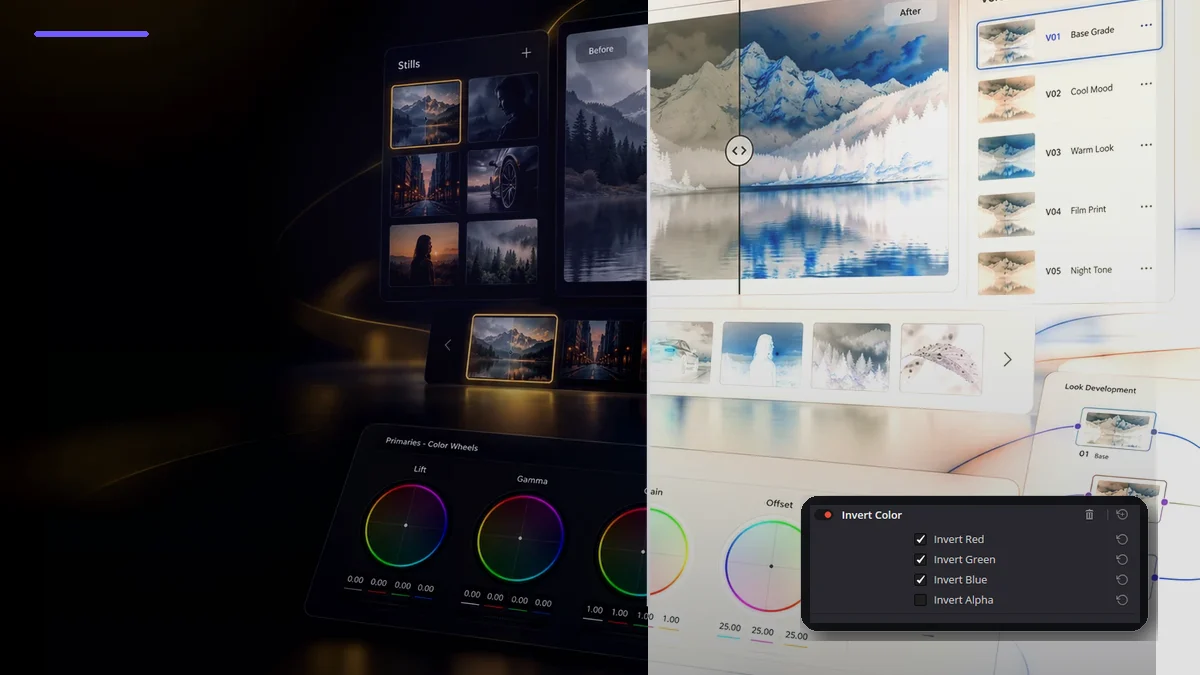 ILLUSTRATION21 / Color
Invert Color
Independent inversion of Red, Green, Blue and Alpha: full RGB negative-like output, selective channel operations and alpha/key utility without film-negative emulation.
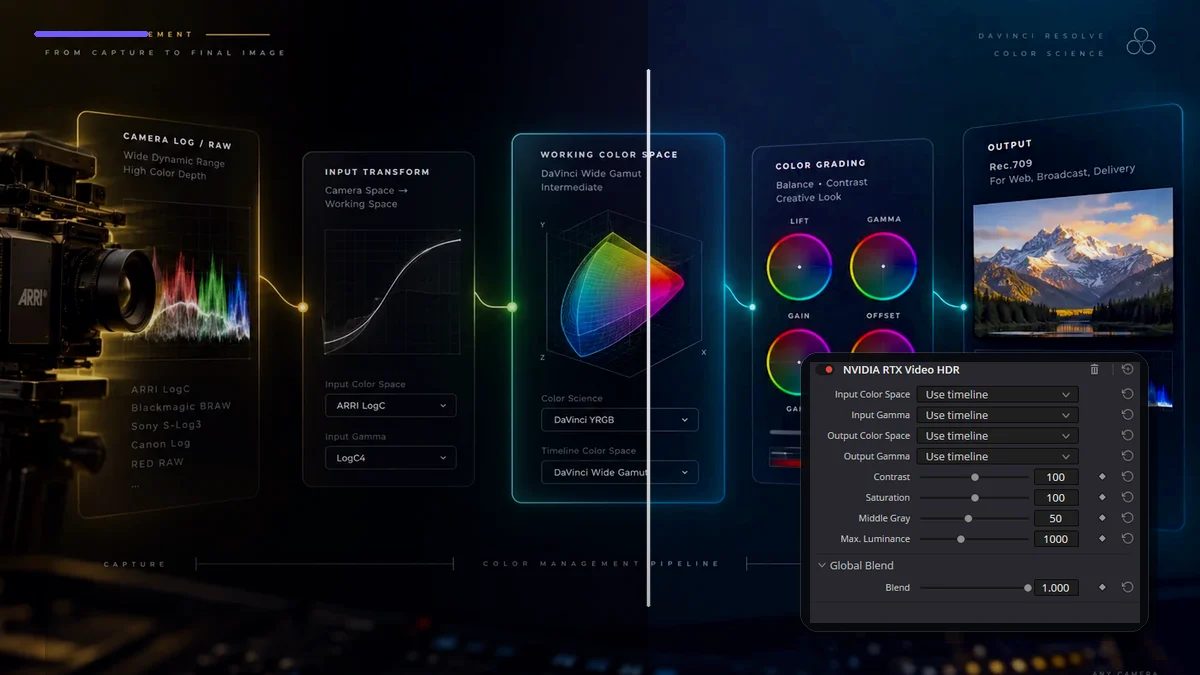 ILLUSTRATION22 / Color
NVIDIA RTX Video HDR
AI-assisted SDR→HDR mapping on NVIDIA RTX: Input/Output Color Space and Gamma, Contrast, Saturation, Middle Gray, Max. Luminance and Global Blend.
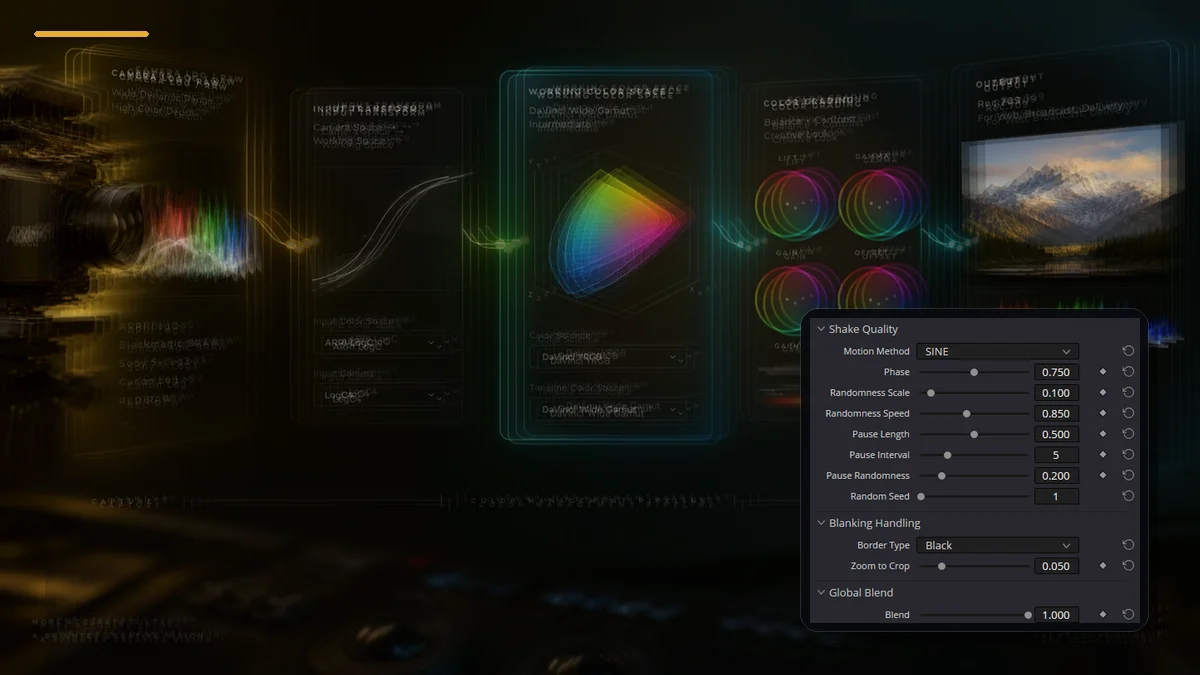 ILLUSTRATION23 / Film Emulation
Camera Shake
Procedural Pan/Tilt/Rotation/Zoom with Motion Method, randomness, pauses, Border Type, Zoom to Crop and Blend for handheld, impact and stylized shake.
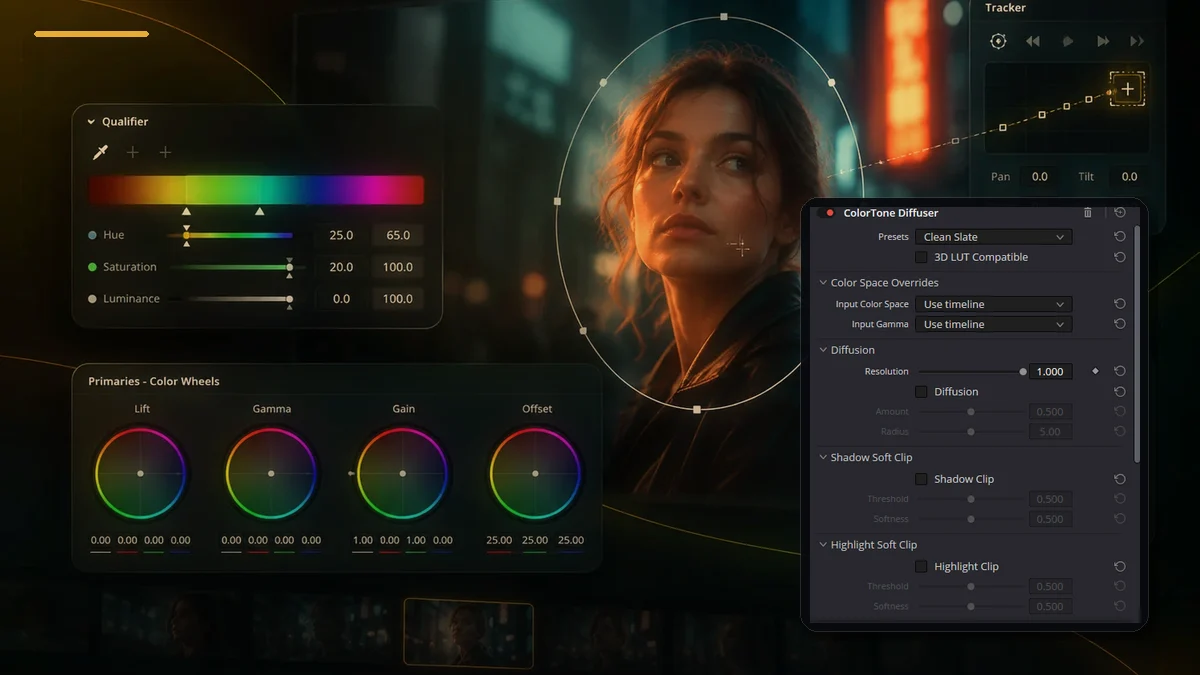 ILLUSTRATION24 / Film Emulation
ColorTone Diffuser
A diffusion-filter look with colored Tone Lights: 3D LUT Compatible, Color Space Overrides, Soft Clip, Falloff Mask, Image Adjustments and Global Blend.
Showing 1–24 of 101
Complete guide index101
Blur
Color
Film Emulation
Generate
Key
Light
OpenColorIO
Refine
Revival
Temporal
Texture
Stylize
Transform
Warp
Utility
FROM A TASK TO A DECISION
An effect is a step. Not the whole grade.
Decide what the image needs before choosing a plug-in. In Color, drag a Resolve FX from the library onto a node to open its settings. Start with one operation, compare it and only then build a chain.
- 01 / PURPOSE
Name the task.
Removing flicker and adding a film texture solve different problems. Choose a category or task, read the purpose and use quick look to inspect the controls before opening the full article.
Find an effect - 02 / SIGNAL
Give it a place.
A dedicated node helps separate an effect from the base correction. For transforms, check the expected input and output; do not add another technical transform just because a similar node appears in an example.
Node workflow - 03 / CHECK
Check the entire shot.
Compare the effect enabled and bypassed without changing your settings. Watch edges, moving details and noise. A convincing still does not guarantee a stable result in motion. Use the scopes alongside the image.
Read the signal
Check the installed version, edition and hardware before planning a workflow. Studio includes additional Resolve FX and AI tools. The catalog size is the number of guides on this site, not a compatibility promise for every installation.
USE THE REFERENCE
Before you apply it.
How do I find an effect?
Search by its English name, purpose or a control label. Categories preserve the existing library grouping; the task filter is an additional editorial shortcut. Quick look opens the control explanations without leaving the catalog.
Are these all the effects in every version of Resolve?
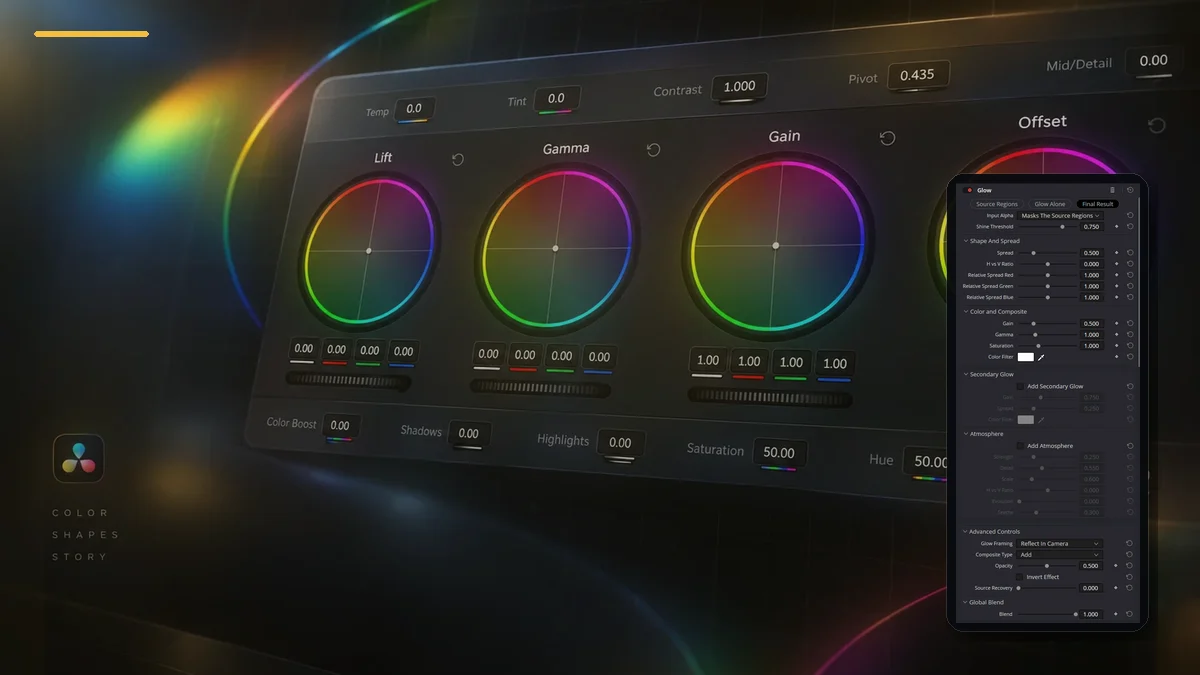
This site currently contains 101 FX guides in 16 categories. This is the size of the published reference, not a guarantee that every Resolve version or edition contains the same set. The illustrated cards are not screenshots or measured effect comparisons.
How do I apply an effect on the Color page?
Open the effects library and drag the effect onto a node. The library switches to its settings. A dedicated node makes the operation easier to identify and compare; inspect the result on the full shot, not just one frame.
Are all effects available in Free?
No. Studio adds Resolve FX and AI features. Availability also depends on version and, for some tools, hardware. Check the detailed guide and your installed Effects Library. This catalog does not mark an unverified effect as Free.
Where are bookmarks stored?
Only in this browser on this device, shared between RU and EN. No account is needed. Clearing site data removes the bookmarks. When browser storage is blocked, they remain available only for the current page session.
Scope: the published FX reference on this site. Card artwork is illustrative, not a Resolve screenshot or a measured before/after test. Control explanations in quick look come from the existing articles. Official references for applying FX, editions and version changes: